Pay Dashboard Backpay Guide
Time Card
For this guide, navigation to an individual’s Time Card is required. For assistance with this process, refer to the help document linked here.
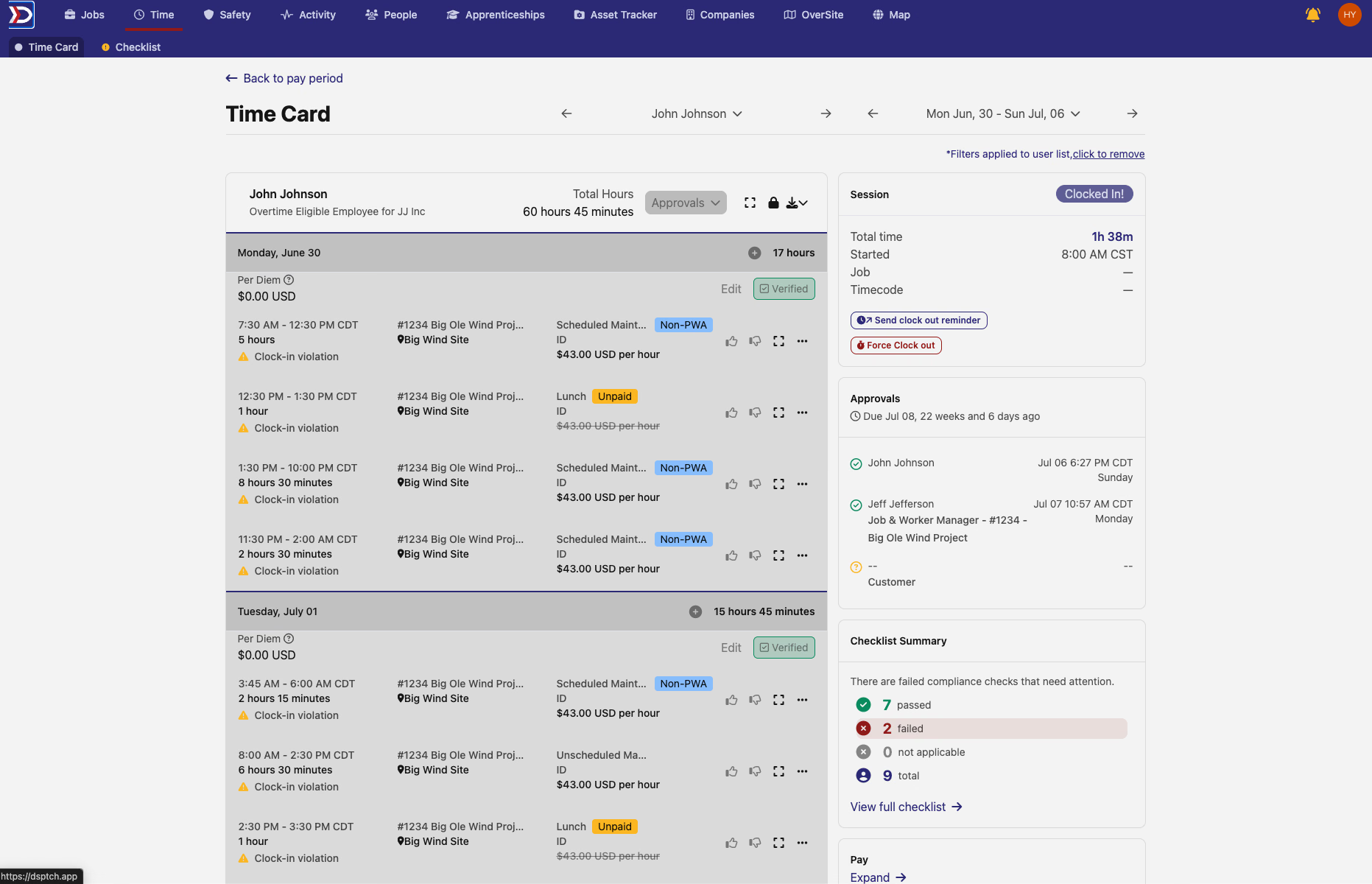
This guide uses John Johnson’s Time Card for the week ending July 6, as shown in the image above.
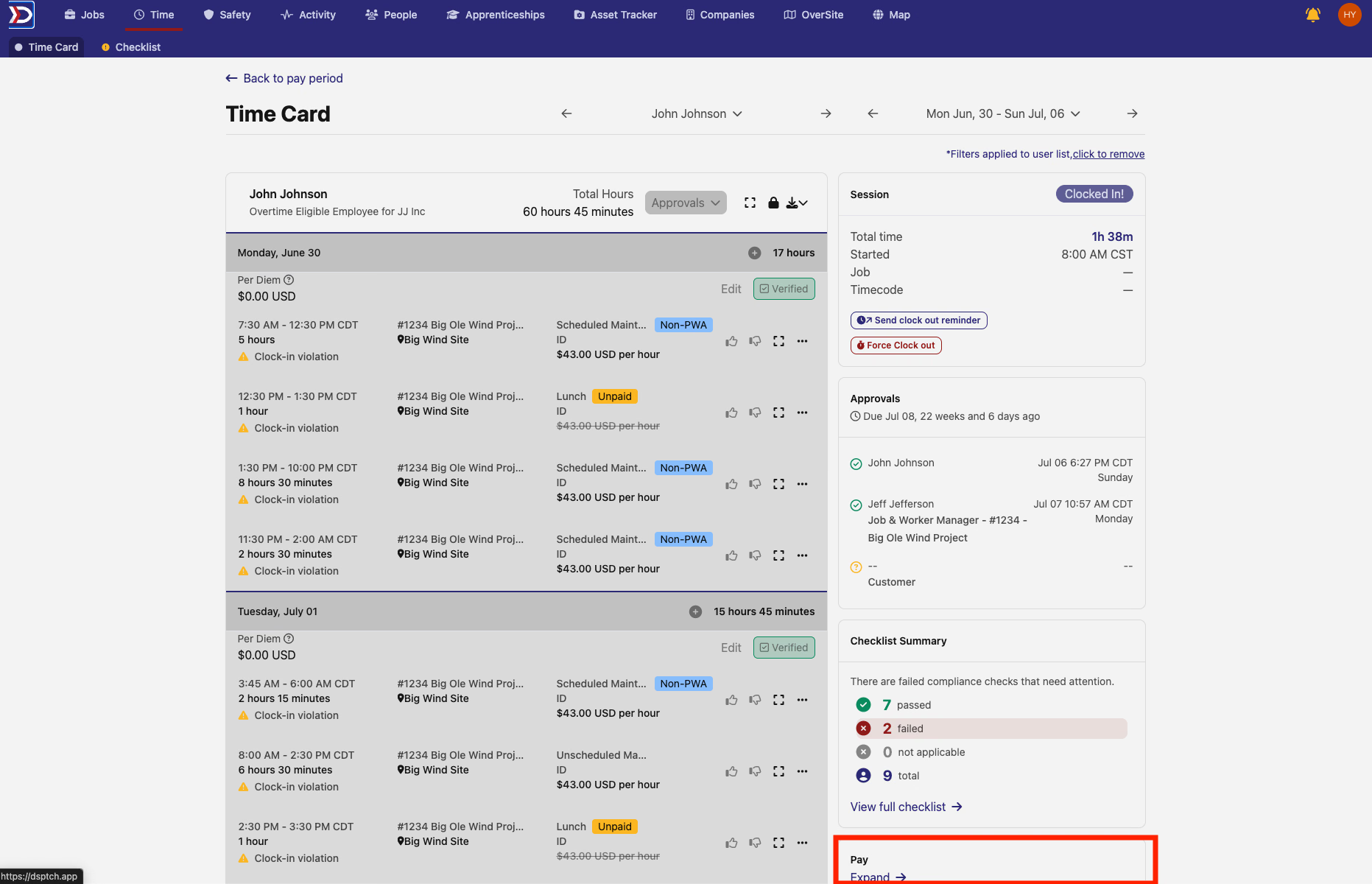
Backpay and outstanding amounts can be viewed in the Pay section, located at the bottom of the Time Card (indicated in the image above within the red box). This section outlines pay for the selected time period, how that pay compares to prevailing wage requirements, and any amount owed.
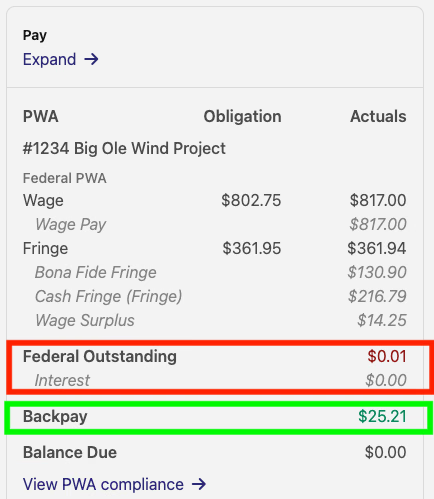
By scrolling down the page, the Pay section becomes visible. If backpay is owed to an employee, it appears in the Federal Outstanding section (indicated in the image above within the red box). In this example, $0.01 is owed. Backpay payments that have already been made can be viewed in the Backpay section (indicated in the image above within the green box). In this example, $25.21 in backpay has been paid to John Johnson.
Pay Dashboard
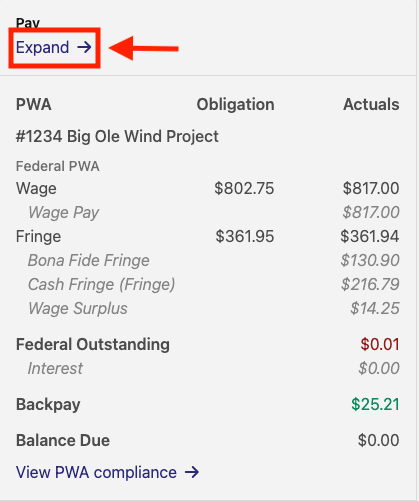
To manually input backpay, select Expand at the top of the Pay section (indicated in the image above within the red box and arrow).
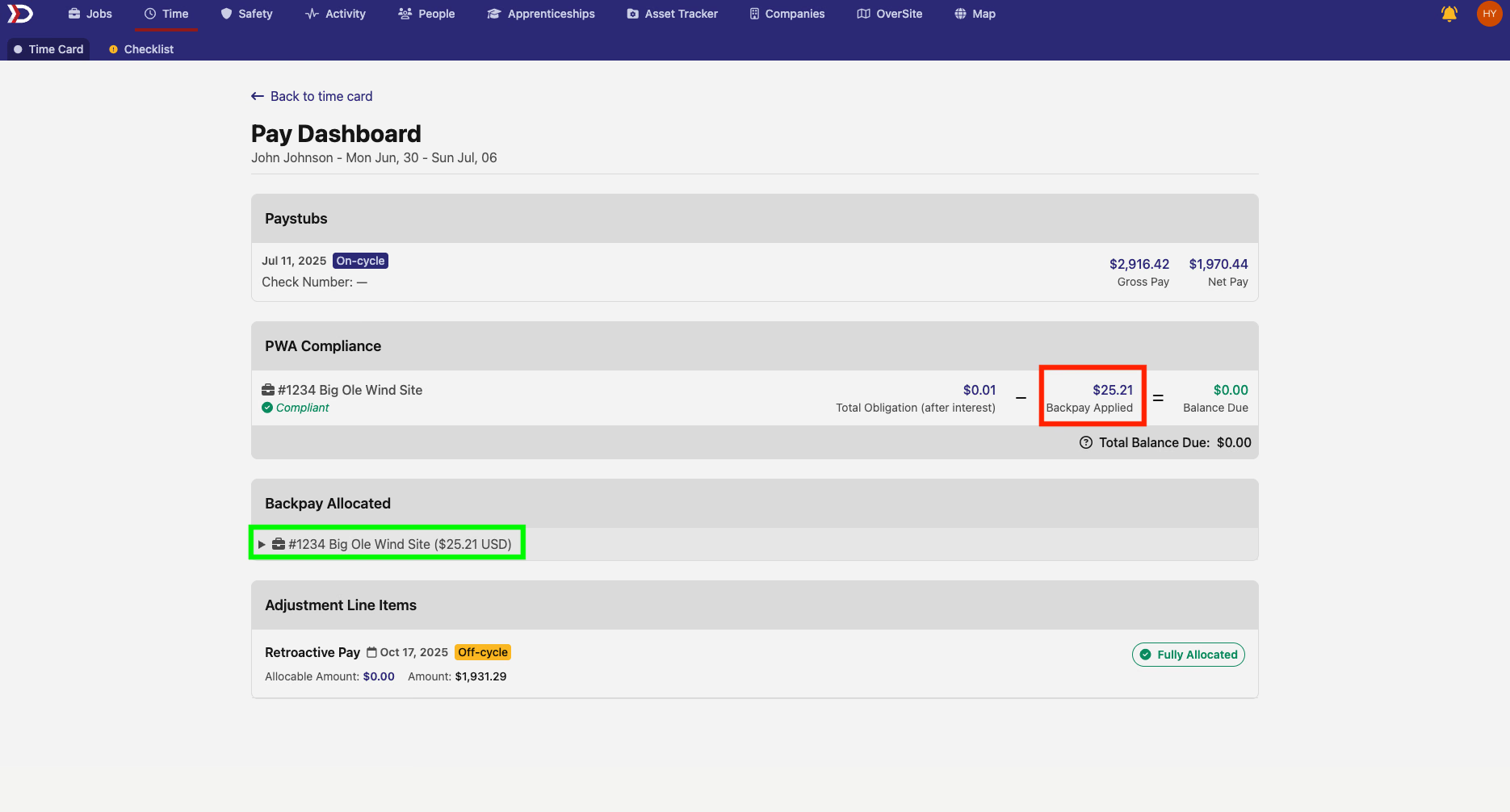
Selecting Expand opens the Pay Dashboard. On this page, the amount of backpay paid to John Johnson appears in two locations. The first is the PWA Compliance section (indicated in the image above within the red box), and the second is the Backpay Allocated section (indicated in the image above within the green box).
Adjusting Backpay
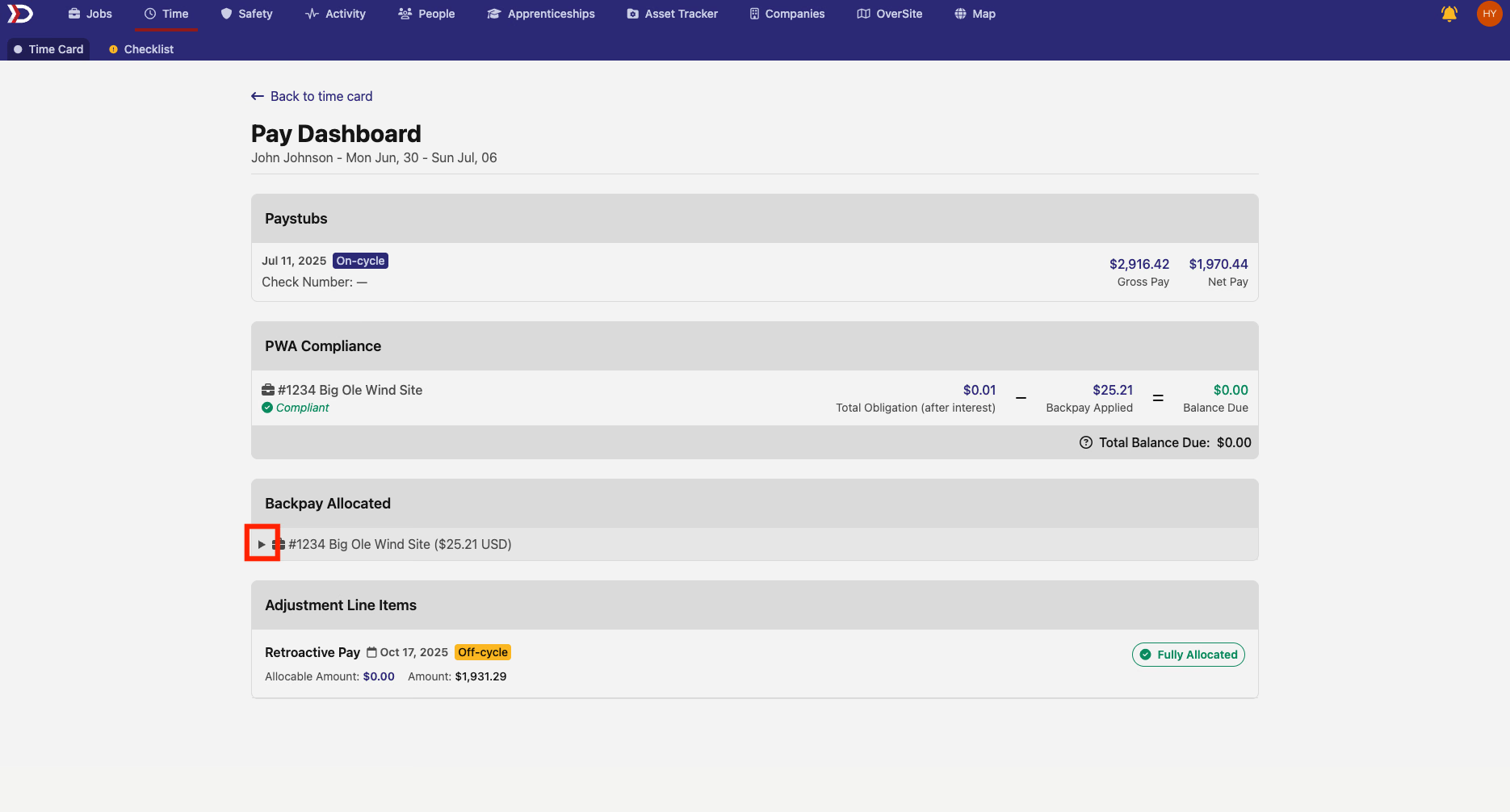
To adjust the backpay amount, select the arrow in the Backpay Allocated section (indicated in the image above within the red box).

This will expand the Backpay Allocated section, as shown above.

Next, select the pen and paper icon on the right side of the section (indicated in the image above within the red box).
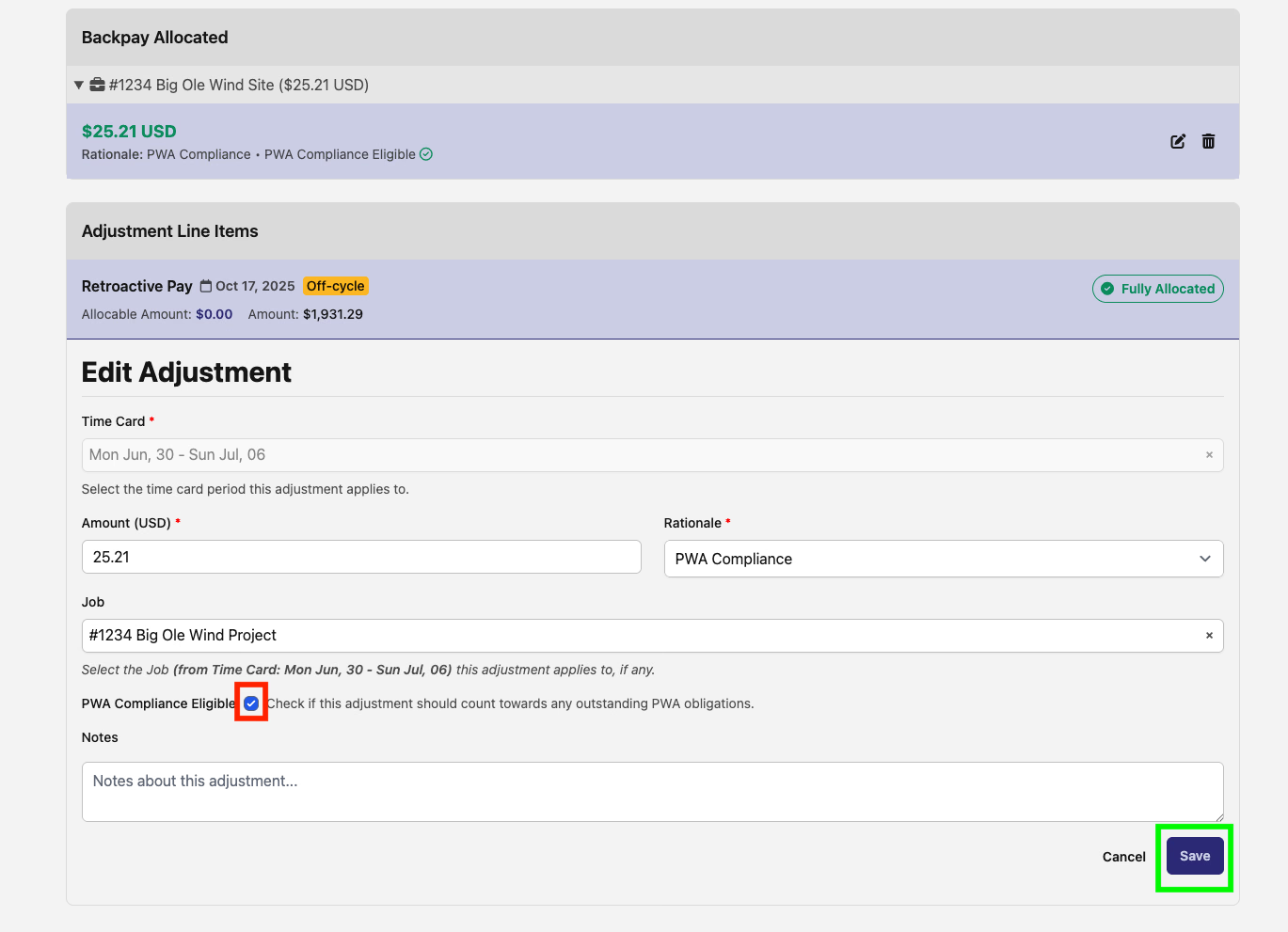
This action opens a new form at the bottom of the page titled Edit Adjustment. Within this form, several fields must be completed.
-
Time Card (required)
-
Automatically selected based on the Time Card pay period
-
Amount (required)
-
The amount of the adjustment
-
Rationale (required)
-
The reason for the adjustment
-
Job (optional)
-
The job associated with this adjustment
-
PWA Compliance Eligible Toggle (optional)
-
Whether the adjustment counts towards outstanding PWA obligations
-
Notes (optional)
-
Any additional comments related to the adjustment
Because this example concerns backpay, the PWA Compliance Eligible toggle should be selected (indicated in the image above within the red box), as this adjustment counts toward outstanding PWA obligations. Once all required fields are completed, select Save at the bottom right of the section (indicated in the image above within the green box).