Benefit Plans
Navigate to the Benefit Plans Page
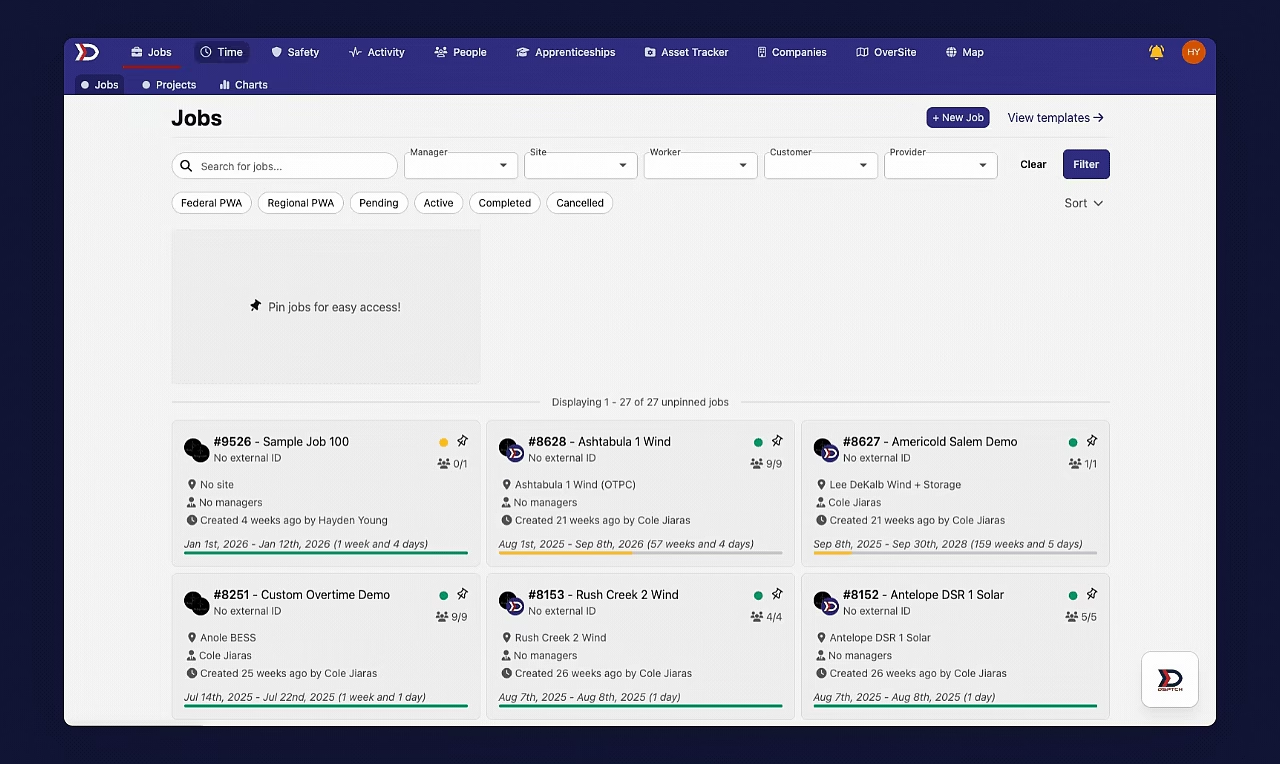
To navigate to the "Benefit Plans" page, first navigate to the "Time" tab from the primary navigation bar at the top of the page. Then, select the "Settings" tab from the sub-navigation bar. Next, click on "Benefit Plans" under the "Company" menu on the left side of the page.
See the video below for a demonstration:
Creating a Benefit Plan
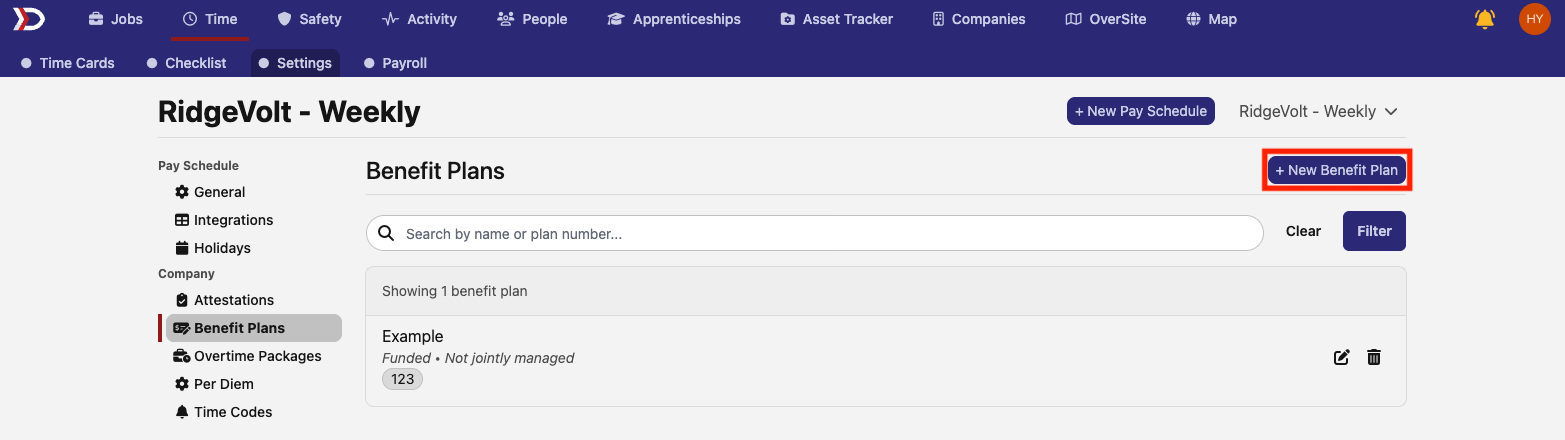
From the "Benefit Plans" page, click the "+ New Benefit Plan" button (indicated by the red box in the image below).
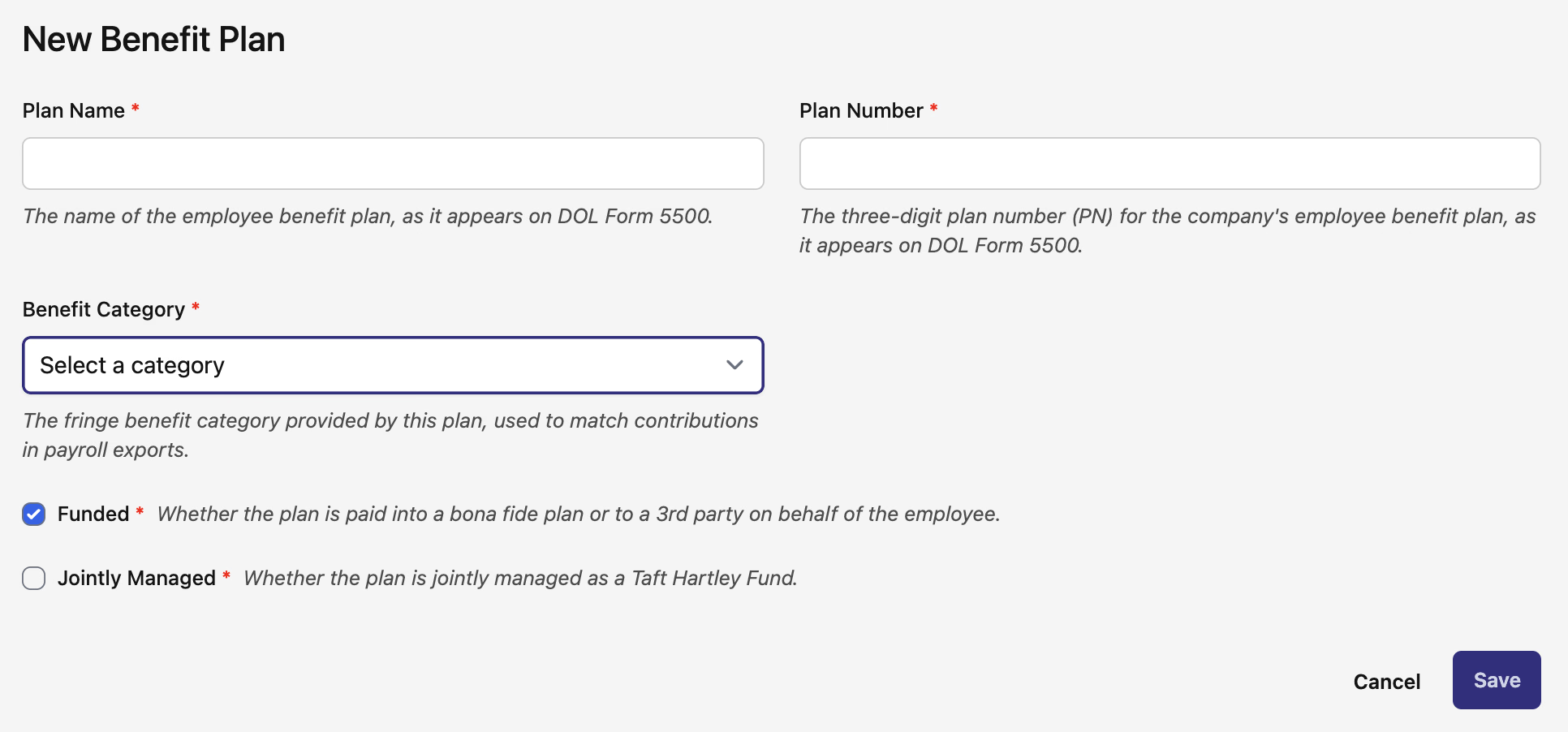
This will open the "New Benefit Plan" form (pictured below). There are several fields in the "New Benefit Plan" form:
-
Plan Name (Required):
-
The name of your employee benefit plan, exactly as it appears in DOL Form 5500
-
Plan Number (Required):
-
The plan number (PN) of your Employee Benefit Plan, exactly as it appears in DOL Form 5500
-
This should be a three-digit number
-
Benefit Category (Required):
-
The fringe benefit category provided by the plan
-
Funded Toggle (Required):
-
Toggle on if the benefit plan is paid into a bona fide plan or to a 3rd party on behalf of the employees.
-
Jointly Managed Toggle (Required):
-
Toggle on if the benefit plan is jointly managed as a Taft Hartley Fund.
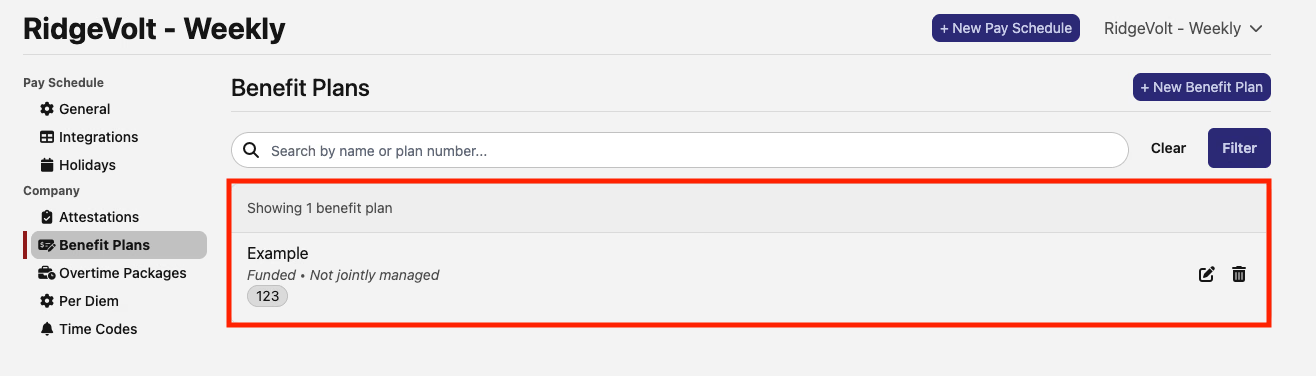
After filling out all required fields, click the "Save" button at the bottom of the form to create the benefit plan. It will then appear in the list on the "Benefit Plans" page (indicated by the red box in the image below).