Creating Attestations
Time attestations ensure that recorded hours are accurate, complete, and tied to the correct classifications. They provide documented confirmation from each user, which supports prevailing wage and apprenticeship compliance while reducing risk during audits.
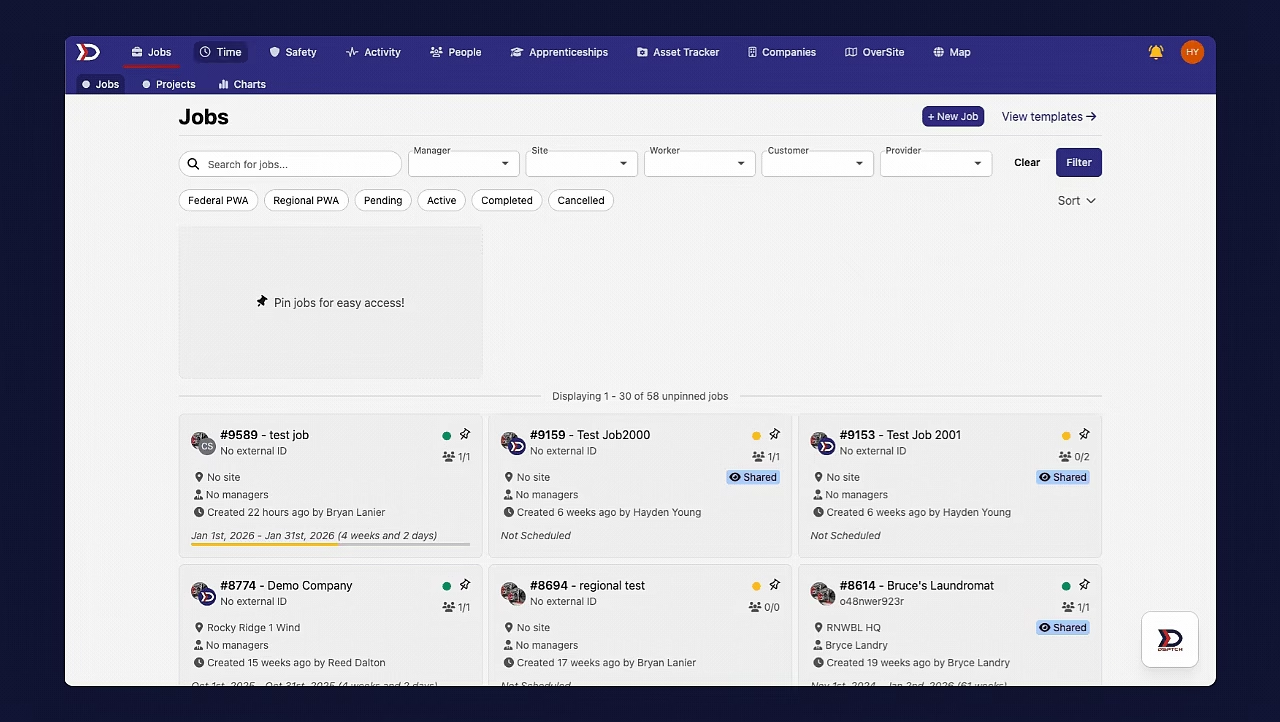
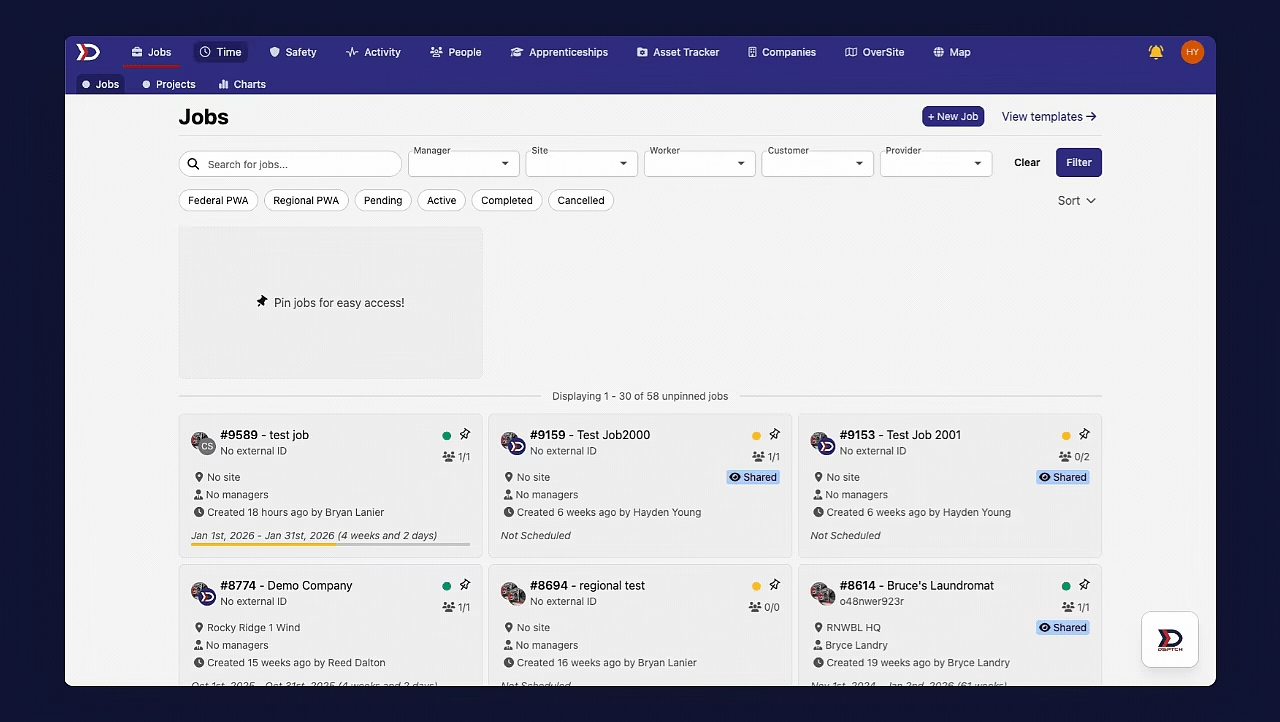
Navigate to Attestations
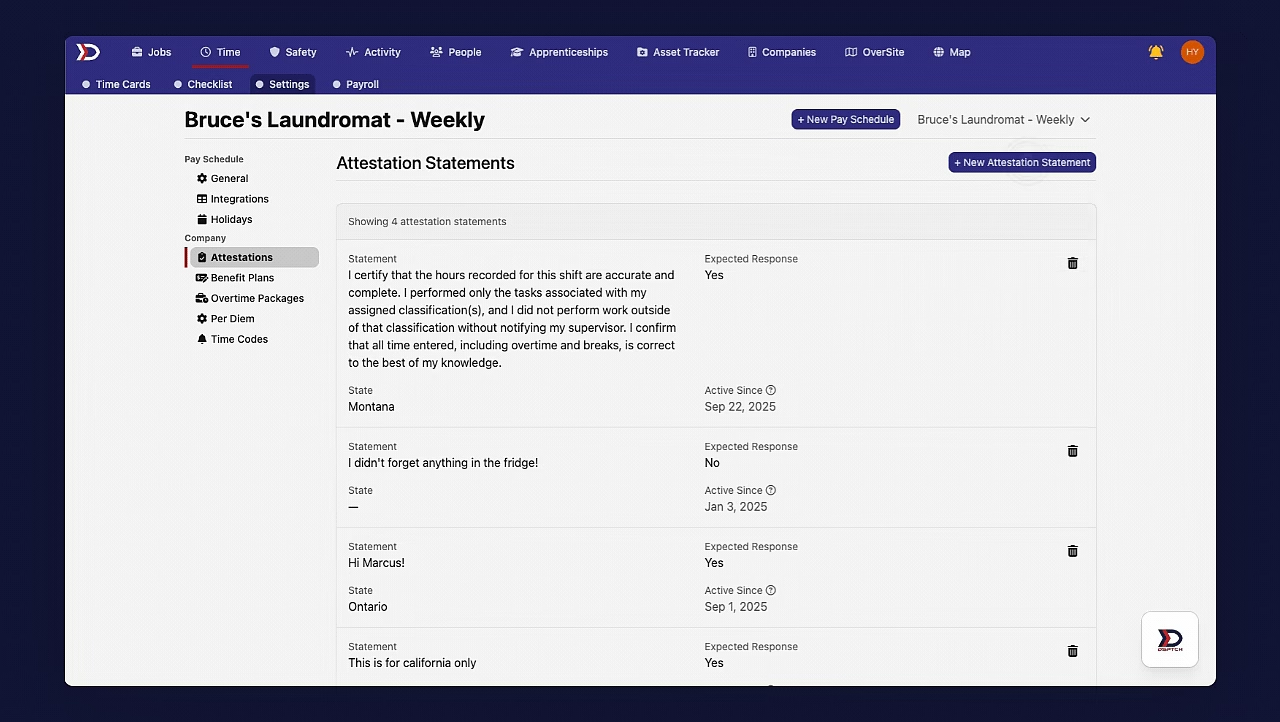
Start by clicking the "Time" tab from the primary navigation bar at the top of the page. Then, click the "Settings" tab from the sub-navigation bar near the top of the page. Next, click the "Attestations" tab from the menu on the left side of the page.
This will open a list of all attestation statements.
See the video below for a demonstration:
Create a New Attestation Statement
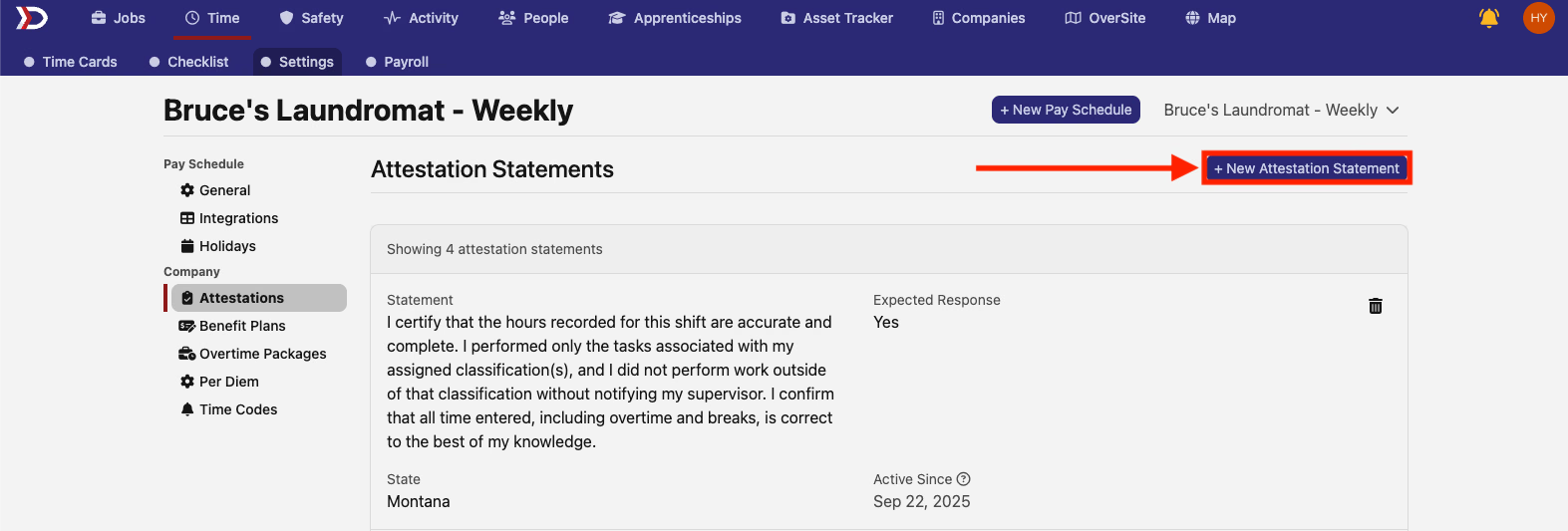
To create a new attestation statement, click the "+ New Attestation Statement" button (indicated by the red box and arrow in the image below).
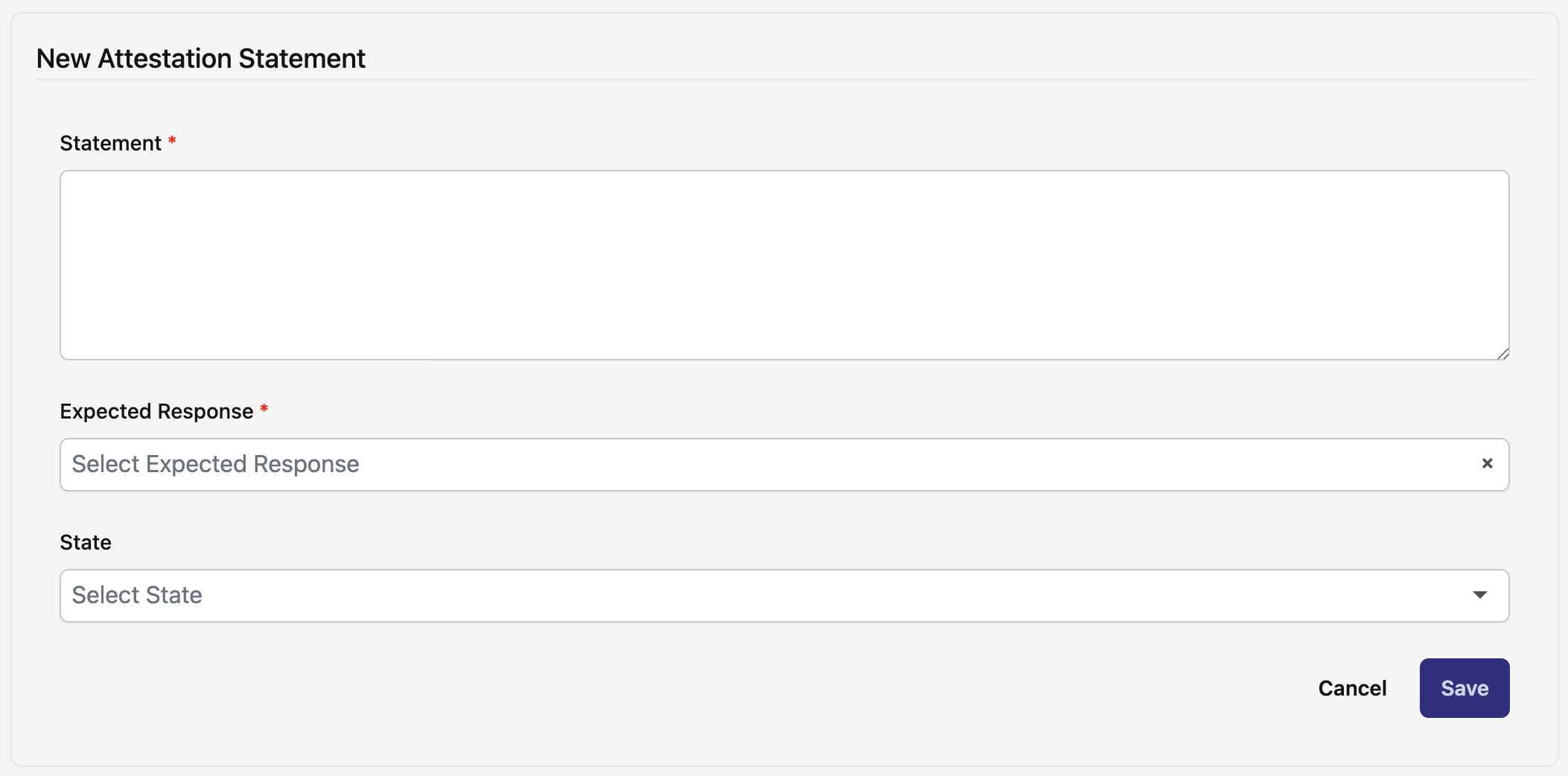
This will open the "New Attestation Statement" form (pictured below). There are several required fields that must be filled out:
-
Statement (Required):
-
The attestation users will be prompted to confirm or deny.
-
Example: I certify that the hours recorded for this shift are accurate and complete. I performed only the tasks associated with my assigned classification(s), and I did not perform work outside of that classification without notifying my supervisor. I confirm that all time entered, including overtime and breaks, is correct to the best of my knowledge.
-
Expected Response (Required):
-
The expected response of the user.
-
Options are:
-
Yes
-
No
-
State (Optional):
-
If the attestation only applies to time entries within a certain state, this can be indicated using this field.
After filling out all required fields, click the "Save" button to create the attestation statement.
See the video below for a demonstration:
How DSPTCH Mobile Users Can Complete Attestations
Relevant attestations will appear in the DSPTCH mobile app once a user clocks out.
For a step-by-step walkthrough, please refer to our documentation here.
This resource can also be shared with users as a practical guide for completing attestations.
View Completed Attestations
Completed attestations can be viewed from a user's time card.
Start by clicking on the "Time" tab from the primary navigation bar at the top of the page. Then, click on a relevant user's time card.
Find a relevant time entry and then click the "Show Details" button. Scroll down and click on "Attestation details" to view the attestation statement and the user's response.
See the video below for a demonstration: