Force Clock Out
Navigating to the Time Cards Page
To navigate to the "Time Cards" page, click "Time" tab from the primary navigation bar at the top of the page. This will open a list of all employees in your company and their time entries for a given pay period. To open a different pay period use the forward or back arrow at the top right of the screen.
See the video below for a demonstration:
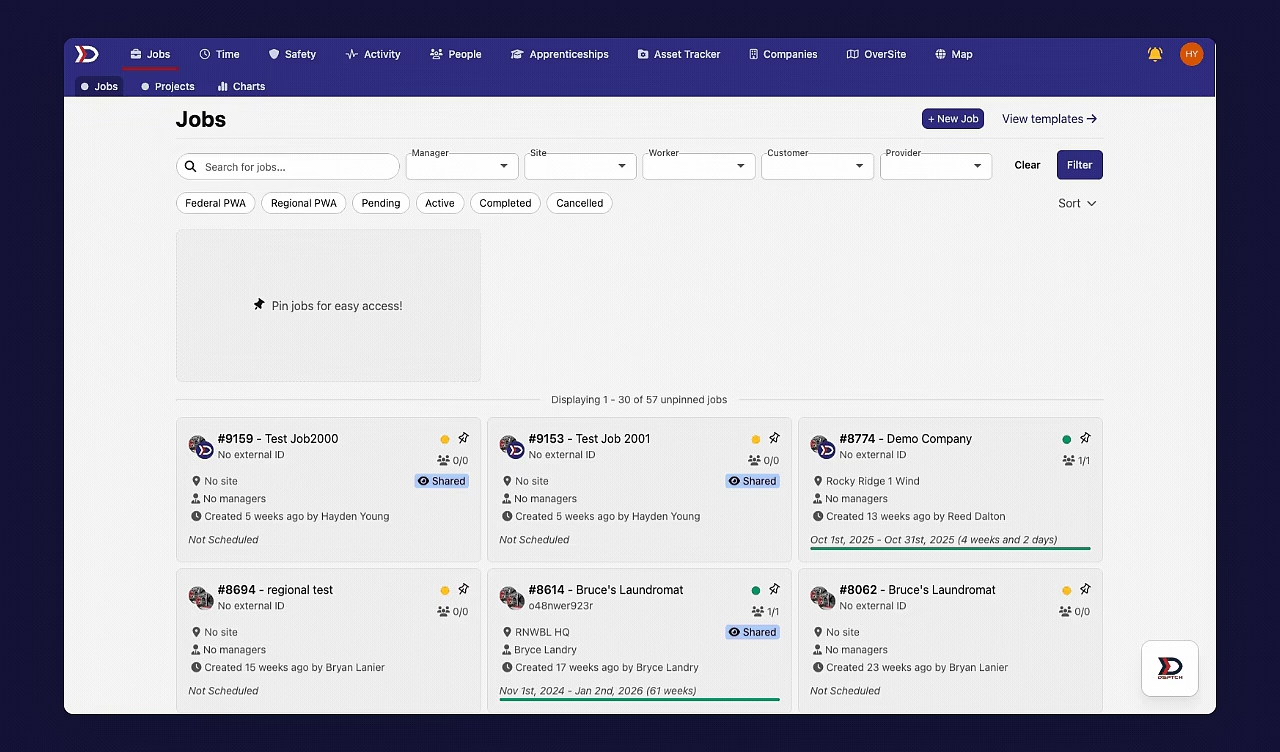
How to Force a User to Clock Out
Once on the "Time Cards" page, locate a user with a "Clocked In" designation next to their name (indicated by the red box in the image below):

Next, click on that user's Profile and locate the "Session" box in the top right of the user's time card (indicated by the red box and arrow in the image below):
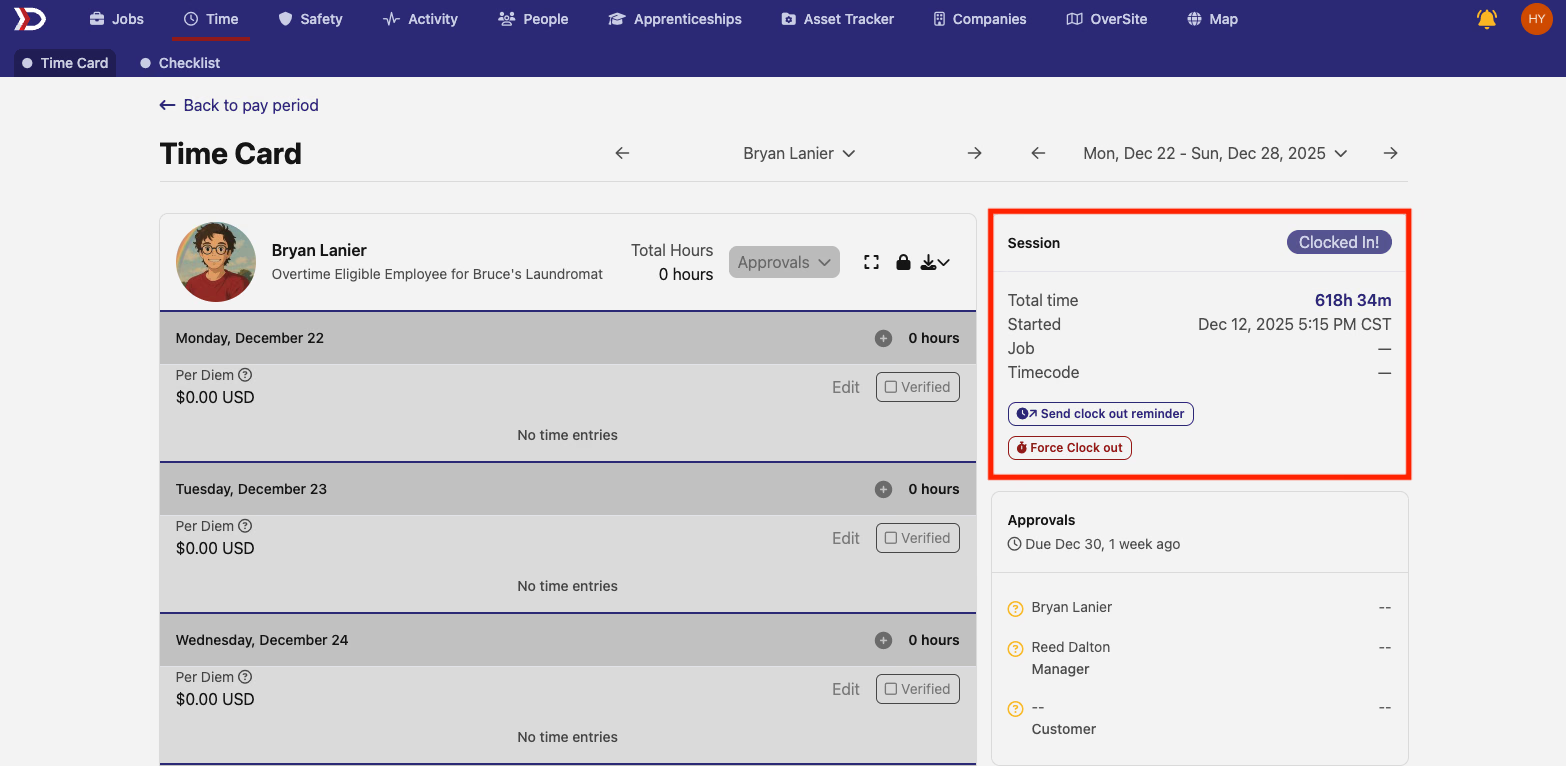
The "Session" box displays details about the user’s active clocked-in period, including total duration, start time, associated Job, and selected time code.
To force a User to clock out, click the "Force Clock Out" button (indicated by the red box and arrow in the image below):

This will open the Force Clock Out form (pictured below):
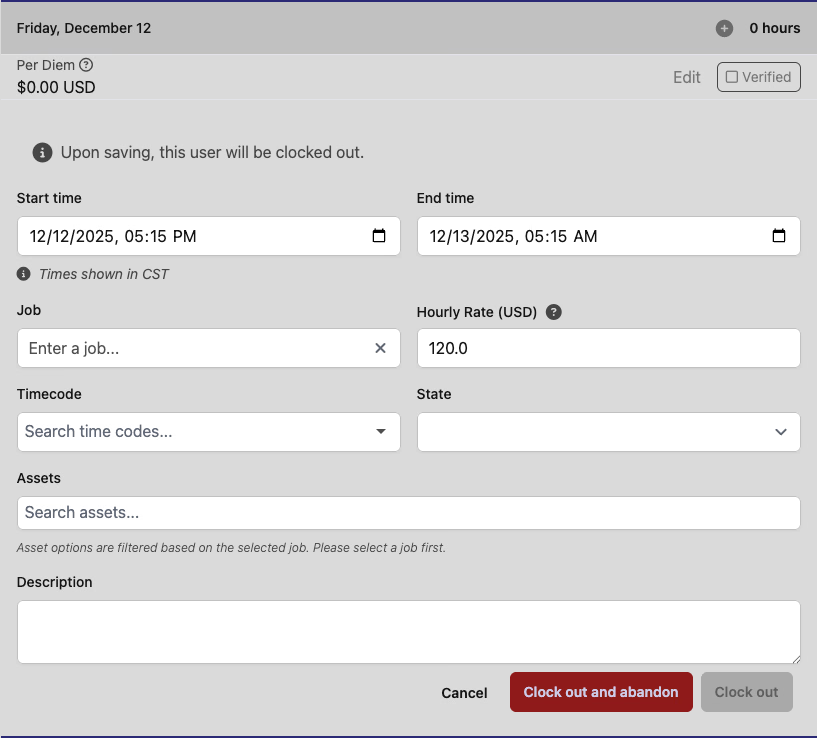
By default, the start time of the time entry is the moment the user originally clocked in, and the end time is the current time. Both the start time and end time can be edited, if necessary.
All fields in the Force Clock Out form are editable. For more information on each field, please read our Creating a Time Entry – Web Help Document.
There are two buttons at bottom of the Force Clock Out form: "Clock out and abandon" and "Clock out" (indicated by the red box in the image below):

- Clock out and abandon
- Select "Clock out and abandon" to clock the technician out and discard the time entry they were recording.
- Clock out
- Select "Clock out" to clock the technician out and save the time entry using the information as it appears in the Force Clock Out form.