LCPtracker Employee List Export
This guide will cover how to export an Employee List Report from LCPtracker.
The data from this export will be used to create all Users within your Company.
How to Export an Employee List Report
Start by logging into your LCPtracker Account and then click the "Reports" button from the navigation bar near the top of the screen.

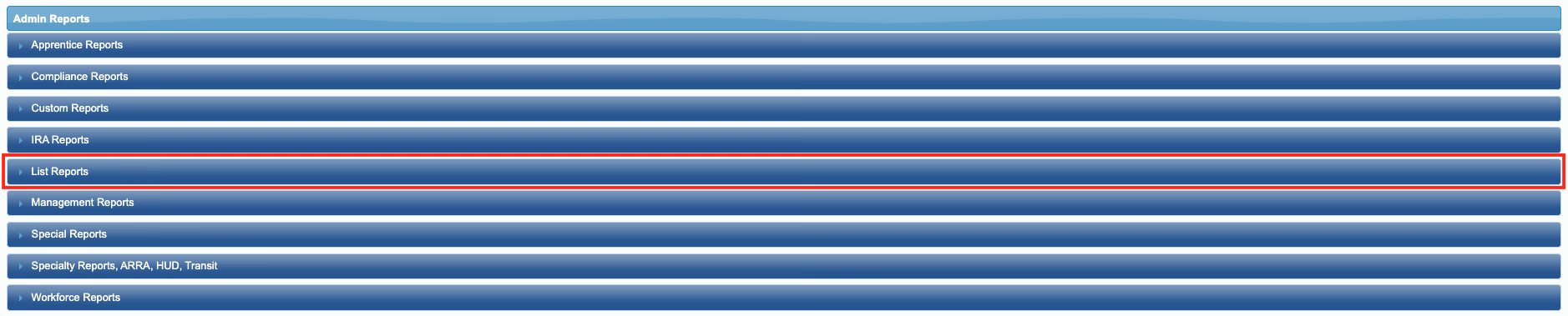
From the Admin Reports page, locate and click the "List Reports" dropdown.
Next, click the "Employee List Report" option from the dropdown.

Set the Status, Department, Project, and Contractor fields to the applicable settings and then click the "View Report" button.

Lastly, click the click the save icon (floppy disk symbol) and then the "Excel" button to download the report.
