Importing from LCPtracker
While DSPTCH accepts the standard Wage & Hour format that LCPtracker also produces (see here), that format is not always directly exportable from LCPtracker.
This article will go over where to find reports in LCPtracker that can be directly input into DSPTCH with the help of your onboarding specialist.
Where to find the report
You will need access to an Administrator account for your LCPtracker tenant. If you do not have an Administrator account, please contact your LCPtracker account owner.
After navigating to LCPtracker and logging in to LCPtracker Pro, look for the "Reports" tab.
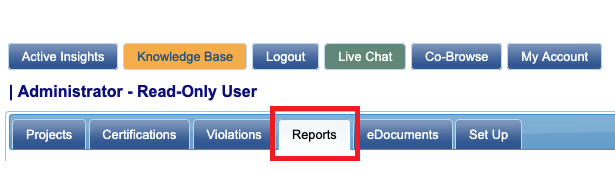
Picture of the reports tab, boxed in red
Under Reports, look for "Custom Reports". From there, select "Daily Payroll Details with Totals".
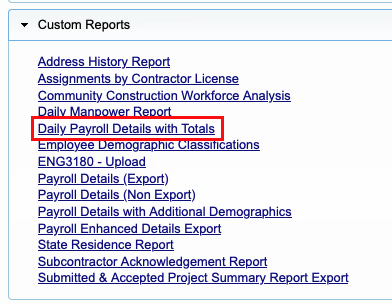
The "Daily Payroll Details with Totals" report will have wage and daily hour information.
On the report screen, fill out all the necessary fields to view the Report. Once all appropriate fields are selected, hit "View Report."
Make sure the "Jurisdiction" is correct for the scope you are uploading. For IRA projects, this will be a "federal" scope.
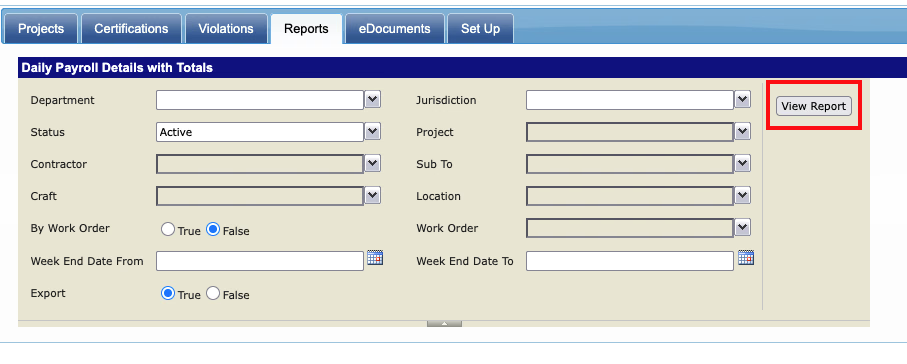
After filling out all the conditional dropdowns, hit "View Report", boxed in red.
After hitting "View Report", you can save the results by clicking the floppy disk icon and choosing which format to save them in. To upload the results to DSPTCH, choose "CSV (comma delimited)"

Once you have the results saved in a CSV format, please email them to your onboarding specialist or onboarding@dsptch.work to have them uploaded!
A self-service workflow is coming soon.