September 23, 2025 Release Notes

PWA jobs get a dedicated Certified Payroll tab for exporting WH-347 forms, the pay view gets a cleaner actuals-first layout, task lists gain an Unscheduled status and a searchable company filter, and the apprenticeship labor hours grid picks up color-coded row formatting.
📋 Certified Payroll tab on PWA jobs
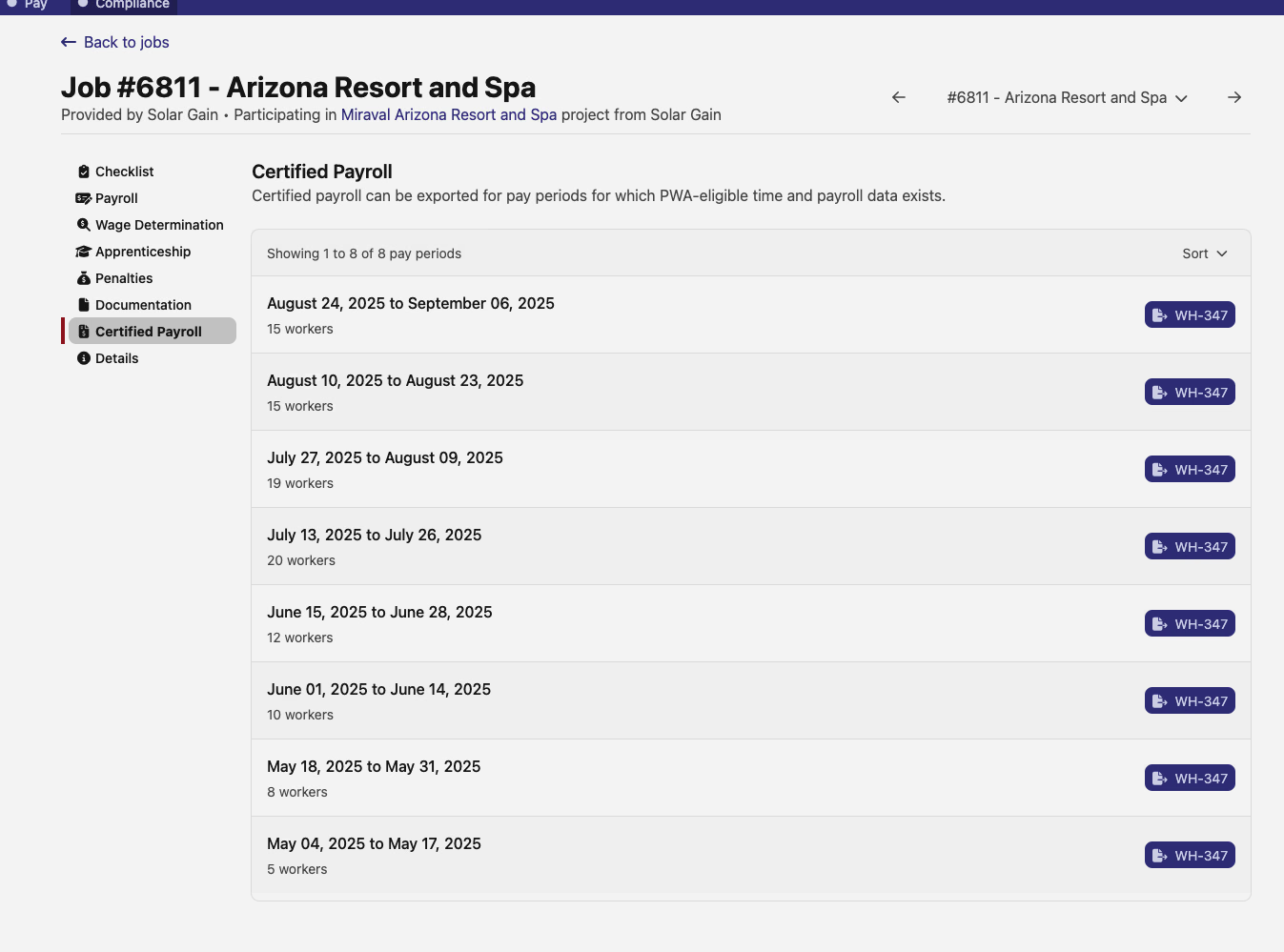
PWA-eligible jobs now have a Certified Payroll tab in the left sidebar, sitting alongside Payroll, Wage Determination, Apprenticeship, and the rest of the job navigation.
The tab lists every pay period for which PWA-eligible time and payroll data exists, showing the date range and worker count for each. Each row has a WH-347 export button — clicking it downloads the WH-347 certified payroll form for that pay period directly from the job, without navigating to the time card level first.
💰 PWA pay view: actuals-first display
Four related changes land together to clean up how compliance numbers present once payroll actuals are in.
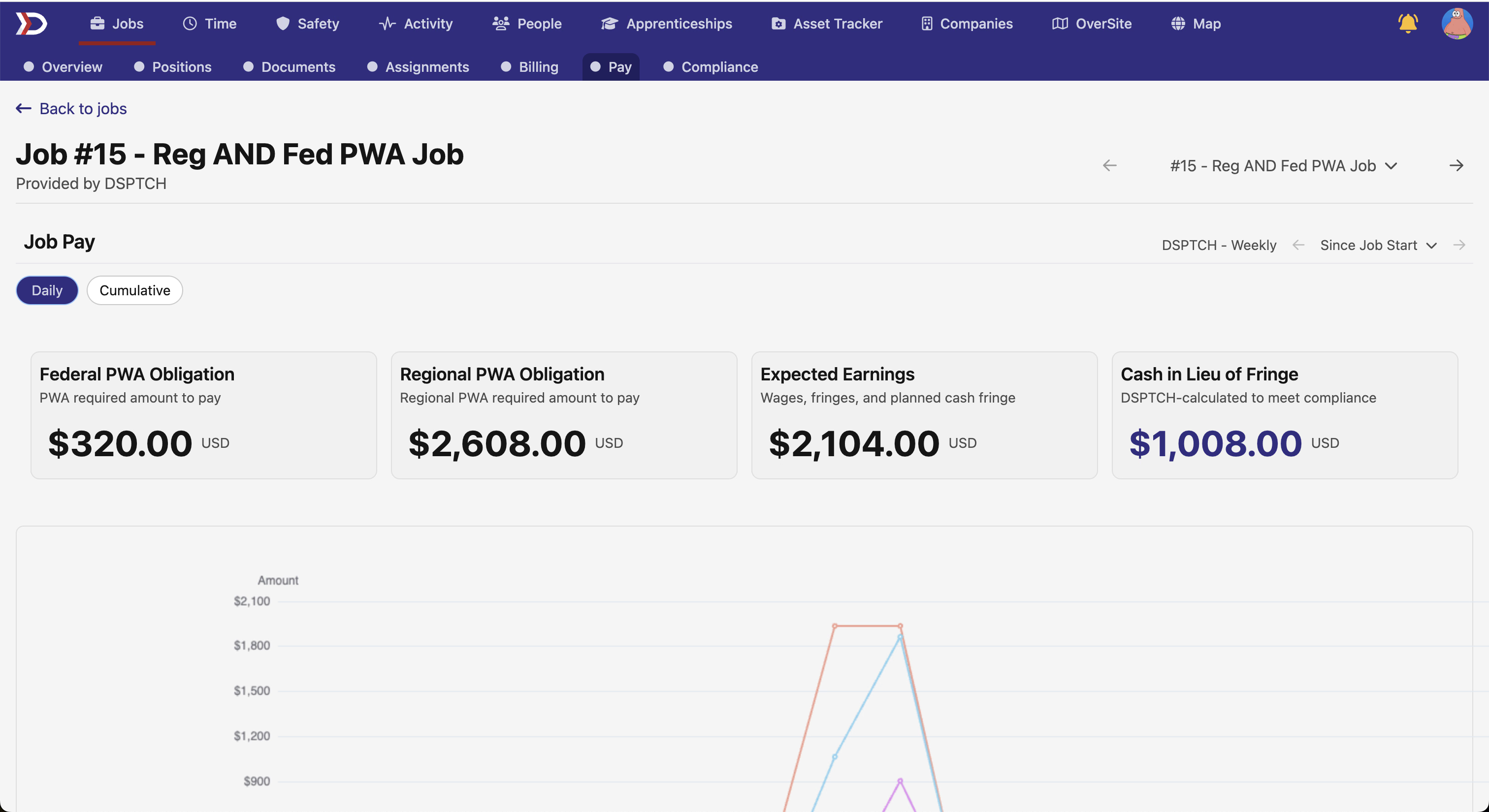
The pay summary card on the Pay tab of a job now shows Federal PWA Obligation and Regional PWA Obligation as separate cards, with Expected Earnings and Cash in Lieu of Fringe alongside. When actuals exist, the earnings card switches to show actuals rather than expectations — so the card always reflects the most current data available.
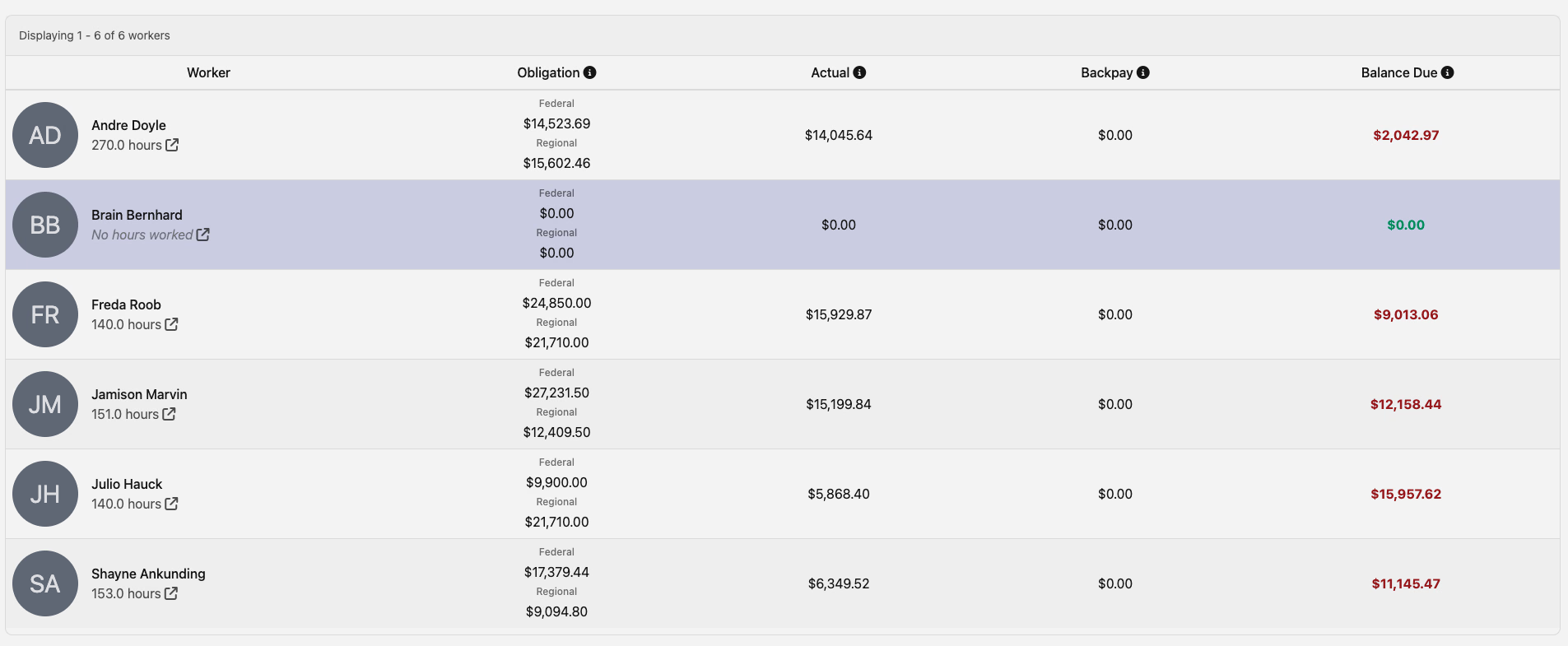
The worker-level breakdown below the summary adapts the same way: when actuals exist, the expectation columns collapse and the row shows Obligation, Actual, Backpay, and Balance Due. Workers are now sorted alphabetically by name rather than by outstanding amount, making it easier to find a specific person.
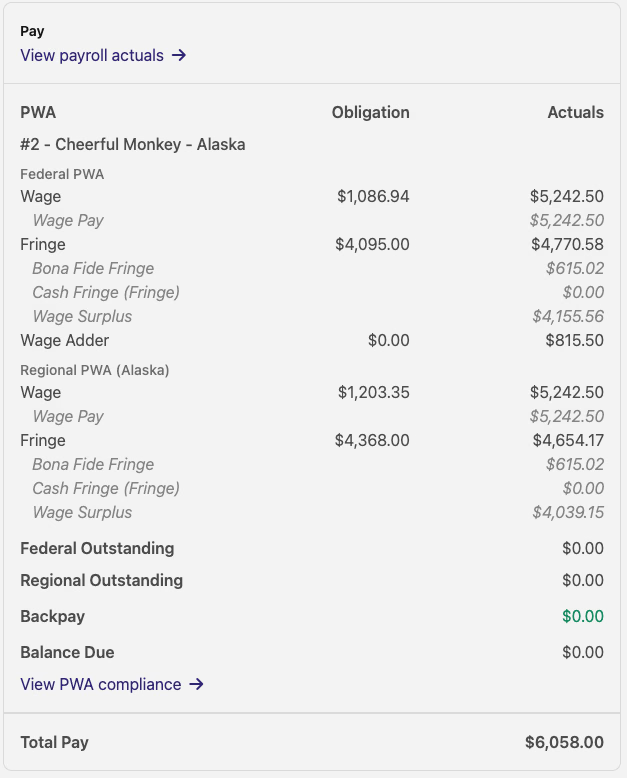
The PWA panel on individual time cards follows suit: when actuals are present, it shows a single Actuals column next to the Obligation, rather than displaying both Expectation and Actuals simultaneously.
✅ Task improvements: Unscheduled status and company filter
Two additions make task lists easier to work with.
Tasks without a due date now display an Unscheduled status label and a corresponding icon, replacing a blank where the due date would normally appear. Overdue tasks use a solid calendar icon to stand out; upcoming and unscheduled tasks use distinct treatments, so the list reads clearly at a glance. Task rows also show the associated record (job name, asset, or site) alongside the task title, giving context without having to open each task.
The company filter on the Activity task list is now a searchable dropdown. It lazy-loads on open, highlights matching text as you type, and supports infinite scroll for companies with large lists. Selecting a company filters the list immediately.
📊 Apprenticeship labor hours grid: color-coded rows
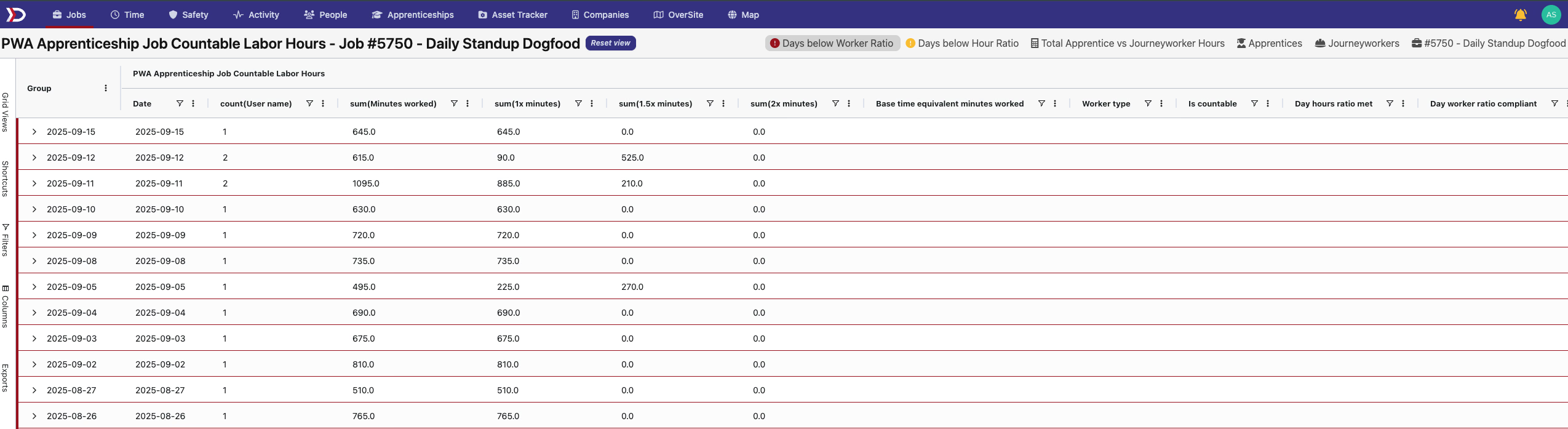
The PWA Apprenticeship job labor hours data grid — accessible via the Tabulate button on the Apprenticeship tab — now highlights rows based on compliance status. Warning rows are shaded yellow; error rows are shaded red. Grouped parent rows that contain warnings or errors pick up a matching colored border, so you can spot non-compliant date or worker groups without expanding every row.
As always, reach out if you have any questions.
The DSPTCH Team