Adding User Certifications
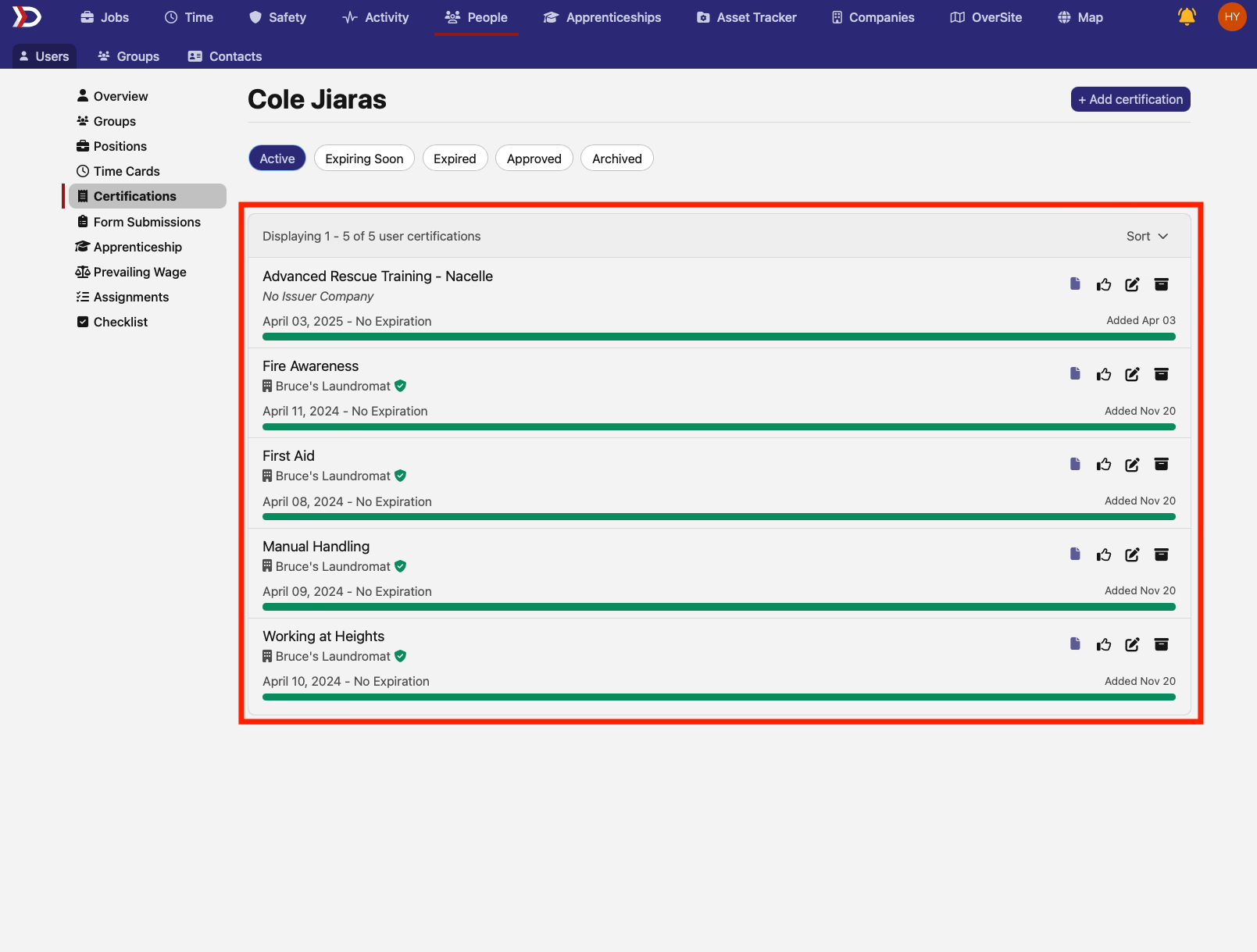
The Certifications tab on a user's profile lists every Active, Archived, and Expired Certification the user holds, and is the entry point for adding a new certification to that user.
To add a certification starting from a specific certification's page (e.g., when granting the same cert to several users), see Adding a Certification from the Certification Page.
Adding a Certification from the User's Profile Page
Start by navigating to the "Certifications" tab on the user's profile page.
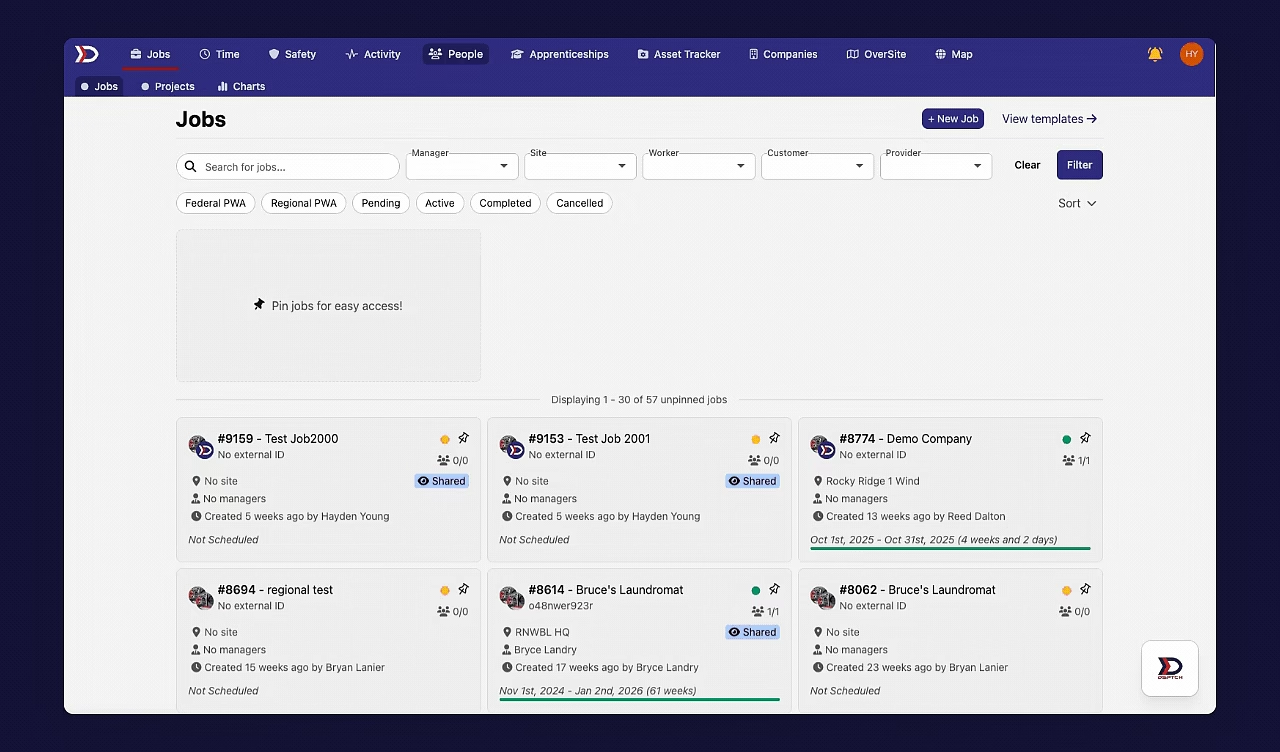
To navigate to a user's profile page, start by clicking the "People" tab from the primary navigation bar at the top of the screen. Then search for the user by name in the search bar on the "Users" page. Then, click on the user to open their profile. Next, click the "Certifications" tab from the menu bar on the left side of the screen. Lastly, click the "+ Add certification" button. This will open the "New User Certification" form. See the video below for a demonstration:
There are several fields in the "New User Certification" form:
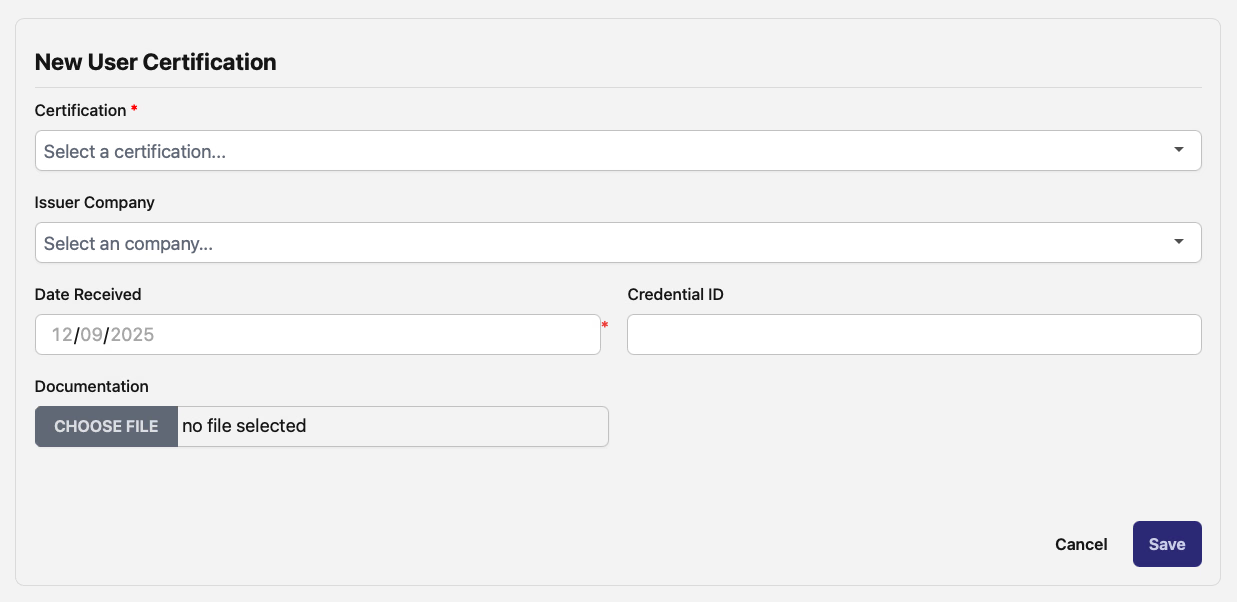
- Certification (Required):
- The name of the certification type. This is a search bar from all existing certification types in your company's profile.
- For instructions on how to create a new certification type, see Certifications Overview.
- Issuer Company (Optional):
- The company which is the issuing body for the certification.
- Credential ID (Optional):
- The credential (such as a confirmation number) that confirms the authenticity of the certification.
- Date Received (Required):
- The date (in MM/DD/YYYY format) which the certification was received.
- Note: This should NOT be the date that the certification was uploaded to DSPTCH.
- Documentation (Optional):
- A file upload for an image or PDF of the certification.
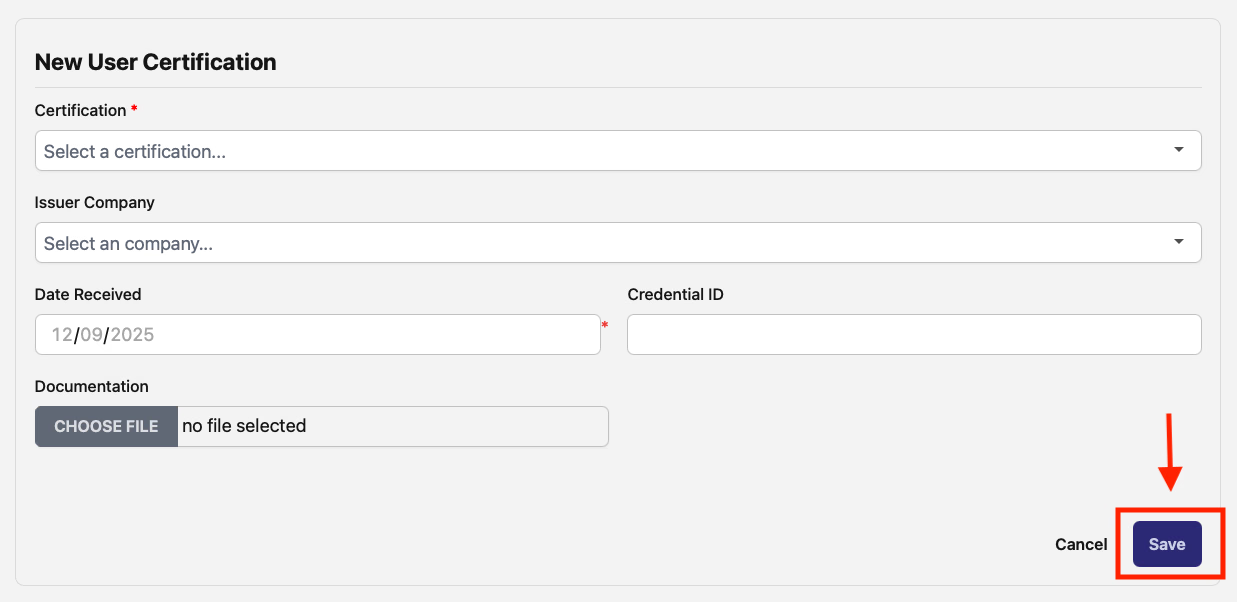
After all fields have been filled out, click the "Save" button to finish the creation of the certification (indicated by the red box and arrow in the image below):
Once the new certification is created, it will appear in the certification list on the user's profile page (indicated by the red box in the image below):