WH-347 Export
This guide covers exporting a WH-347 certified-payroll file from a job card or a project card. For the company-wide bulk export from the Time tab and the file-format reference (warnings, summary, PDF, legacy), see the canonical WH-347 Export doc under PWA.
Exporting a WH-347 from a Job Card
Start by navigating to the relevant job card by clicking the "Jobs" tab in the primary navigation bar at the top of the page. Then, click on the relevant job to open its job card. Once in the job card, click the "Compliance" tab in the sub navigation bar near the top of the page. Finally, click on the "Certified Payroll" tab in the menu on the left side of the page.
See the video below for a demonstration:
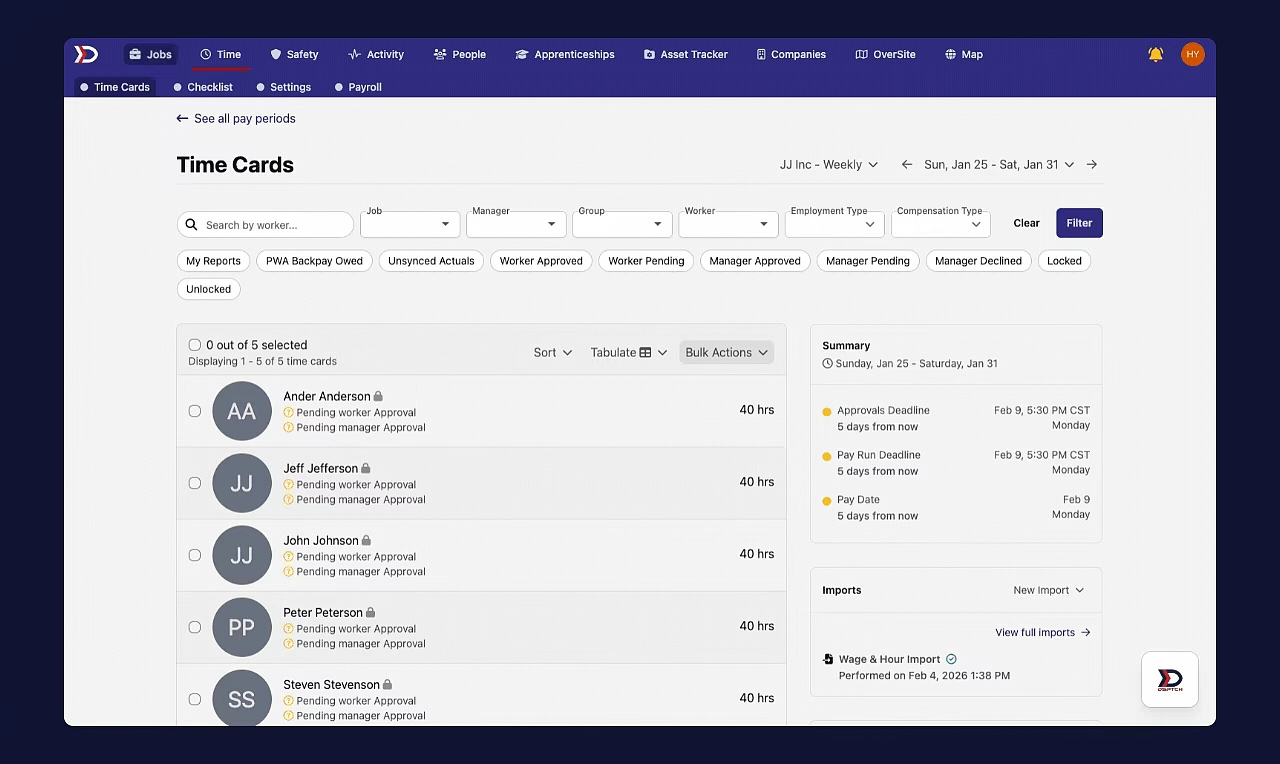
Bulk Exporting
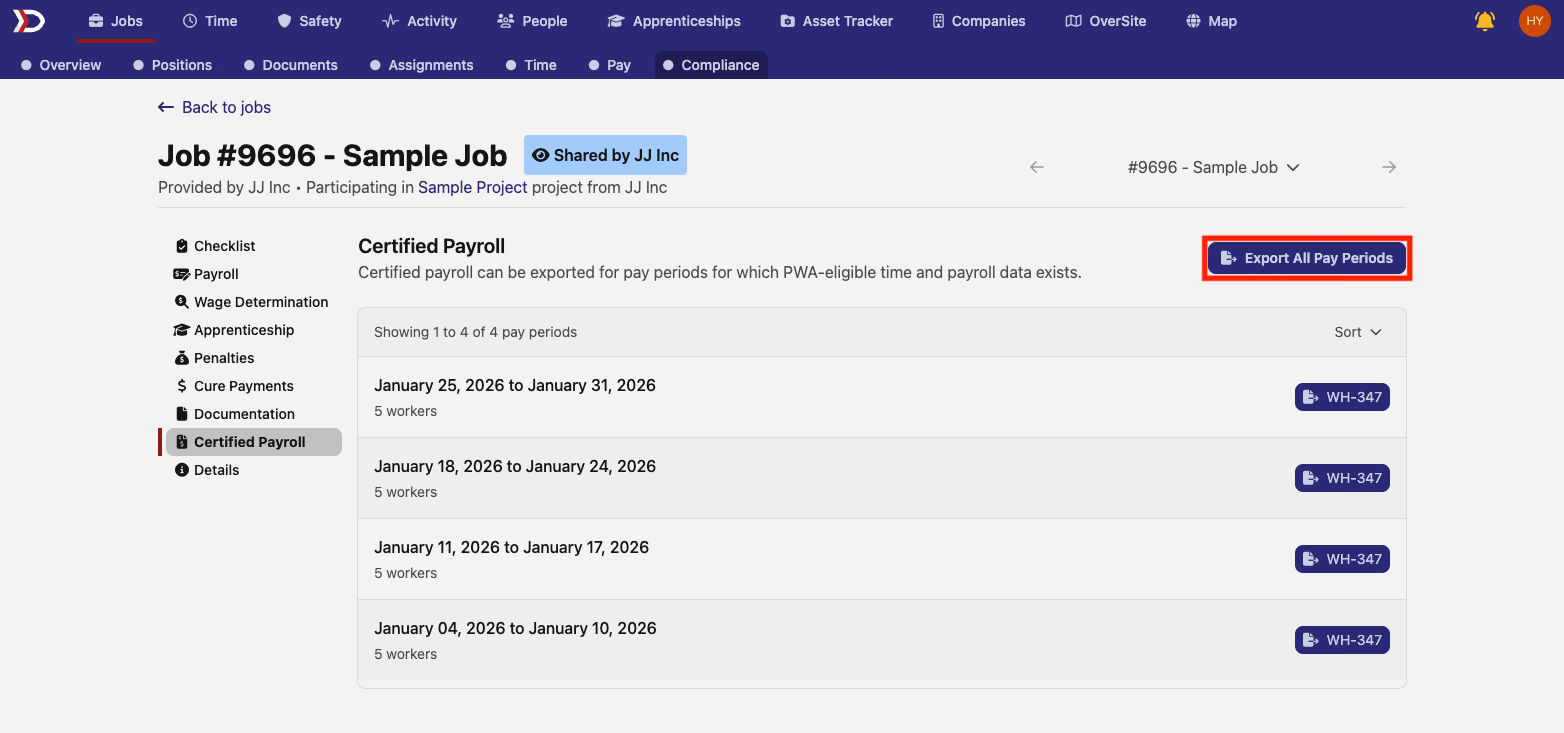
To export the WH-347 files for all pay periods for the job, click the "Export All Pay Periods" button near the top right of the page (indicated by the red box in the image below).
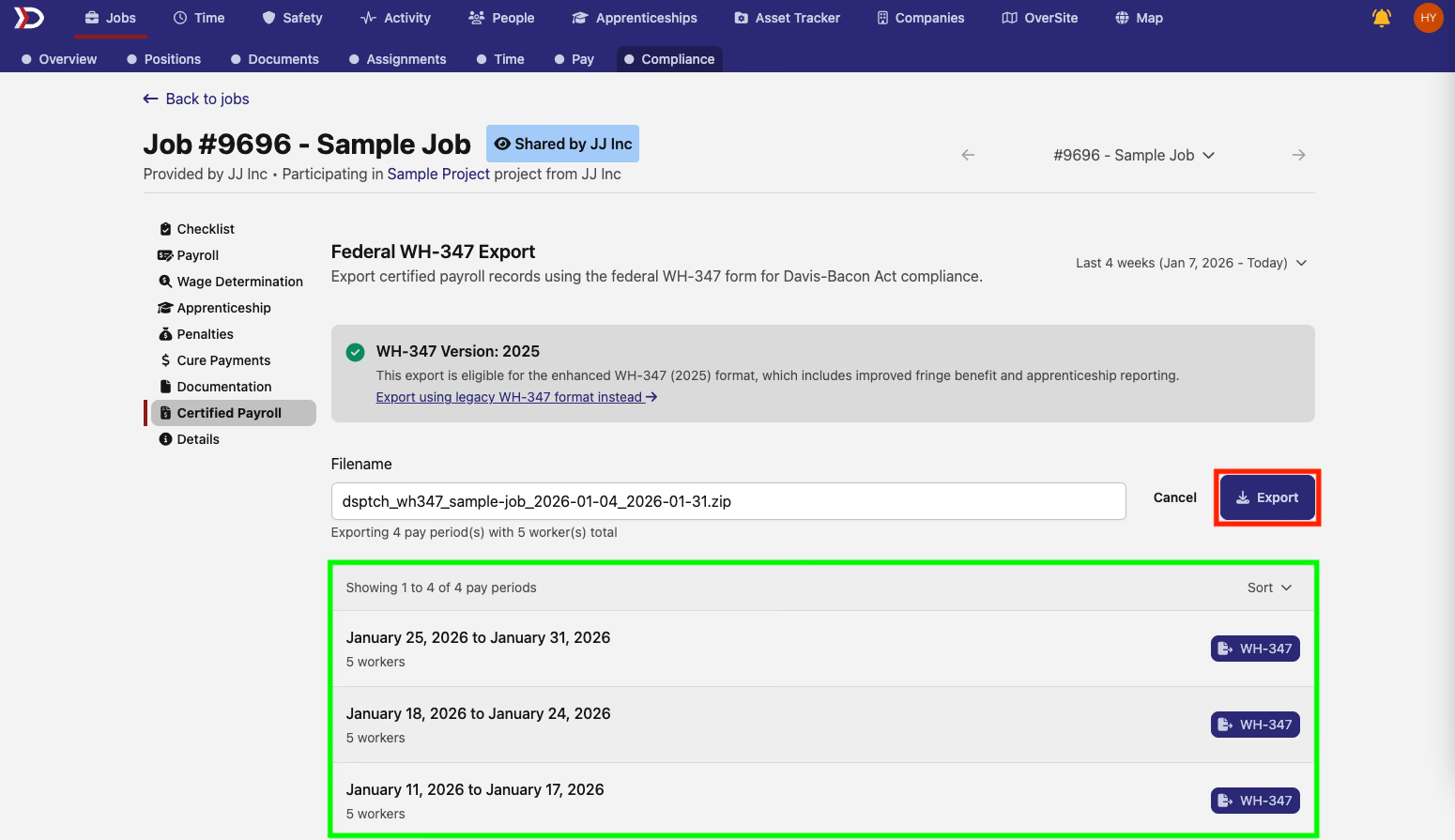
This will open the "Federal WH-347 Export" page. The selected time period is near the top right corner of the page (indicated by the red box in the image below). To select a different time period, click on the selected time period and click on the desired option from the dropdown menu. Available options differ depending on the length of the job. Examples include: "Last 4 weeks," "Last 12 weeks," "Last 24 weeks," and "Since Job Start." The pay periods that are included in the selected pay period appear at the bottom of the page (indicated by the green box in the image below).
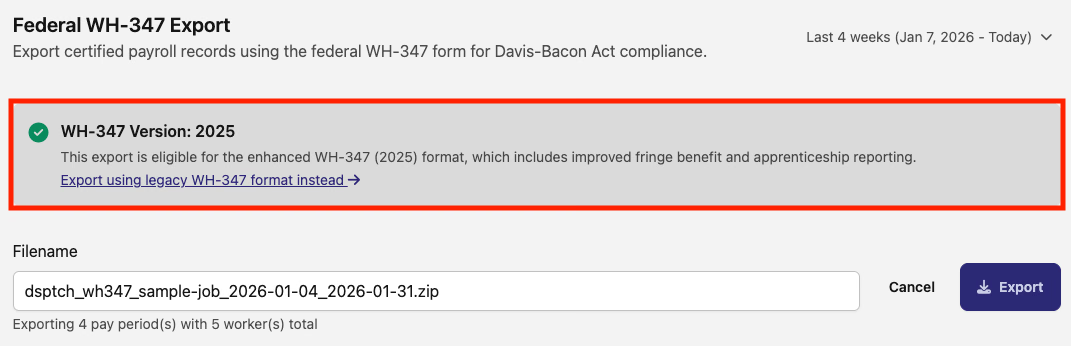
A banner that specifies the WH-347 version that will be used also appears in this page (indicated by the red box in the image below). If benefit plans have been configured within the "Settings" tab of the "Time" tab, the 2025 WH-347 version will be available. Otherwise, the legacy WH-347 version will be used. For more information on benefit plans, please review our help document here.
If the required benefit plans have not been configured, then the banner than indicated the WH-347 version will appear as it is below.

If you with to use the legacy formate even when the 2025 version is available, click the "Export using legacy WH-347 format instead" button (indicated by the red box in the image below).

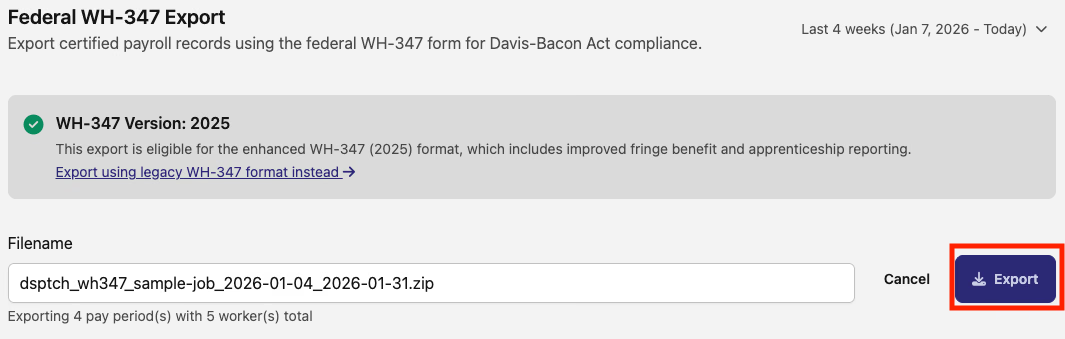
To export the WH-347 file for the selected time periods, click the "Export" button (indicated by the red box in the image below).
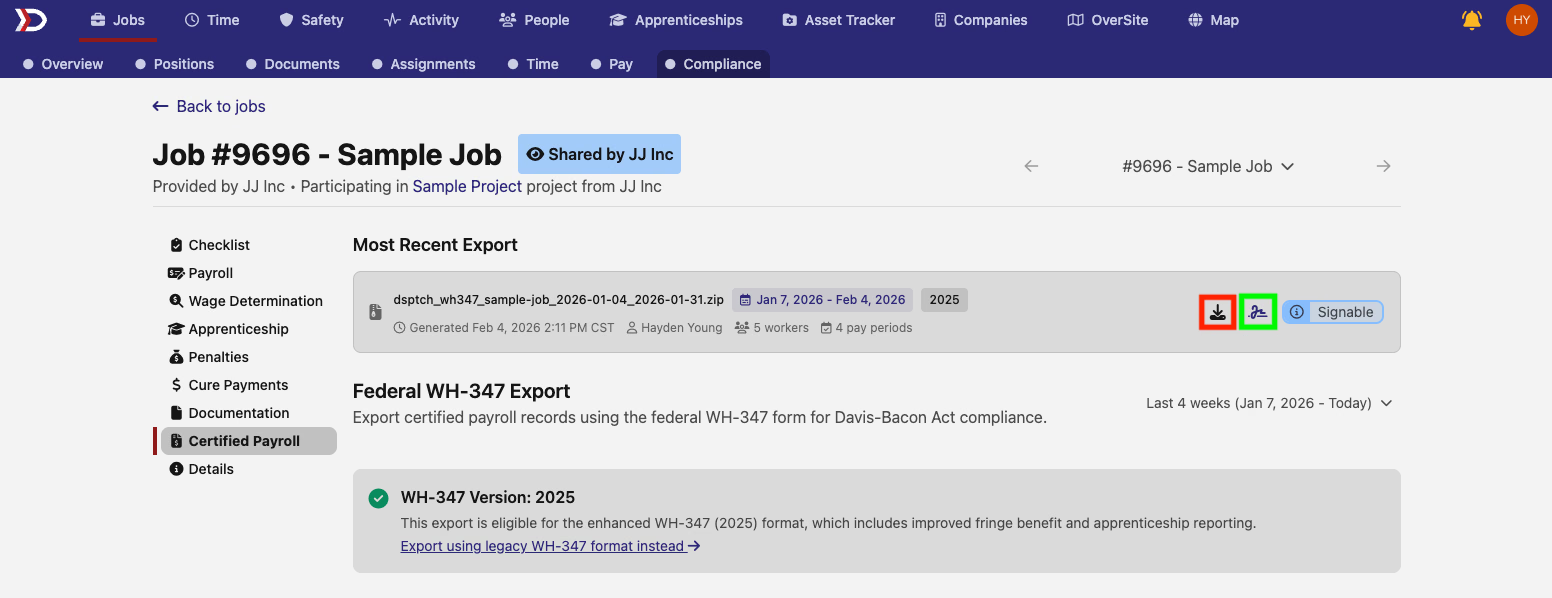
After a moment, the export will appear at the top of the page. To download the files, click on the arrow and hard drive icon (indicated by the red box in the image below). To sign the exported WH-347 files, click the signature icon (indicated by the green box in the image below).
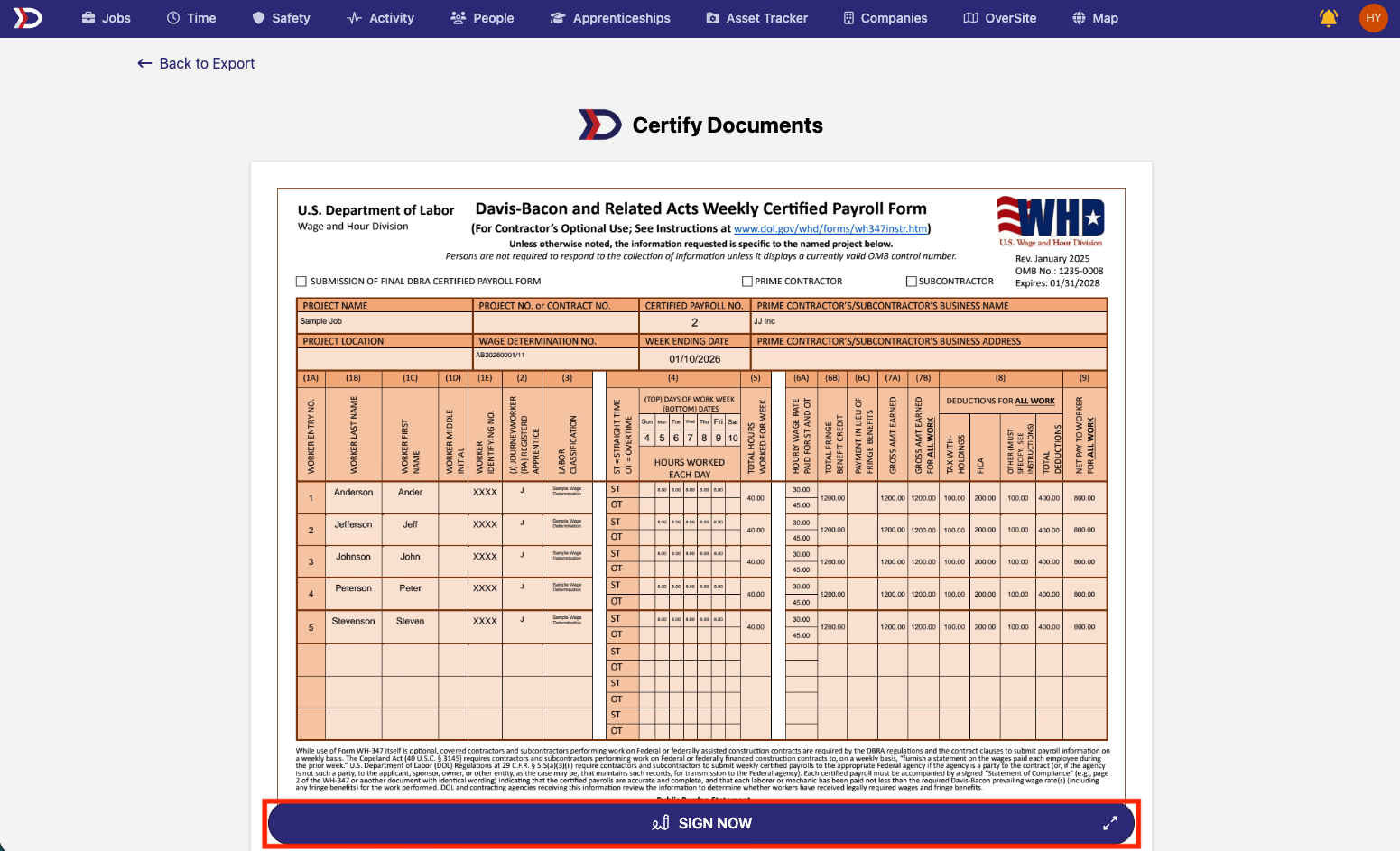
Clicking the sign icon will open the "Certify Documents" page. To sign the WH-347 documents, review the documents and click the "SIGN NOW" button at the bottom of the page (indicated by the red box in the image below).
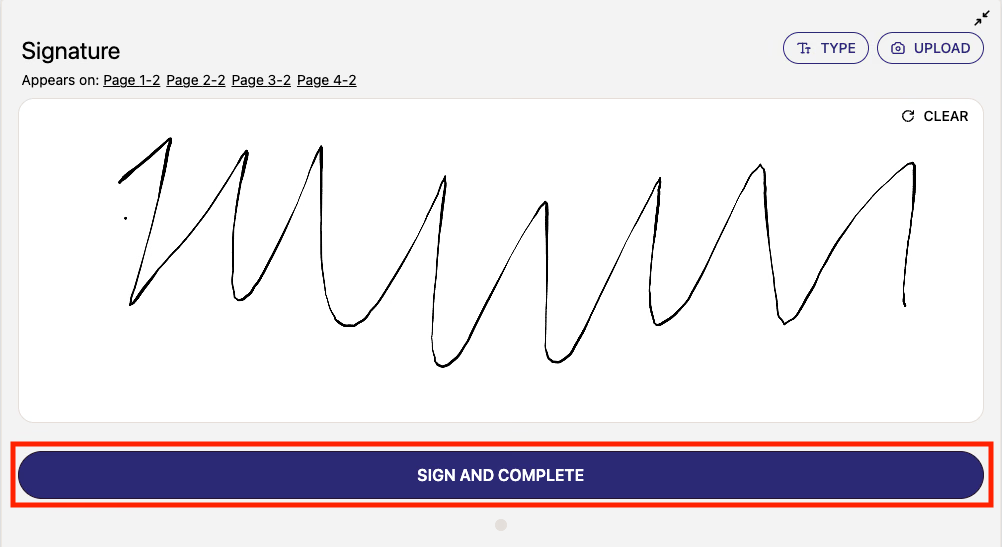
This will open a signature window where you can sign with a mouse, type your signature, or upload your signature. When finished, click the "SIGN AND COMPLETE" button at the bottom (indicated by the red box in the image below).
This will sign all the documents. You may now return to DSPTCH, send the a copy of the WH-347 files via email, or download the WH-347 files.

Exporting a Single Pay Period
To export the WH-347 for a single pay period, click the "WH-347" button to the right of the relevant pay period (indicated by the red box in the image below).
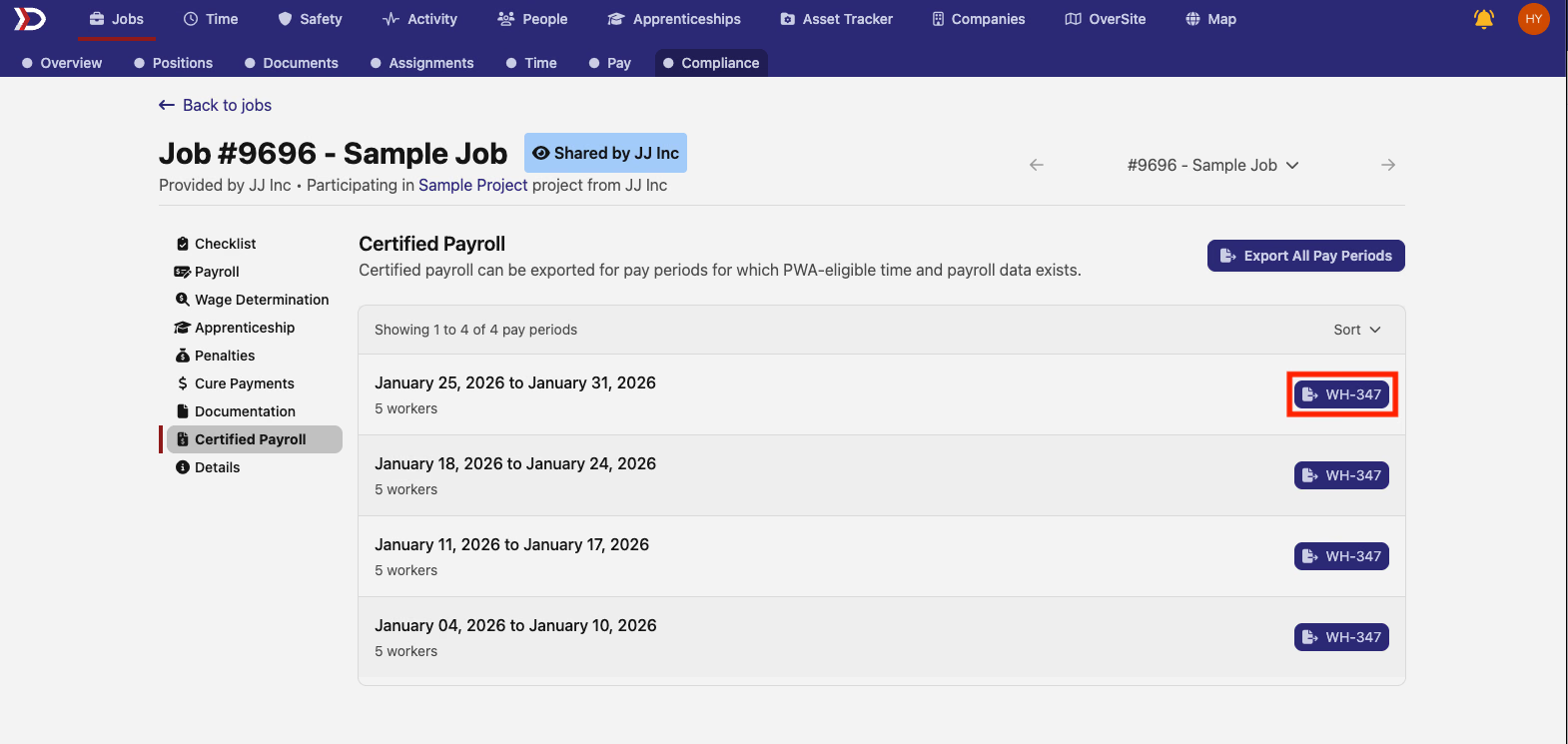
This will open the "Export Dashboard" page for the selected pay period.
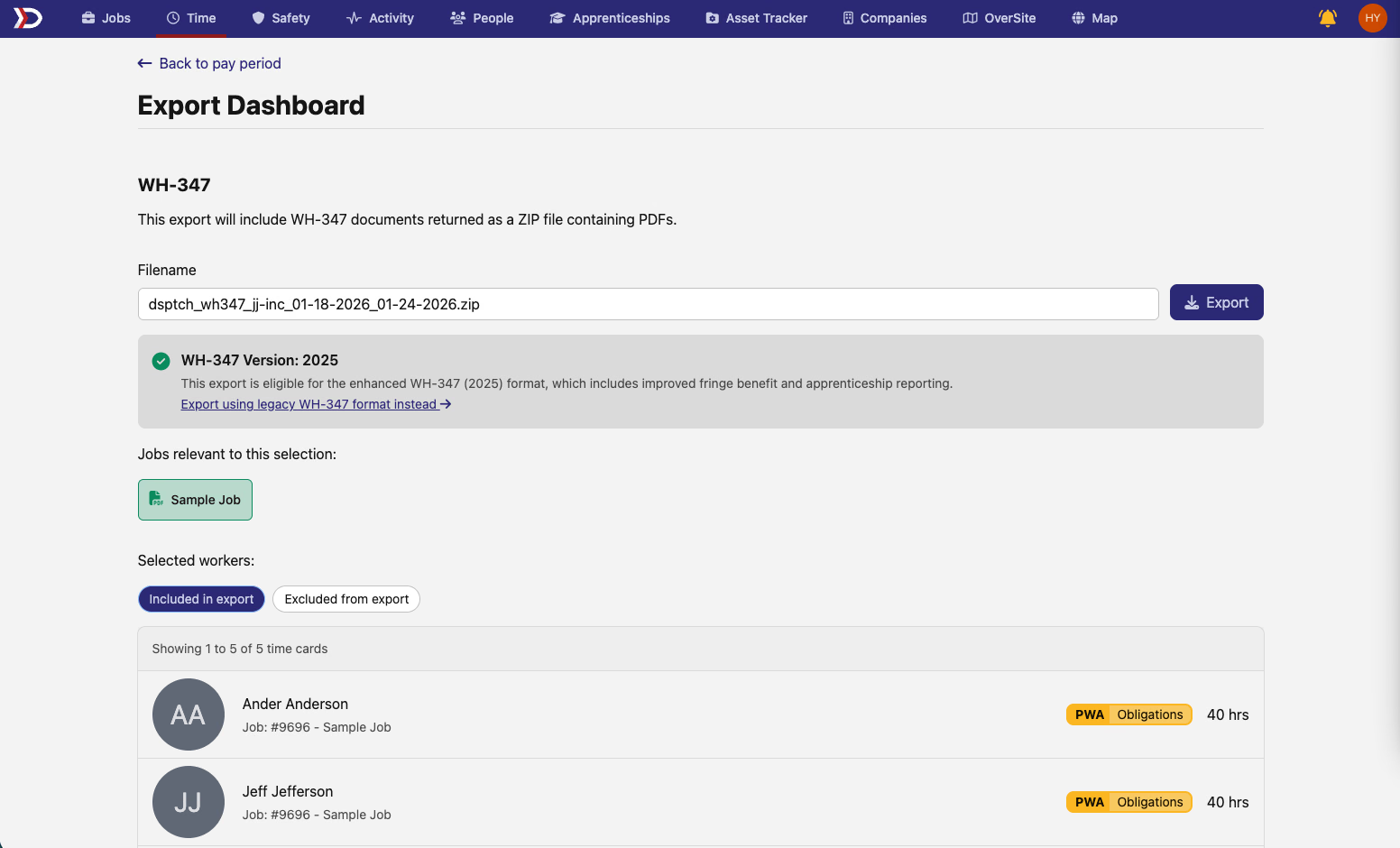
As with batch exports, the WH-347 version of the export is displayed on a banner. For additional information, please review the information in the Bulk Exporting section above.

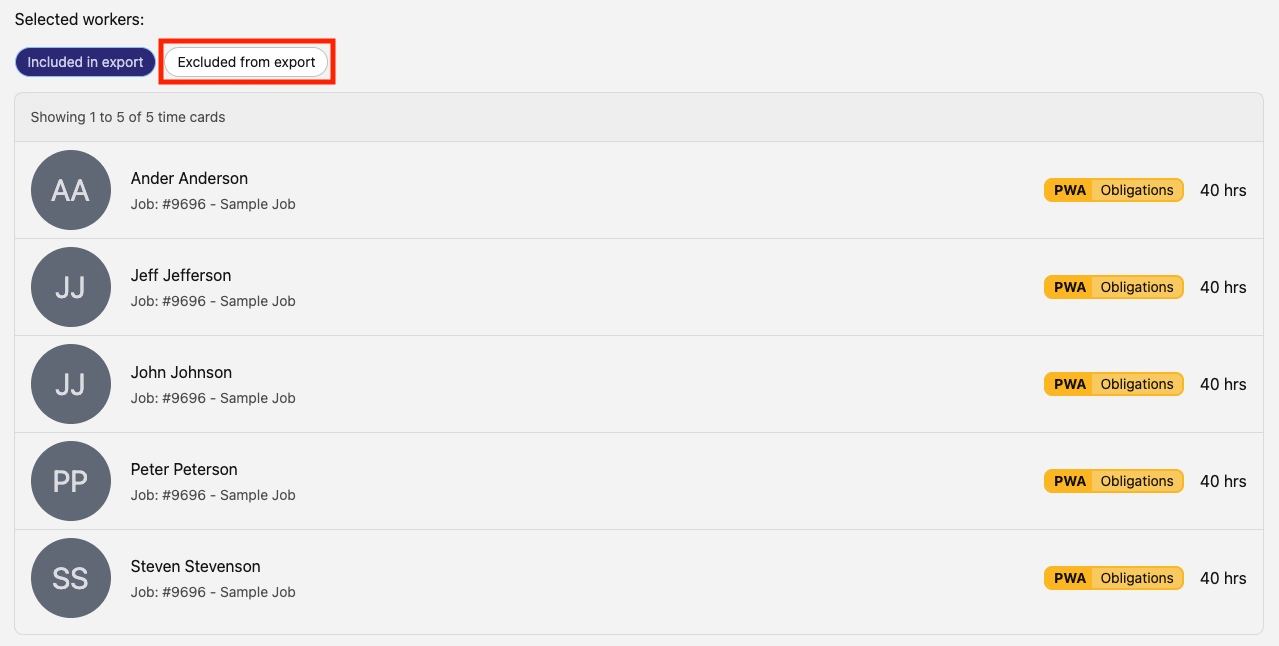
The workers that will be included in the export can be viewed in the "Selected workers" section at the bottom of the page. If there are any workers excluded from the WH-347, they can be viewed by clicking the "Excluded for export" button (indicated by the red box in the image below).
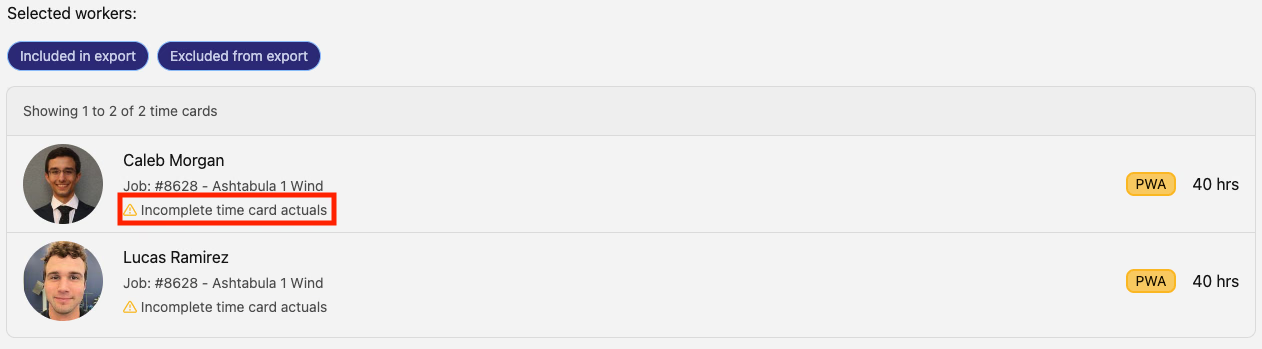
For the workers that are excluded, an explanation will appear under their name (indicated by the red box in the image below).
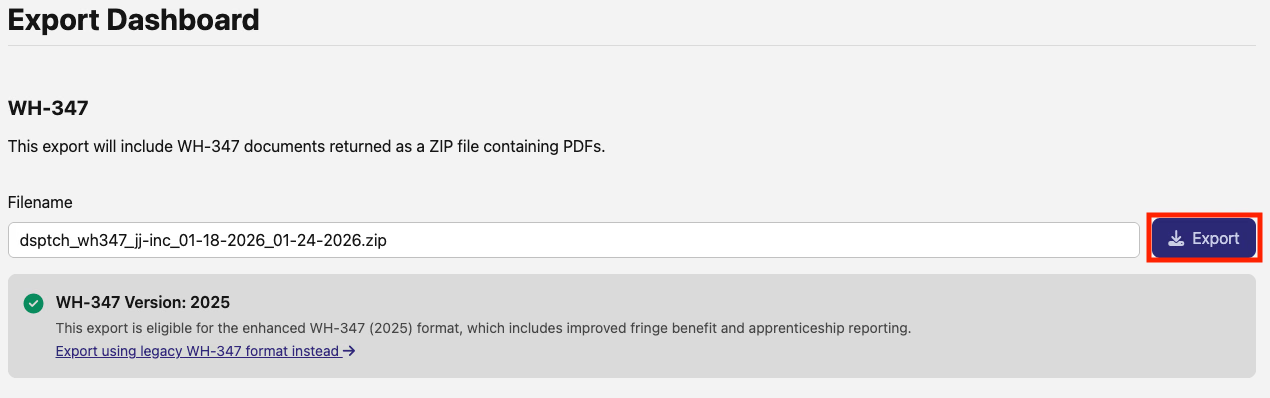
To export the WH-347, click the "Export" button (indicated by the red box in the image below).
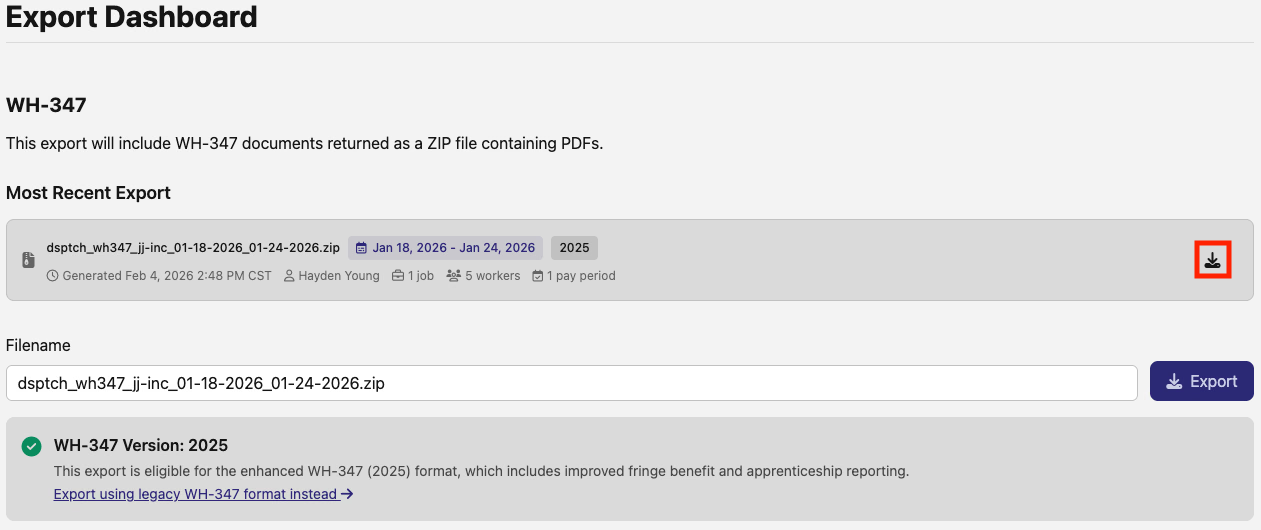
After a moment, the export will appear near the top of the page. To download the export, click the arrow and hard drive icon (indicated by the red box in the image below).
Exporting a WH-347 from a Project Card
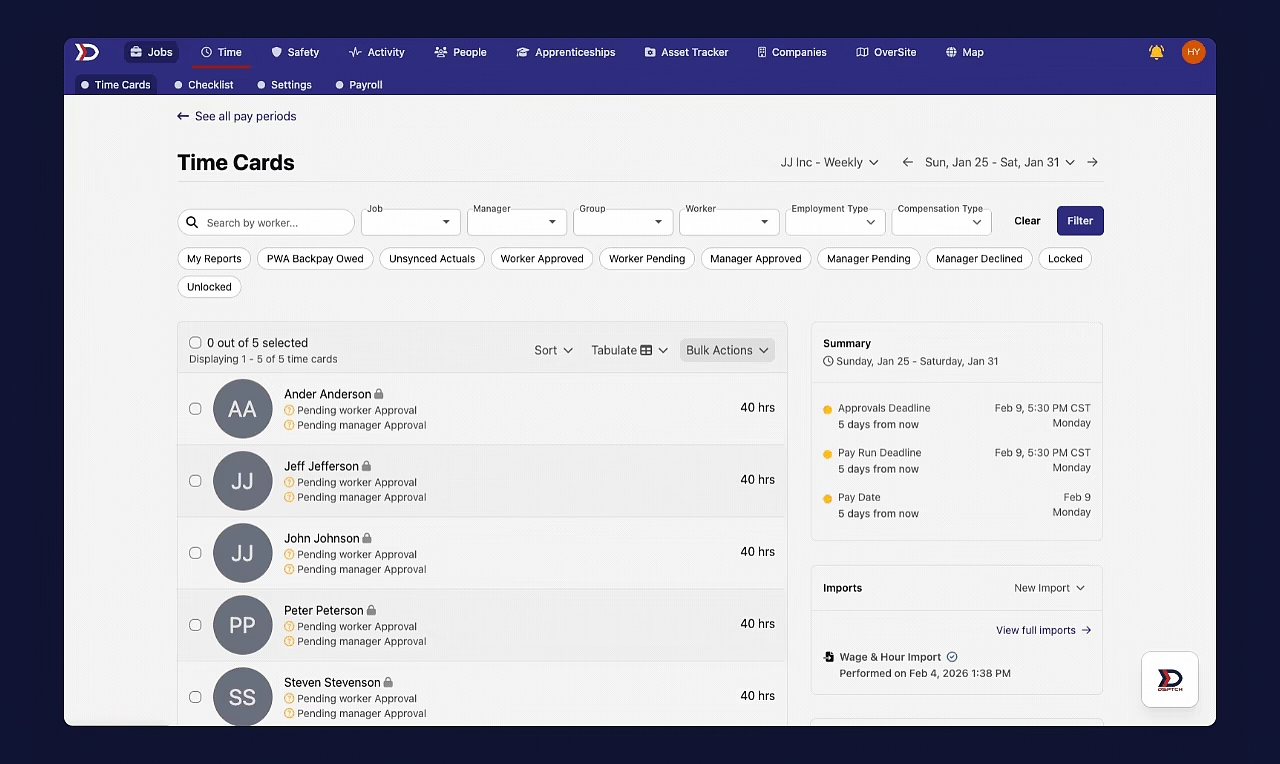
Start by navigating to the relevant project card by clicking the "Jobs" tab in the primary navigation bar at the top of the page. Then, click on the "Projects" tab in the sub navigation bar near the top of the page. Next, click on the relevant project to open its project card. Once in the project card, click the "Certified Payrolls" tab in the sub navigation bar.
See the video below for a demonstration:
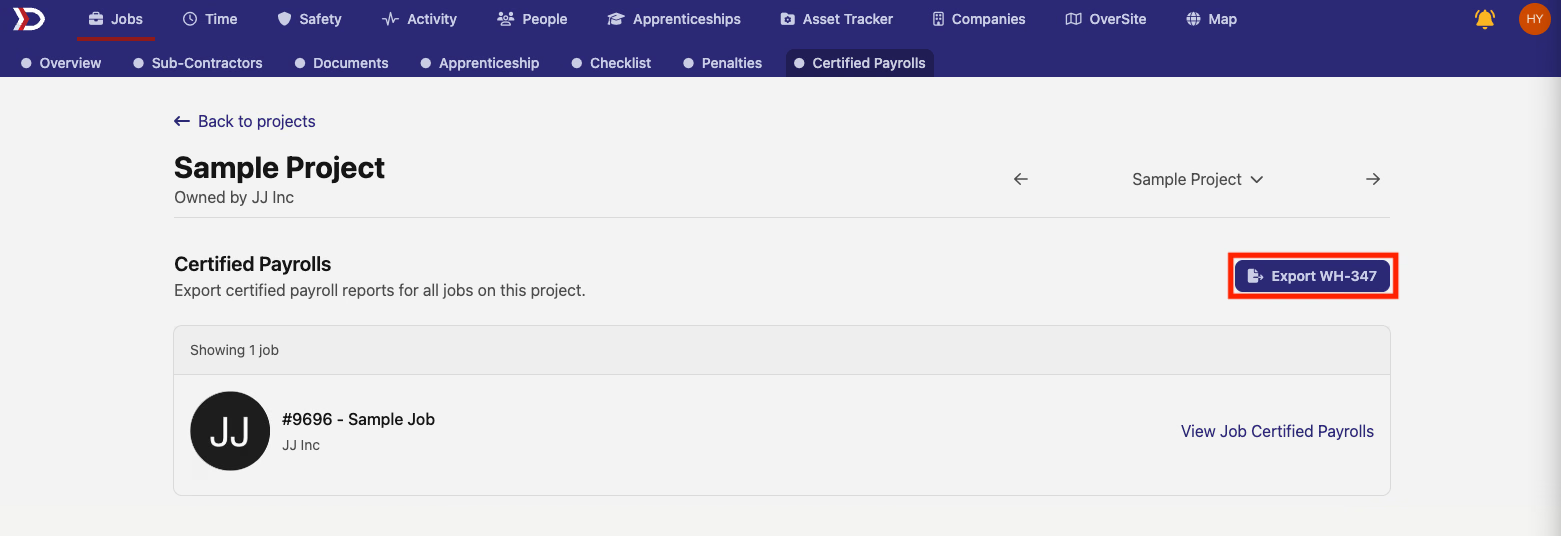
The "Certified Payrolls" tab will display the jobs under the project. To view the certified payrolls of each job, click the "View Job Certified Payrolls" text. This will open the "Certified Payroll" page within the "Compliance" tab in the selected job card. For more information on this page, please review the Exporting a WH-347 from a Job Card section of this help document above.
To export all WH-347 files for the project, click the "Export WH-347" button (indicated by the red box in the image below.
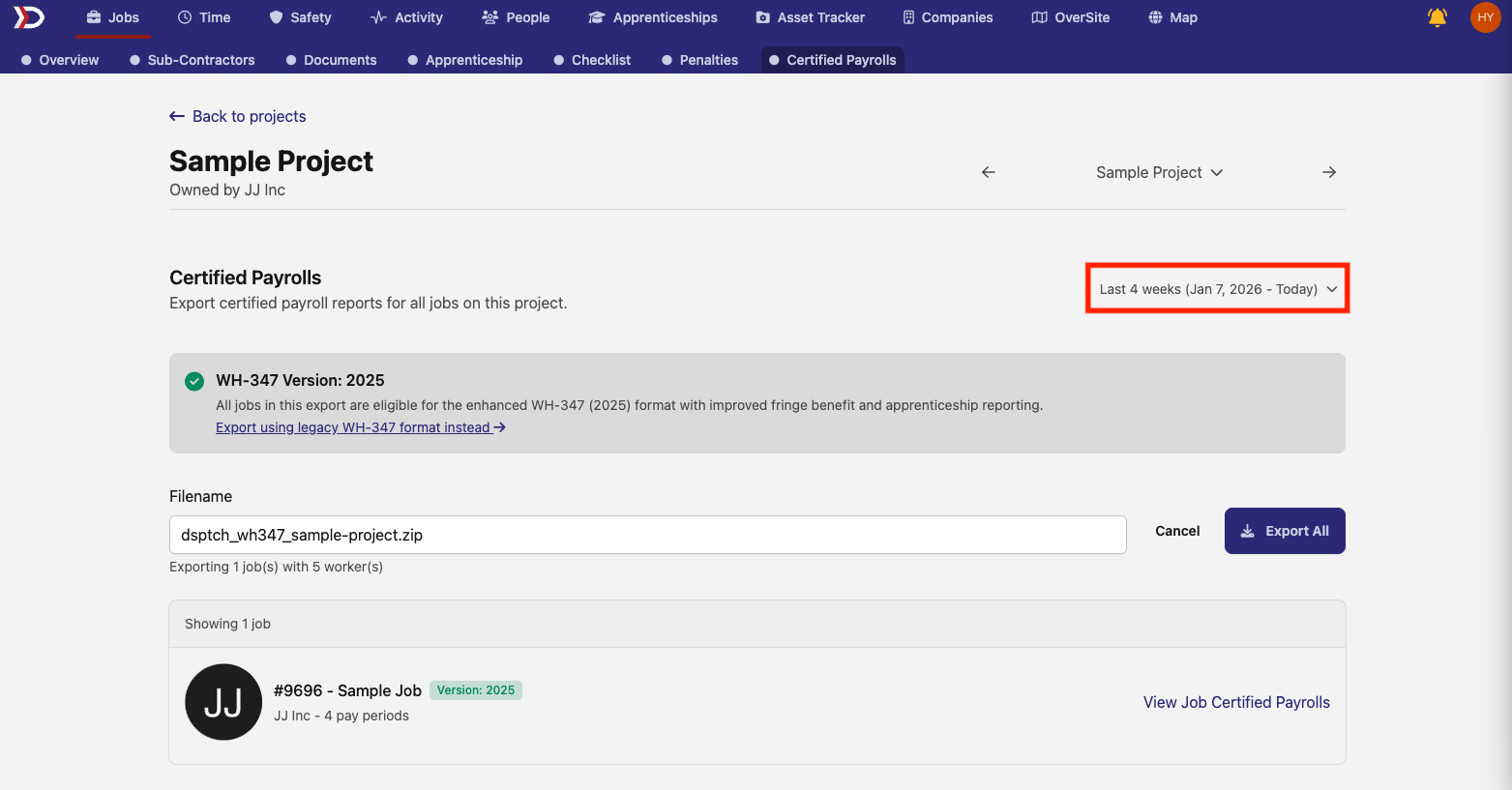
The selected time period is near the top right corner of the page (indicated by the red box in the image below). To select a different time period, click on the selected time period and click on the desired option from the dropdown menu. Available options differ depending on the length of the job. Examples include: "Last 4 weeks," "Last 12 weeks," "Last 24 weeks," and "Since Job Start."
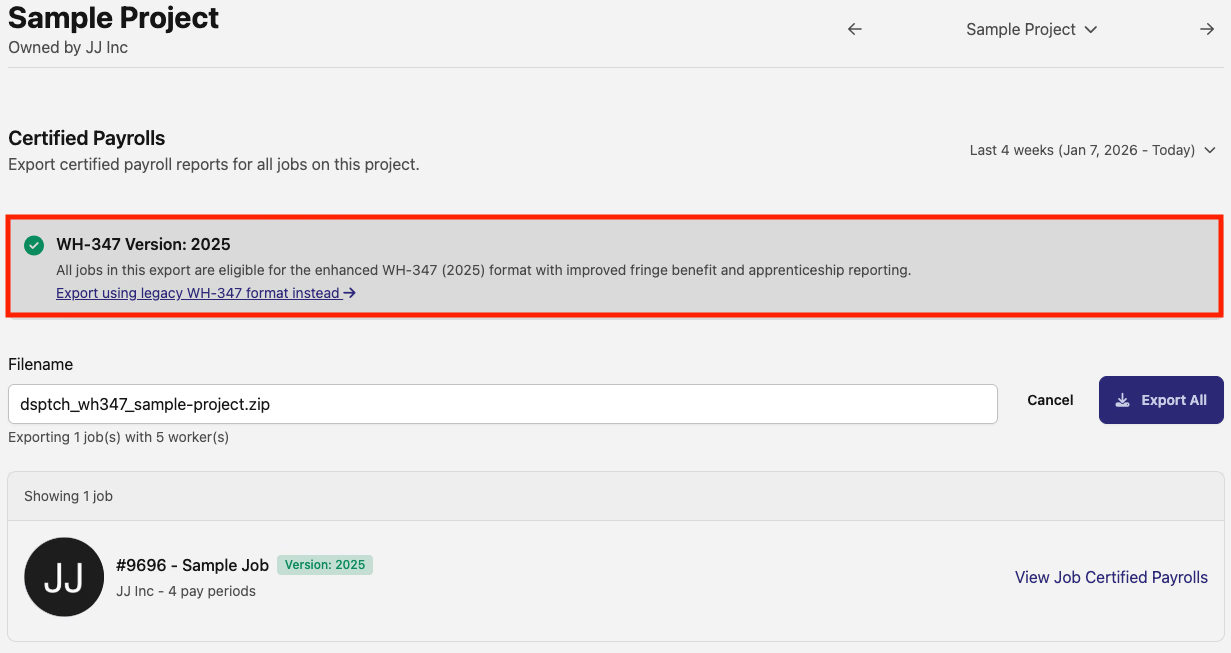
A banner that specifies the WH-347 version that will be used also appears in this page (indicated by the red box in the image below). If benefit plans have been configured within the "Settings" tab of the "Time" tab, the 2025 WH-347 version will be available. Otherwise, the legacy WH-347 version will be used. For more information on benefit plans, please review our help document here.
If the required benefit plans have not been configured, then the banner than indicated the WH-347 version will appear as it is below.
If you with to use the legacy formate even when the 2025 version is available, click the "Export using legacy WH-347 format instead" button (indicated by the red box in the image below).
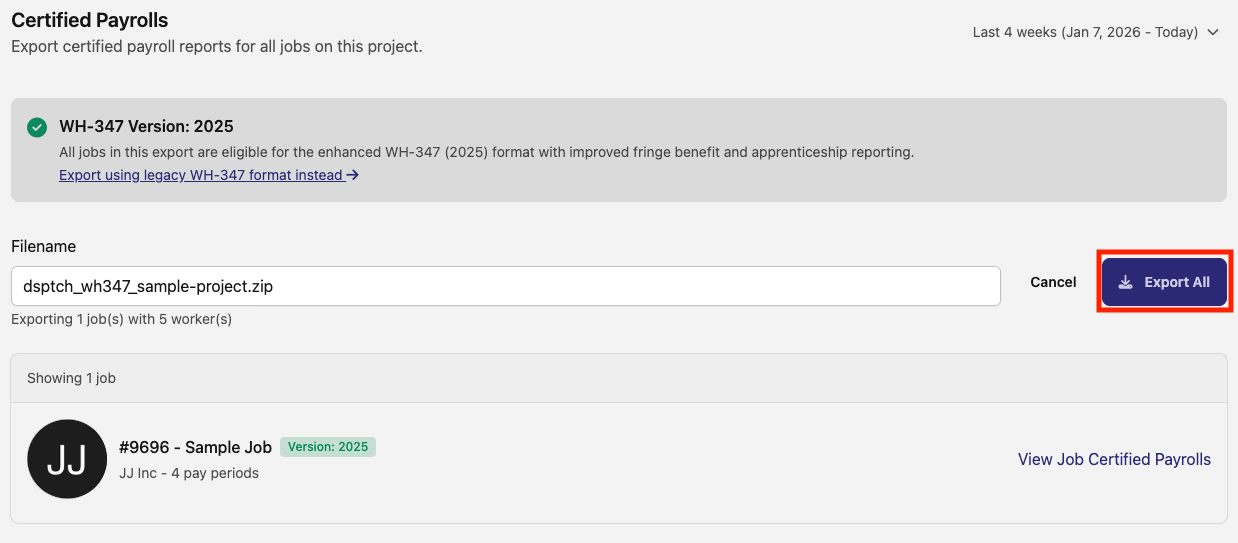
To export the WH-347 file for the selected time periods, click the "Export" button (indicated by the red box in the image below).
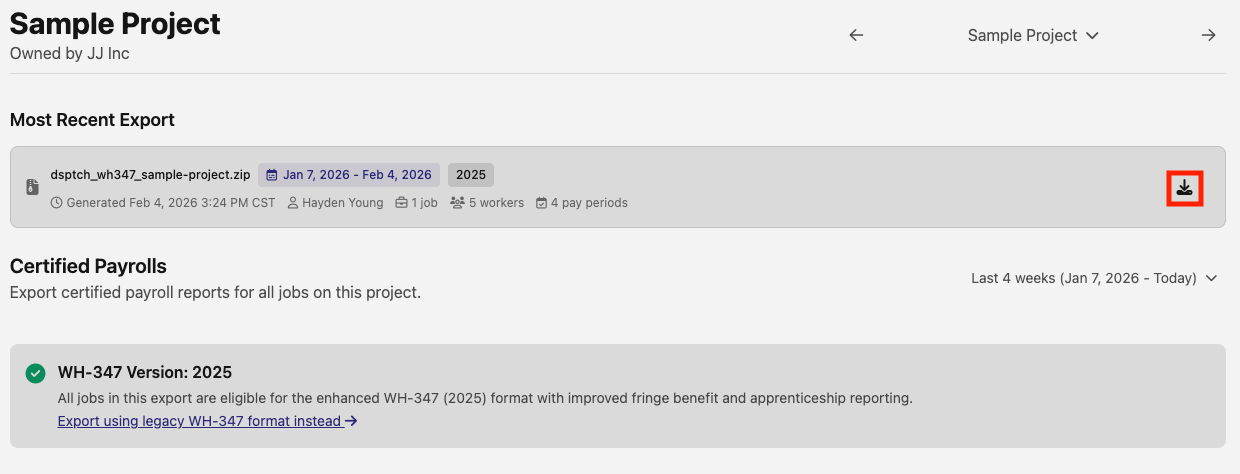
After a moment, the export will appear near the top of the page. To download the export, click the arrow and hard drive icon (indicated by the red box in the image below).
Reading the Exported Files
For details on the warnings file, summary file, WH-347 PDF (2025 format), and legacy WH-347 format produced by an export, see the WH-347 Export reference under PWA — that doc covers each file's content and per-field breakdown.