Edit Profile
DSPTCH allows users to update their profile information. To update your Profile, navigate to the profile screen. To get to the Profile Screen, press the big "D" in the middle of the bottom menu, and then select Profile.
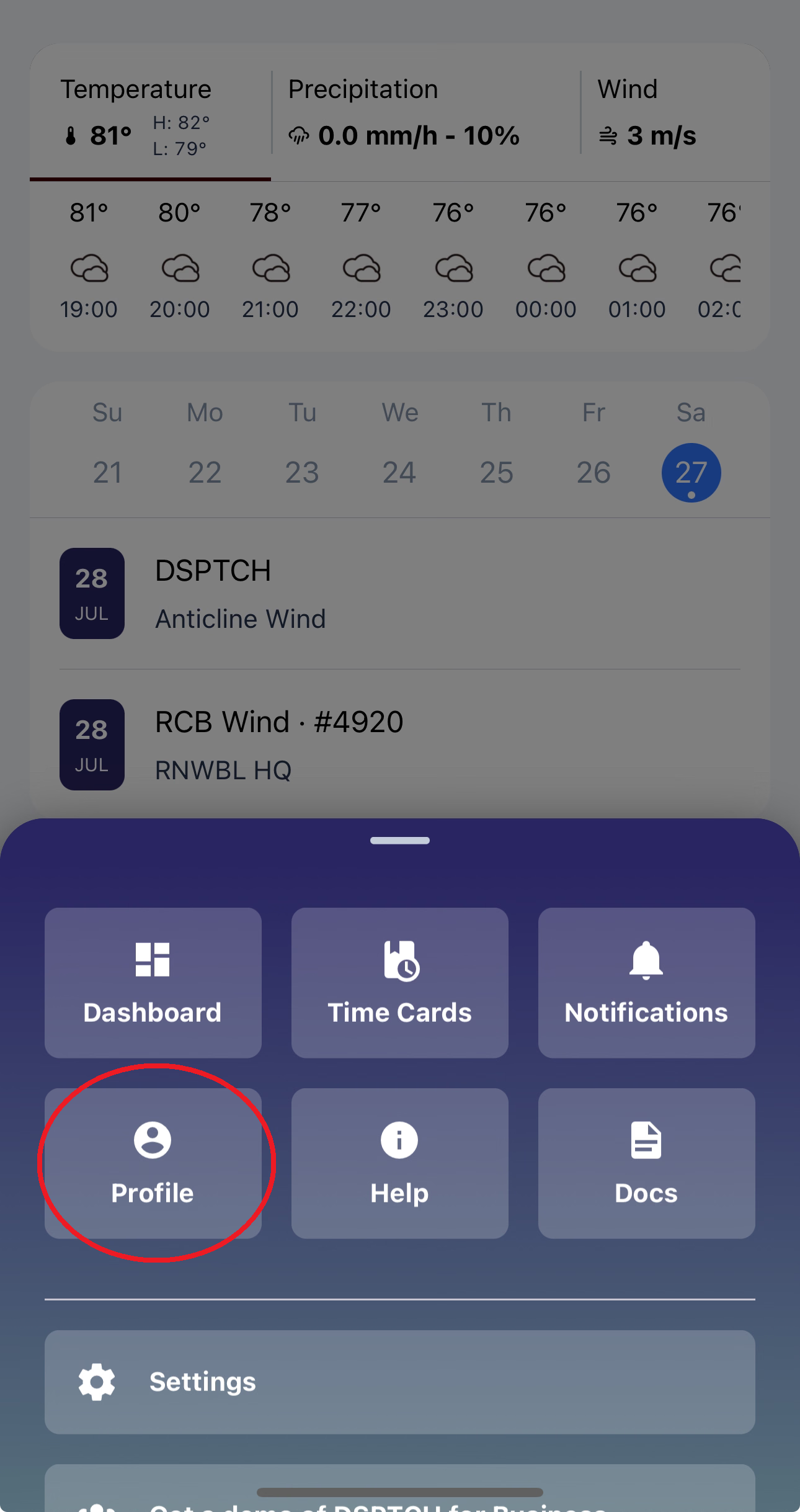
Profile button from the main menu - hit the big "D" to bring this up!
Edit Profile
To edit profile information, hit Edit Profile.
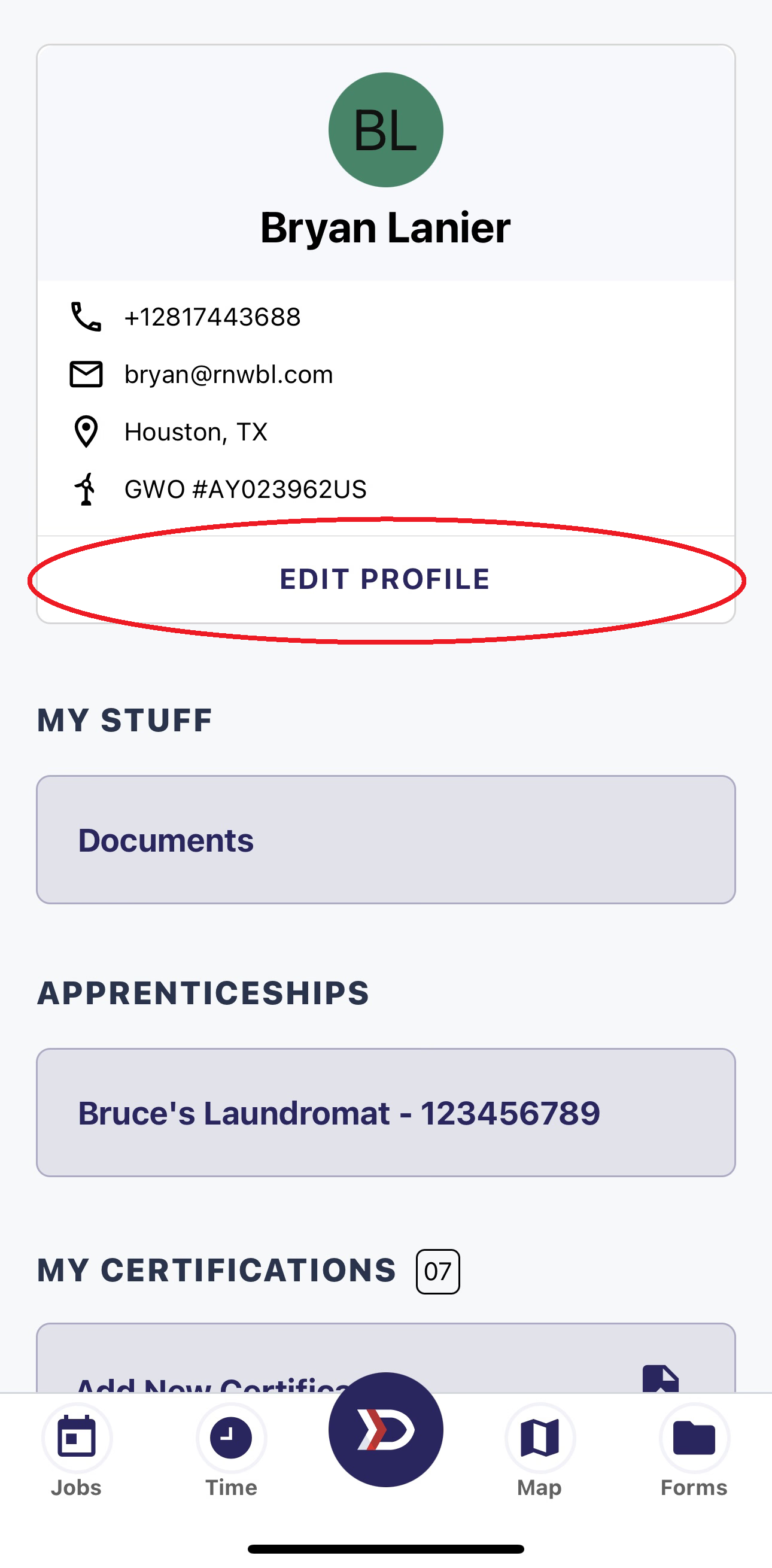
Edit Profile button
Once in the Edit Profile screen, you can change any of the fields and select Save in the top right corner when finished. To discard any changes, selct < Profile on the top left corner.
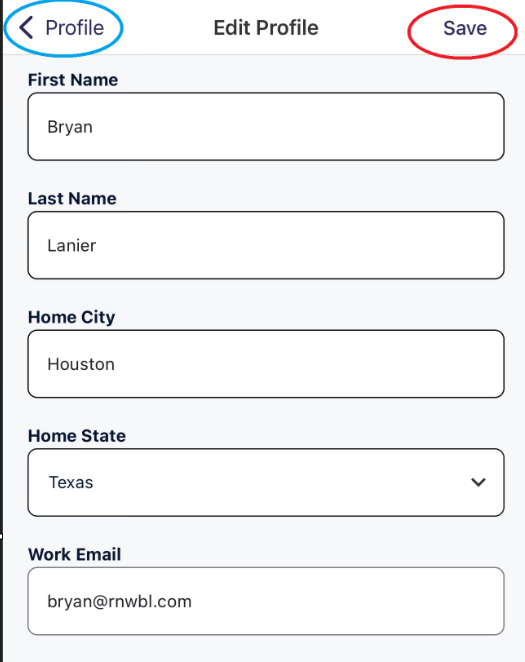
some of the available options when editing profile
What if I need to change my phone number?
Phone number not designed to be change directly in DSPTCH. This is because your phone number is linked to your identity. To change your account's phone number, create a new account using your new phone number and then follow the steps to merge accounts.
Change Work Email
To change your work email, there are a few additional steps. Once changed, you will need to complete the verification process. The verification process is exactly the same as detailed in the creating an account docs (you will be sent a code to your email that you must enter into DSPTCH).
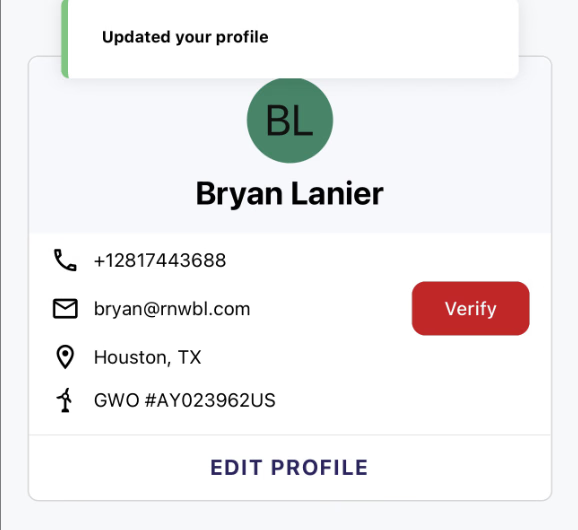
Example of changing work email.
To verify your new work email, press the red Verify button to the right of your new work email in the main profile menu.
After you press Verify, do not back out of the screen until you enter the code. Doing so will require you to hit the Verify button again, generating a new code and invalidating the old one.