Company Documents
Company Documents contains all the files or links that your company has uploaded for you to access directly via DSPTCH.
To access these documents, you can select Documents under My Stuff in your profile page, or choose Docs from the menu that pops up after hitting the big "D" in the center of the bottom tray.
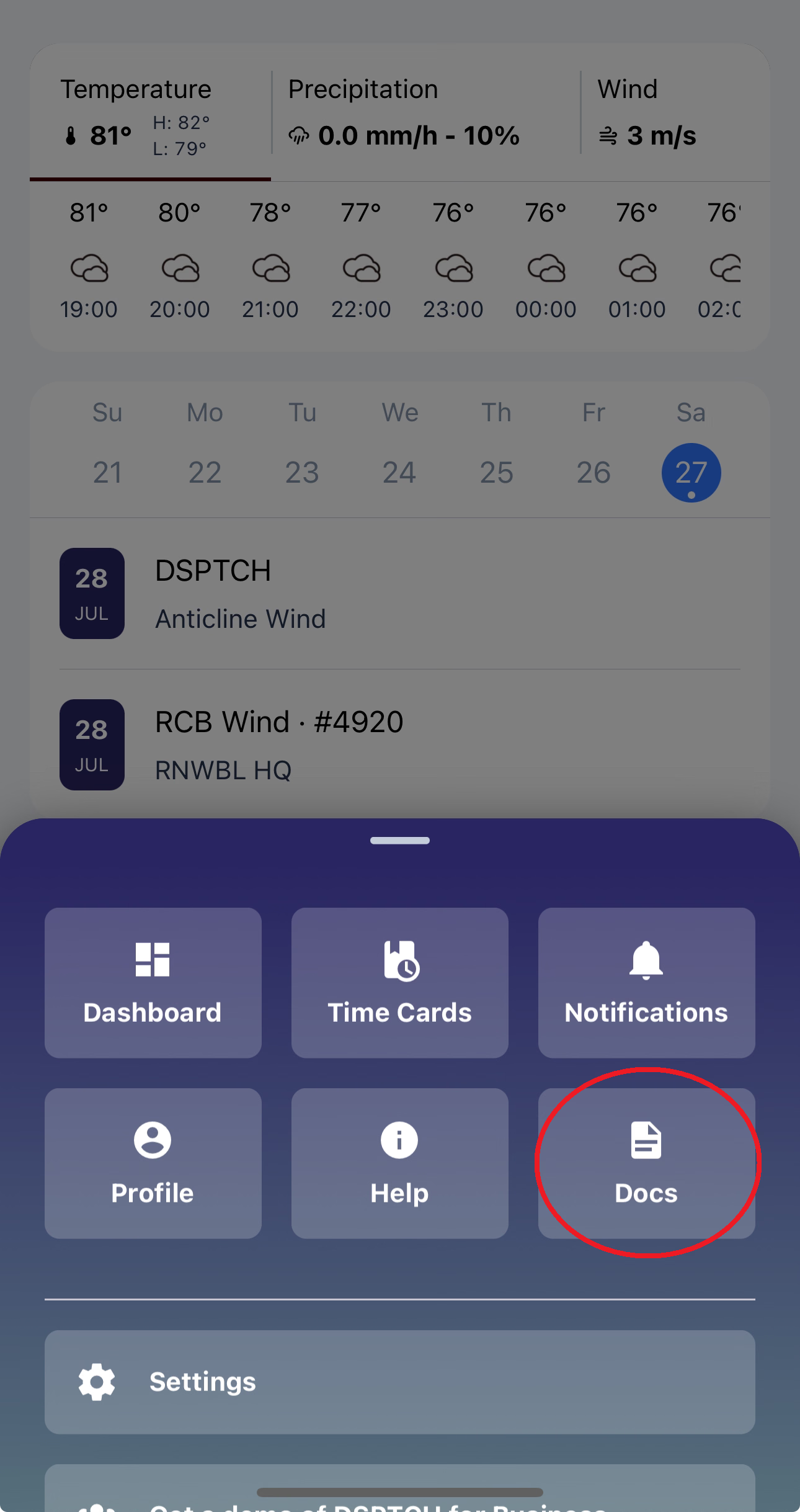
Access Documents via the Docs button on the pop up menu
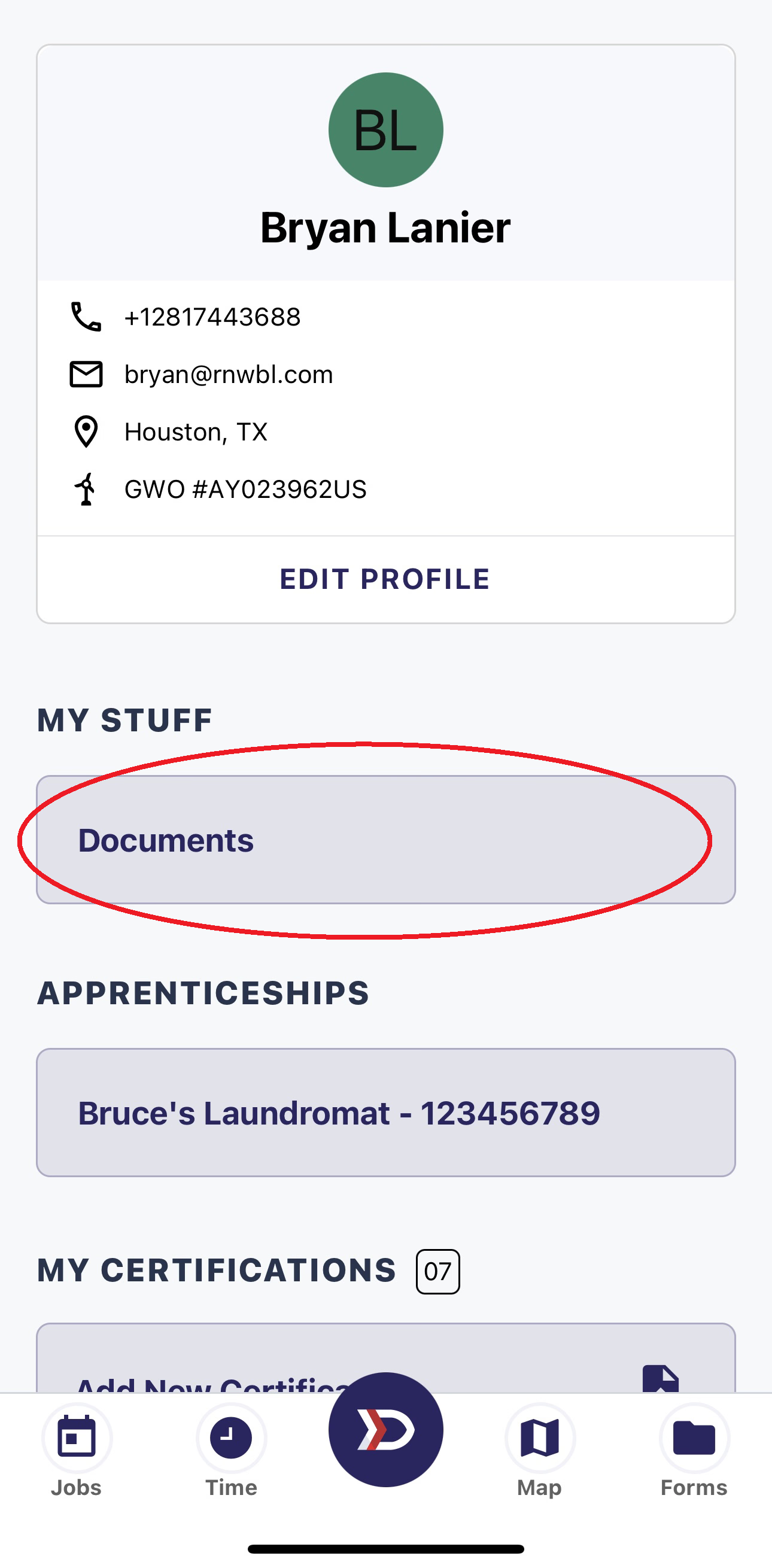
Or the Documents button on the profile page
Documents page
The Documents page will display all available documents for all companies you have access to. These documents can be links or files.
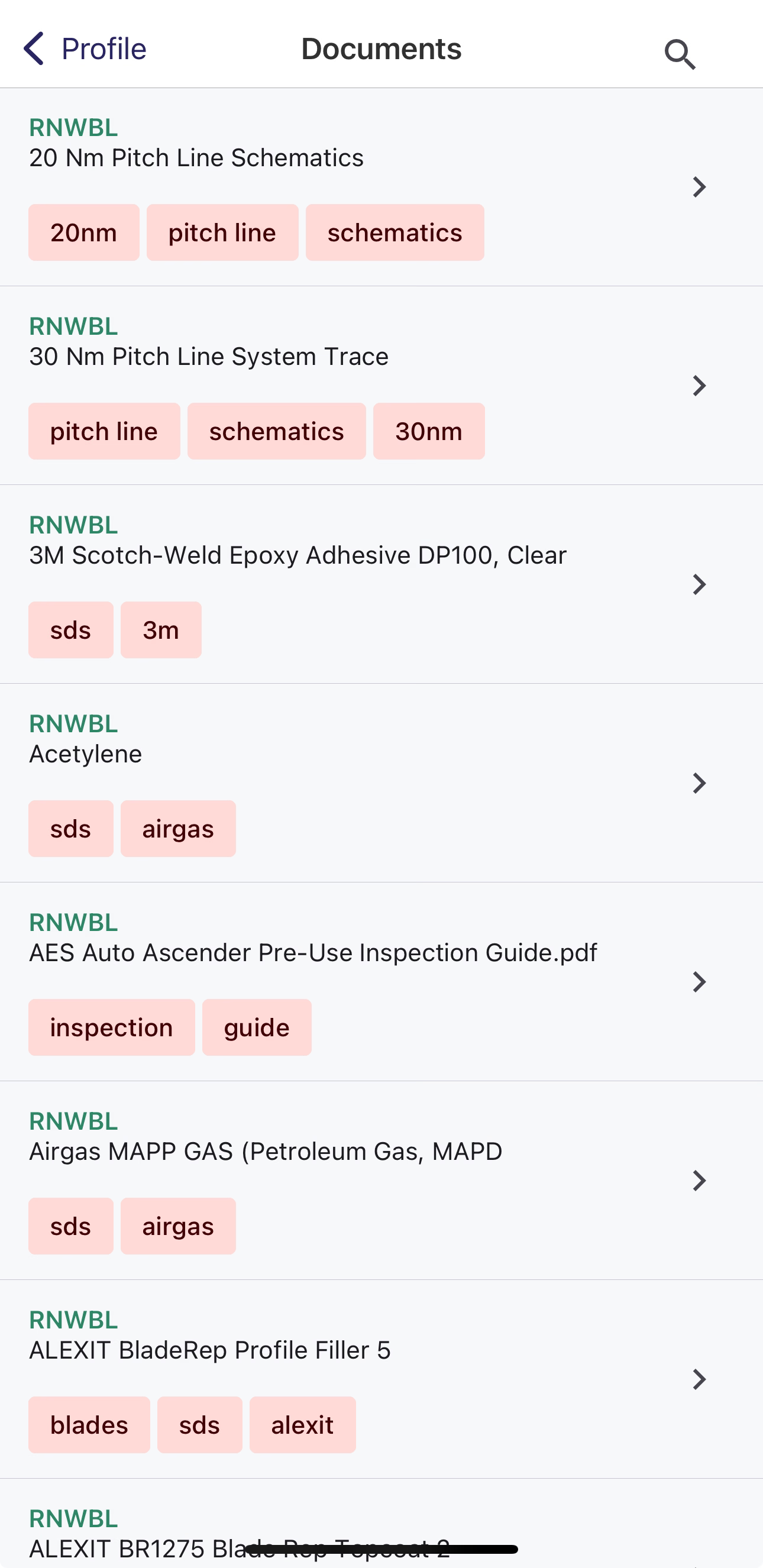
Example of Documents page
Tags
Tags are a useful way to find documents that share a particular topic or property.
From the Documents screen, if you see an interesting tag, you can click on it to filter for similar documents. You can select multiple tags. Note, having more tags will expand, rather than narrow your search.
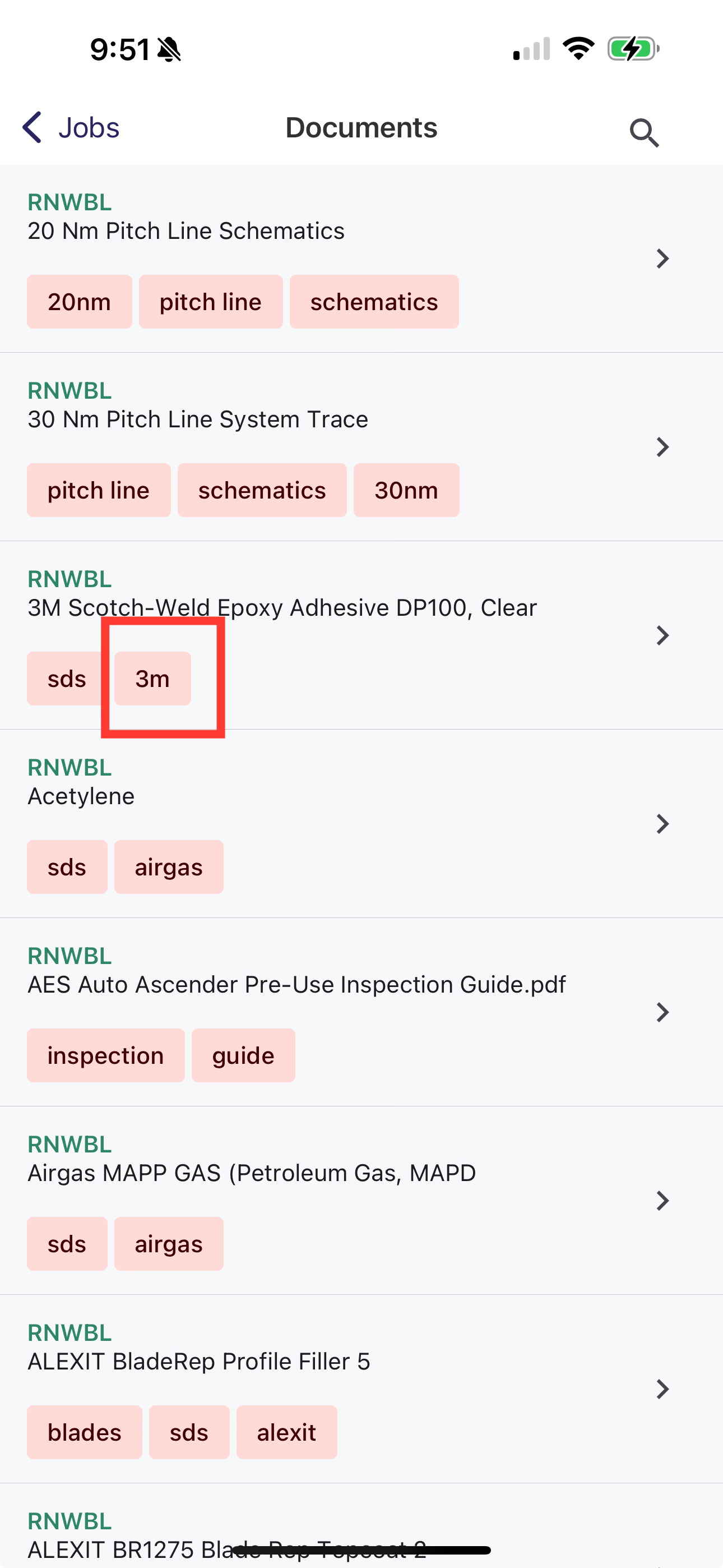
Click on a tag to see all documents with the same tag
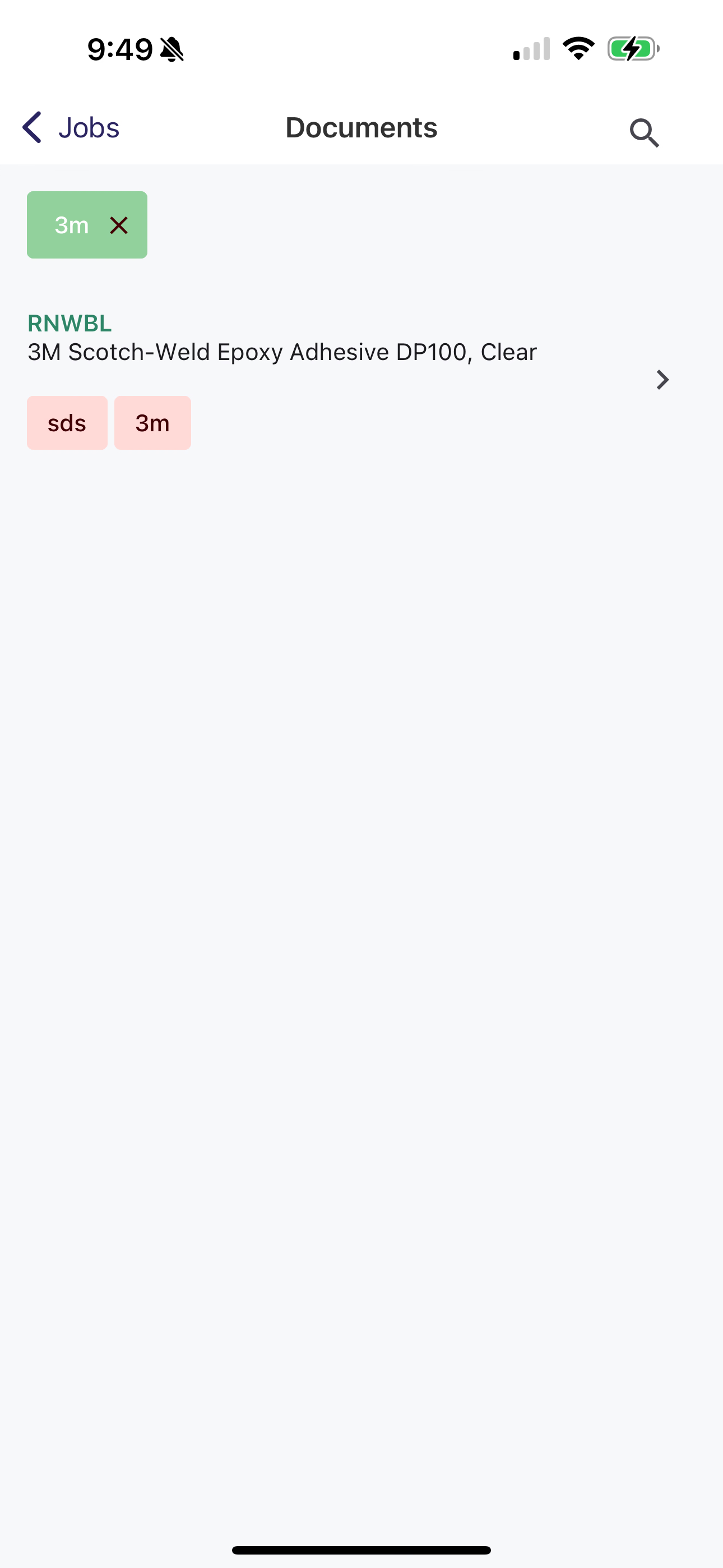
If you don't find what you're looking for, add some more tags!
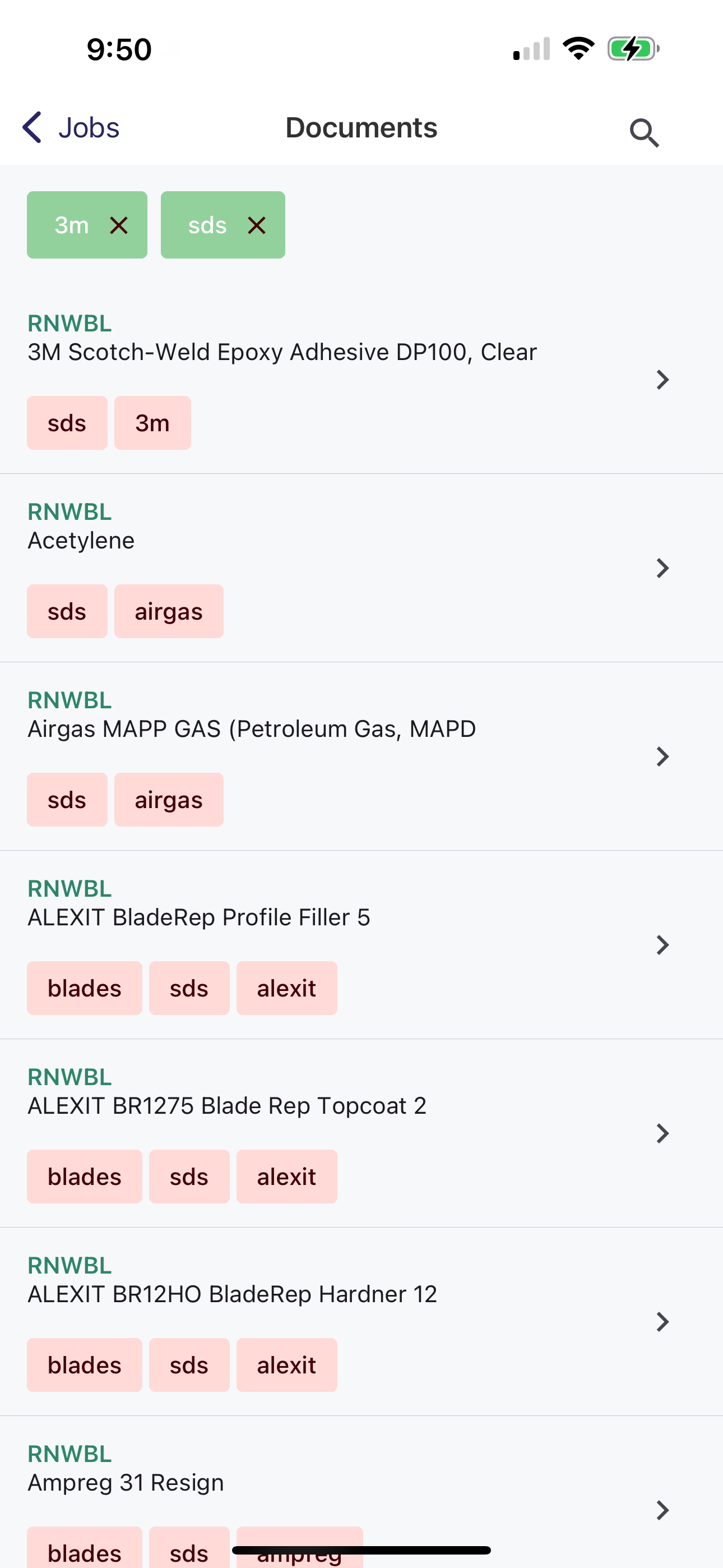
a lot more results for sds
Search
If scrolling isn't your thing, you can click on the search icon in the top right corner and search by document name or by tag.
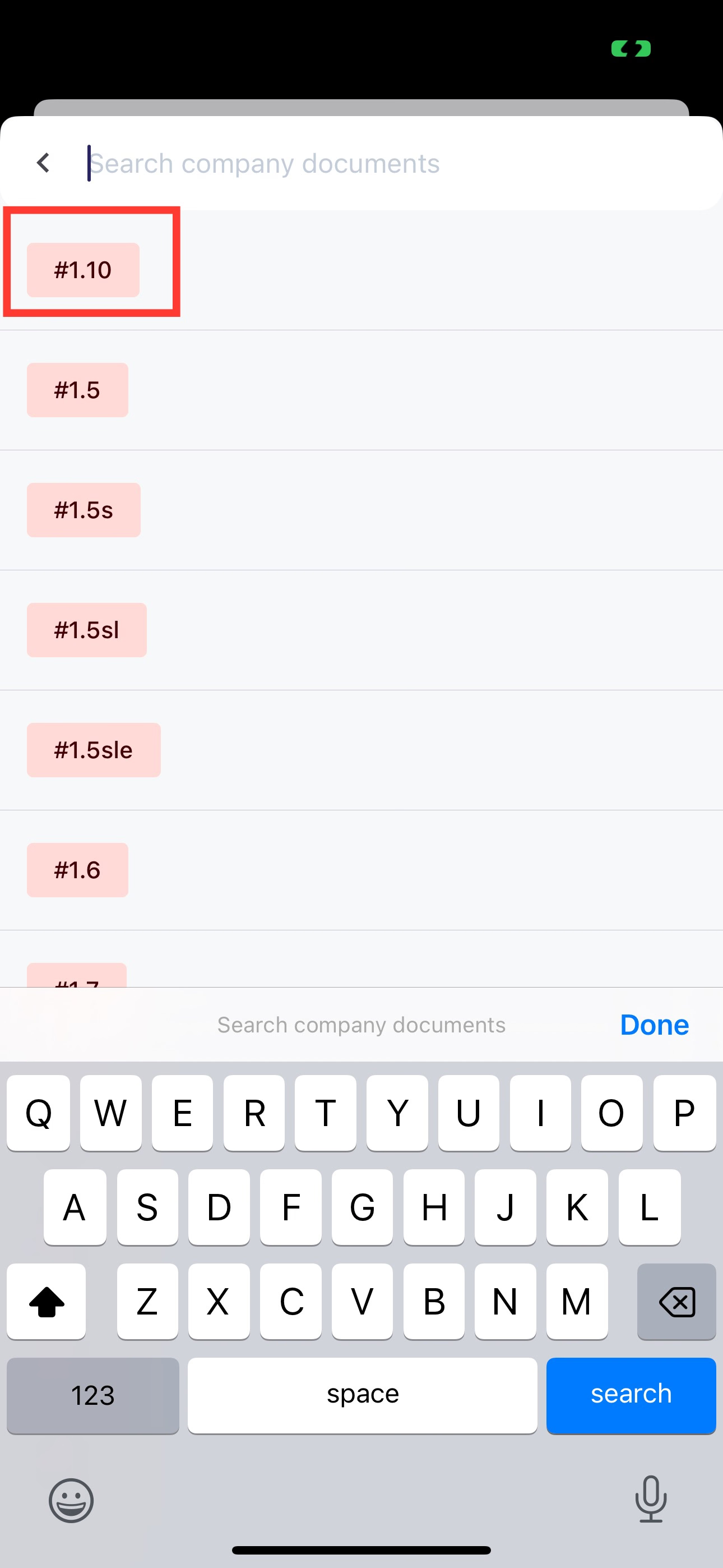
Tags also work in search! click on one to filter documents.
What if I don't see the documents I expect?
If you don't see the documents you expect, your profile may not be part of your company. Check if you have an invite or ask your manager if they have uploaded the document.