Certifications
DSPTCH stores and displays professional certifications, which are linked to the profile and accessible through the Profile screen.
Viewing Certifications
To view your profile's Certifications, navigate to the Profile page and scroll down until you see "My Certifications". Tap on any individual Certification to pull up the image or PDF file for the selected Certification.
Adding Certifications
To add a new Certification, tap "Add New Certification". This will open the New Certification page.
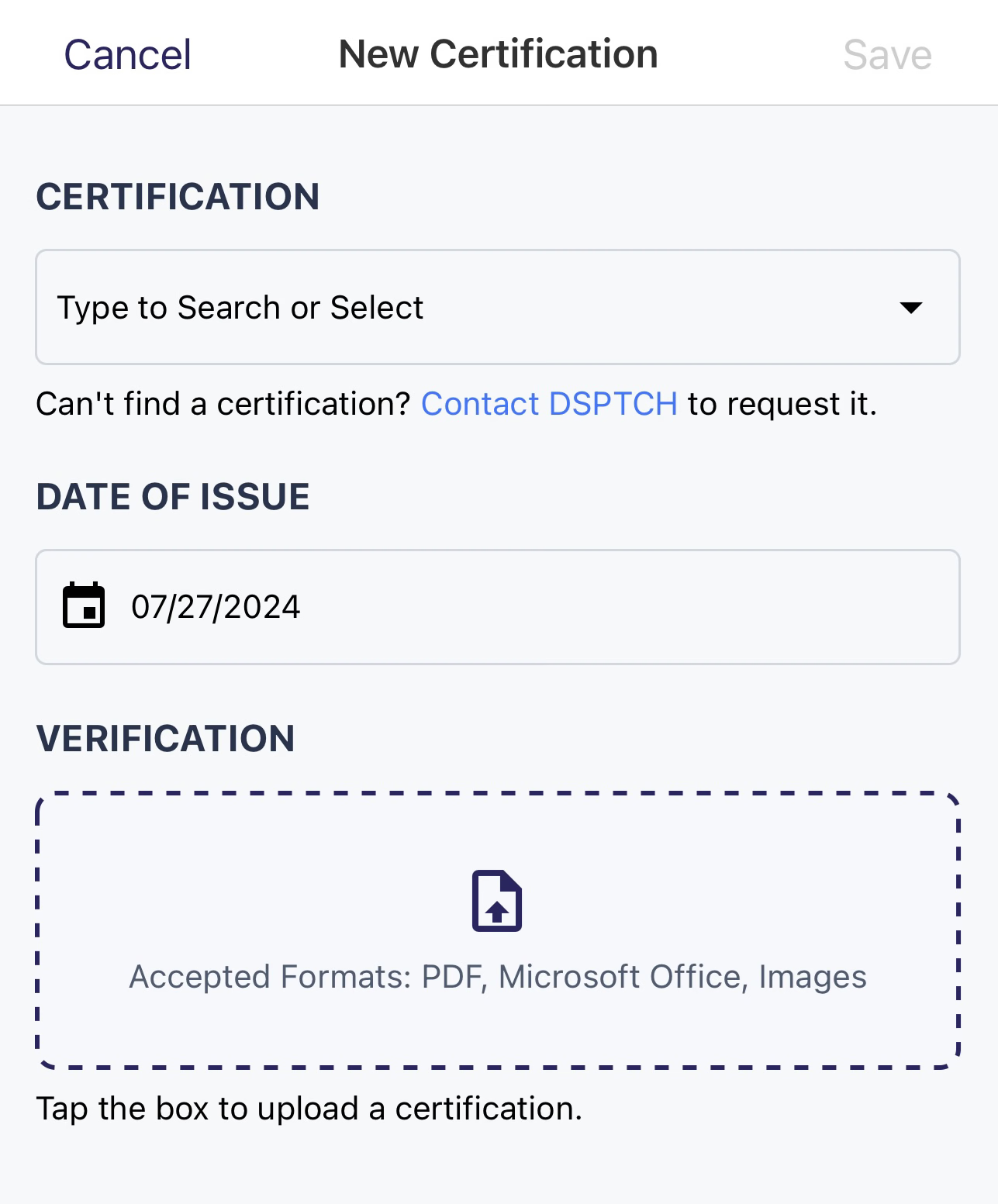
New Certification page
First select the Certification type being added. Tap the dropdown below Certification to bring up the dropdown menu.
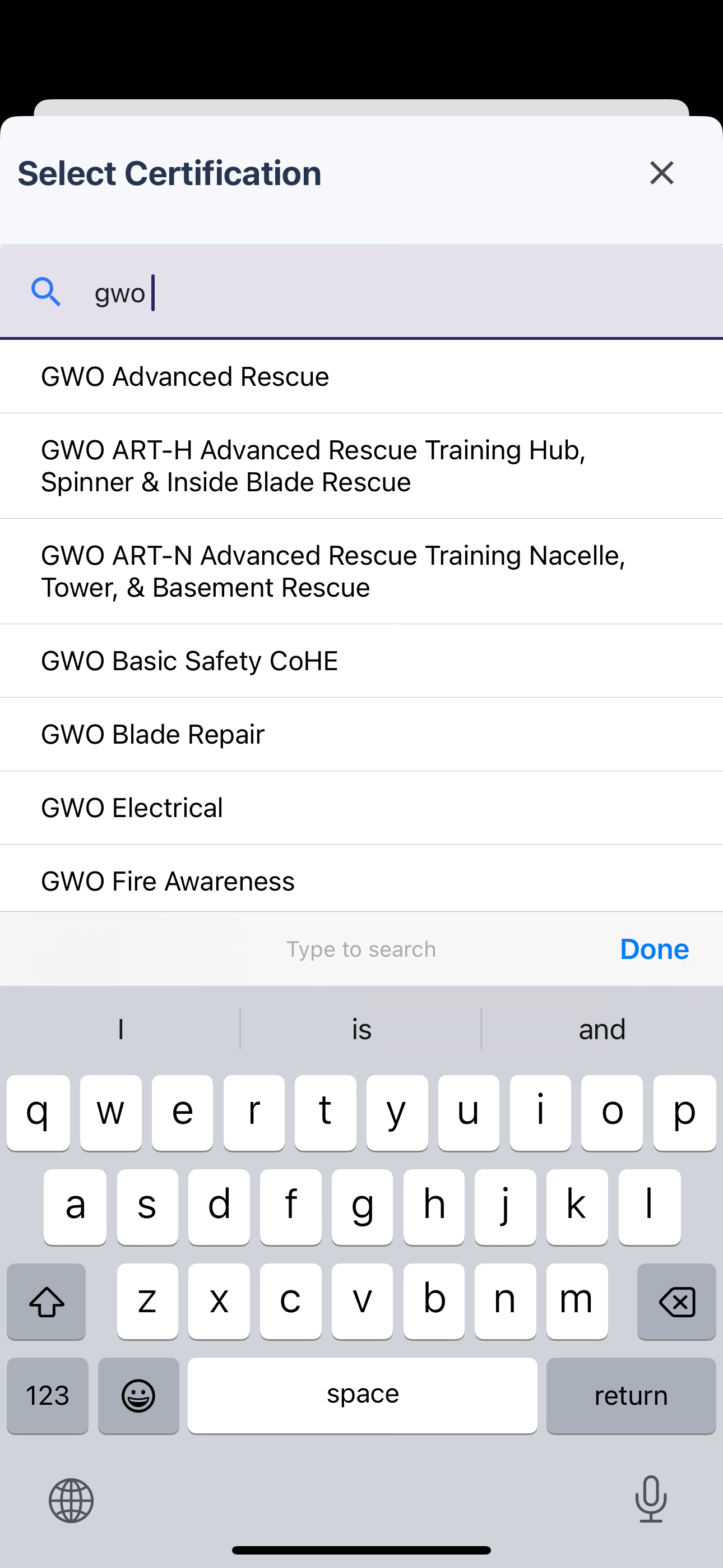
Dropdown menu of certifications
FAQ: What if I don't see the Certification I need?
DSPTCH tries to keep up to date with all industry standard Certifications, but occasionally we miss some!
If a certification is missing, please send an email to help@dsptch.work to request it be added.
Date of Issue
Tap the date under Date of Issue to pull up the date picker.
This date should be the date on the certificate, not the date of upload.
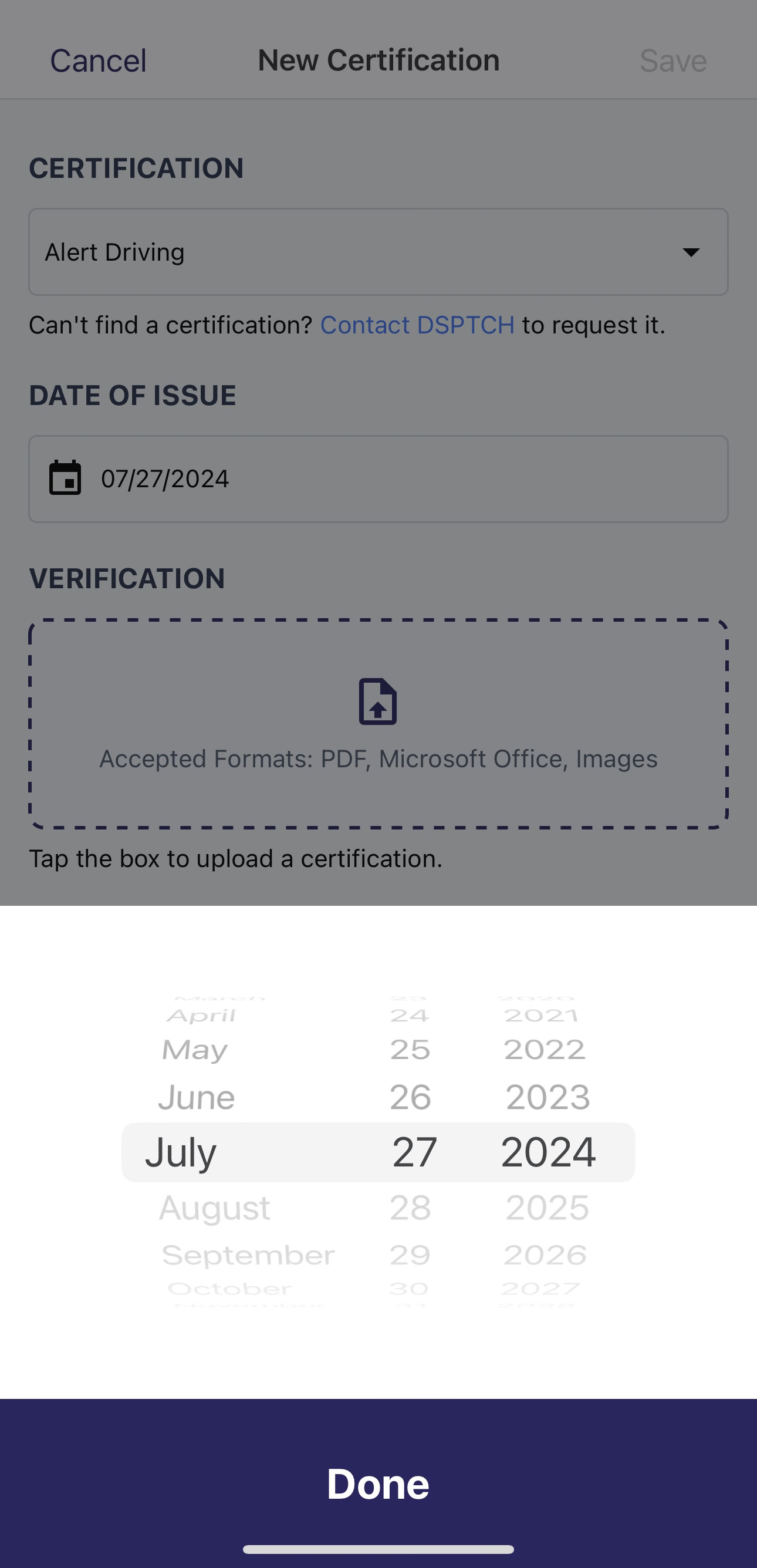
Date of Issue slider
Verification
Finally, choose a file or photo to upload a copy of the Certification to add to your records.
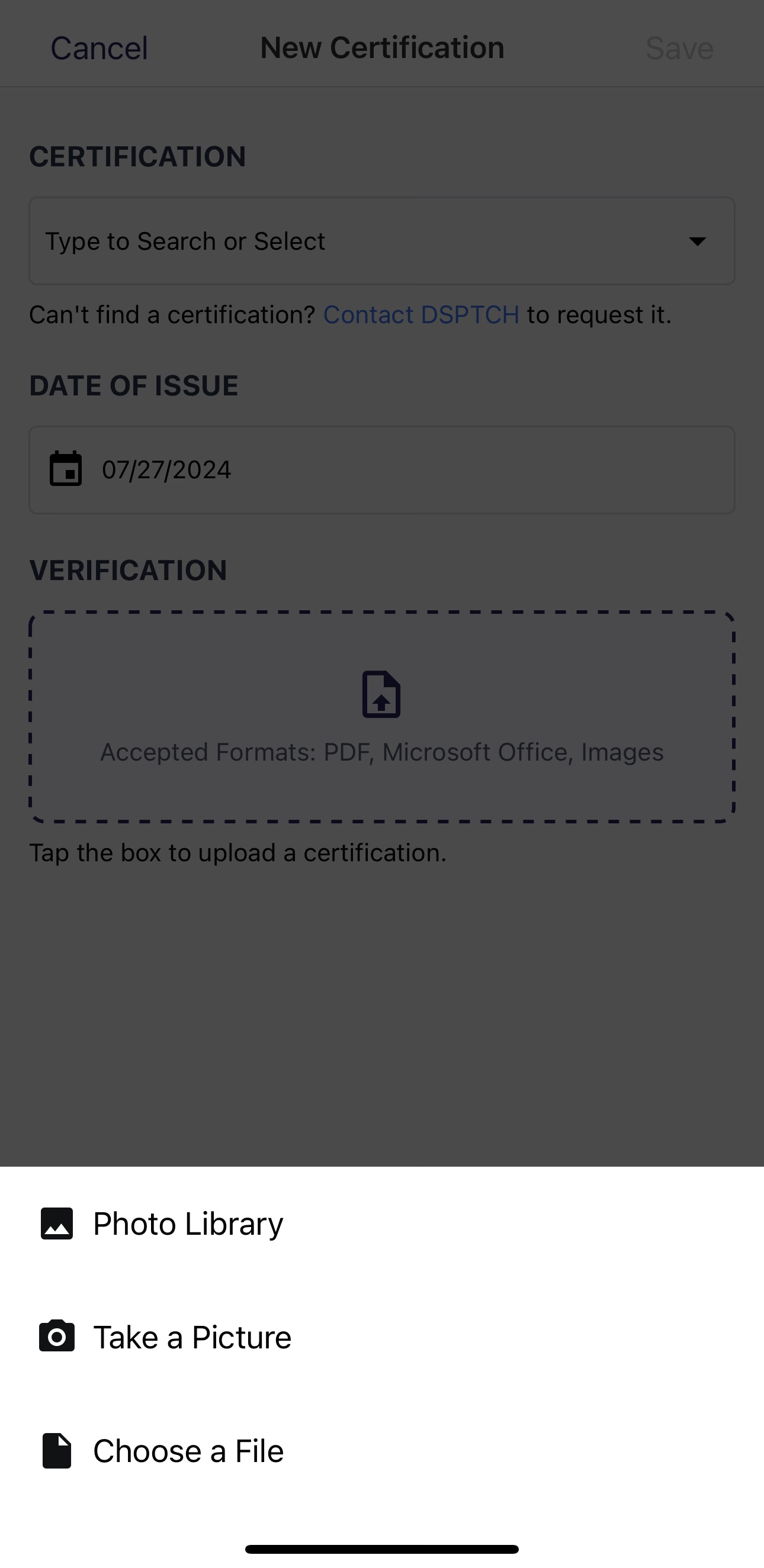
Options for adding verification to a certificate
Once finished, click "Save" in the top right corner. This will redirect to the profile page the new Certification will be visible on your Profile!
Certifications can also be added to your profile you by your company.
Editing Certifications
To edit a Certification, click the pencil on the right hand side of the Certification.
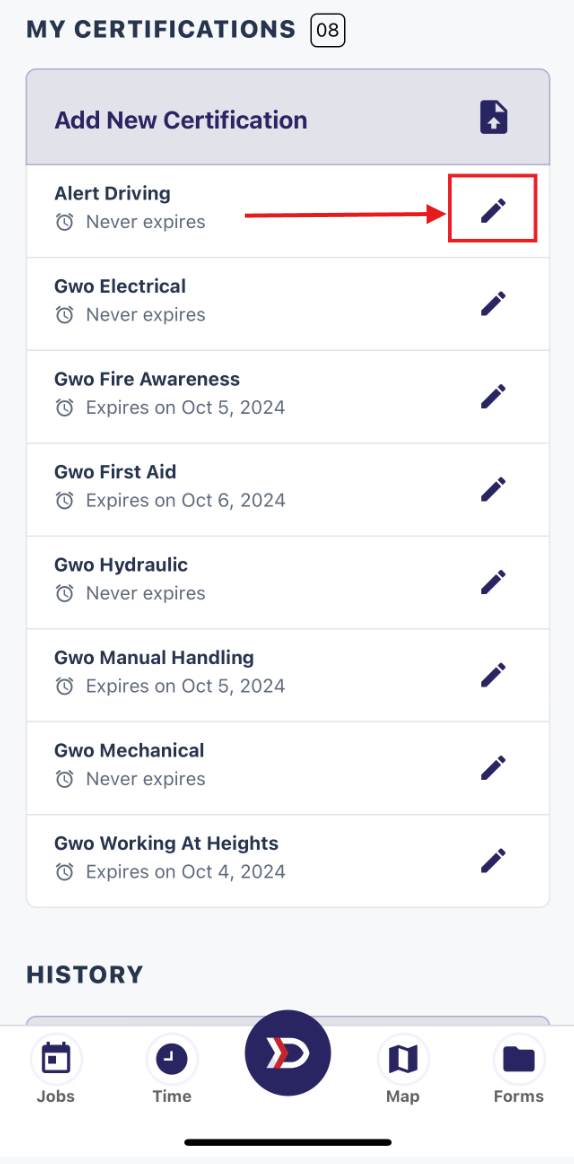
click on the pencil to edit the certification
From the Edit Certification screen, make changes to any of the fields including the Date of Issue or the copy of the issued Certification.
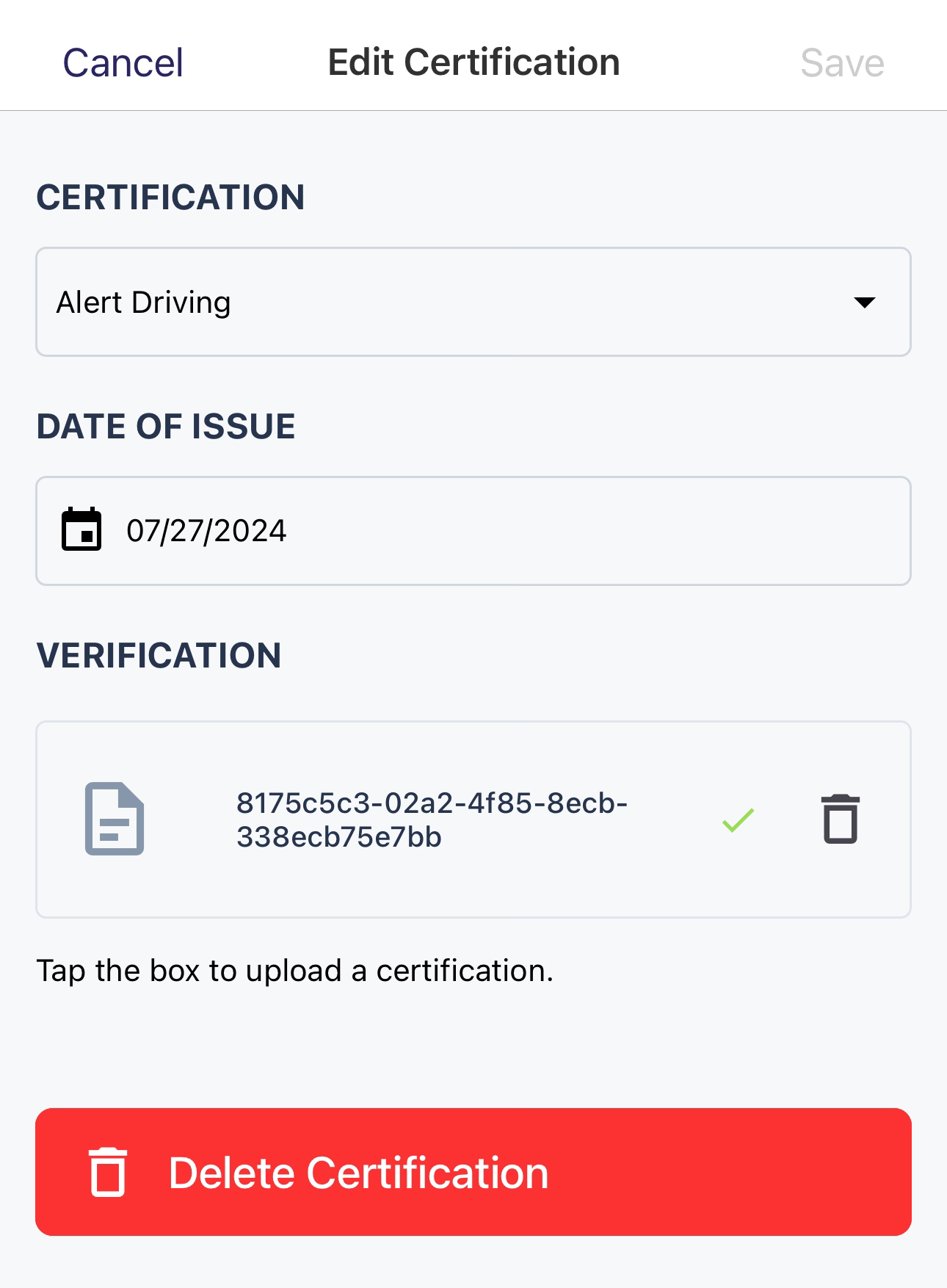
Edit certification page. Hit the trashcan to remove the current copy of the certification
The type of certification cannot be changed. To associate a certification with a different type, it must be added as a new certification.
Once finished, press the Save button in the top right corner. To discard any changes, press the cancel button in the top left corner.
Deleting Certifications
To delete a Certification, open the Edit Certification window by selecting the pencil icon on the My Certifications page. Then, at the bottom of that screen, press the Delete Certification button. When the Delete Certification popup appears, press OK to delete the certification.
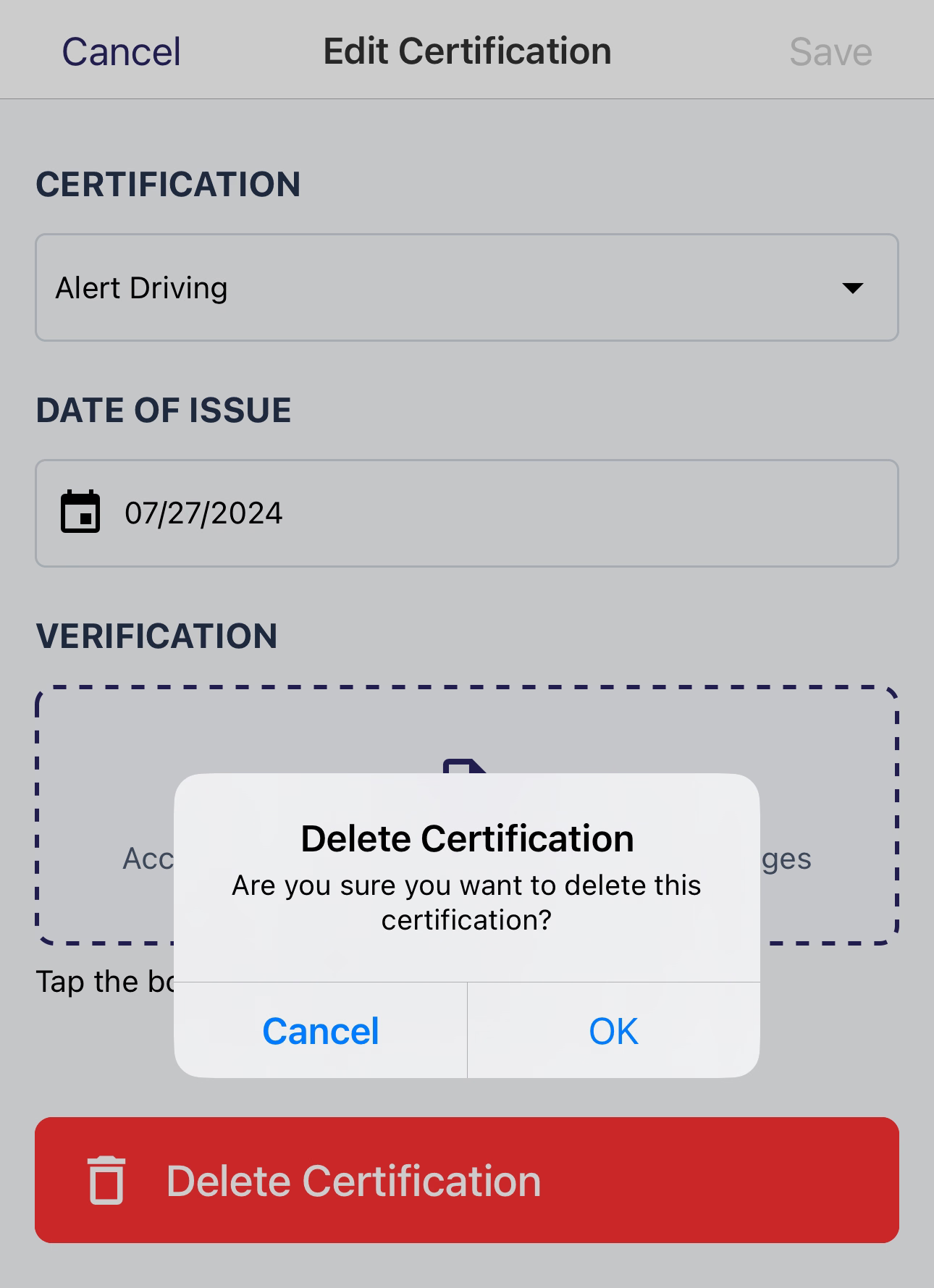
Example of Delete Certification prompt