App Updates
Overview
DSPTCH utilizes two update methods to keep your experience secure and up-to-date:
- Major Updates: Delivered through the App Store.
- Minor Over-the-Air (OTA) Updates: Delivered directly in the DSPTCH Mobile app, without requiring a full App Store download.
Update Mechanisms
Major App Updates (App Store)
Major Updates are large scale changes to DSPTCH that require re-downloading from the App Store.
Major Updates typically include:
- Significant feature releases
- Core functionality improvements
- Major bug fixes or security patches
When a Major Update is ready:
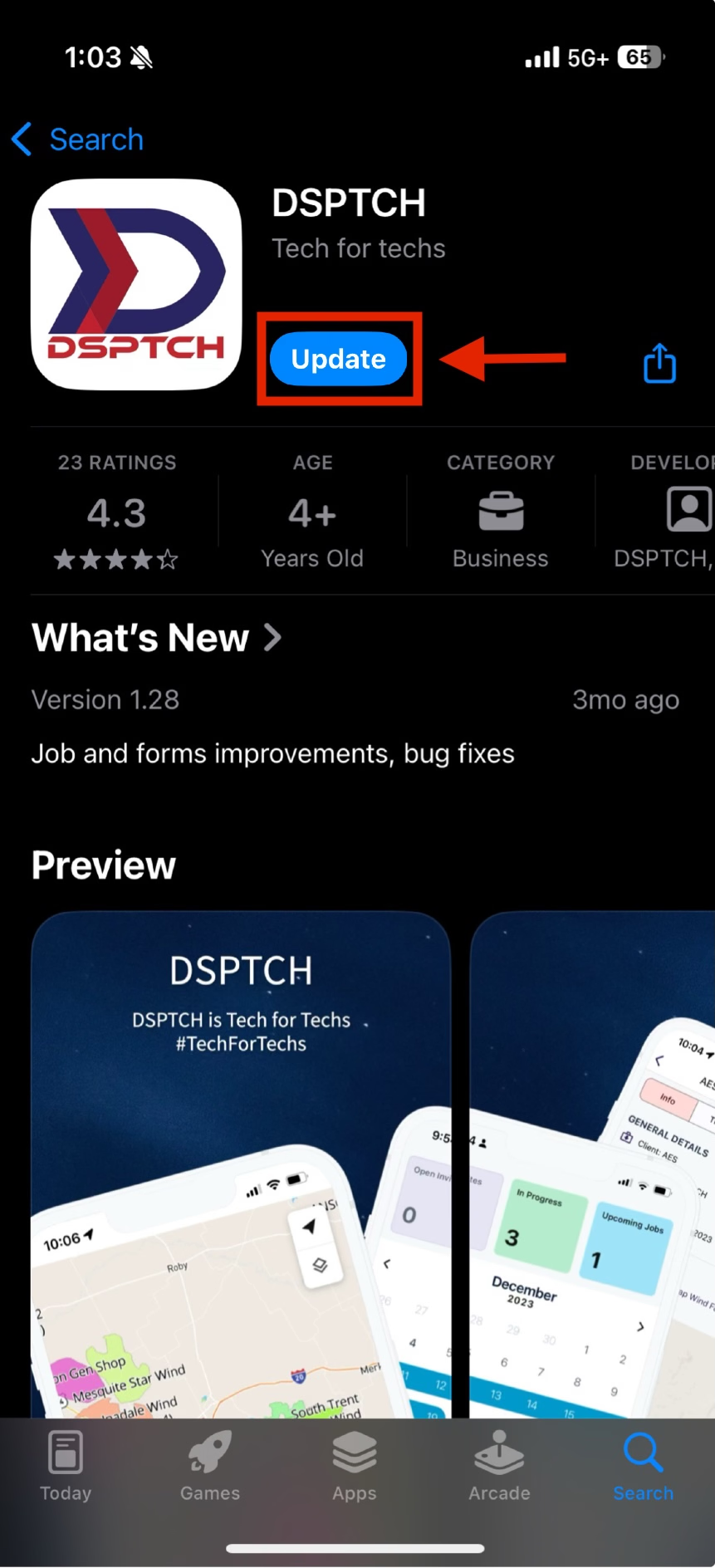
- A banner will appear prompting to “Update” the app.
- Tapping the Update button will redirect to the App Store.
- Follow these steps:
- Tap Update in the App Store listing (see image below).
- Wait for the download to complete and relaunch the app.
Minor OTA Updates
OTA updates are minor changes that do not require re-downloading the app from the App Store.
OTA Updates typically include:
- Small bug fixes
- Performance optimizations
- Non-critical content changes
When at OTA Update is available:
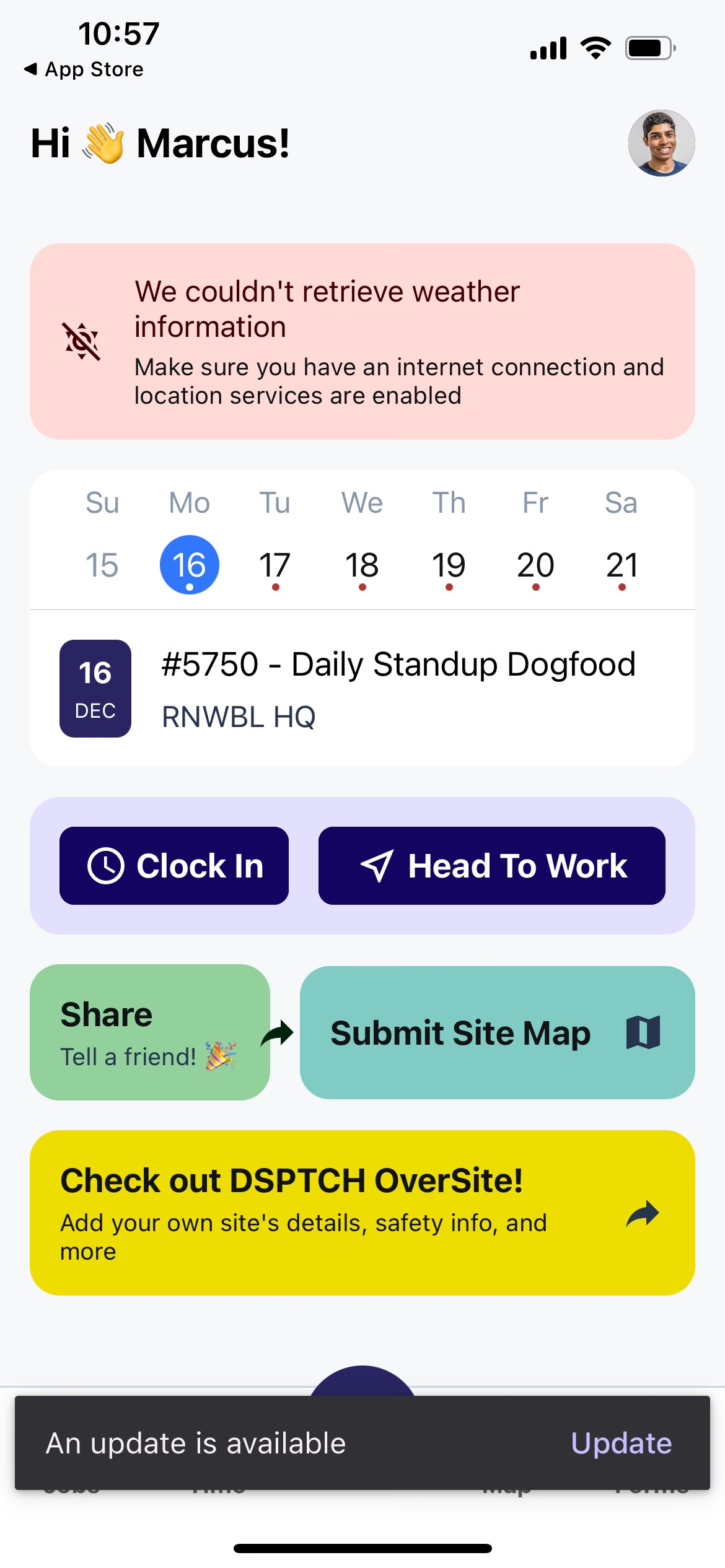
- A banner will appear at the bottom of the screen with the text, "An update is available" (see below).
- Click "Update"
- Please allow a few second for the update to apply. The app will reload after the update is successfully applied.
OTA Update
Why Updates Matter
- Performance: Ensures the app runs efficiently on the latest OS and devices.
- Security: Keeps data safe with the latest security enhancements.
- Features: Unlocks new features and improvements.
- Bug Fixes: Resolves any issues impacting user experience.
Troubleshooting
This section provides an overview of common update issues and provides solutions.
Problem: OTA Updates Not Applying
- Close and reopen the app.
- Ensure your device has a stable internet connection.
Problem: App Store Update Not Visible
- Go to the App Store and manually search for the app.
- Pull to refresh the app listing to check for updates.
Tips
Enable automatic updates in the App Store for hassle-free updates. Check for updates regularly to enjoy the best app experience.
By following this guide, DSPTCH Mobile will always stay up-to-date with the latest improvements and features in our app!
If you are experiencing any issues not addressed in this document, please reach out to our support team for further assistance at help@dsptch.work.
If you experience any issues, reach out to our support team for assistance.