Attestations
Clocking In/Out Basics
Attestations are directly linked to the clock in/out process on DSPTCH Mobile.
For a detailed walkthrough of how to clock in/out, please read our documentation here.
How to Complete a Clock Out Attestation
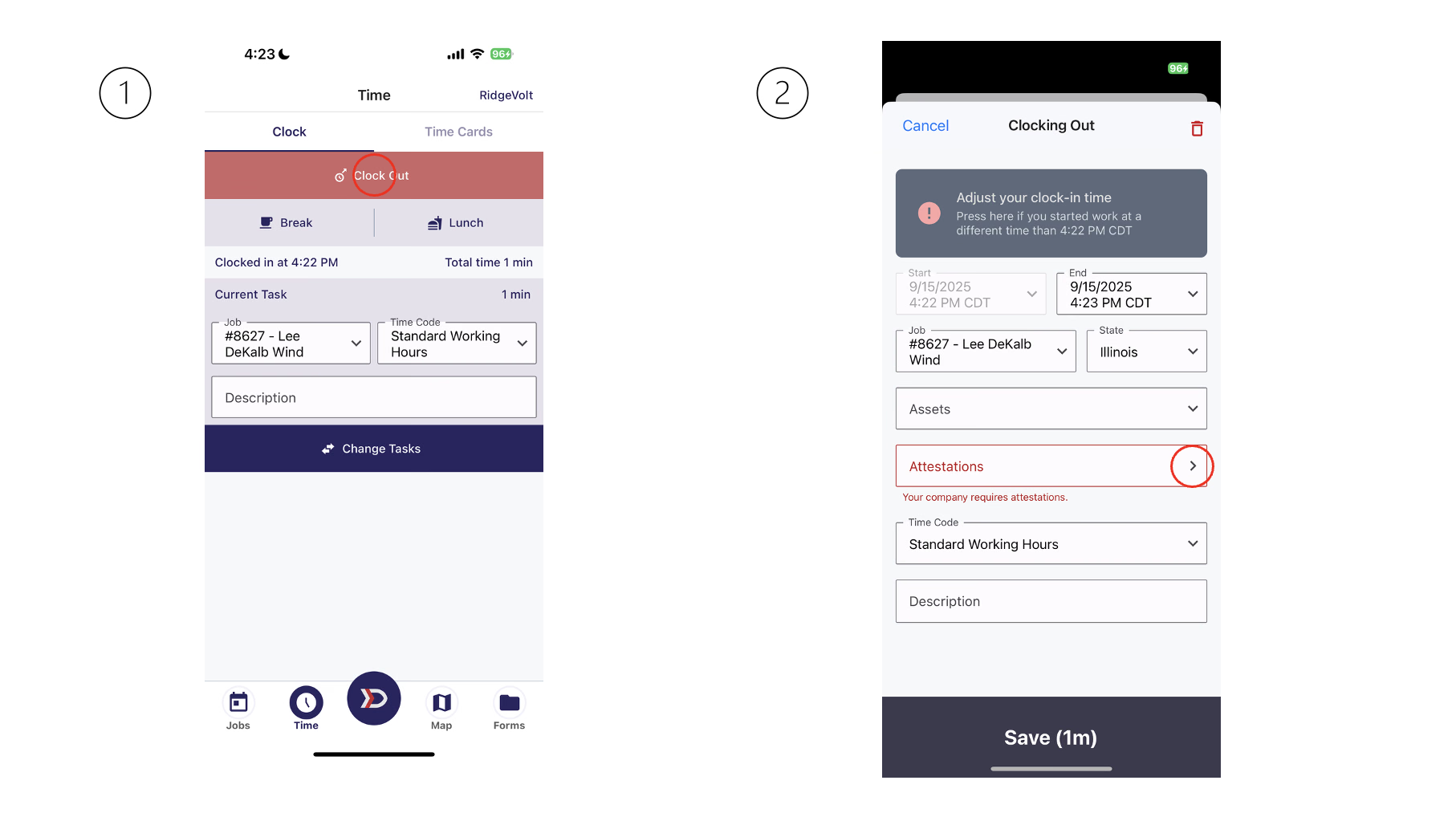
Tap "Clock Out" to end your active Time Entry and then confirm that the correct State is selected.
If your Company requires Attestations for that State, the Attestations field will automatically appear on the "Clocking Out" page.
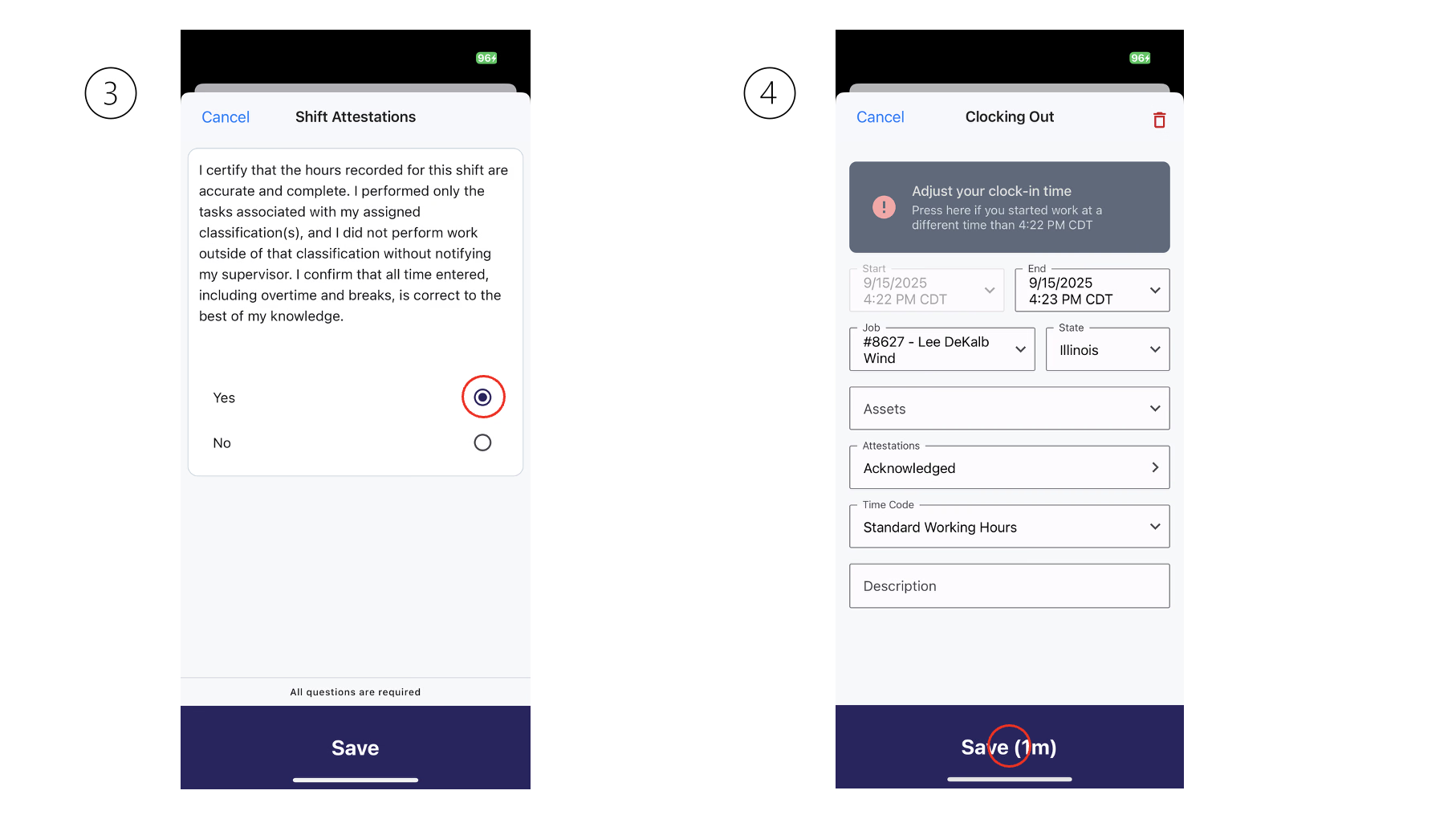
Tap the "Attestations" field, select "Yes" or "No" to respond to the Attestation Statement, and then click "Save".
Finally, tap "Save" at the bottom of the "Clocking Out" page to record the Time Entry along with its Attestation.
Please see the images below for a visual walkthrough:
Manual Time Entry Basics
Attestations can also be added from Manual Time Entries.
For a detailed walkthrough of manual Time Entries, please read our documentation here
How to Complete a Manual Attestation
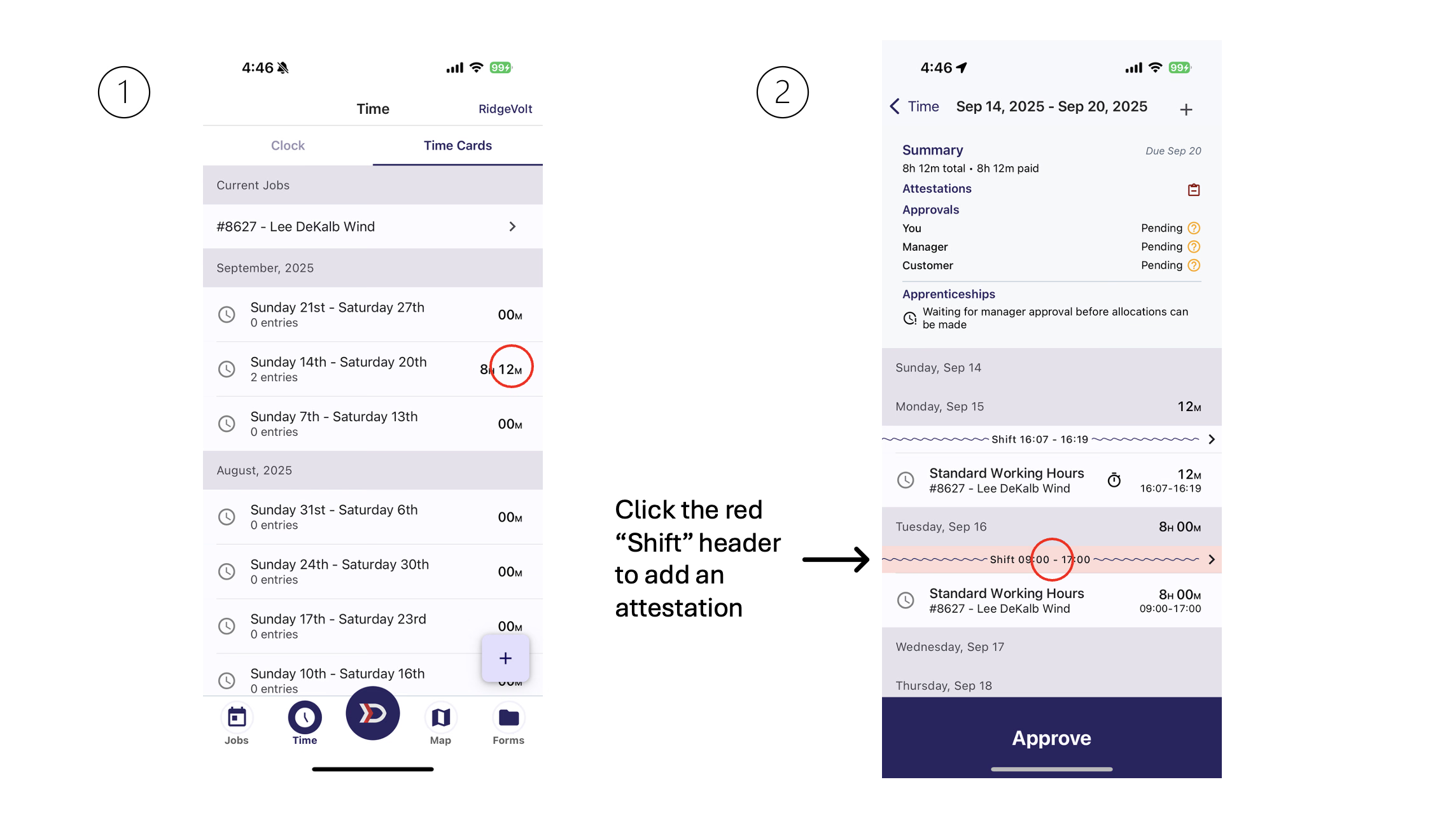
Start by tapping on a Pay Period with a Time Entry that requires an Attestation. Then, locate a Time Entry that requires an Attestation (noted by the red "Shift" banner above the Time Entry).
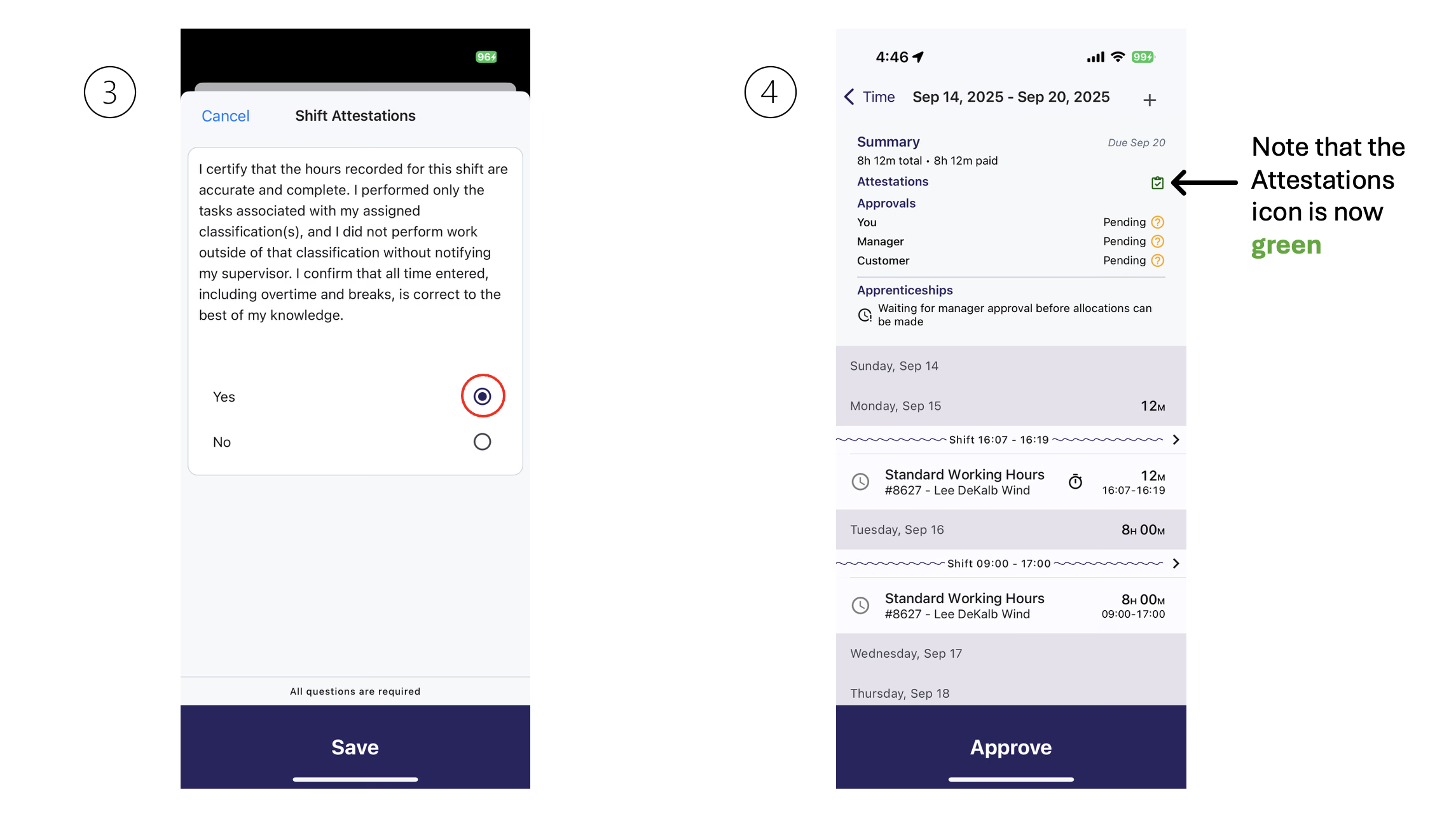
Tap on the red "Shift" banner. Then, select "Yes" or "No" to respond to the Attestation Statement, and click "Save".
Once all required Attestations for the Pay Period have been made, the Attestations icon at the top of the screen will appear green and all "Shift" banners will appear white.
Please see the images below for a visual walkthrough: