Certifications Overview
Navigating to the Certifications
Navigating to the Certifications Tab
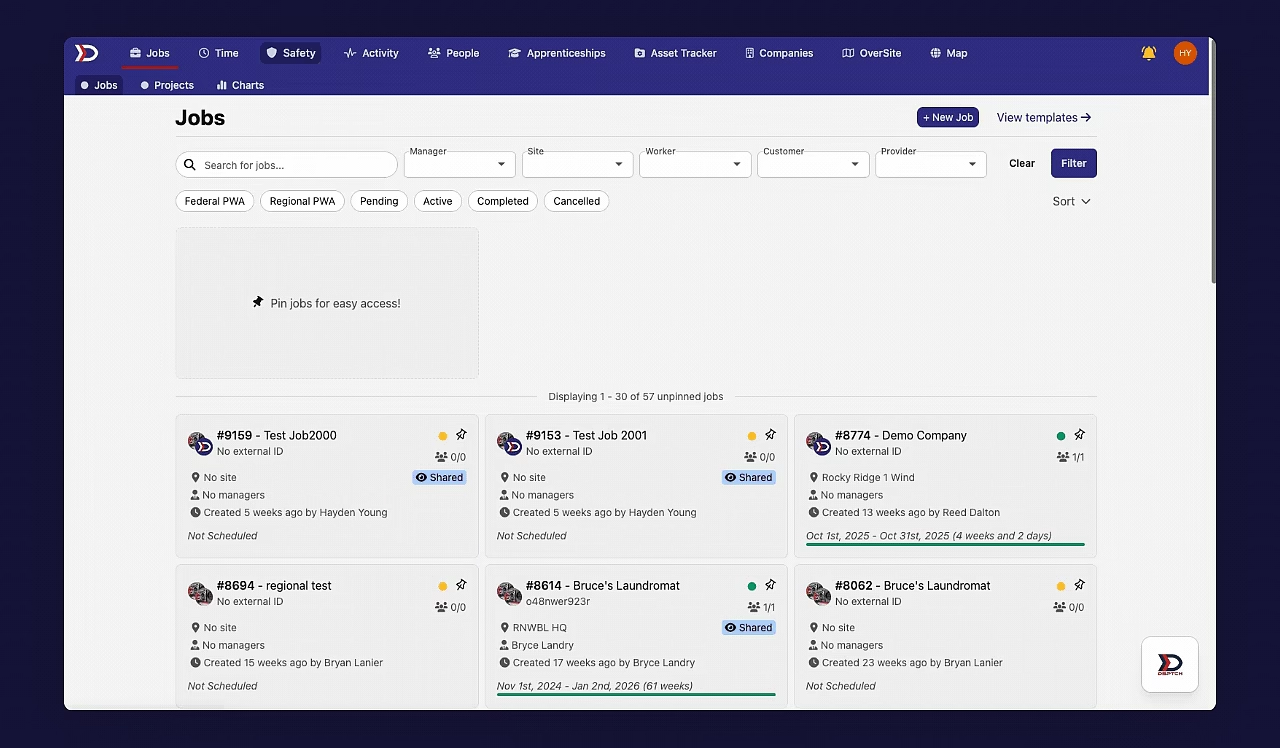
To navigate to the "Certifications" tab, start by clicking the "Safety" tab from the primary navigation bar at the top of the page. Then, click the "Certifications" tab from the sub-navigation bar. See video below for a demonstration:
For a detailed walkthrough of how Technicians can upload/view their personal Certifications on DSPTCH Mobile, please read our Certifications – Mobile Help Document.
How to Create a New Certification Type
To create a new certification type, start by navigating to the "Certifications" tab (instructions above). Then, click the "+ New Certification" button, which will open the New Certification form. See video below for a demonstration:
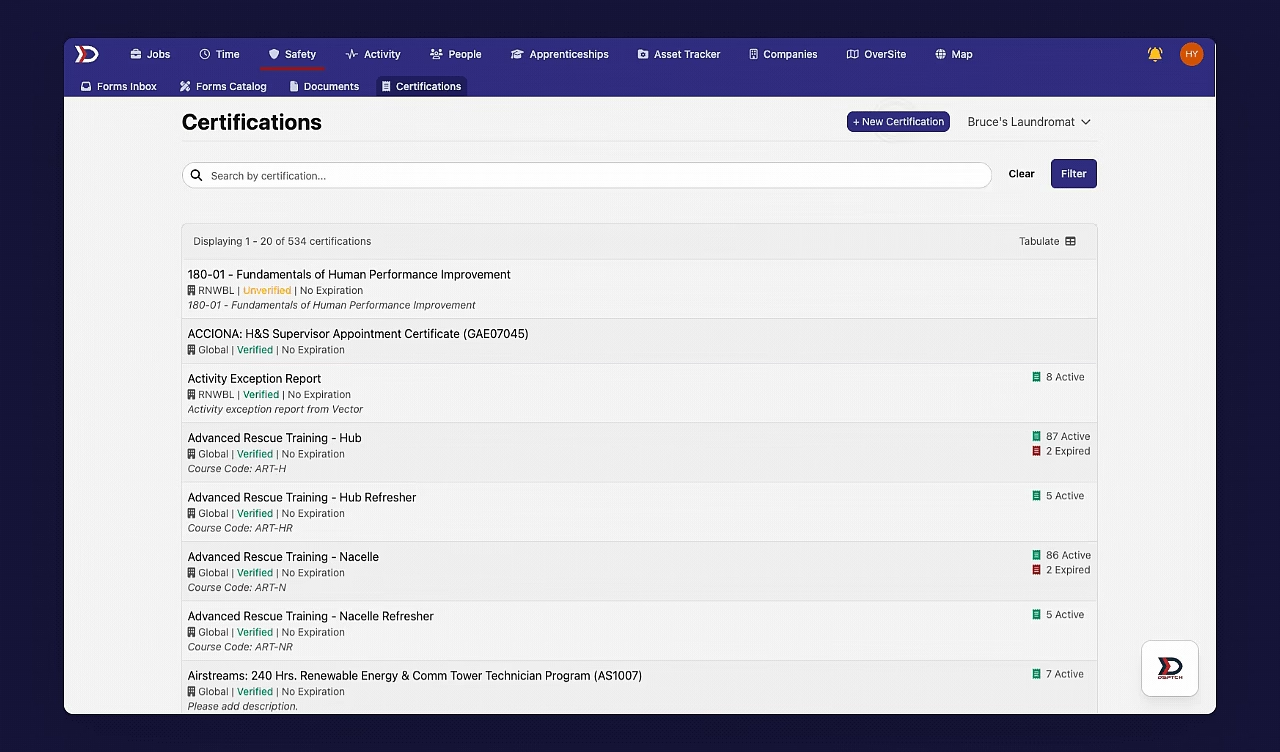
There are several fields in the New Certification form:

-
Name (Required):
-
The name of the new certification type.
-
Description (Optional):
-
A textual description of the new certification type.
-
Validity Duration (Optional):
-
The duration of time that the new certification type is valid for. The duration can be entered in years, months, days, or a combination of any of the three.
Once all fields have been filled in, click the "Save" button (indicated by the red box and arrow in the image below) to create the new certification type:

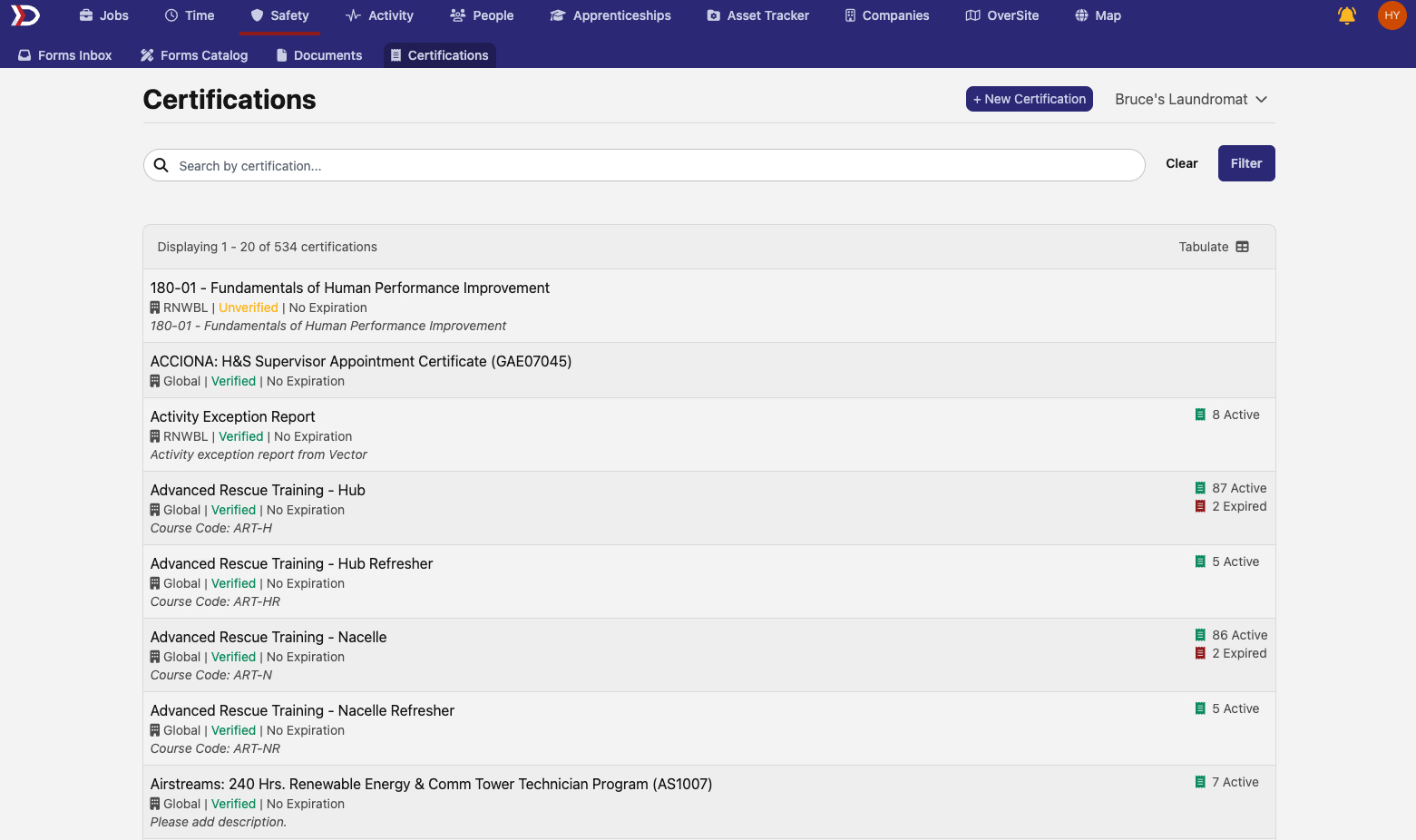
After clicking the "Save" button, the new certification type will appear in the list on the "Certifications" tab. See image below for examples of different certification types:
Adding a Certification from a Certification Page
There are two ways to add a Certification to an individual user. Start from the user's profile (Certifications tab) when you have one user receiving one certification — see Adding User Certifications. Start from a certification's page when you have a list of users receiving the same certification — covered below.
To add a certification from the specific certification page, start by navigating to the certifications tab (instructions are found above here).
Use the search bar at the top of the page to search by name for the desired certification. Then, click on the certification to open its page. Lastly, click the "+ Add certification" button to open the "New User Certification" form (see video below for a demonstration):
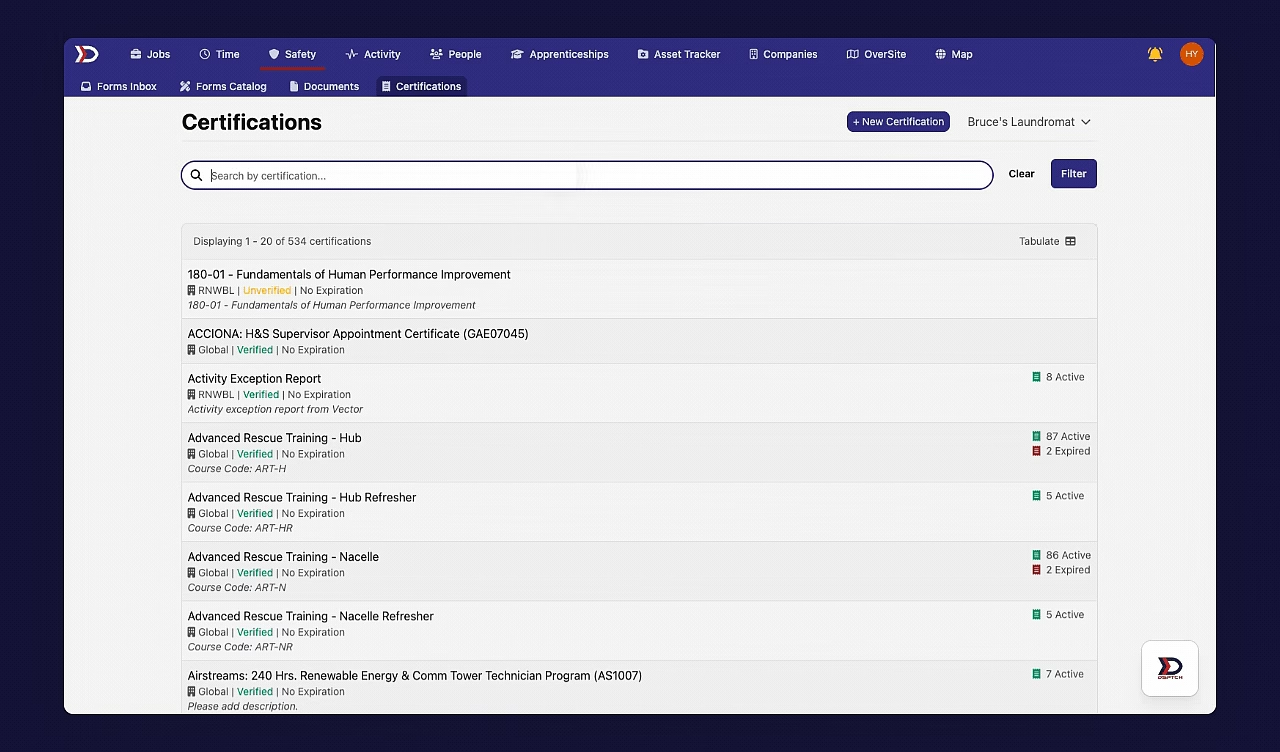
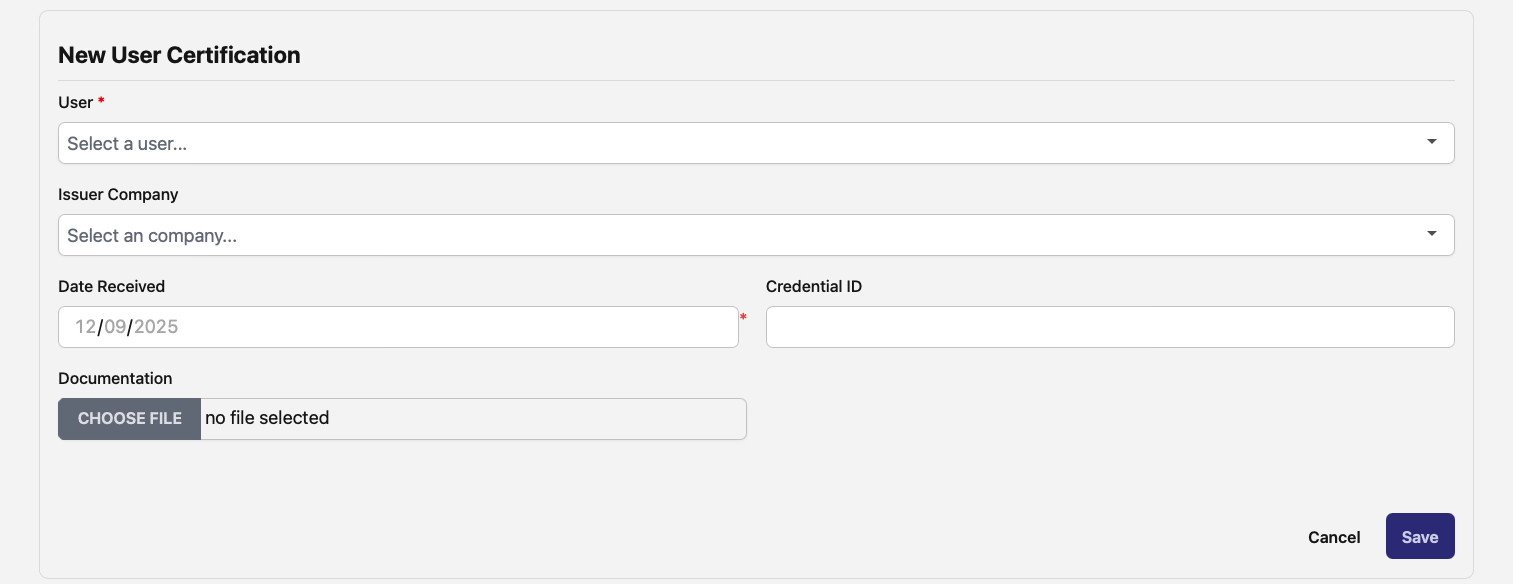
There are several fields in the "New User Certification" form:
-
User (Required):
-
The name of the User who holds the Certification.
-
Issuer Company (Optional):
-
The company which is the issuing body for the Certification.
-
Date Received (Required):
-
The Date (in MM/DD/YYYY format) which the Certification was received.
-
Note: This should NOT be the date that the Certification was uploaded to DSPTCH.
-
Credential ID (Optional):
-
The Credential (such as a confirmation number) that confirms the authenticity of the Certification.
-
Documentation (Optional):
-
A File upload for an image or PDF of the Certification.
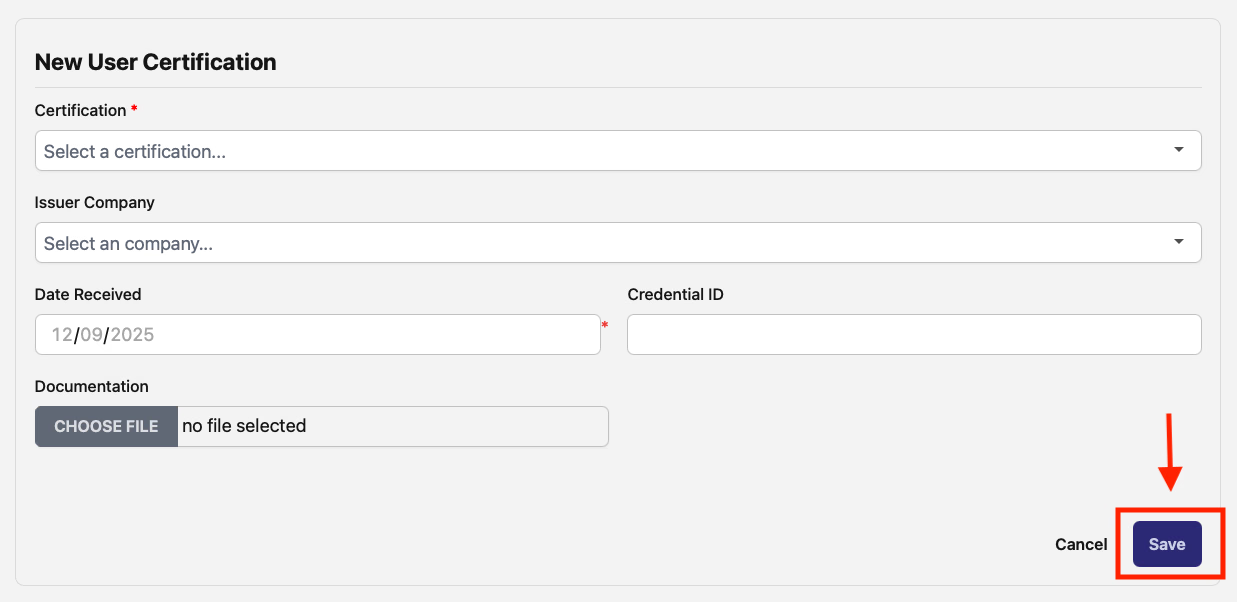
After all fields have been filled out, click the "Save" button to finish the creation of the certification (indicated by the red box and arrow in the image below):
Master Certification List
To view the Master Certification List, start by navigating to the "Certifications" tab (instructions are found above here). By default, the Certifications Tab will open to present the Master Certification List (indicated by the red box in the image below):
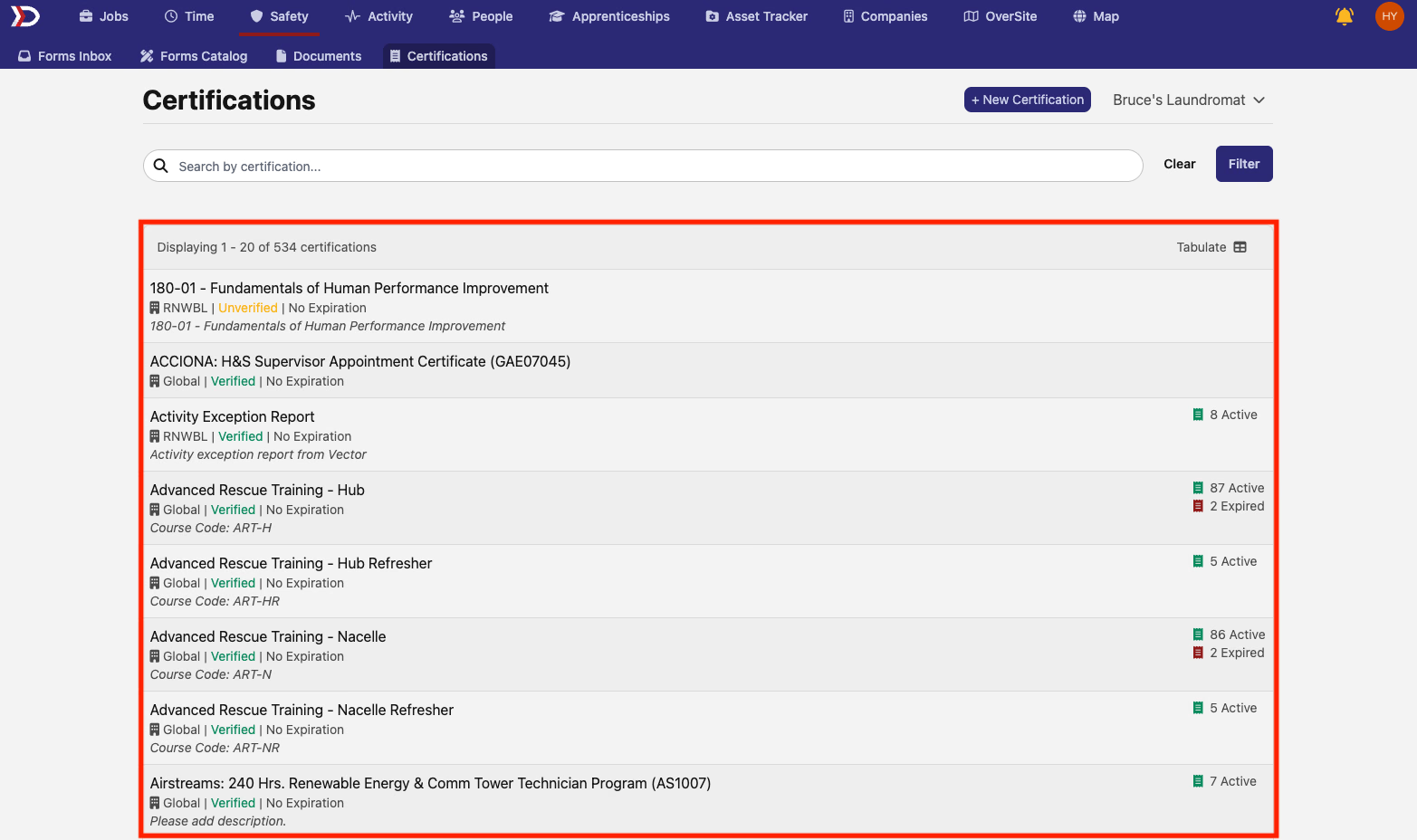
The Master Certification List contains every certification type uploaded for your company.
Searching / Tabulating Certifications
At the top of the "Certifications" page, there is a search bar which can be used to search for certifications by their name.
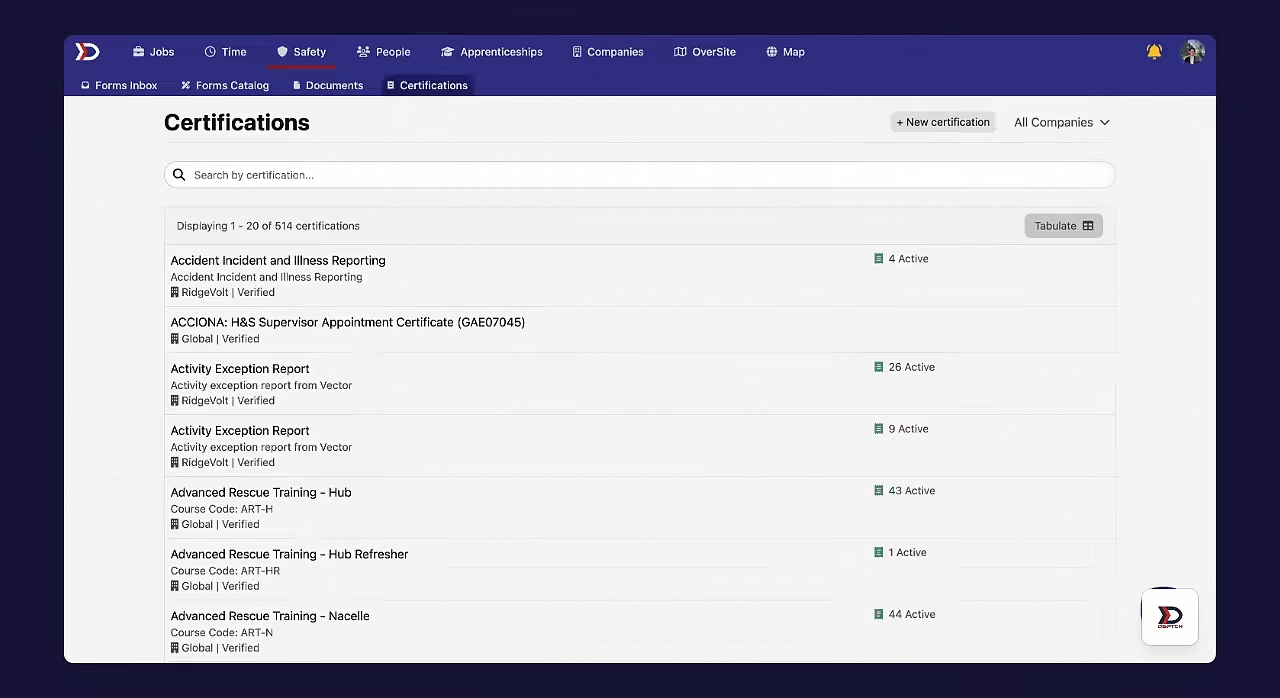
Just below the search bar, there is the "Tabulate" button which can be used to create a structured data table of all certifications, which can be easily spliced/filtered/exported. Each certification in the table will contain information such as the certification holder, date received, expiration date, etc. Please see the video below for a demonstration:
Individual Certifications
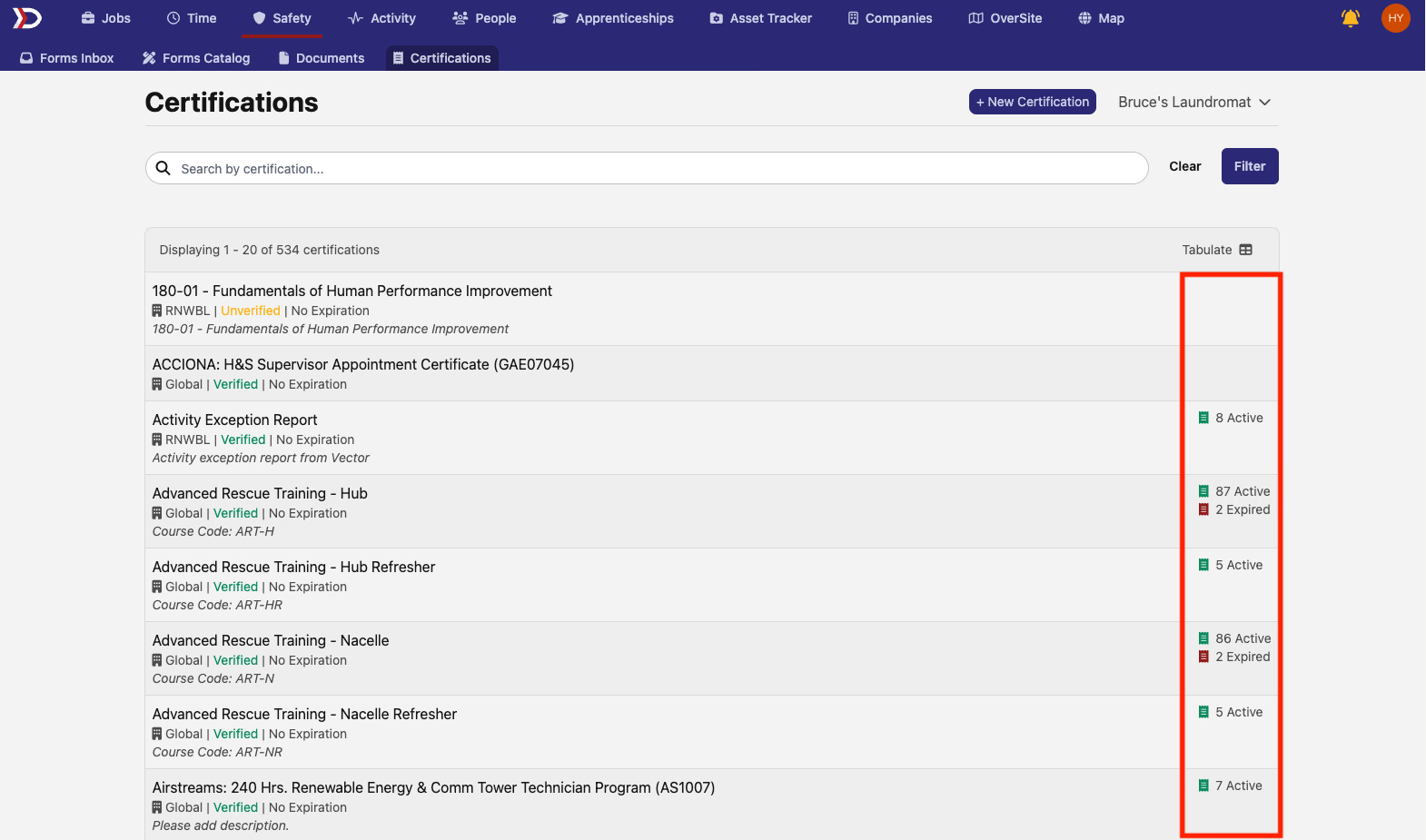
Each certification type has a count of how many users actively hold the certification (indicated by the red box in the image below):
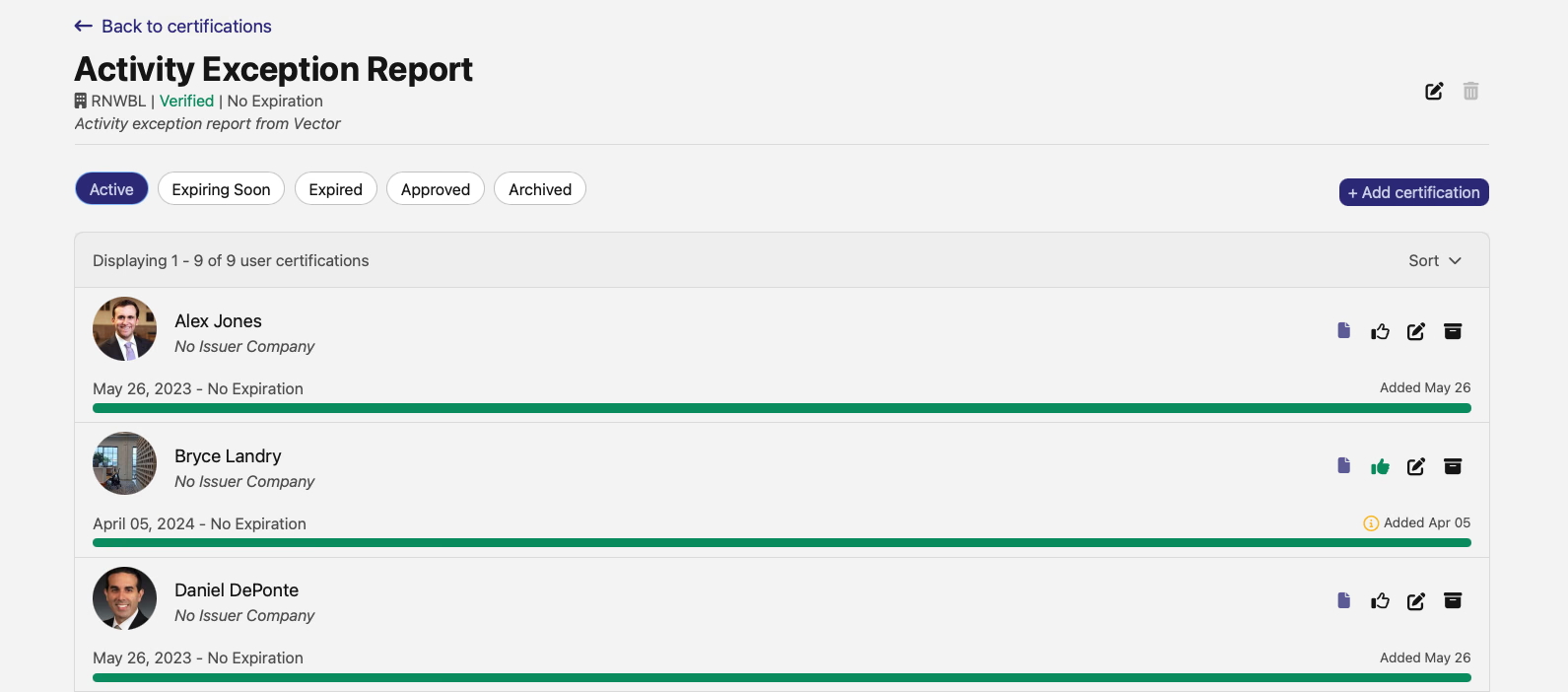
To view which users actively hold a given certification, click on the name of the certification. This will open the certification's page. The certification's page contains a list of all users that actively hold the certification as well as those with expired, expiring soon, and archived certifications (see image below for example):
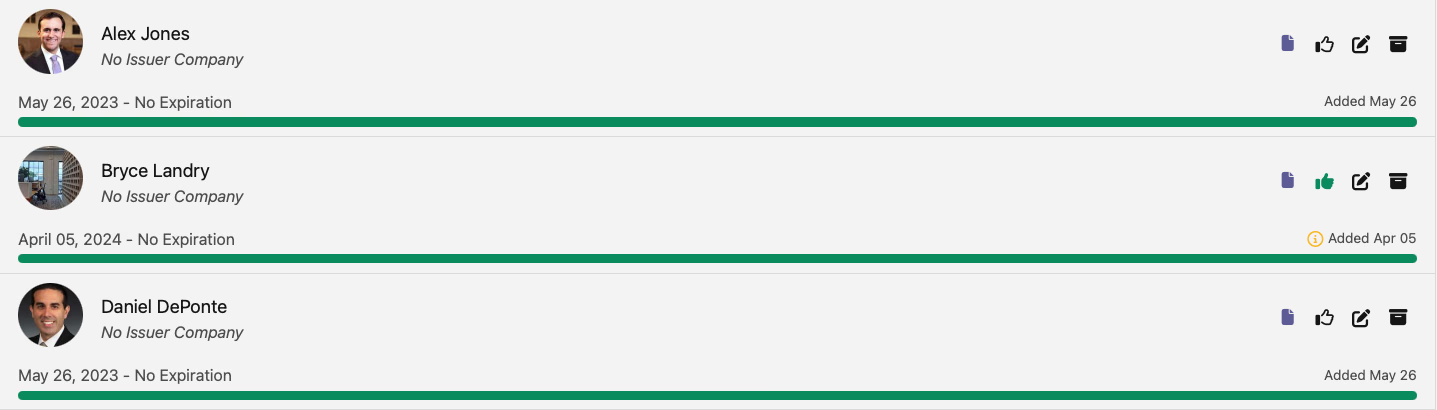
Information such as the Issue Date and Expiration Date are available on the Certification Page for each user (see image below for example):
Download, Approve, Edit, and Archive Certifications
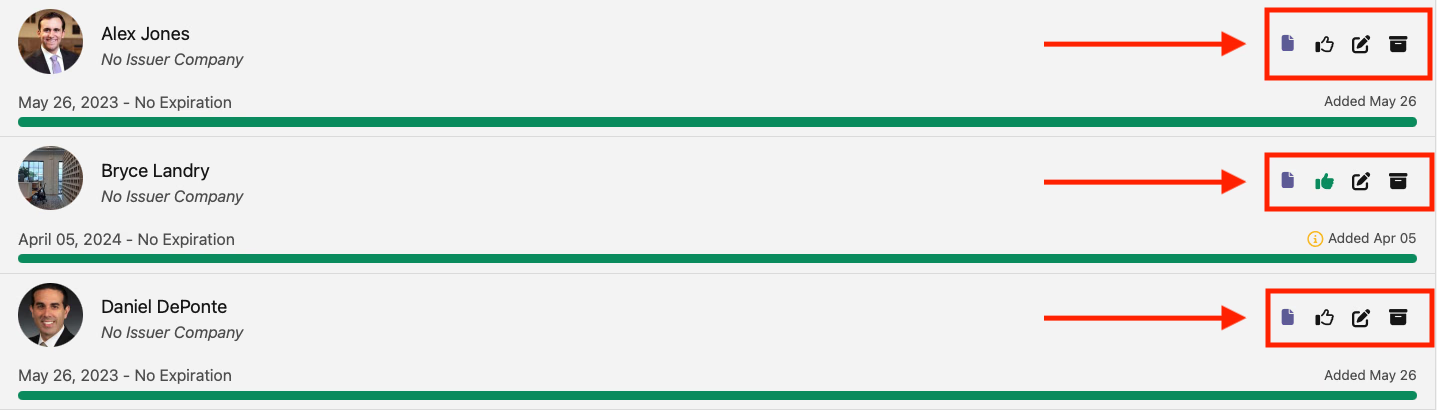
There are several action options associated with each User's Certification.
- View the Certification
- Click the paper icon (leftmost icon) to view the image/PDF File associated with the user's certification.
- Approve the Certification
- Managers can approve a certification by clicking the the thumbs up icon (second icon from the left).
- Edit the Certification
- Any of the fields from the "New User Certification" form can be edited at any time by clicking the edit icon (third icon from the left)
- Archive the Certification
- The certification's status can be changed to "Archived" by clicking the box icon (rightmost icon)