Projects Compliance
For projects with enabled prevailing wage and apprenticeship tracking, there is a "Checklist" tab that provides visibility into your project's PWA compliance status. Learn how to enable prevailing wage and apprenticeship tracking in the Create a Project Section of our Projects - Web help document.
Navigate to the Checklist Tab
To navigate to the "Checklist" tab, start by clicking on the "Jobs" tab in the primary navigation bar at the top of the page. Then, click the "Projects" tab in the sub navigation bar near the top of the page. This will open the "Projects" page. Click on the relevant project to open its project card. Once in the project card click the "Checklist" tab from the navigation bar at the top of the screen.
See video below for a demonstration:
The compliance checklist includes a series of unique compliance checks specific to a given project. In other words, these are all of the outstanding tasks and required documentation needed to ensure the project is PWA compliant.
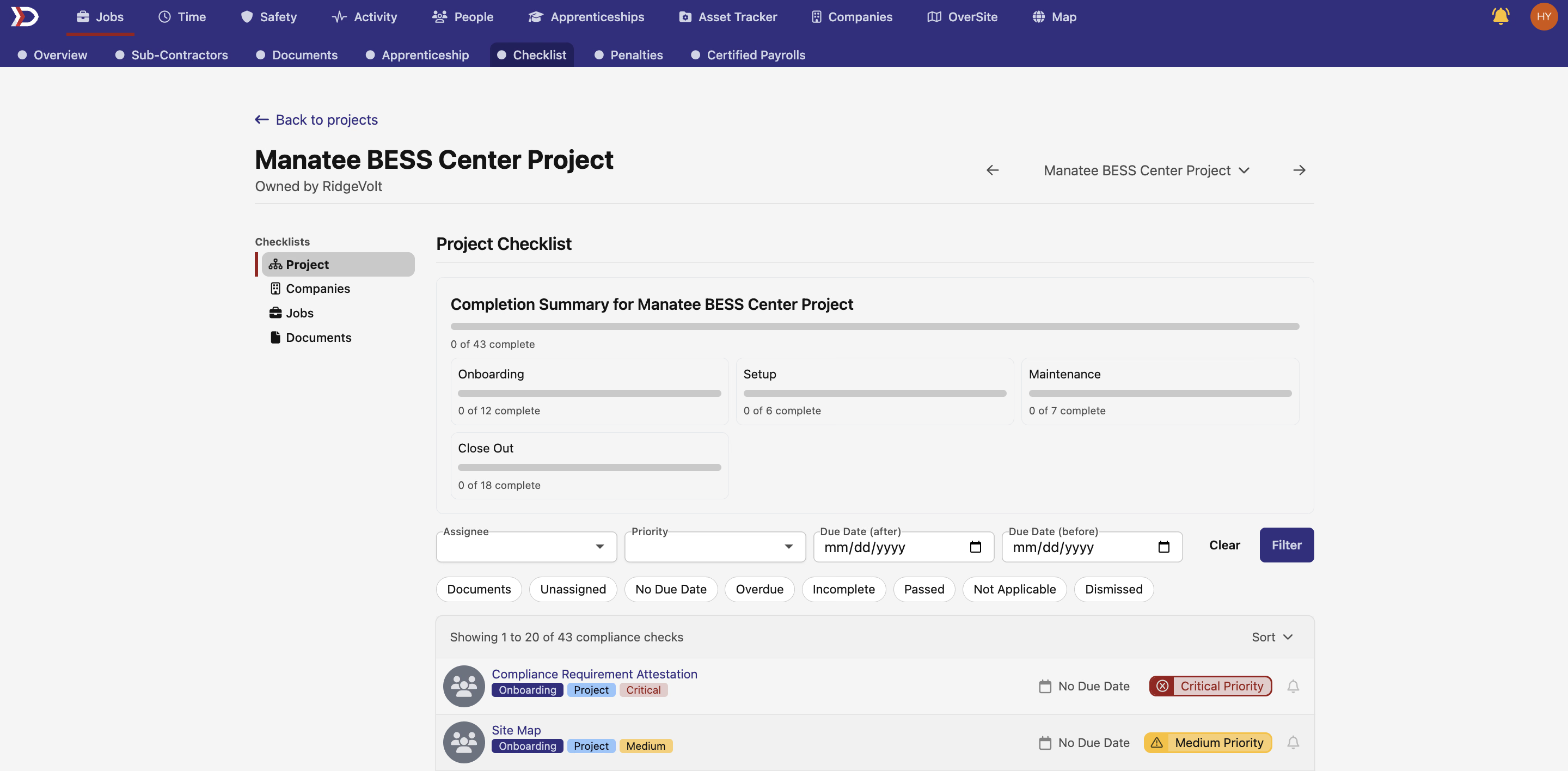
The compliance checklist provides a high-level overview of a project’s compliance status. Clicking into a compliance check category reveals the individual compliance checks within it. Each check displays its current status along with clear instructions for how to complete it.
Compliance Check Statuses
The most important compliance check statuses to note are:
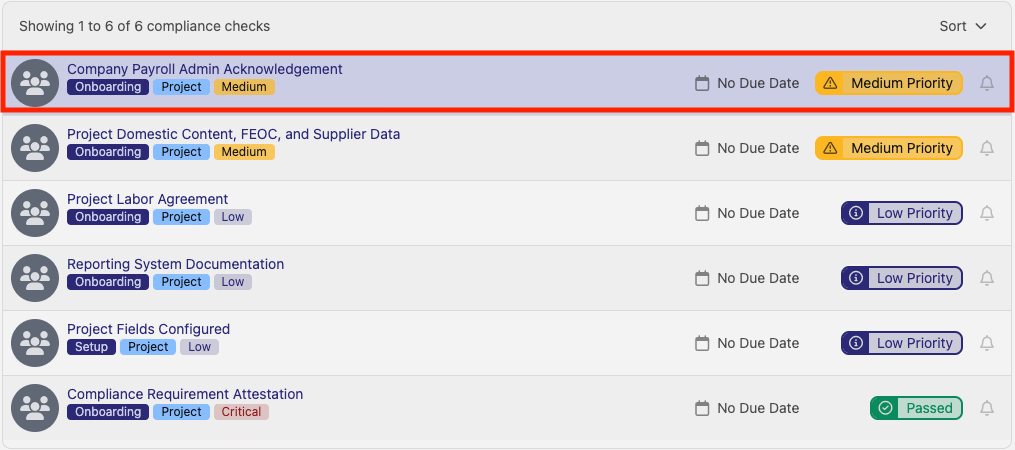
- Passed
- Indicated by a green checkmark and flag on the right side of a listed compliance check, this status means the compliance check has been successfully completed.

- Failed
- Indicated by the presence of a priority flag on the right side of a listed compliance check, this status means the compliance check has not been completed.


- Not Applicable
- Indicated by the presence of a "Not Applicable" flag on the right side of a listed compliance check, this status means the compliance check does not need to be completed.

- Dismissed
- Indicated by the presence of a "Dismissed" flag on the right side of a listed compliance check, this status means the compliance check that has been dismissed.

Checklist Categories
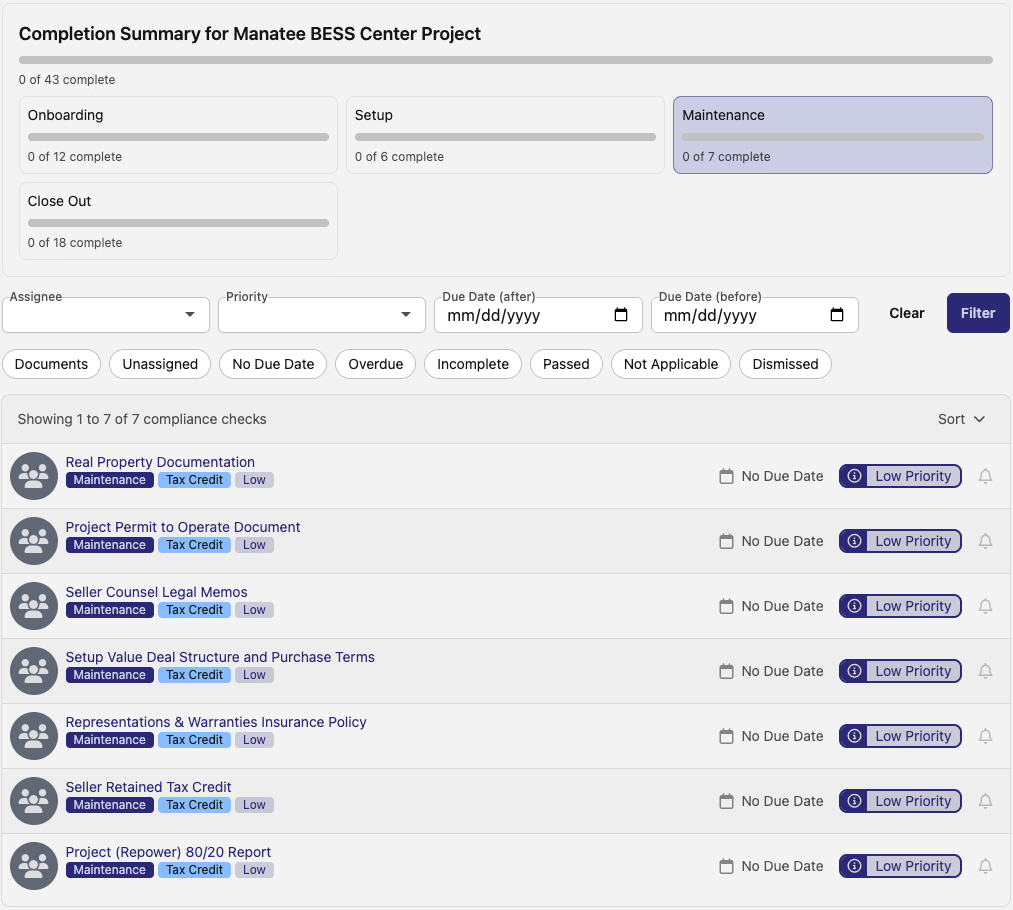
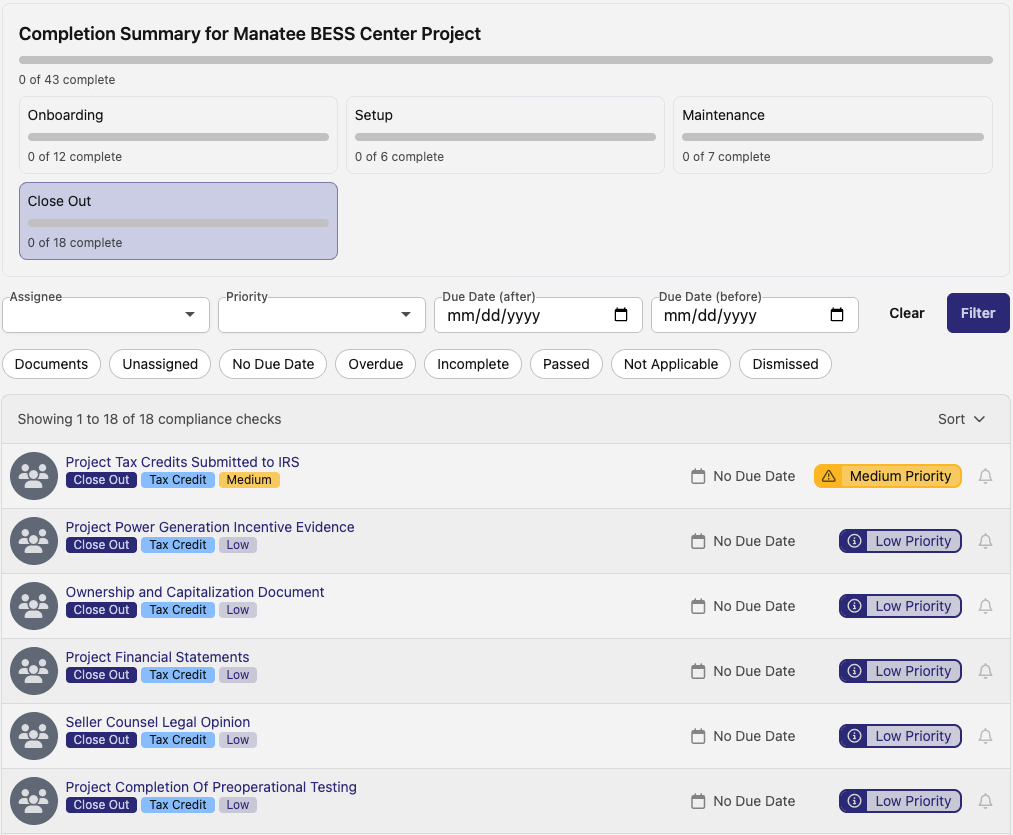
There are several categories that compliance checks fall within. To filter the list at the bottom of the "Checklist" tab to show compliance checks within a specific category, click on one of the categories in the "Completion Summary" dashboard (indicated by the red boxes in the image below).

Onboarding Category
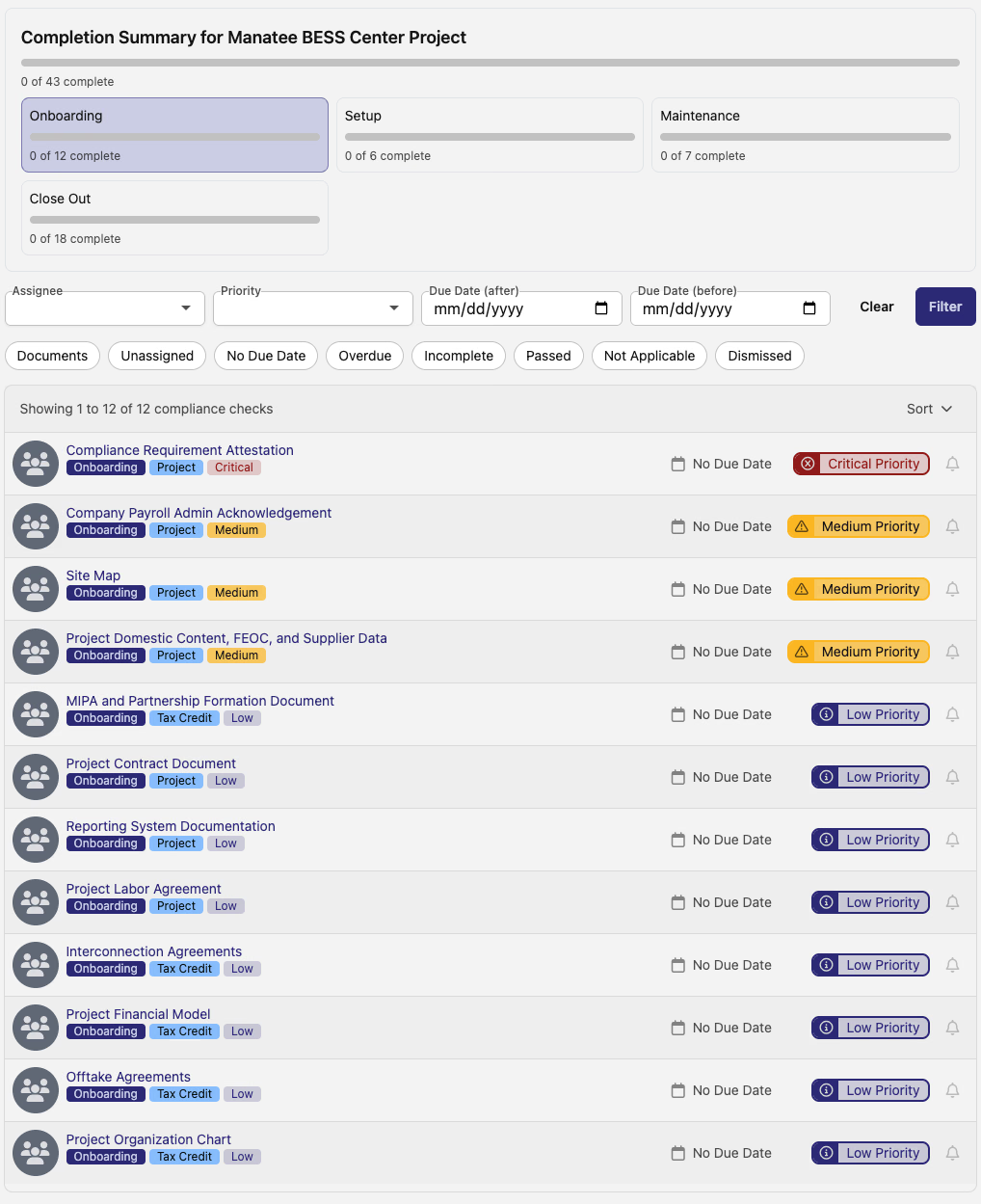
The "Onboarding" compliance checks includes all of the documentation and action items required for IRA compliance before the kickoff of a project.
Setup Category
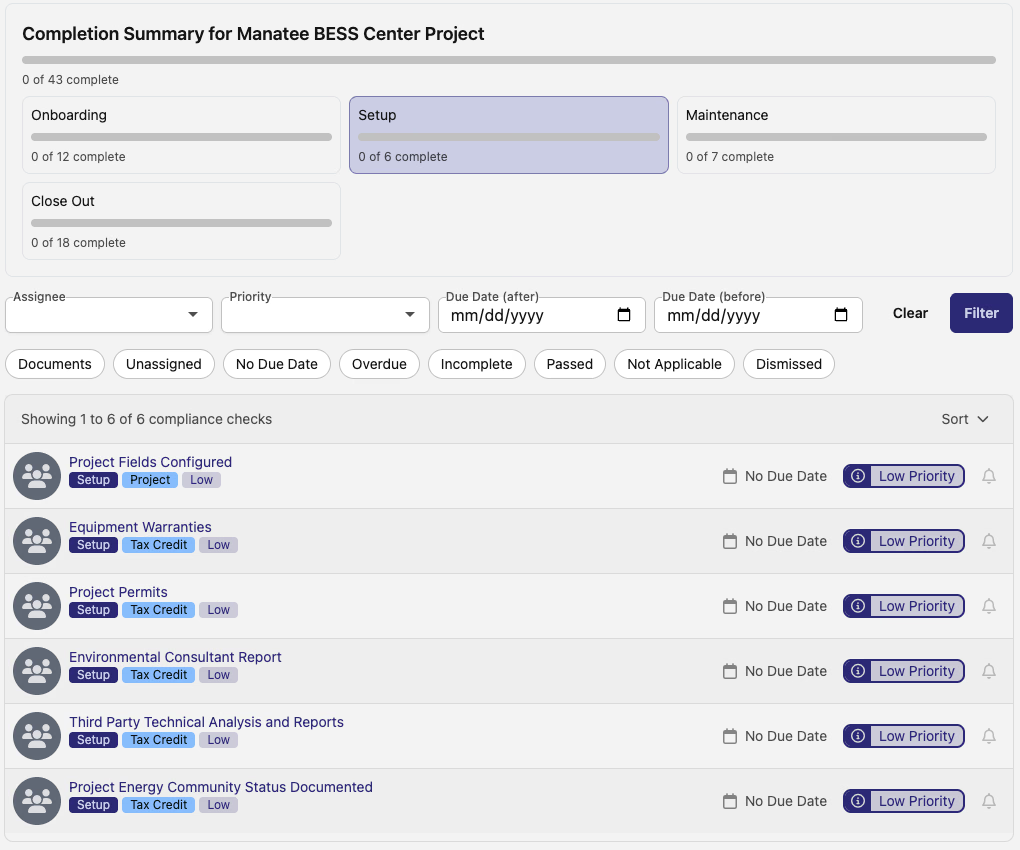
The "Setup" compliance checks includes all of the documentation and action items required for IRA compliance when kicking off a project.
Maintenance Category
The "Maintenance" compliance checks includes all of the documentation and action items required for maintaining IRA compliance during a project.
Close Out Category
The "Close Out" compliance checks includes all of the documentation and action items required for IRA compliance when a project is closing.
For instructions on how to complete a Compliance Check, see the Compliance Check Example Section of the help document below.
Filtering the Compliance Checklist
There are several filters for the compliance checklist that are available.

- Assignee
- A dropdown filter to display all compliance checks that have been assigned to a specific user.
- Priority
- A dropdown filter to display all compliance checks that are marked as a certain priority.
- Priorities include "Critical," "High," "Medium," and "Low"
- Due Date (after)
- A filter to display all compliance checks due after the selected date.
- Due Date (before)
- A filter to display all compliance checks due before the selected date.
- Documents Toggle
- An on/off toggle to filter for all compliance checks that require a document upload.
- Unassigned Toggle
- An on/off toggle to filter for all compliance checks that have not been assigned to a specific user.
- No Due Date Toggle
- An on/off toggle to filter for all compliance checks that do not have a due date.
- Overdue Toggle
- An on/off toggle to filter for all compliance checks that are overdue.
- Incomplete Toggle
- An on/off toggle to filter for all compliance checks with a "Failed" status (i.e. non-compliant).
- Passed Toggle
- An on/off toggle to filter for all compliance checks that have a "Passed" status (i.e. compliant).
- Not Applicable Toggle
- An on/off toggle to filter for all compliance checks from DSPTCH's exhaustive list that are not relevant for this project.
- Dismissed Toggle
- An on/off toggle to filter for all compliance checks from DSPTCH's exhaustive list that have been dismissed.
All filters can be combined with one another (e.g. filter for all compliance checks that have a "Passed" status and require a document upload).

Inside a Compliance Checks
To open a compliance check, click on it in the list (indicated by the red box in the image below).
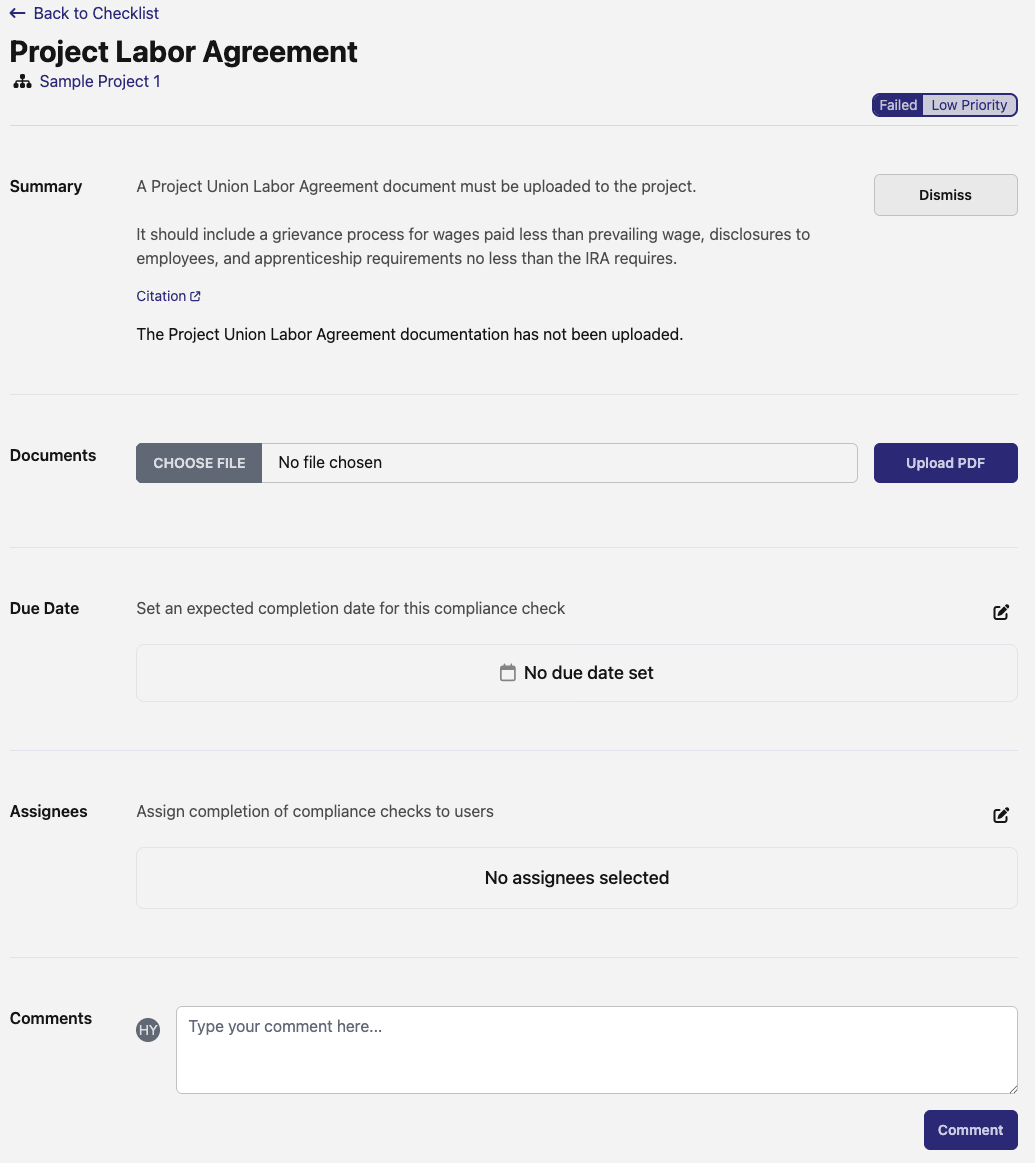
This will open the compliance check.
Summary Section
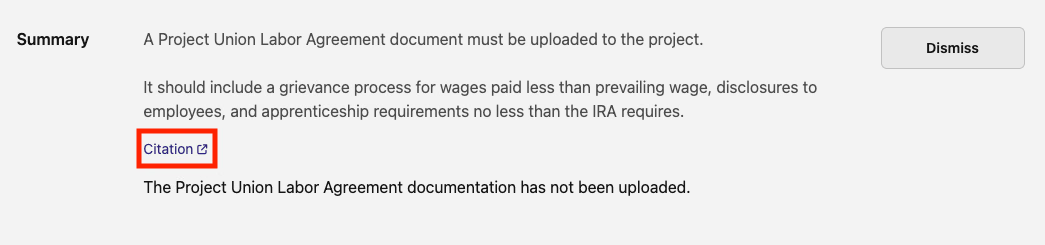
The "Summary" section provides an overview of the compliance check and what is needed. Included in this section is a link to the specific law and section that the compliance check concerns. To view the relevant legal information, click the "Citation" link (indicated by the red box in the image below).
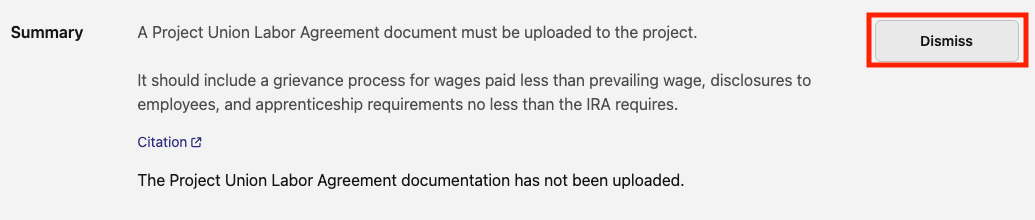
A compliance check can also be dismissed by clicking the "Dismiss" button in the top right corner of this section (indicated by the red box in the image below).
If the description or instructions on how to complete a specific compliance check are unclear, please reach out to help@dsptch.work for assistance.
Documents Section
If a compliance check requires a document to be uploaded, then the "Documents" section will appear. To upload the documents, drag the file into the field or click the "CHOOSE FILE" button (indicated by the red box in the image below) to select the document from your computer's director. Then, click the "Upload PDF" button to upload the document (indicated by the green box in the image below).

Due Date Section
The "Due Date" section indicates when the compliance check is due. The due date can be edited by click the pencil and paper icon in the top right corner of the section (indicated by the red box in the image below).

This will open the "Edit Due Date" form. Select the new due date and click the "Save" button (indicated by the red box in the image below) to set the new due date for the compliance check.

Assignees Section
The "Assignees" section shows the users that have been assigned the compliance check. To assign a new user, click the pencil and paper icon in the top right corner of the section (indicated by the red box in the image below).

This will open the "Edit Assignees" form. Type the user's name in the field and select them from the dropdown list. Then, click the "Save" button (indicated by the red box in the image below).

To remove an assignee, click the pencil and paper icon in the top right corner of the section to open the "Edit Assignees" form. Then, click the "x" next to the user's name. Finally, click the "Save" button.
Comments Section
The "Comments" section allows any comments to be made on the compliance check. To add a comment, type the comment in the field and click the "Comment" button (indicated by the red box in the image below).

Activity Section
The "Activity" section displays the history of changes that have been made to the compliance check.

Other Checklists
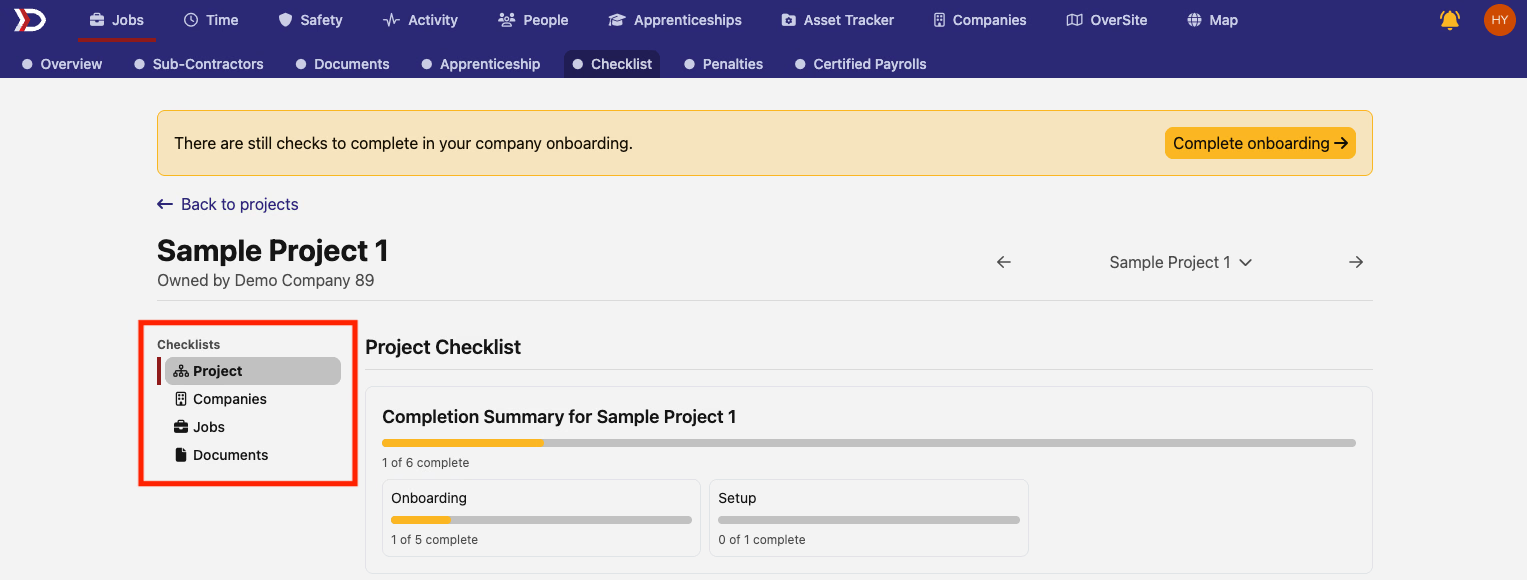
There are other pages within the "Checklist" tab, these include the "Companies" page, "Jobs" page, and "Documents" page. To visit each page, click the corresponding tab under "Checklists" on the left side of the page (indicated by the red box in the image below).
Companies Page
The "Companies" page displays all the companies associated with the project with a progress bar that fills as that company's compliance checks are completed. Clicking on the checklist will open the "Company Checklist" within the "Checklists" tab under the "Activity" tab. For more information on the "Checklists" tab within the "Activity" tab, please review our help document here.

Jobs Page
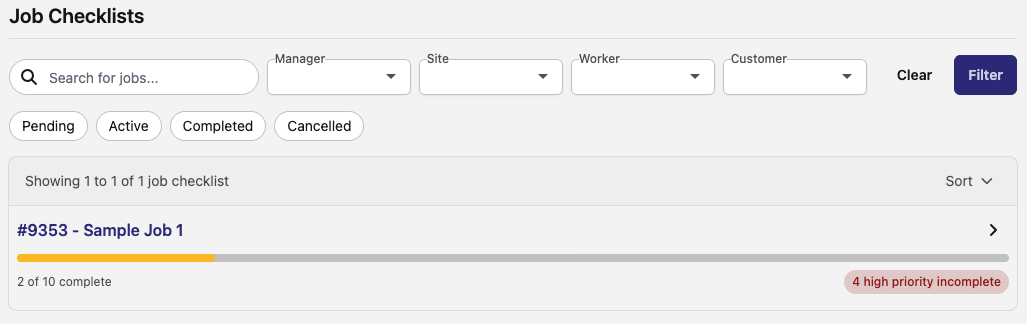
The "Jobs" page displays all the jobs under the project with a progress bar that fills as the compliance checks for that job are completed. Clicking on the checklist will open the "Checklist" page under the "Compliance" tab within the selected job. For more information on the job "Compliance Checklist," review our help document here.
Documents Page
The "Documents" page displays all the compliance documents that have been uploaded for the project. To download the document, click the arrow and hard drive icon to the right of the listed document (indicated by the red box in the image below). To view the relevant compliance check, click the arrow icon to the right of the download button (indicated by the green box in the image below).
