Pay
Navigate to the Pay Tab
Start by clicking on the "Job" tab in the primary navigation bar at the top of the page. Next, click on the relevant job. Then, click on the "Pay" tab from the sub-navigation bar near the top of the page.
See the video below for a demonstration:
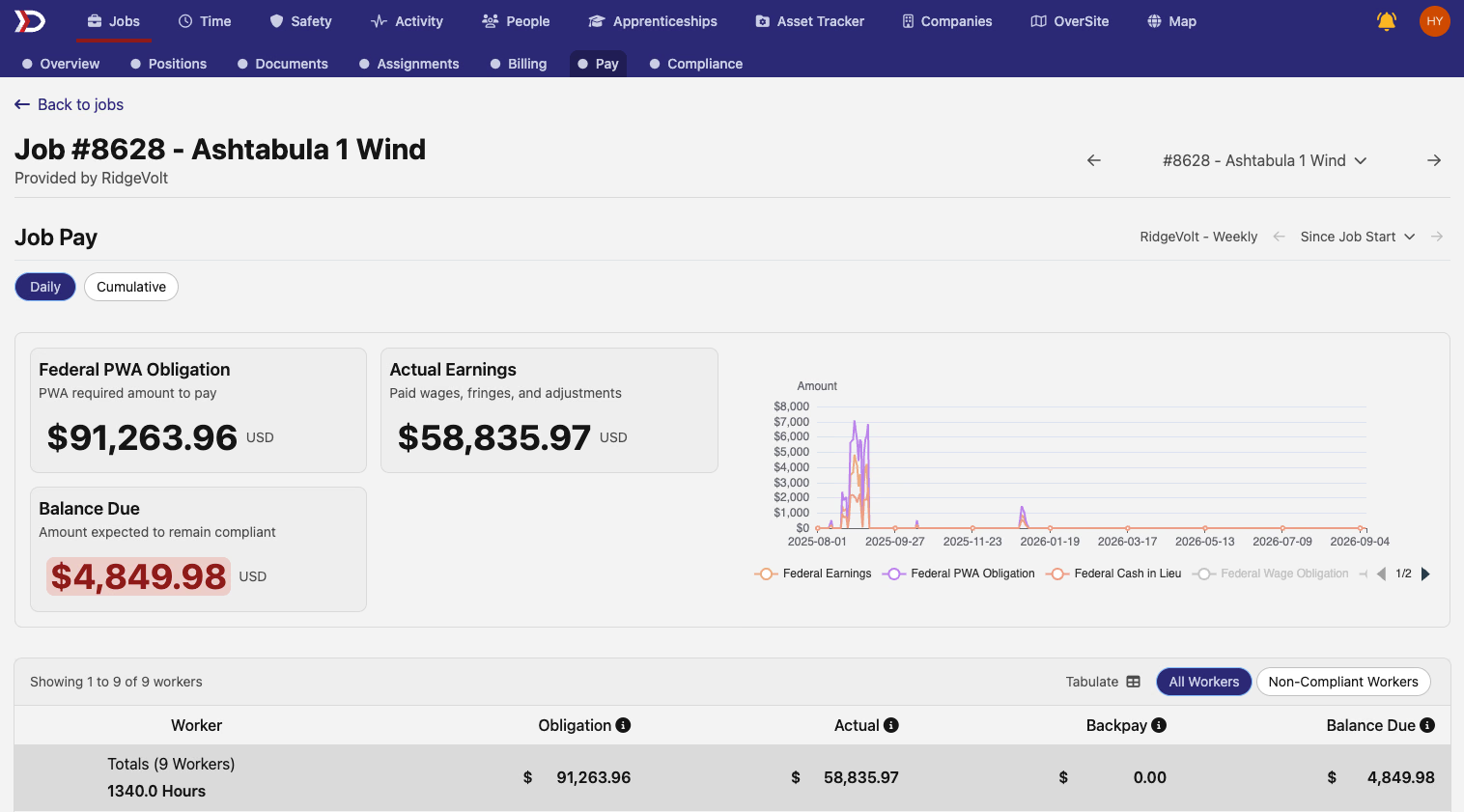
This will open the "Pay" tab.
Filtering the Pay Tab
There are two ways that the "Pay" tab can be filtered.
Pay Period Filter
The active pay period, shown at the top right of the page (indicated by the red box in the image below), determines which data is displayed across all sections of the "Pay" tab.
- The left arrow (←) navigates to the previous pay period.
- The right arrow (→) navigates to the next pay period.
- The date range dropdown allows selection of a specific pay period from the available list.
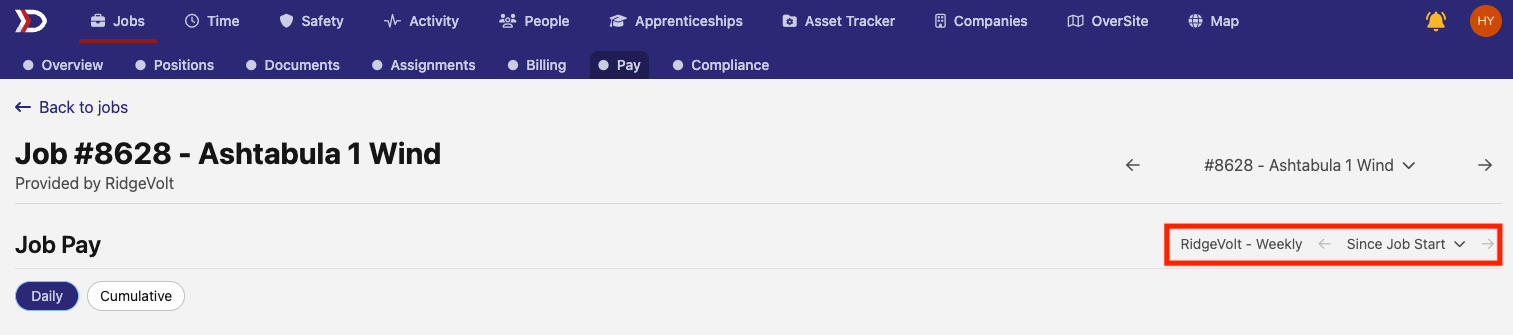
All compliance and earnings data will automatically reflect the selected pay period.
Daily vs. Cumulative Toggles
The "Daily" and "Cumulative" toggles at the top of the "Pay" tab (indicated by the red box in the image below) change the data displayed on the Graph Representation Dashboard.
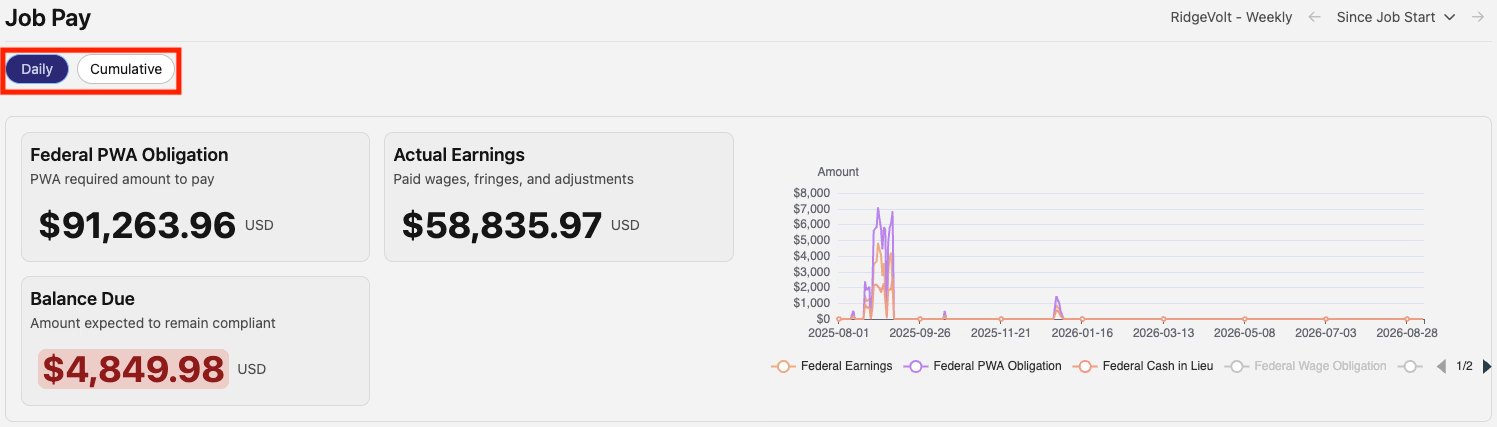
The "Daily" view shows a day-by-day breakdown of the total PWA obligation, combined earnings, and cash in lieu of fringe for all workers on the job.
The "Cumulative" view shows how the total total PWA obligation, combined earnings, and cash in lieu of fringe for all workers on the job accrue across time.
To select the "Daily" or "Cumulative" view, click the appropriate toggle at the top of the screen.
How to Read the Pay Tab
There are four primary sections of the "Pay" tab:
- The Summary Overview Dashboard
- The Graph Dashboard
- The Worker Payment Breakdown Dashboard
Summary Overview Dashboard
The Summary Overview Dashboard includes up to six different metrics that are tracked in real-time (pictured below).
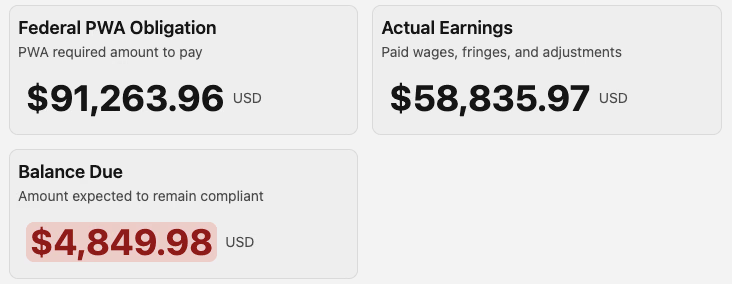
- PWA Obligation
- The total amount (wages plus fringe) required to be paid to all workers in the selected pay period to satisfy PWA compliance.
- PWA Obligations box(s) that display reflect the selected prevailing wage and apprenticeship tracking for the job. If only federal tracking was selected, there will only be a "Federal PWA Obligation" box. If federal and regional tracking was selected there will be both a "Federal PWA Obligation" and a "Regional PWA Obligation" box.
- Actual Earnings
- The total amount actually paid to all workers, including wages, fringe, and adjustments, in the selected pay period.
- Balance Due
- The total amount due to remain compliant with PWA requirements.
Graph Dashboard
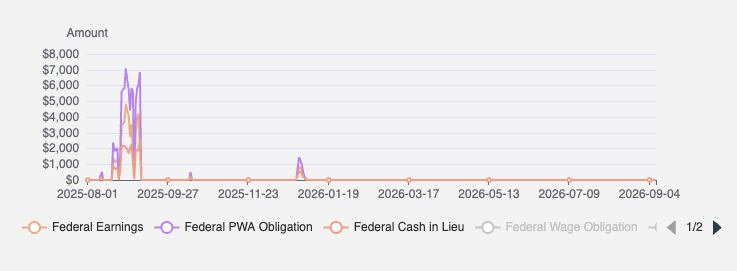
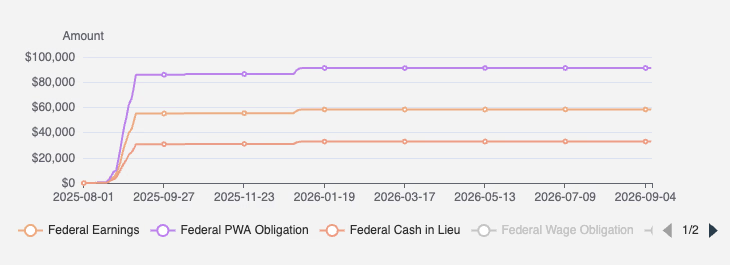
The Graph Dashboard provides a visual timeline of the PWA obligation, earnings, and cash in lieu of fringe values across the selected pay period.
Daily View:
The "Daily" View shows a day-by-day breakdown of the total PWA obligation, earnings, and cash in lieu of fringe for all workers on the job.
See the image below for an example:
Cumulative View:
The "Cumulative" view shows how the total PWA obligation, earnings, and cash in lieu of fringe for all Workers on the job accrue across time.
See the image below for an example:
Worker Payment Breakdown Dashboard
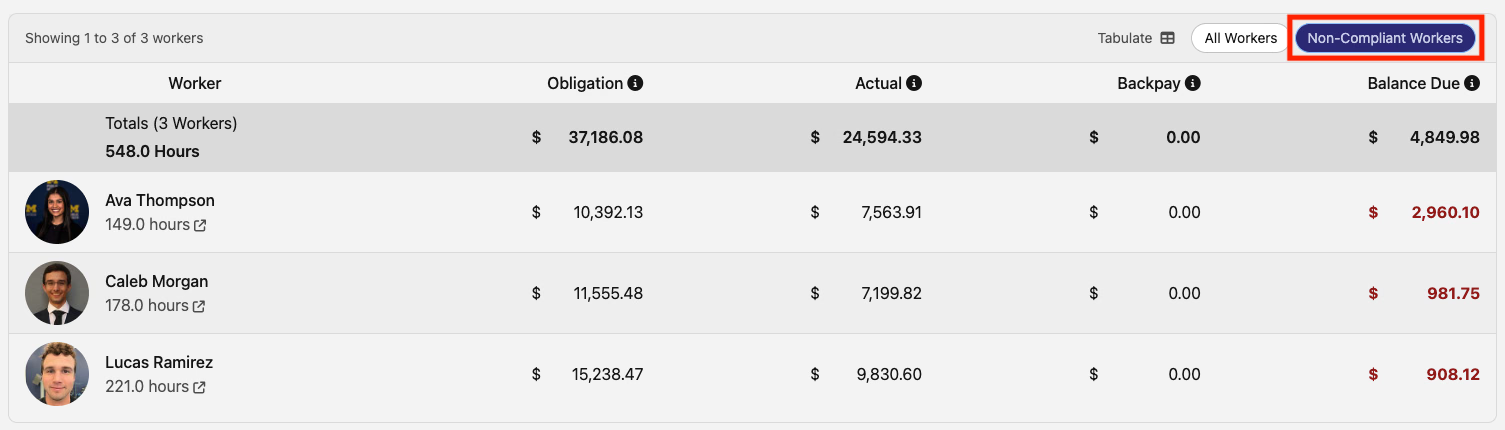
The Worker Payment Breakdown dashboard shows the PWA obligation, actual earnings, backpay adjustments, and balance due amounts for each worker on the job (pictured below).
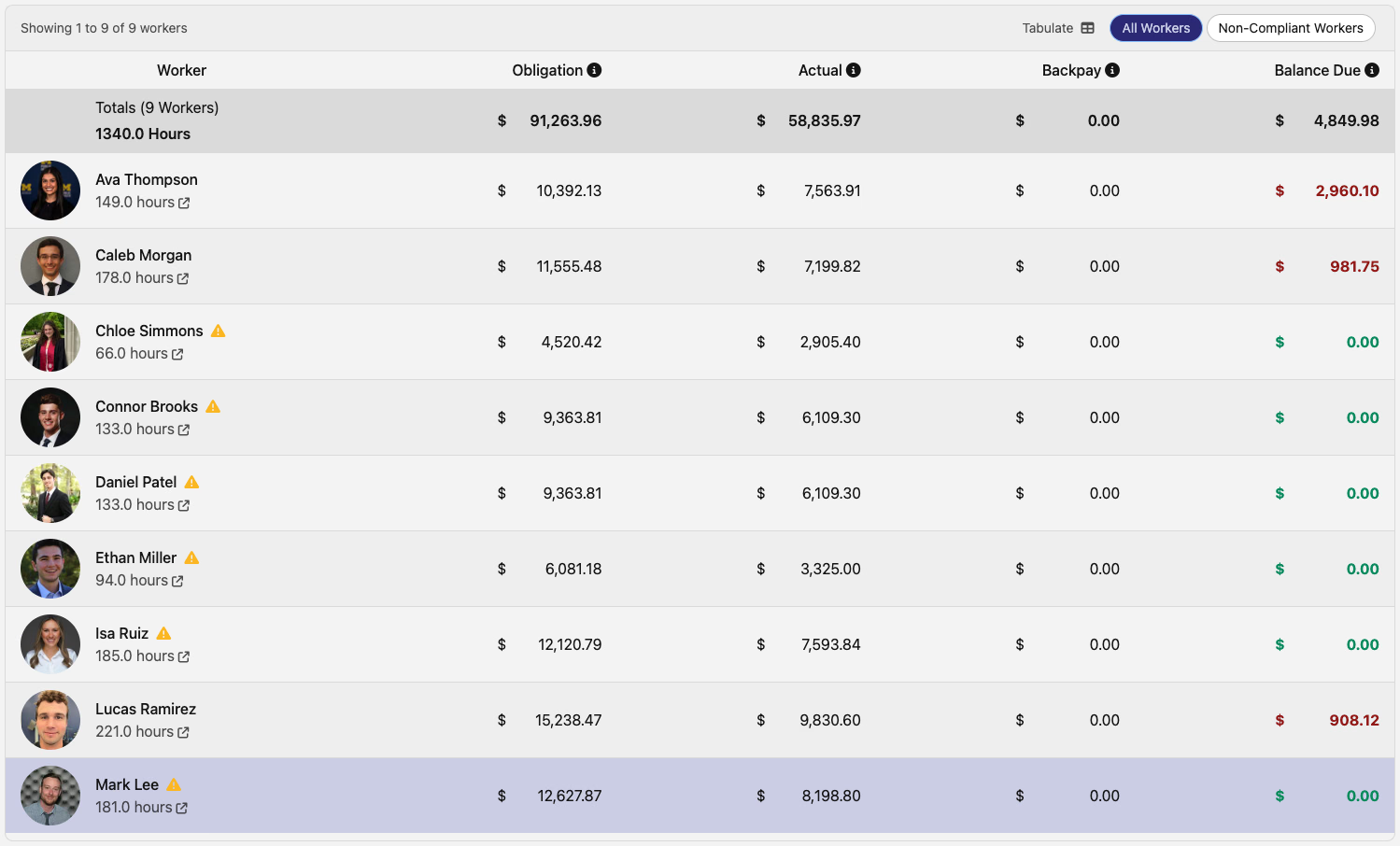
The "Non-Compliant Worker" toggle at the top right corner of the dashboard (indicated by the red box in the image below) filters the workers displayed in the dashboard to those that have balances due. To toggle the filter on, click it.
Please see the Pay Tab Summary Overview Dashboard Section for an explanation of each calculation.