Granting and Removing User Roles
The Role(s) assigned to a new User will impact their permissions within DSPTCH. The Role selection form is a select all that apply, meaning that a new User can be granted the permission of more than one Role. The list below will provide a description of each Role and the accompanying permissions.
- Technician:
- The Technician Role allows the new User to be assigned to Jobs. This Role has the least amount of permissions.
- Field Lead:
- The Field Lead Role allows the new User to be assigned to Jobs and can view and edit non-sensitive Form Submissions and Definitions.
- Manager:
- The Manager Role allows the new User to be able edit all Jobs, Time Sheets, and non-sensitive Form Submissions and Definitions.
- Admin:
- The Admin Role allows the new User to be able edit all Jobs, Time Sheets, and non-sensitive Form Submissions and Definitions. Additionally, the Admin Role allows the new User to view Pay Data, edit Hourly Rates, Time Codes, Company Documents, and Company settings.
- Safety Manager:
- The Safety Manager Role allows the new User to be able to edit Sensitive Forms and receive Notifications for Safety Form Submissions. For a new User to be assigned the Safety Manager Role, it is required that they also have a Manager or Admin Role.
Removing a Role
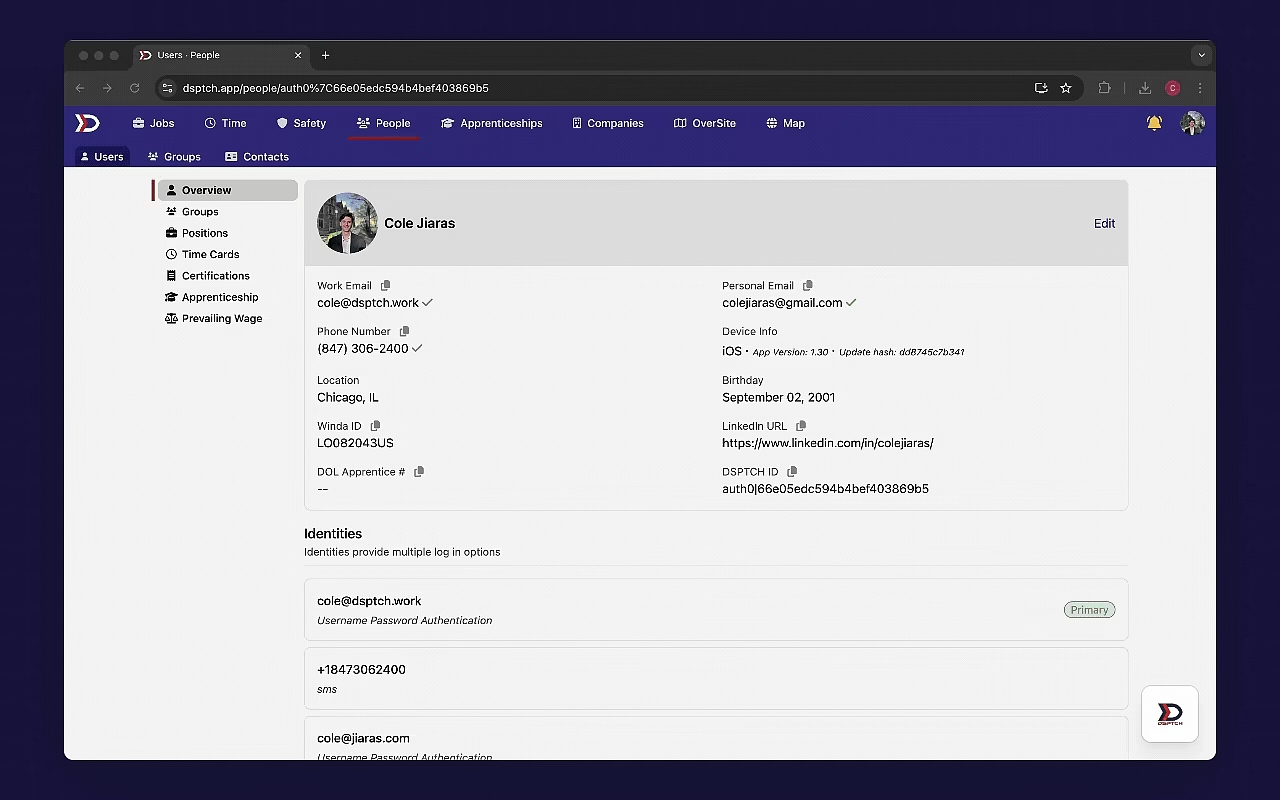
To remove a Role, start by navigating to the User's Profile that needs to be edited. Instructions can be found in the User Profile Overview. Once the User's Profile is open, scroll down to the "Employment Details" Section.
From the "Employment Details" Section, locate the Roles list at the bottom of the box. Find the Role that needs to be removed from a User. Click the "X" button next to the Role. The Role will immediately disappear and the associated permissions will be removed from the User's Profile. See video below for a demonstration:
Granting a Role
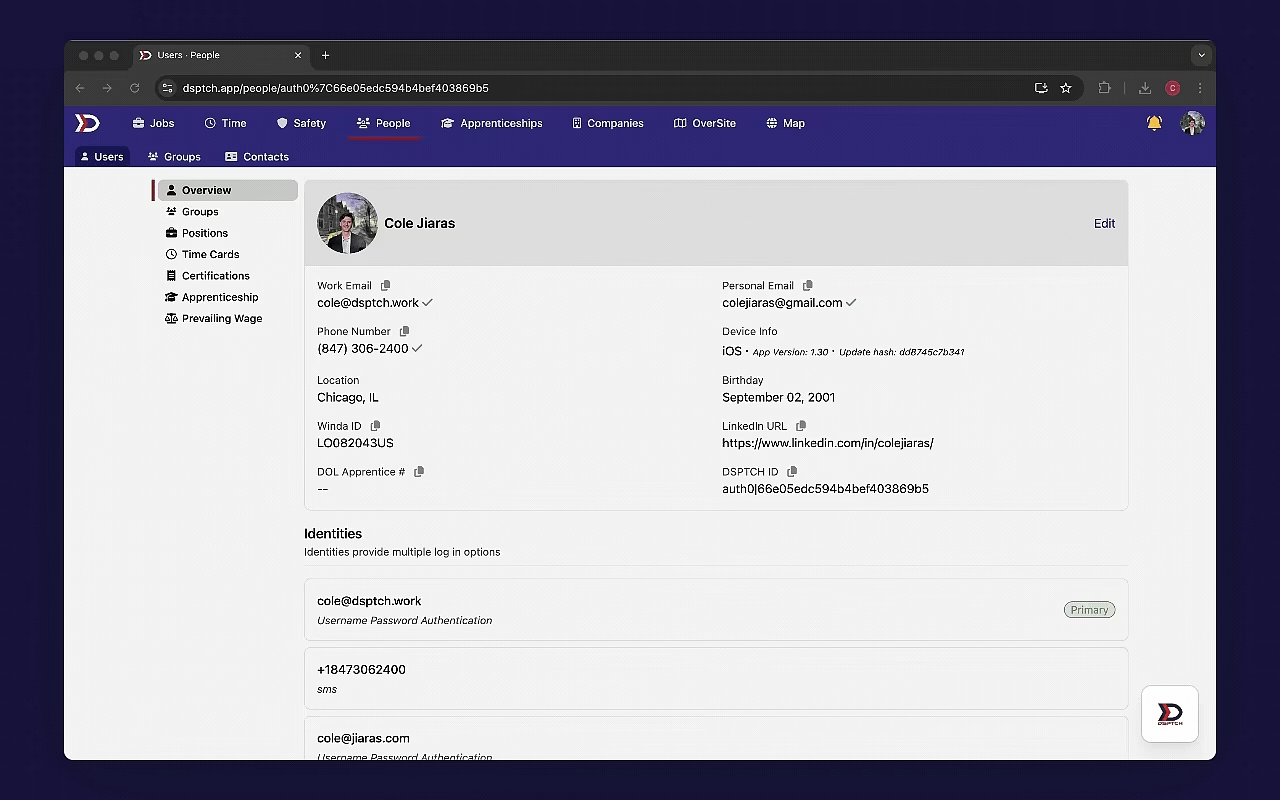
To grant a Role, start by navigating to the User's Profile that needs to be edited. Instructions can be found in the User Profile Overview. Once the User's Profile is open, scroll down to the "Employment Details" Section.
From the "Employment Details" Section, locate the Roles list at the bottom of the box. Click the "+ Add Role" button and select the desired Role from the dropdown that opens. The Role will immediately be added to the User's Profile and the associated permissions will be granted. See video below for a demonstration: