User Profile Overview
Navigating to a User's Profile
To navigate to a User's Profile that needs to be edited, start by clicking the "People" tab from the main navigation bar at the top of the screen. Then search for the User by name in the search bar on the User's Page. Then, click on the User to open their Profile. See the video below for a demonstration:
Overview of a User's Profile
Personal Information
There are several Personal Information fields associated with a User's Profile:
- Work Email:
- The User's Work Email Address
- Personal Email:
- The User's Personal Email Address
- Phone Number:
- The User's Phone Number
- Device Info:
- The type of smartphone the User uses
- Location:
- The city the User resides in
- Birthday:
- The User's date of birth
- Winda ID:
- The User's Winda ID
- LinkedIn URL:
- The User's personal LinkedIn page URL
- DOL Apprentice #:
- The User's DOL Apprentice #
- DSPTCH ID:
- The User's unique DSPTCH ID
- Joined DSPTCH:
- The date which the User created their DSPTCH account
Identities
Identities are used to login to DSPTCH. These include the User's Phone Number(s), Work Email(s), Personal Email(s) (Note: If a User updates their Phone Number, Work Email, and/or Personal Email, both the old and updated phone/email will be associated with their account and can be used for login).
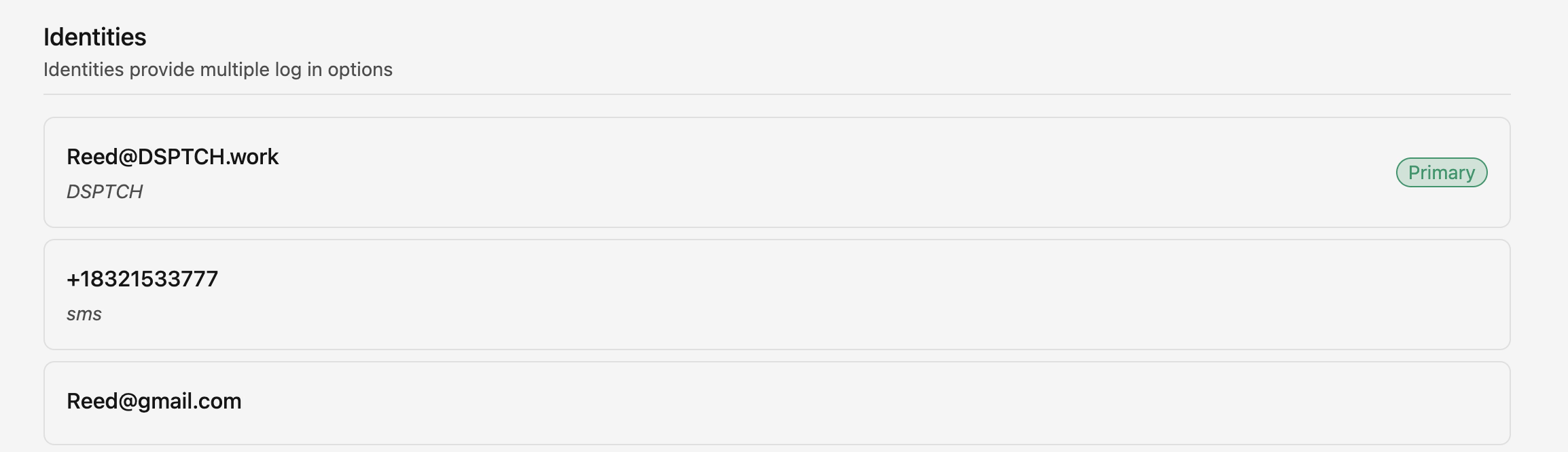
For example, this User has multiple identities (a Work Email, Phone Number, and Personal Email) that can all be used to login to their Account.
Tabs on the Profile Page
The user profile page surfaces several tabs along the top, each summarizing one slice of the user's data. Most tabs are read-only views into a feature documented in its own help doc:
- Time Cards — Lists all time entries for the user, filterable by pay period, company, manager approval status, and worker approval status. See Timekeeping for how to create, view, and approve time cards.
- Certifications — Active, archived, and expired certifications the user holds. To add a certification from the user profile, see User Certifications.
- Apprenticeship — Apprenticeship enrollment status and progress (only populated if the user is registered to an apprenticeship program). See Apprenticeship for details.
- Prevailing Wage — Personal information required for Prevailing Wage compliance (address, demographics, license info). See Prevailing Wage for the full field list.
- Groups — Groups the user belongs to. See Groups for how to create and use groups.
- Positions — Positions the user is assigned to. See Positions.
- Assignments — Form assignments and their due dates. See Form Assignments.
- Checklist — Compliance checklist items assigned to the user. See User Checklist for filter options and item statuses.