Create Account
Download DSPTCH
Download DSPTCH from the Google Play or Apple App Store at https://dsptch.app.link
Open the DSPTCH app on your phone
Creating an account
Opening DSPTCH for the first time will open the Welcome Screen:
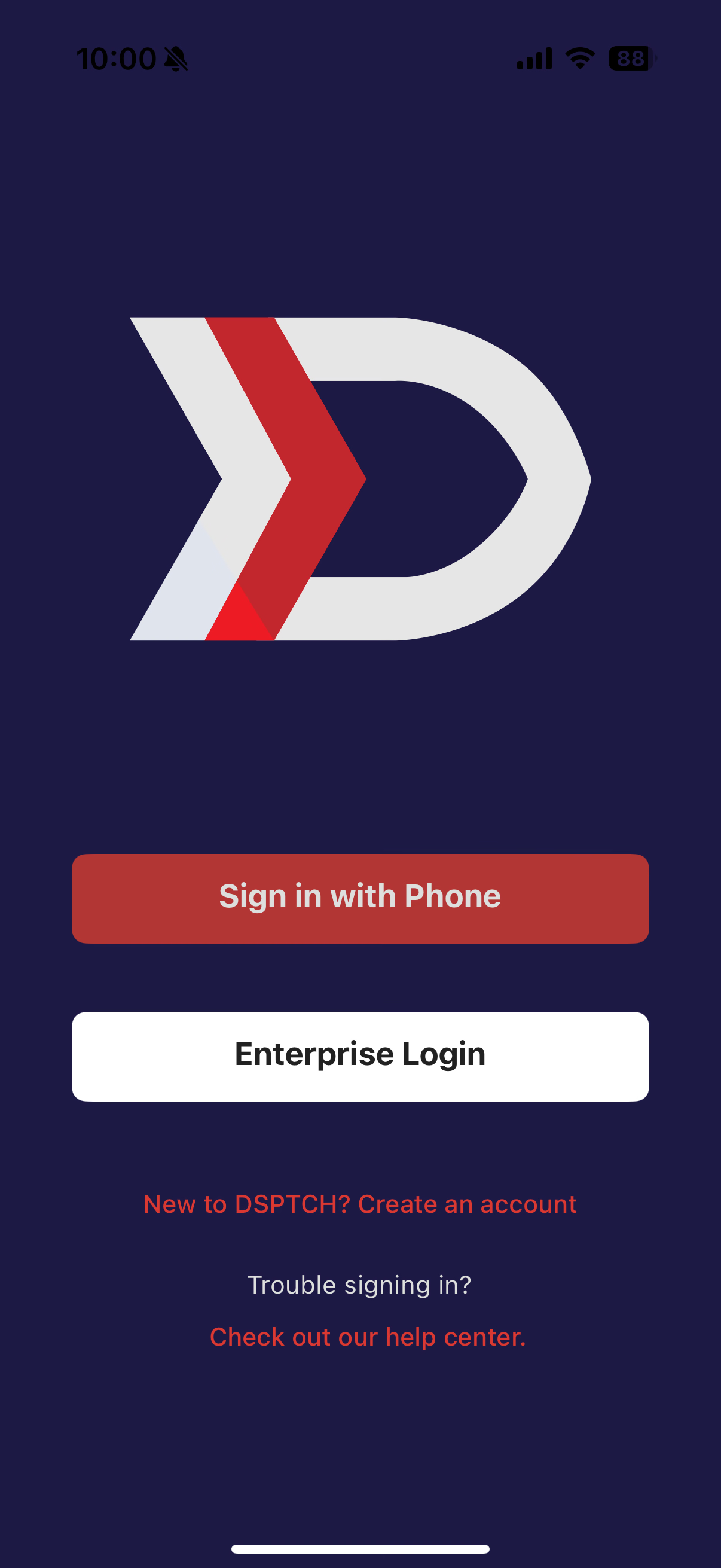
There are two options for creating an account:
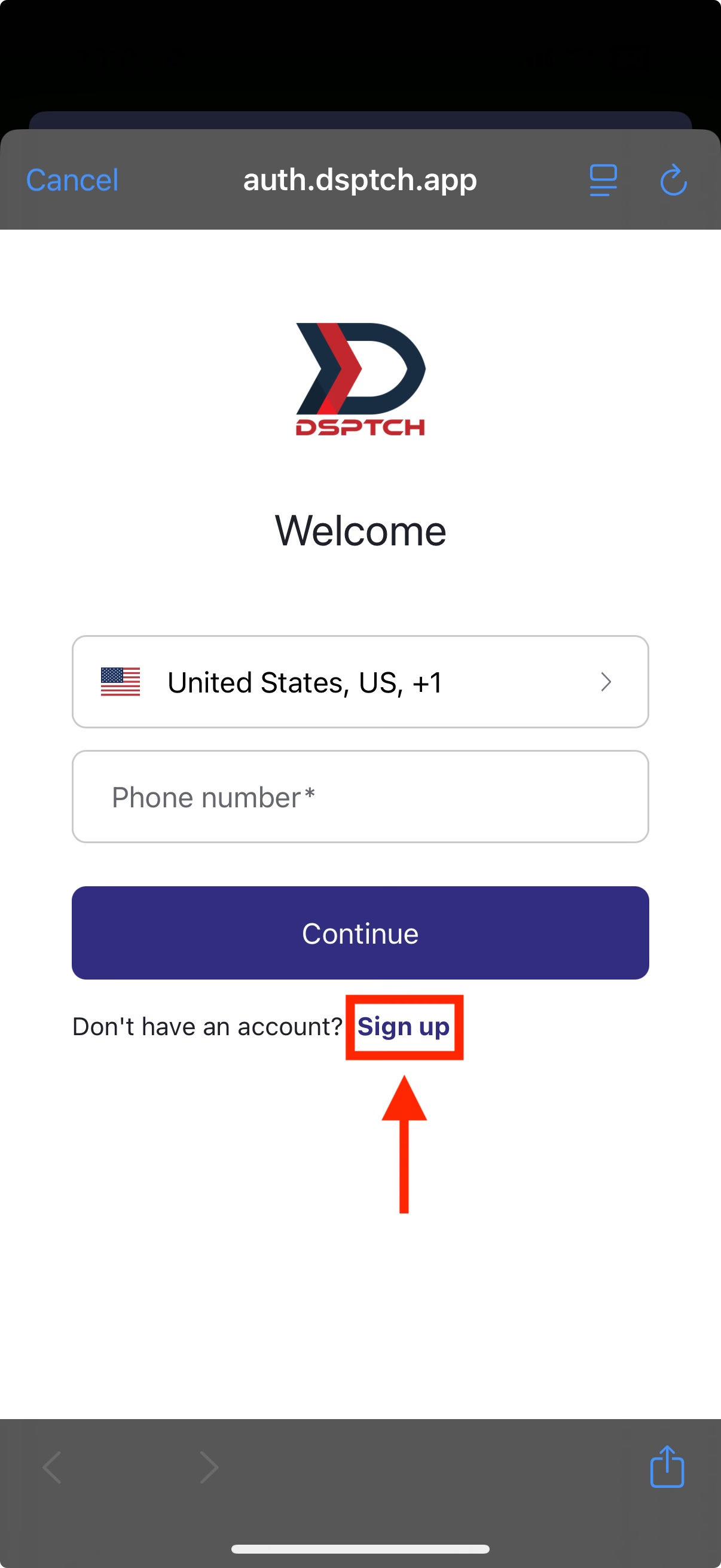
- Phone Number Login (recommended for personal use):
- Click “Sign in with Phone”. Then select “Sign Up” below the number entry field (see image below).
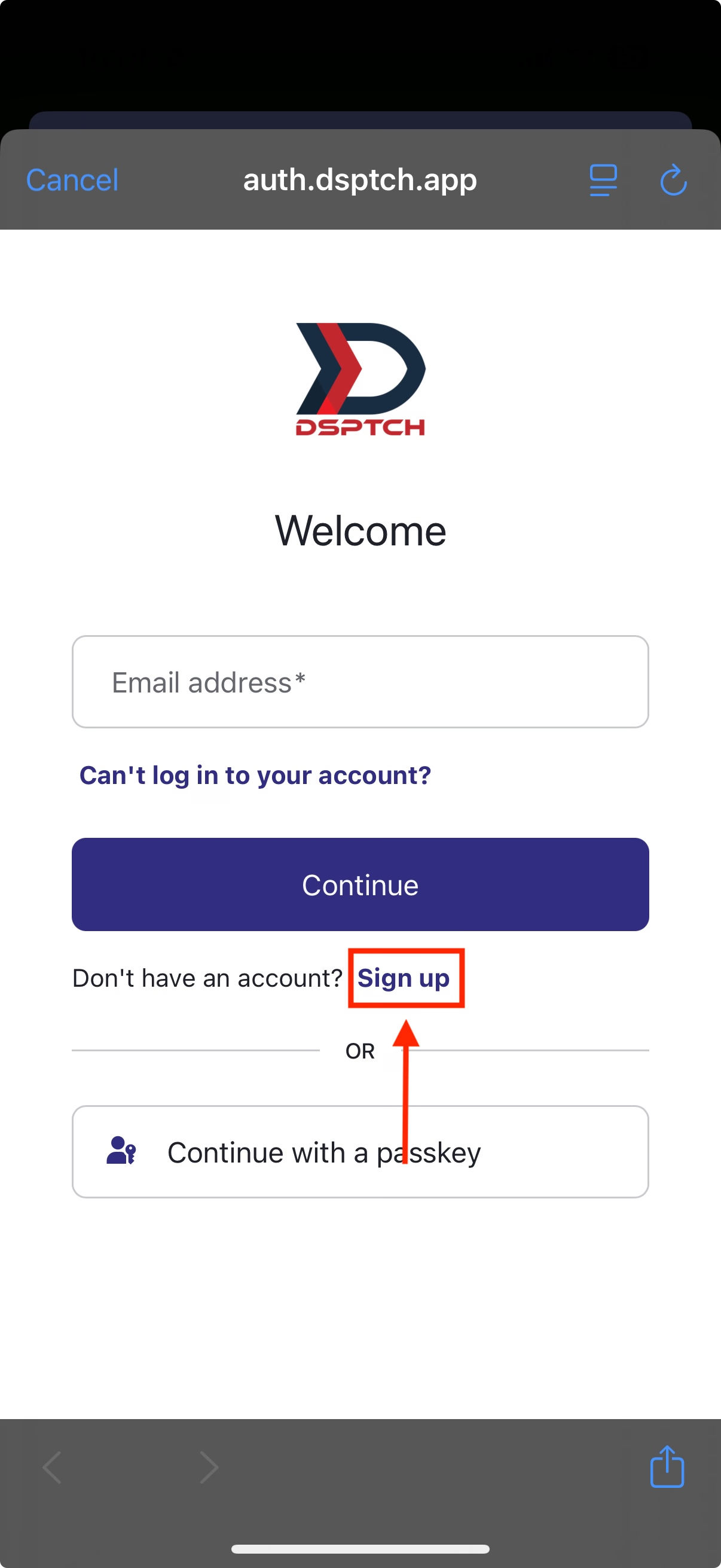
- Email Login (recommended for company use):
- Click “Enterprise Login”. Then select “Sign Up” below the email entry field (see image below)
Once the account creation method has been chosen, please follow the instructions below to finish the process.
Phone Number
The first step to creating a DSPTCH account is entering a phone number.
Enter the phone number of the device currently in use. Text message access is required to complete account verification.
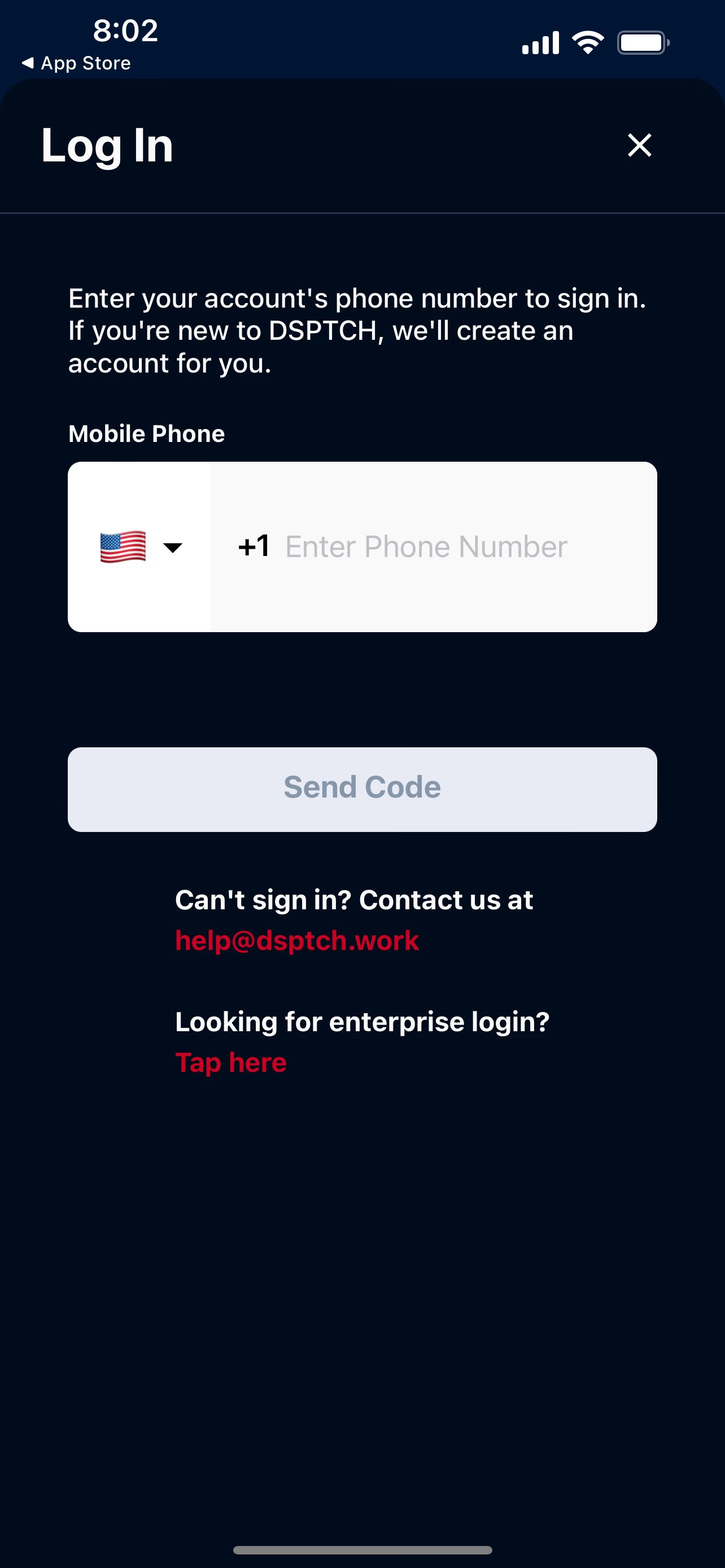
Enter your phone number - you should receive an SMS text message shortly
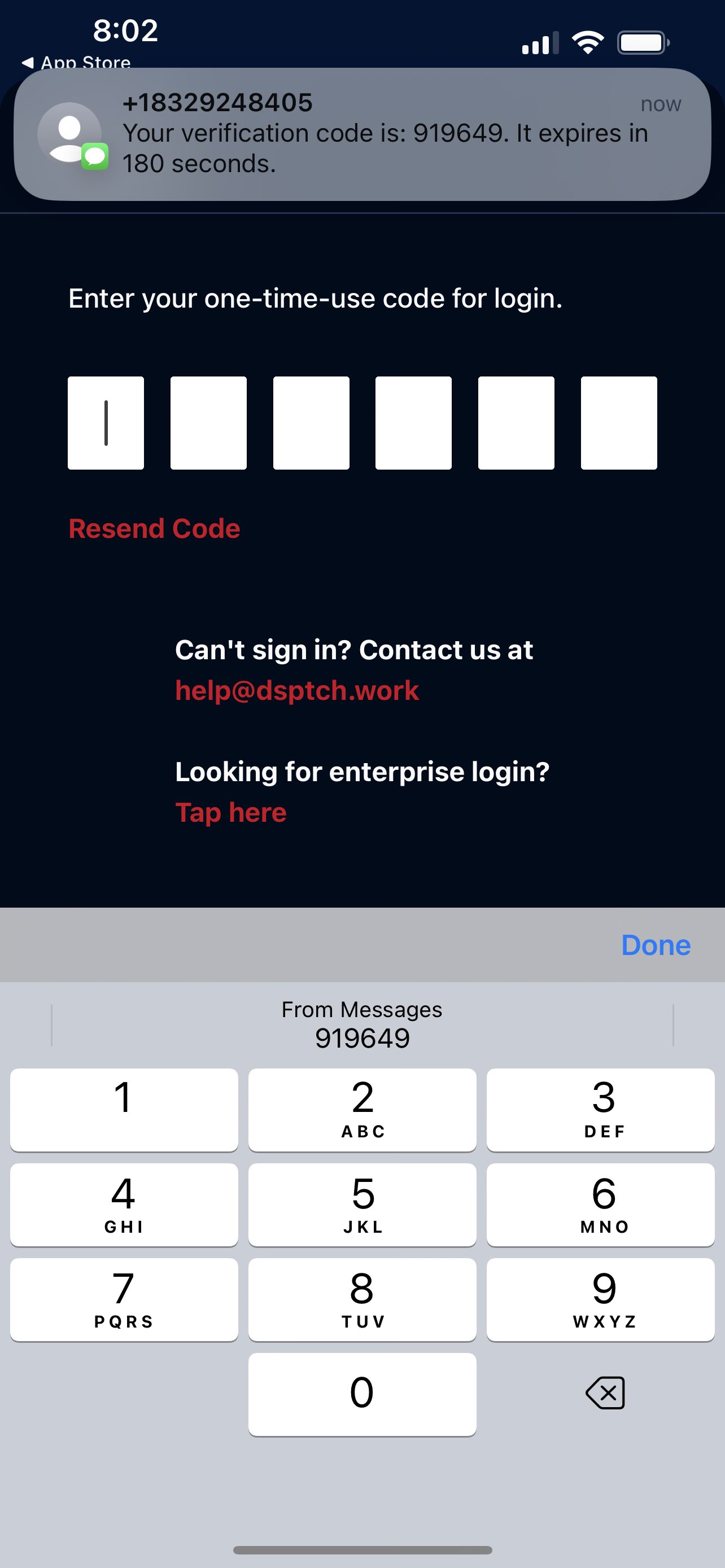
Enter the code sent to you via text
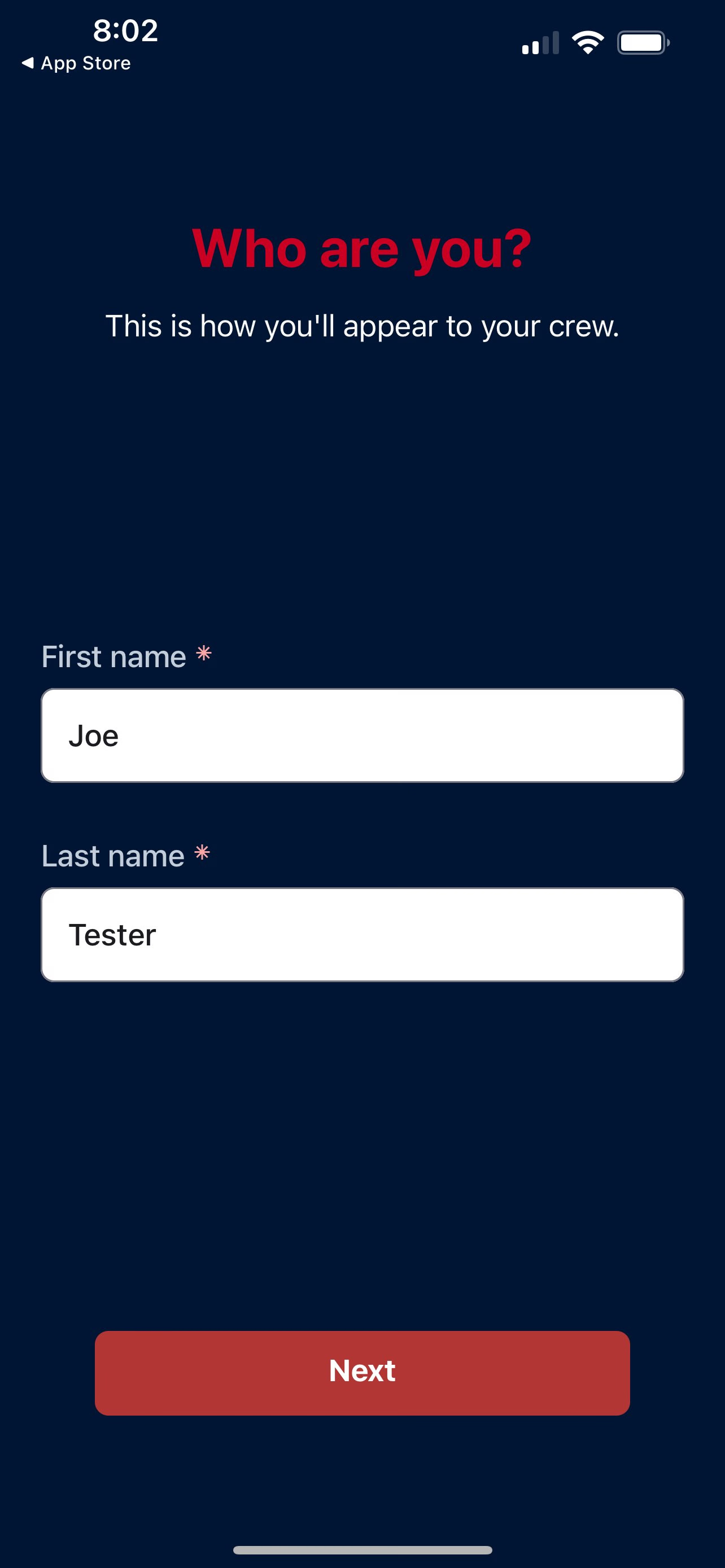
Name
Enter your first and last name. This name will be visible to your managers and the rest of your crew.
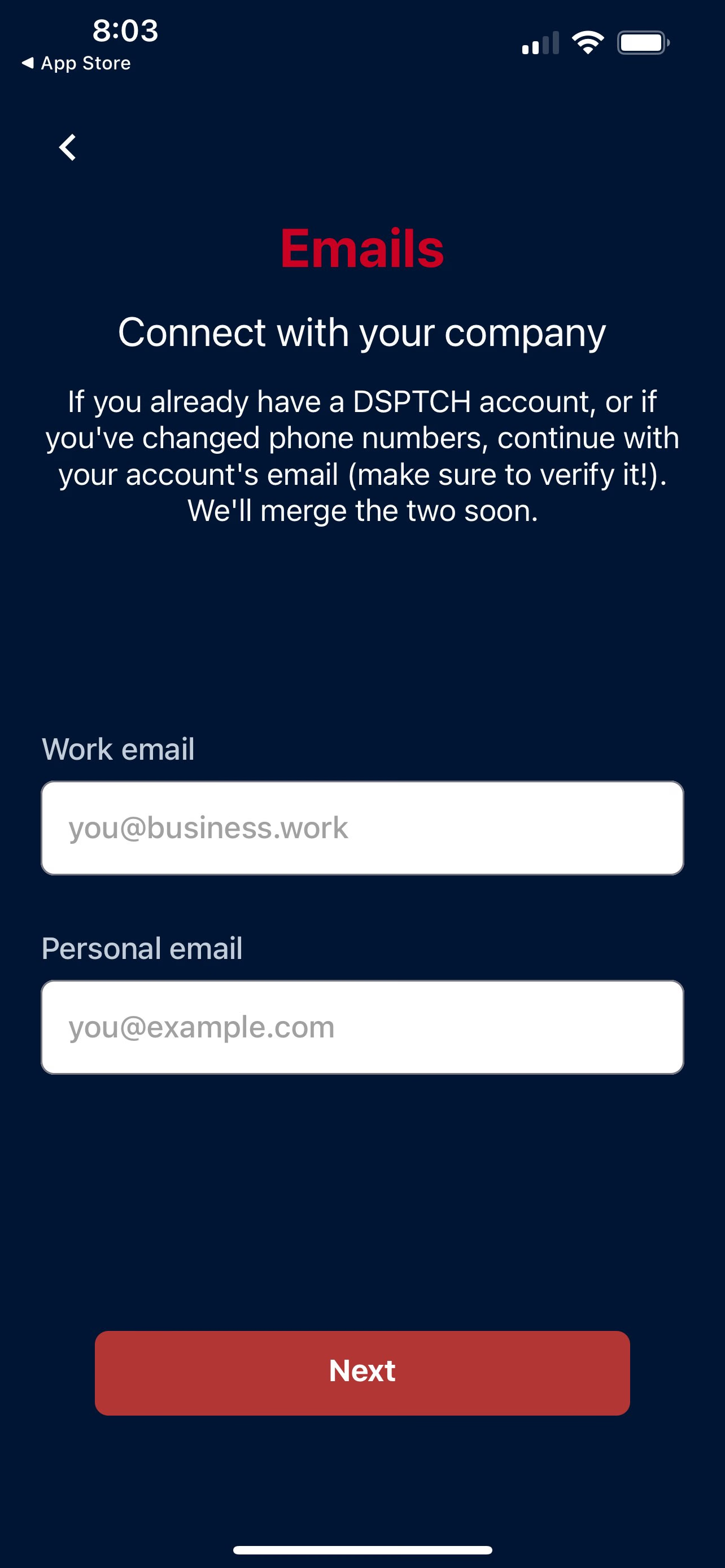
Email
DSPTCH needs both your work and personal (non-work) email. Your work email is used to link your account to your Company's Profile. Your personal email is needed for account recovery.
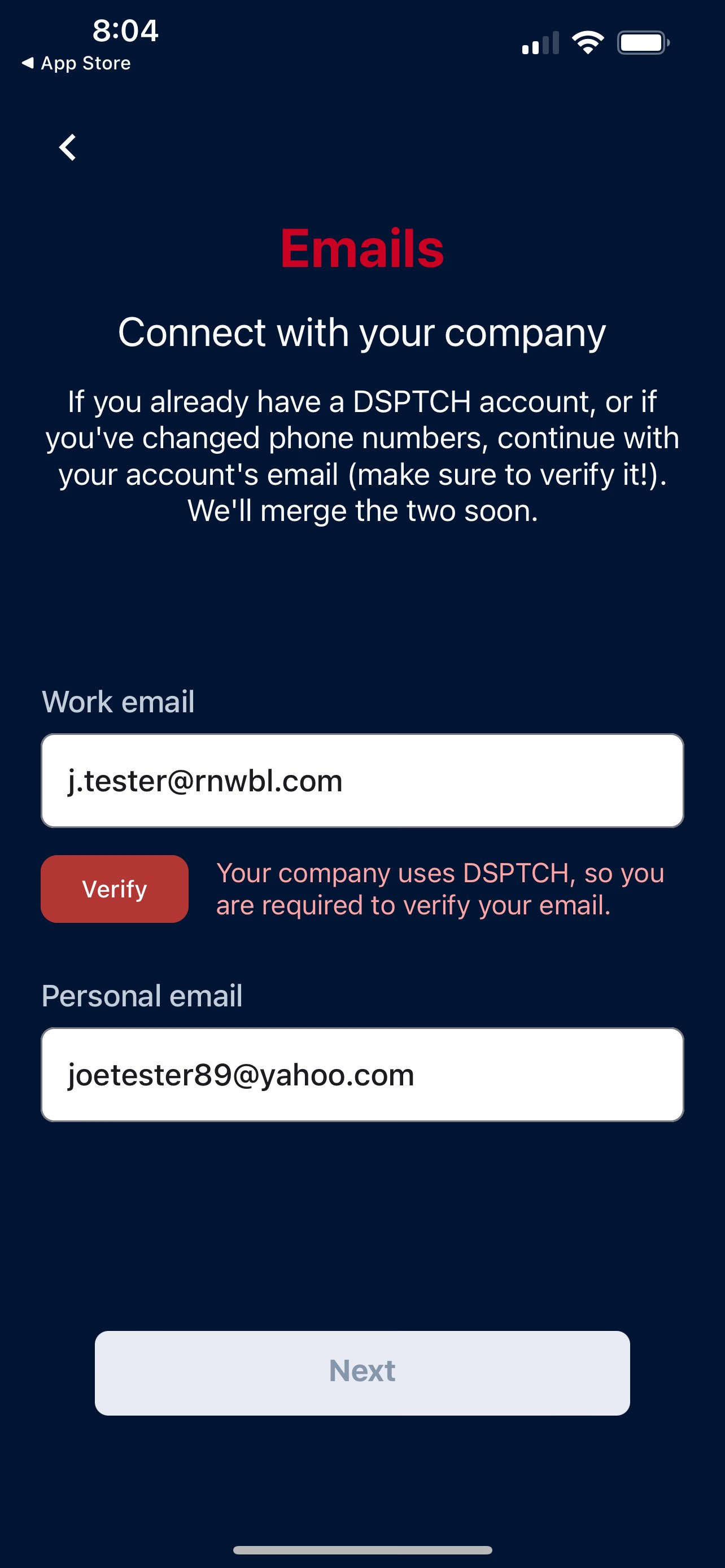
Depending upon your company's setup, it may be required to verify an email right away.
If this is the case, it is not possible to proceed to the next step until work email verification is complete.
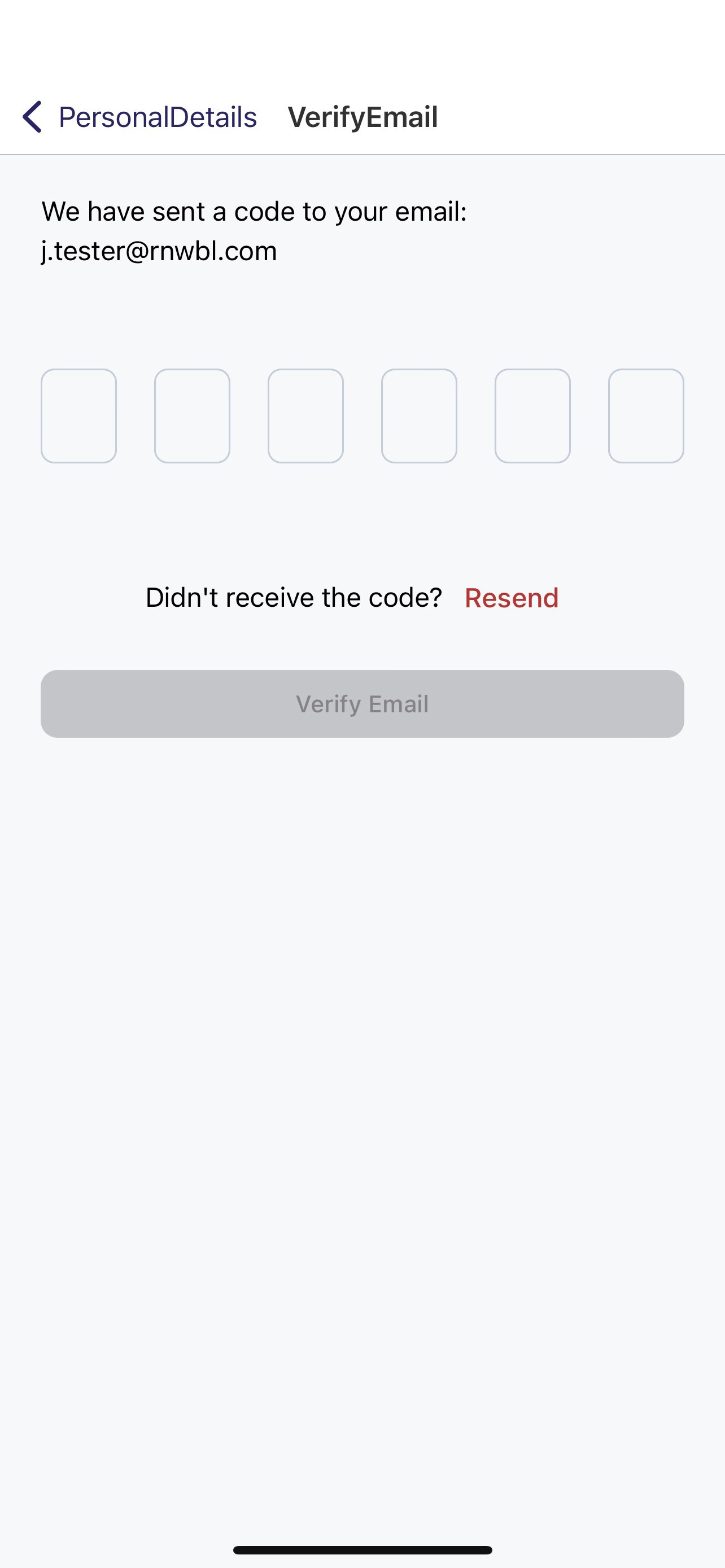
Verify Email
The process to verify an email is similar to how verifying a phone number. Your email will be sent a verification code to be entered into DSPTCH.
Ensure active access to the email being verified, as the verification code expires one hour after being sent.
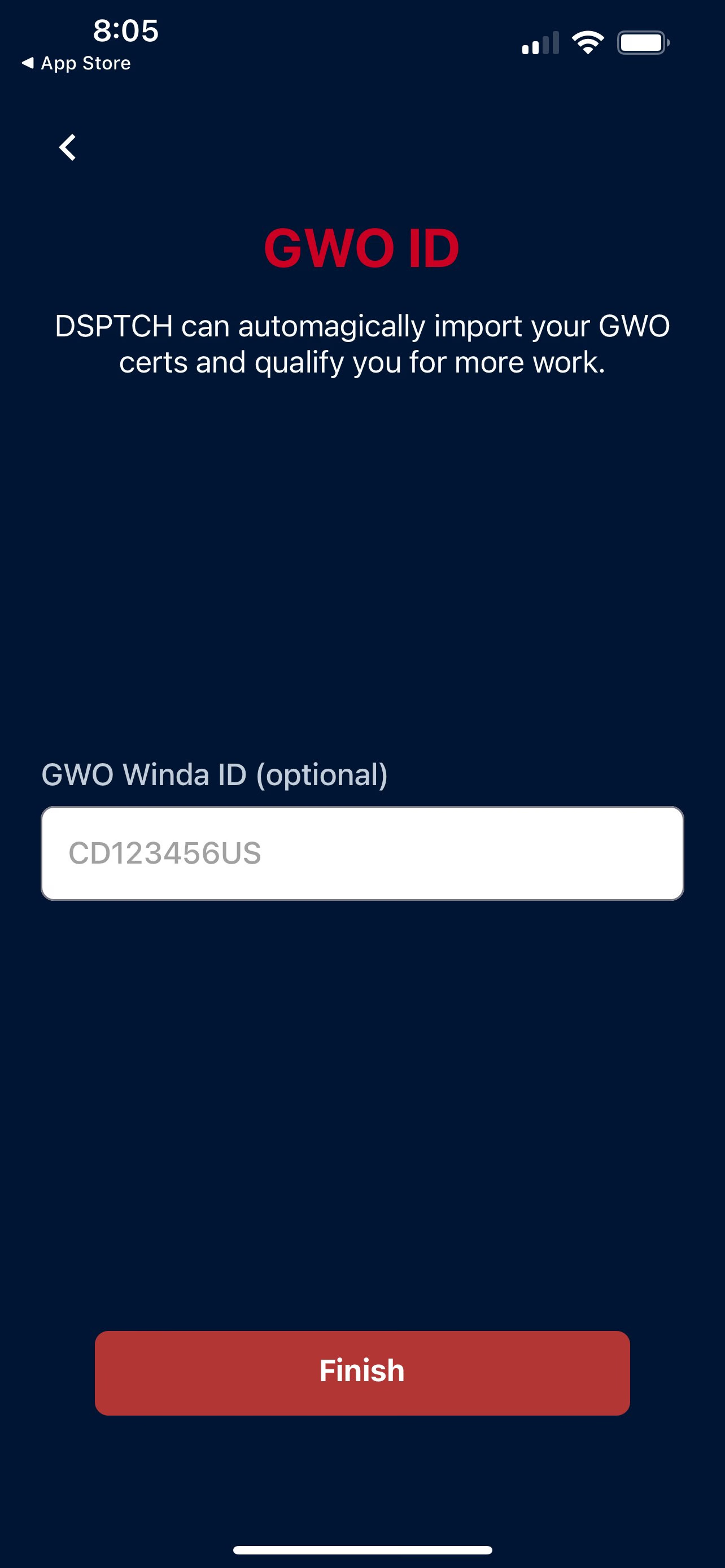
GWO ID (optional)
The last step is optional. For wind technician with a valid GWO ID, enter it here and add it to your profile.
DSPTCH will automatically pull all relevant certifications from GWO's website and apply them to your profile.
Accepting Your Company Invite & Using the App
Please see our other sections for how to accept company invites, navigating the app, and other details.