Approving Time Entries
How to Navigate to a User's Time Entries
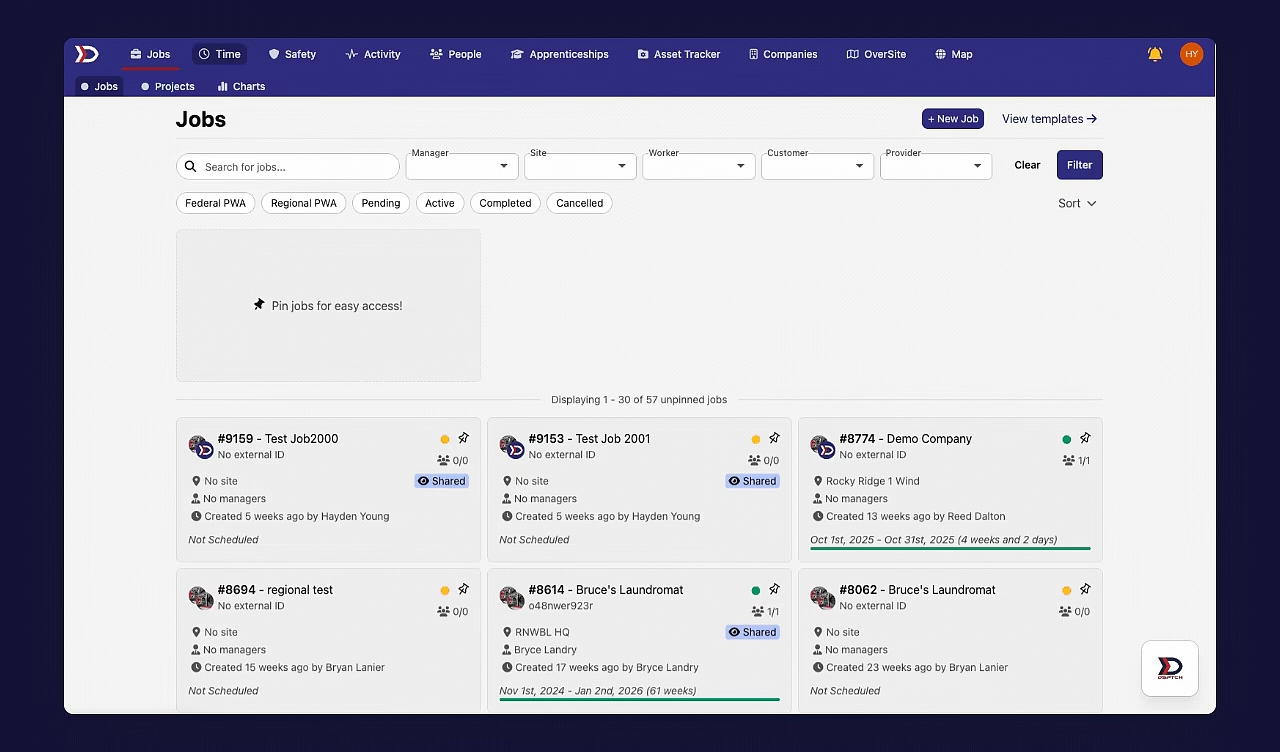
To navigate to a User's Time Entries, click the Time Tab from the primary navigation bar at the top of the screen. This will open a list of all Users in your Company. Scroll through the list or use the search filters to locate the relevant User with Time Entries that require review.
Once the relevant User is located, click on their profile. This will open a list of all Time Entries for the current pay period.
Please see the video below for a demonstration:
How to Approve/Decline a Time Entry on DSPTCH Web
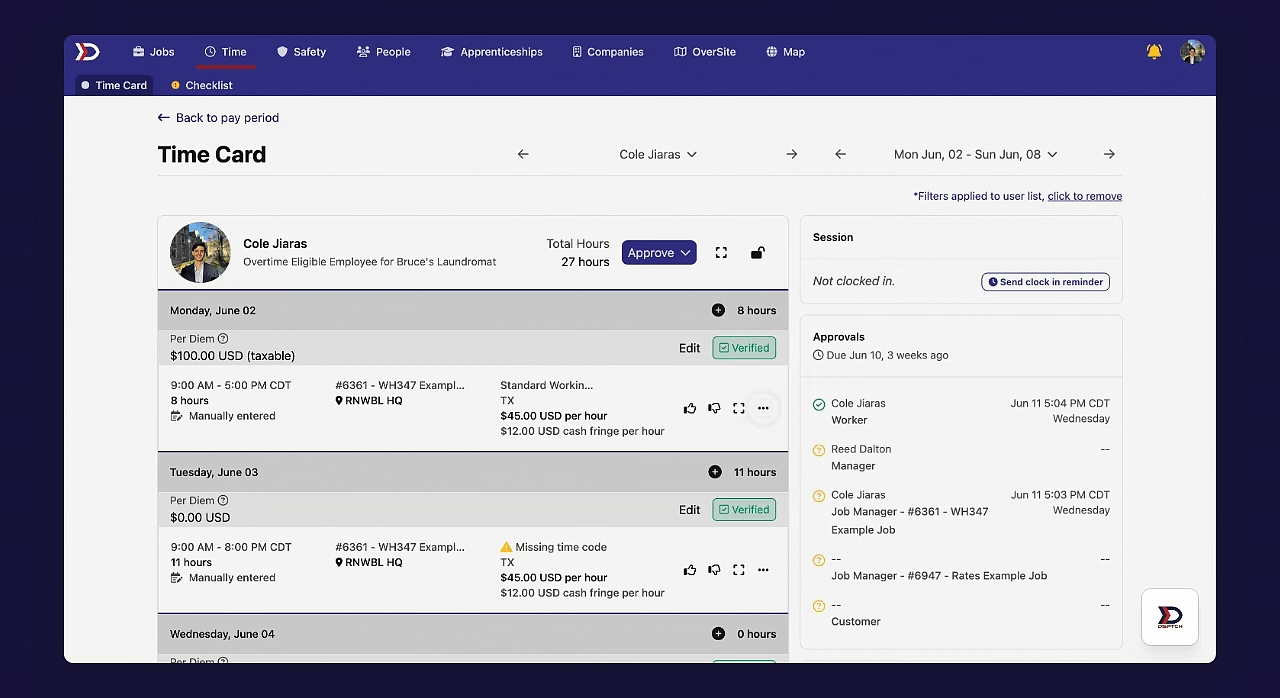
There are two ways that Time Entries can be approved or declined using DSPTCH Web. Both start by opening a User's Time Card (instructions above in the "How to Navigate to a User's Time Entries" Section).
Bulk Approve/Decline a Time Card
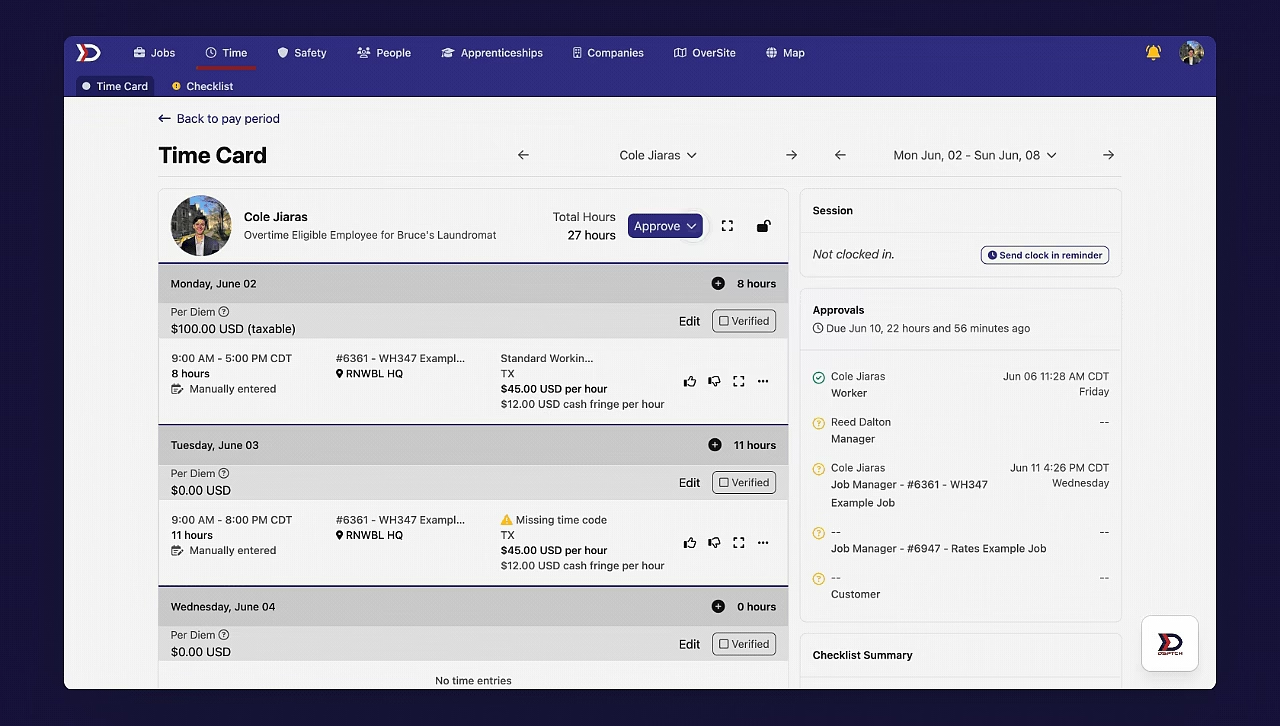
To bulk approve/decline all Time Entries within a Time Card, click on the "Approve" dropdown button near the top right of the screen. Then, select an option from the dropdown:
- Approve
- Approve all Time Entries in the Time Card
- Decline
- Decline all Time Entries in the Time Card
- Set Pending
- Set the approval status to "Pending" for all Time Entries in the Time Card
Please see the video below for a demonstration:
Individually Approve/Decline Time Entries within a Time Card
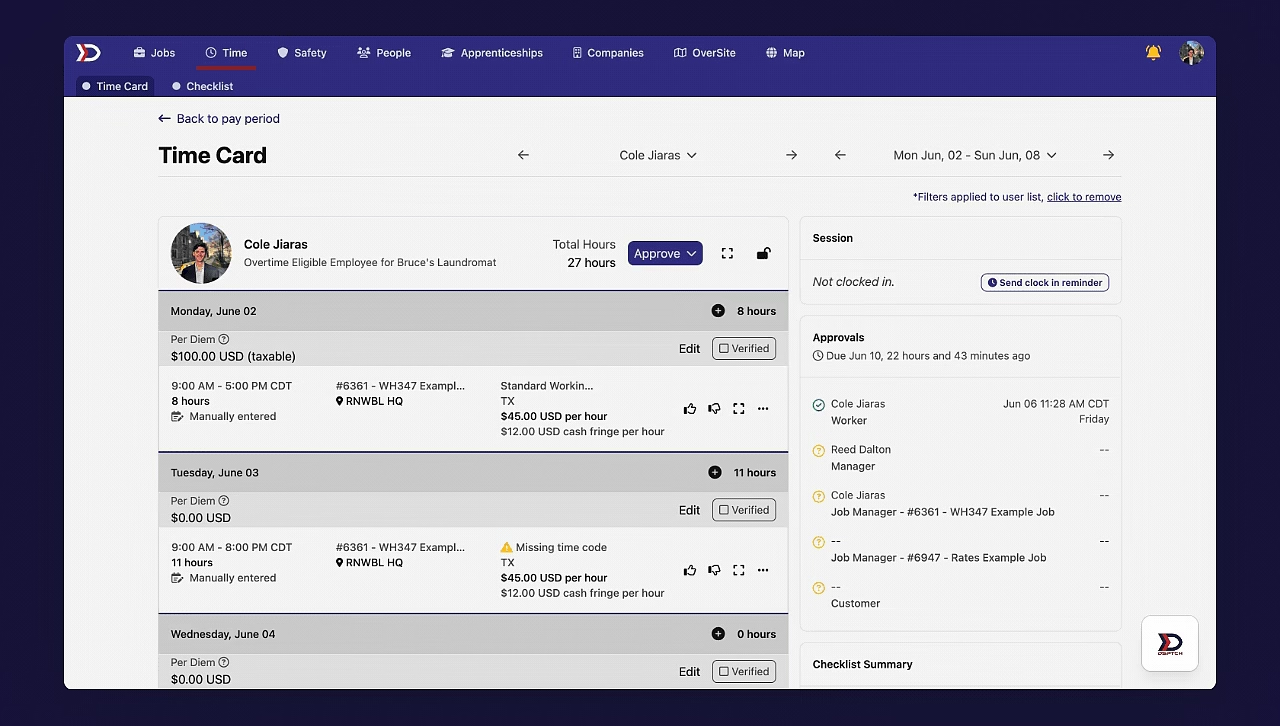
To approve/decline individual Time Entries within a Time Card, use the Thumbs Up/Down Buttons next to each Time Entry to approve/decline.
Please see the video below for a demonstration:
How to Delete a Time Entry on DSPTCH Web
From a User's Timecard, click the three dots icon on the right side of the Time Entry which needs to be deleted. Then, click the "Delete" Button. A success message will appear and the Time Entry will be deleted.
Please see the video below for a demonstration:
How Users can Approve/Decline Time Entries on DSPTCH Mobile
Users must approve their Time Entries using DSPTCH Mobile before they can be approved or declined by the Manager.
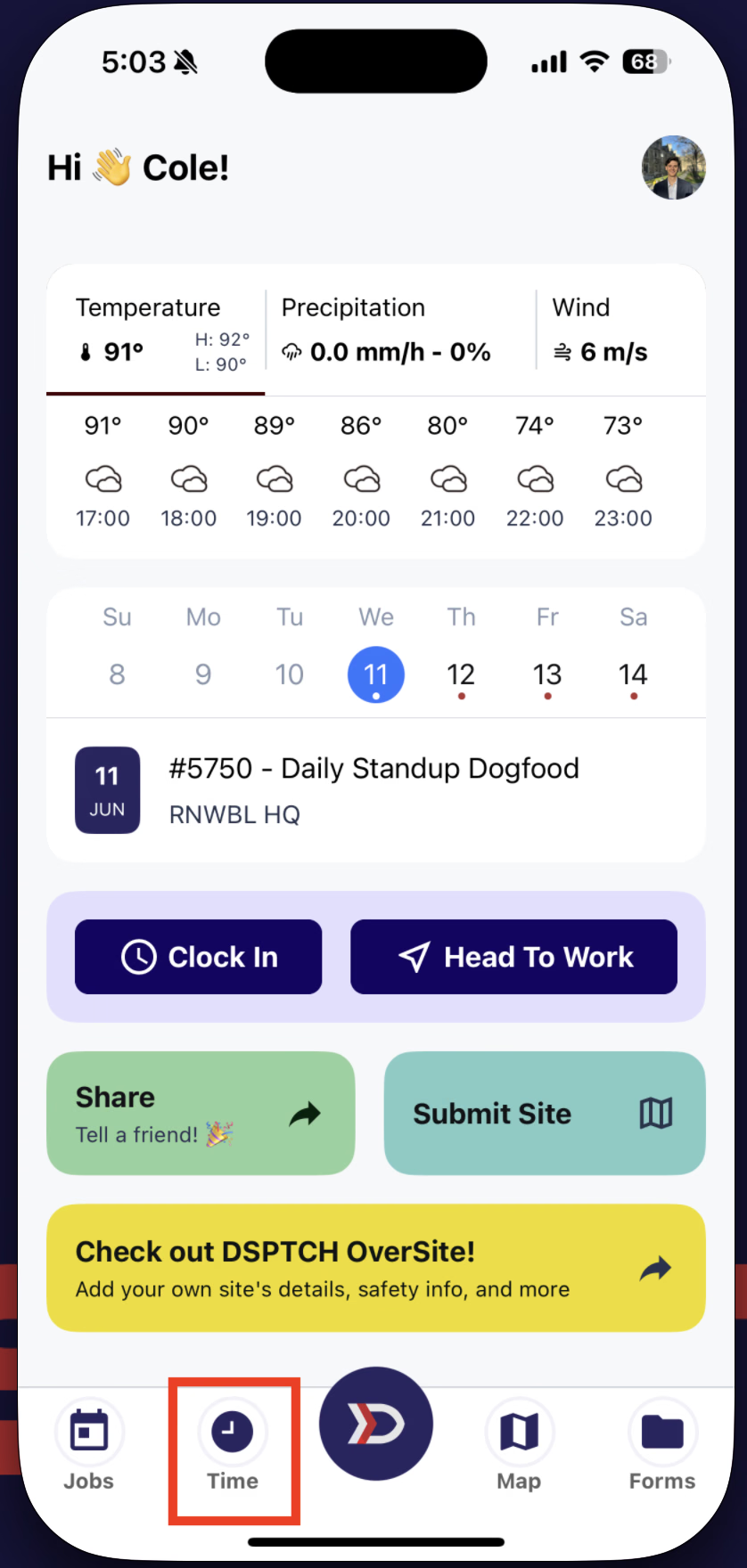
Start by tapping on the Time Tab from the primary navigation bar at the bottom of the screen (highlighted in the red box in the image below):
Then, click on a Pay Period (highlighted in the red box in the image below):
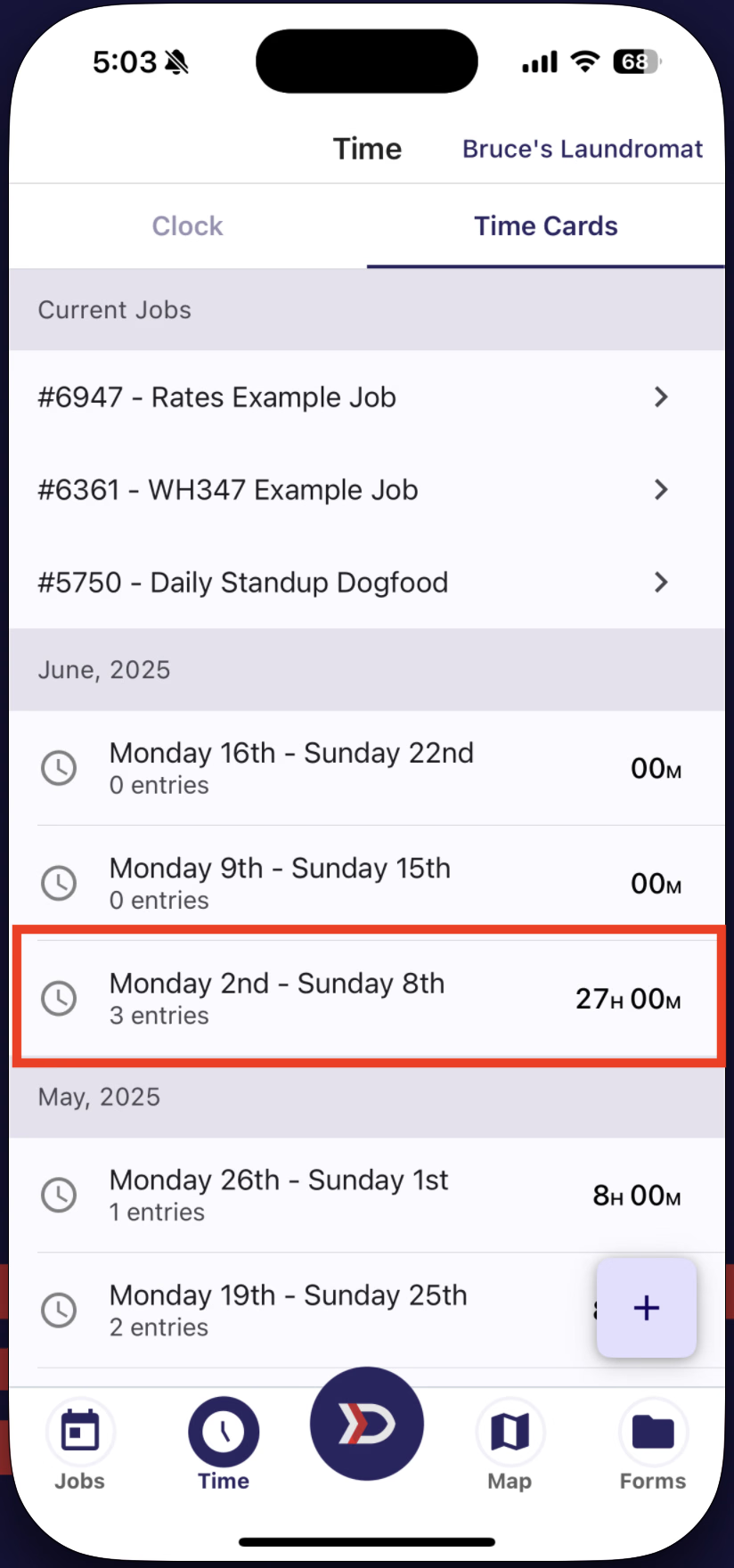
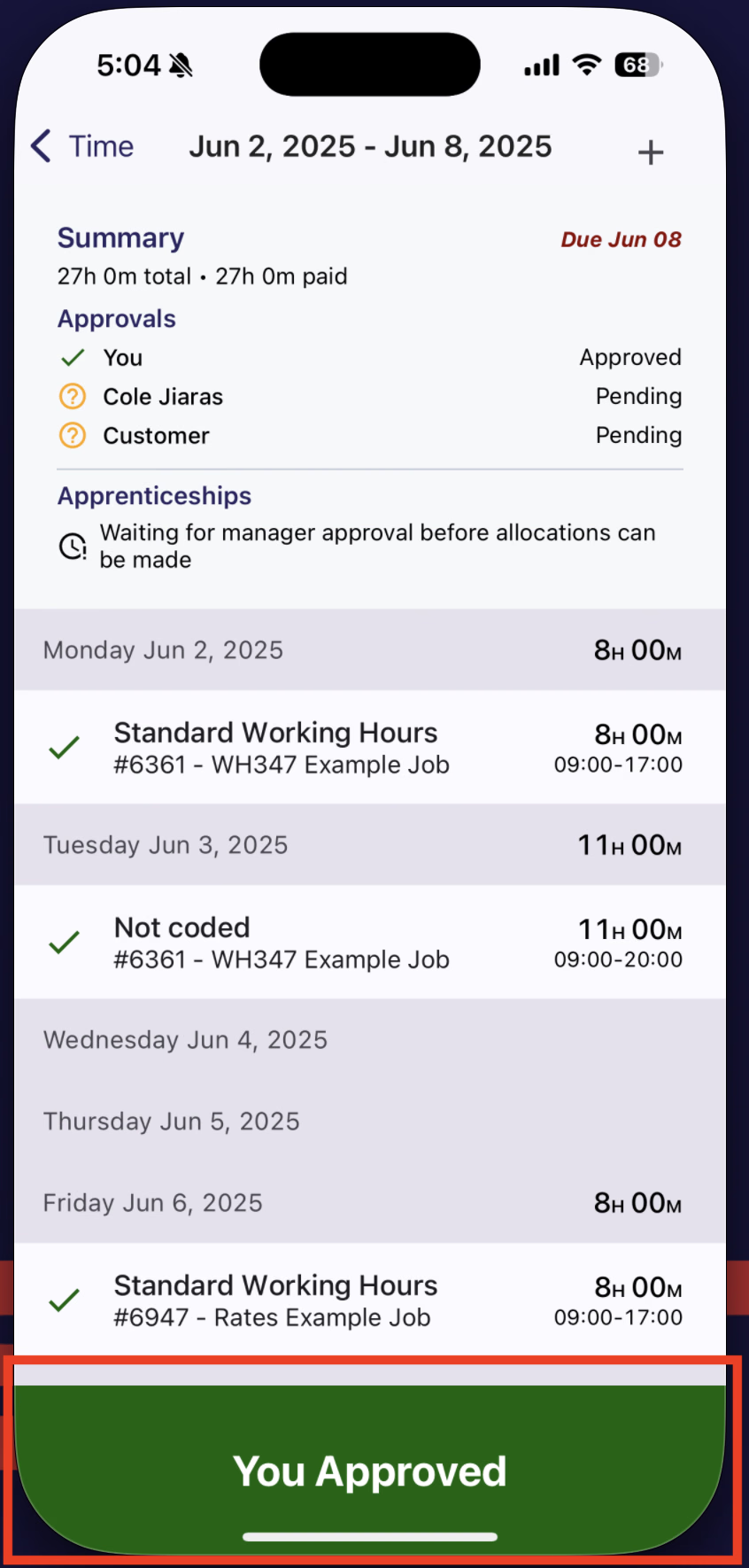
This will open a list of all Time Entries in a given Pay Period. If all Time Entries look correct, tap the "Approve" Button (highlighted in the red box in the image below):
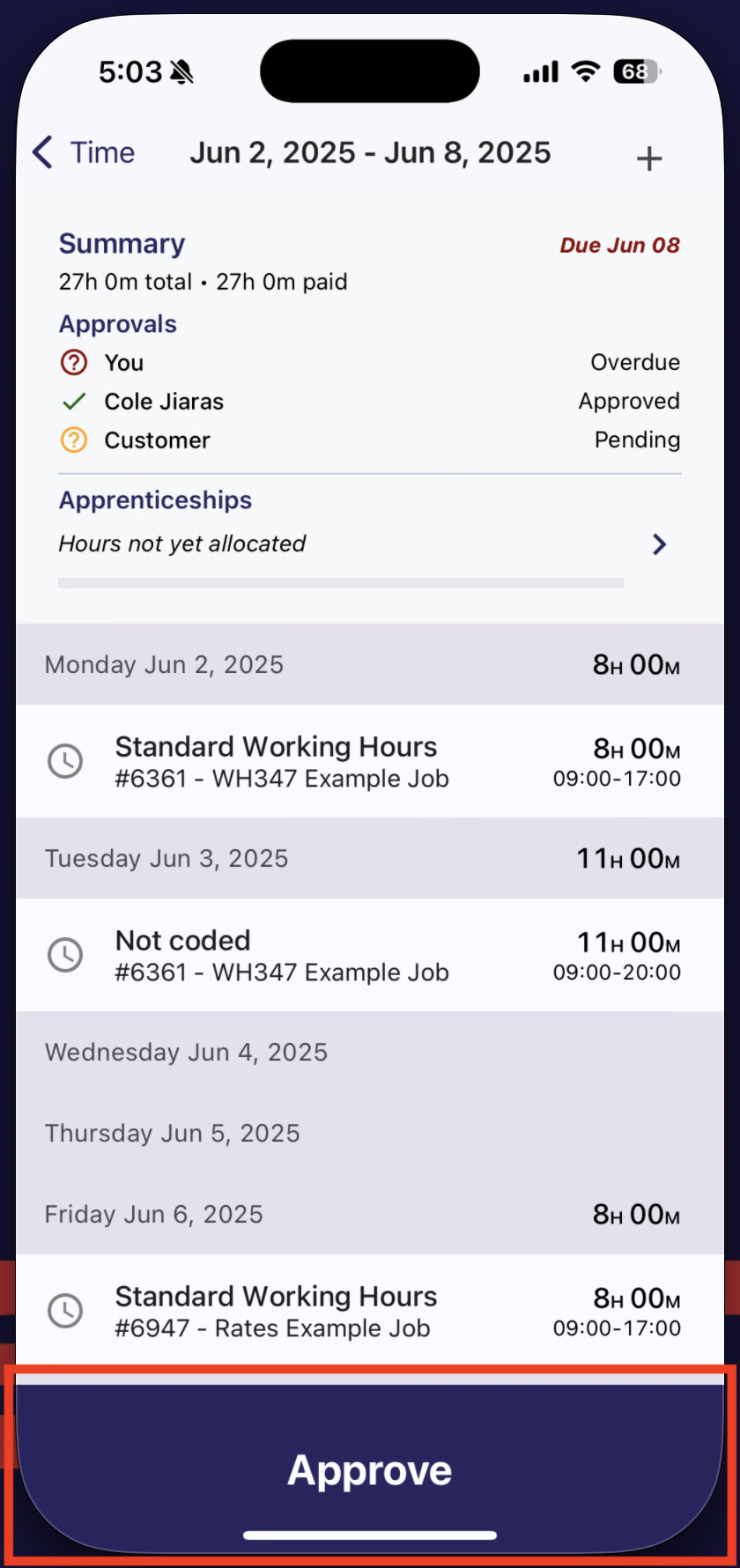
If any Time Entries need to be edited, click on the individual Time Entry to edit the fields (for instructions on editing a Time Entry read our help doc here).
The Time Entries will be sent to the User's Manager for review (see the image below for an example):
How to View the Approval Status of a Time Card
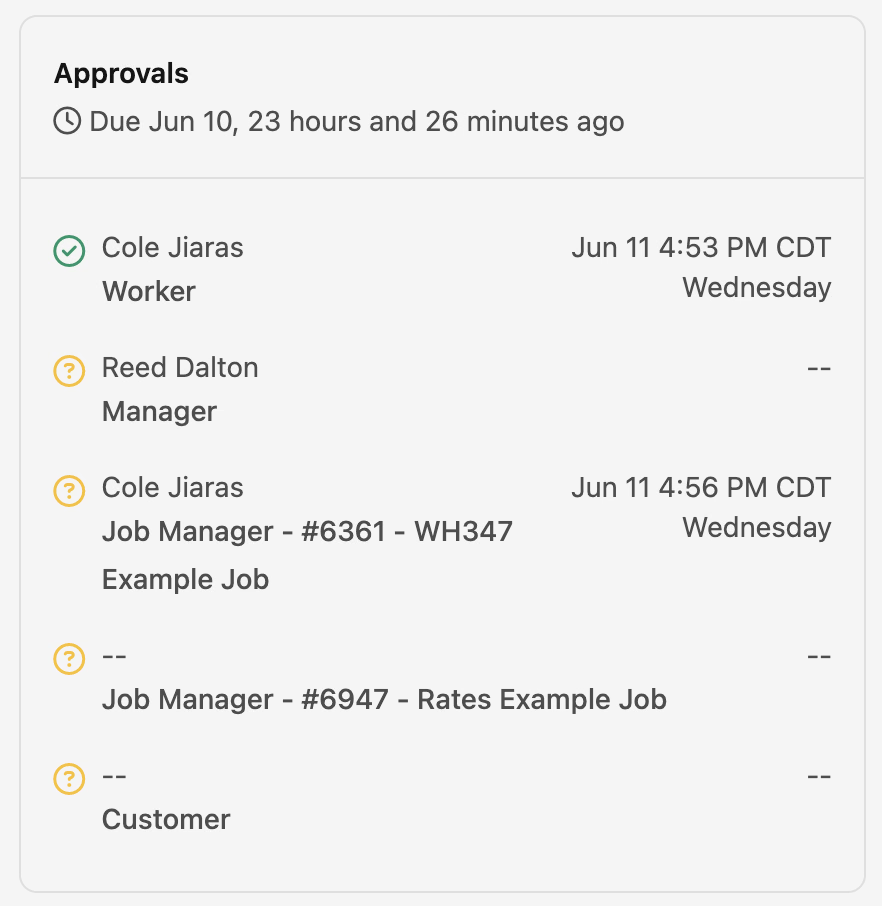
Each Time Card must be approved by the Worker and Manager. In some cases, additional approval may be required from the Customer or Job Manager(s).
The User's Time Card contains an "Approvals" Box which shows the approval status for all necessary reviewers of the Time Card.
Additionally, the Approvals Box provides a countdown to the approval due date for the Time Card (please see the image below for a demonstration):
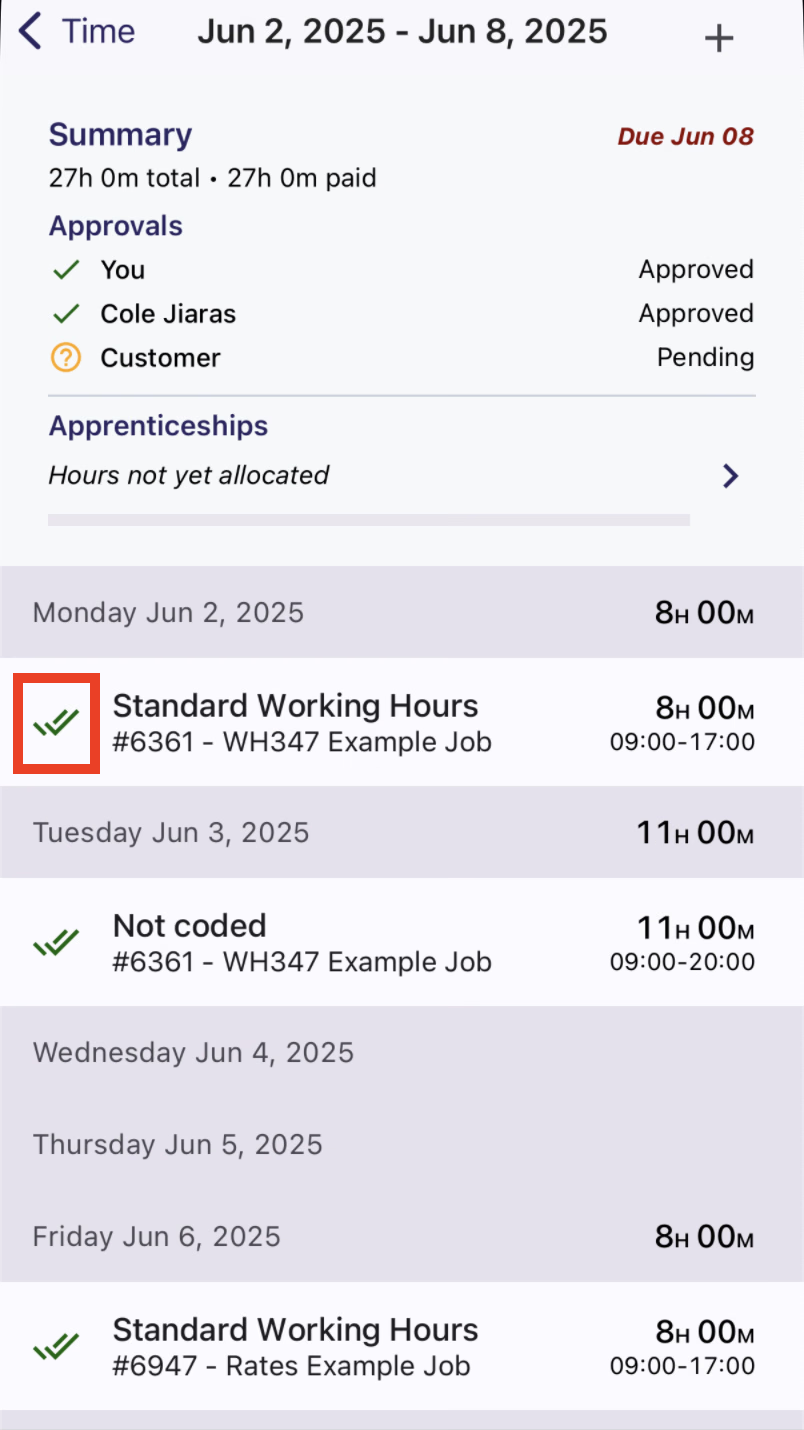
From the DSPTCH Mobile perspective, once a Job Manager has approved a User's Time Card, this will be indicated by a double-check mark icon (highlighted in the red box in the image below) from the same Time Card approval page. Please see the image below for an example: