Sub-Contractors
For Projects there is a Sub-Contractors Tab that provides visibility into a Project's sub-projects and jobs, as well as penalties associated with the project and its components. For more information on creating a project, please review the Create a Project Section of our Projects Help Document.
Navigate to the Project Sub-Contractors Tab
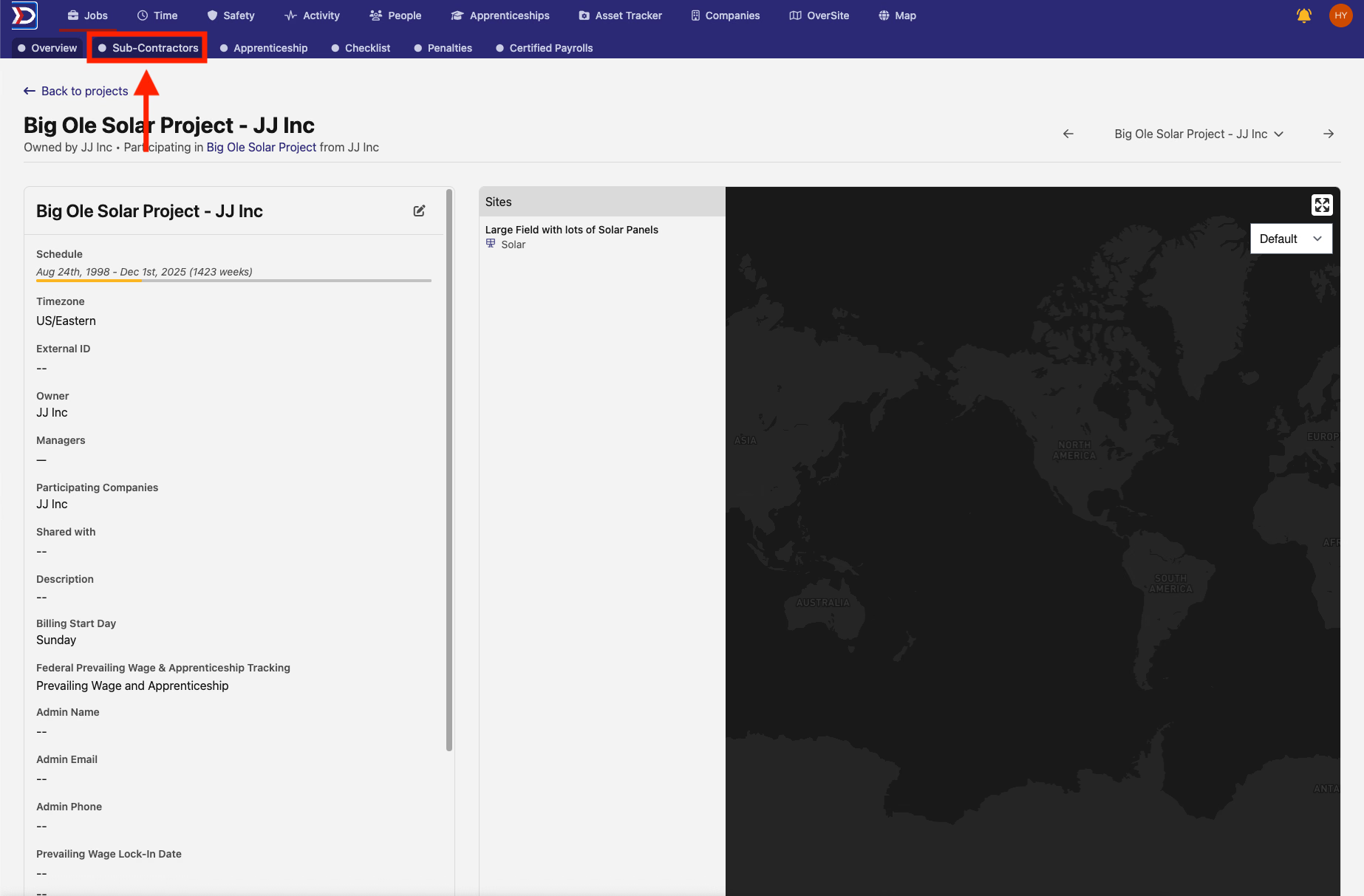
To navigate to the Project Compliance Tab tab, start by opening the Project Card and then clicking "Sub-Contractors" from the navigation bar at the top of the screen (indicated by the red box and arrow in the image below).
Information in the Sub-Contractors Tab
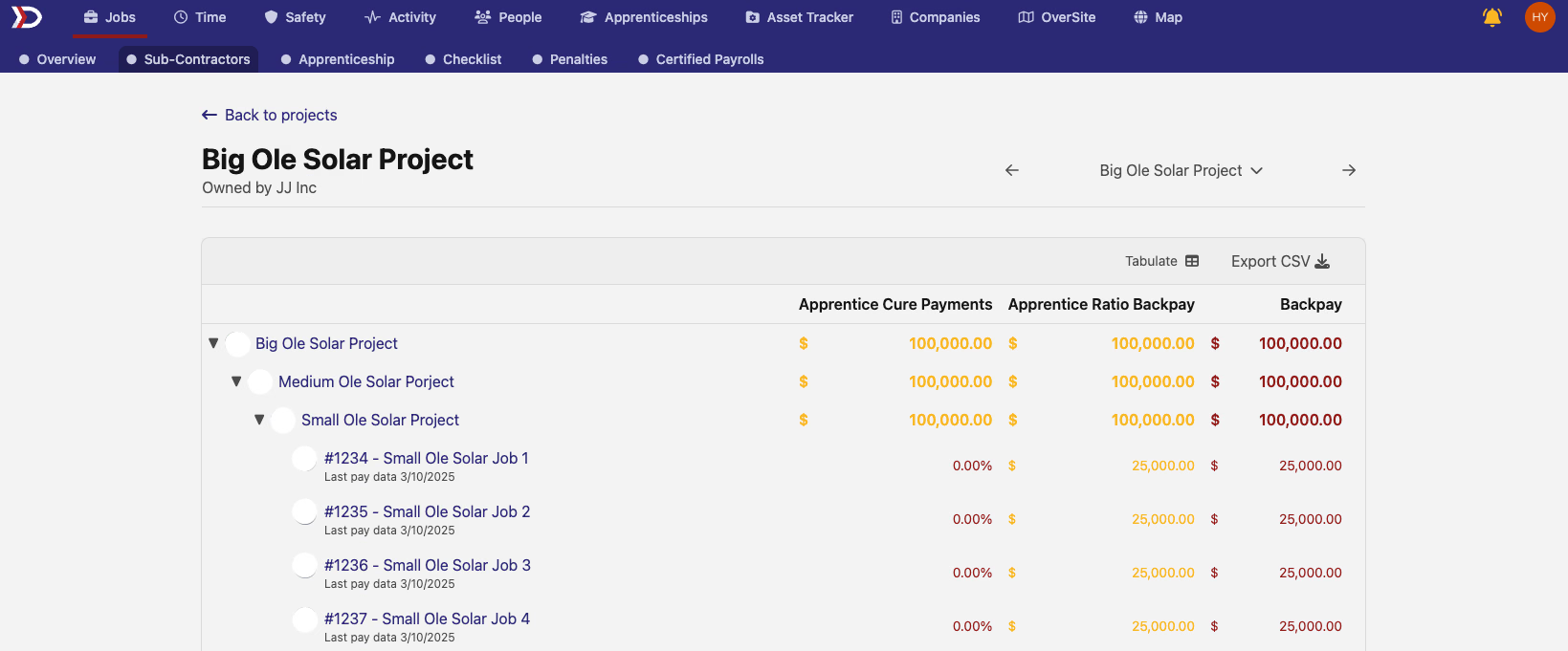
The "Sub-Contractors" tab gives an overview of all sub-projects and jobs that make up a project, as well as apprentice penalties and backpay associated with the project.
Apprentice Cure Payments
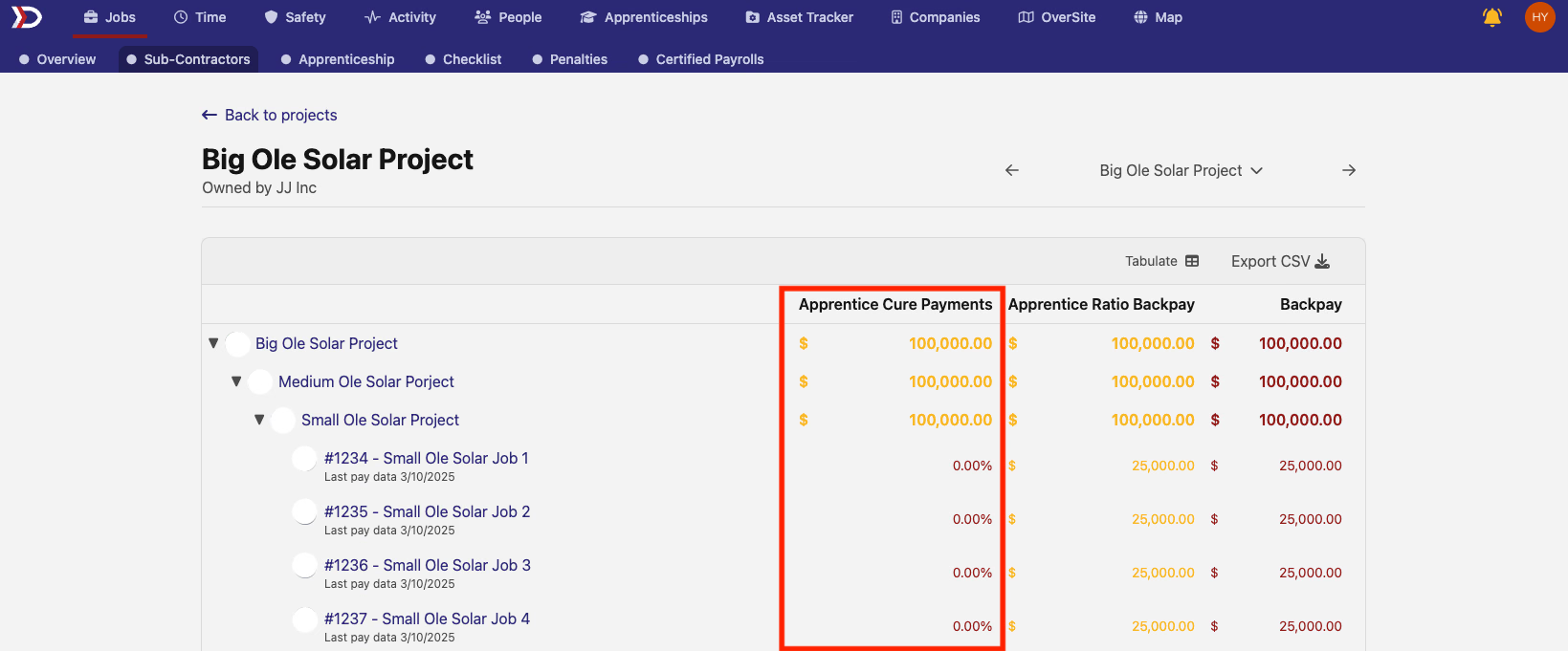
The "Apprentice Cure Payments" column (as indicated by the red box in the image below) summarizes the advisory amount of Apprentice Labor Hour Penalties. These penalties are calculated per-facility.
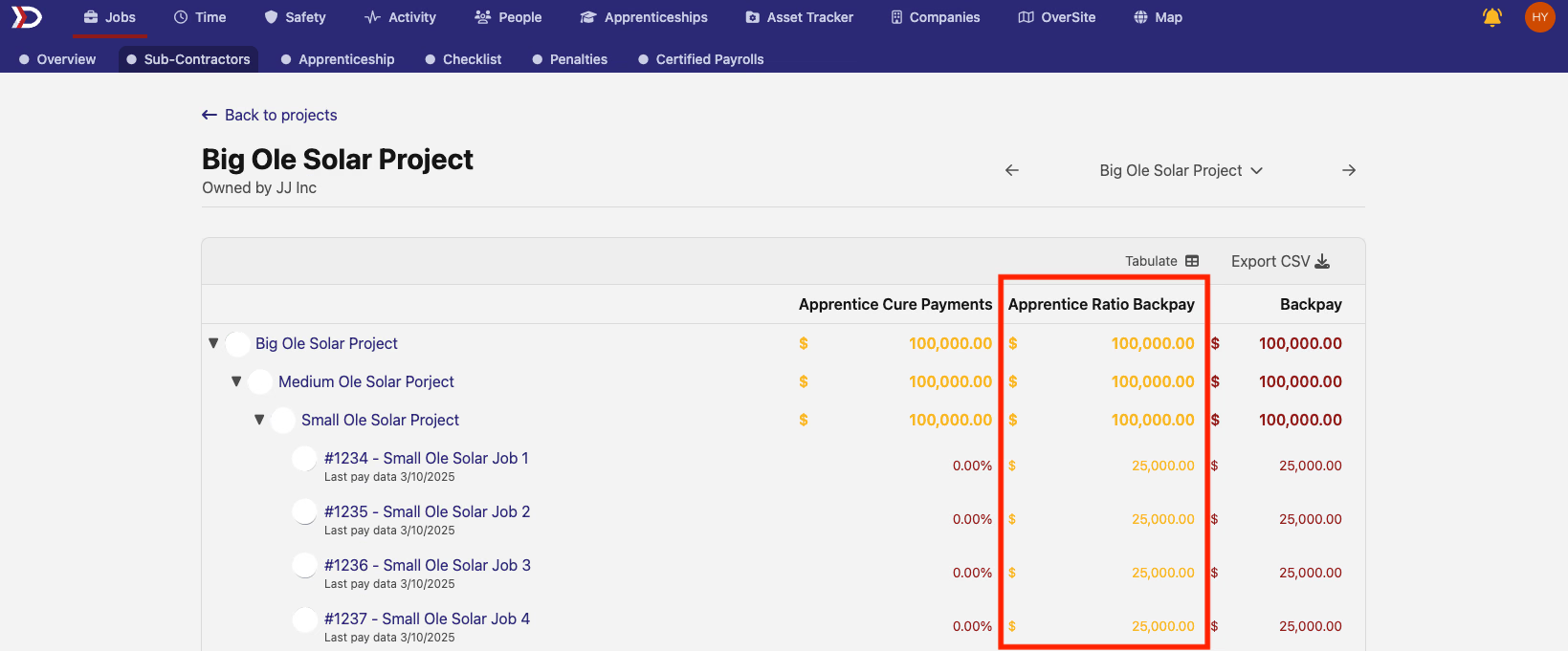
Apprentice Ratio Backpay
The "Apprentice Ratio Backpay" column (as indicated by the red box in the image below) summarizes the advisory amount of Apprentice Ratio Penalties. These penalties are calculated per-employer.
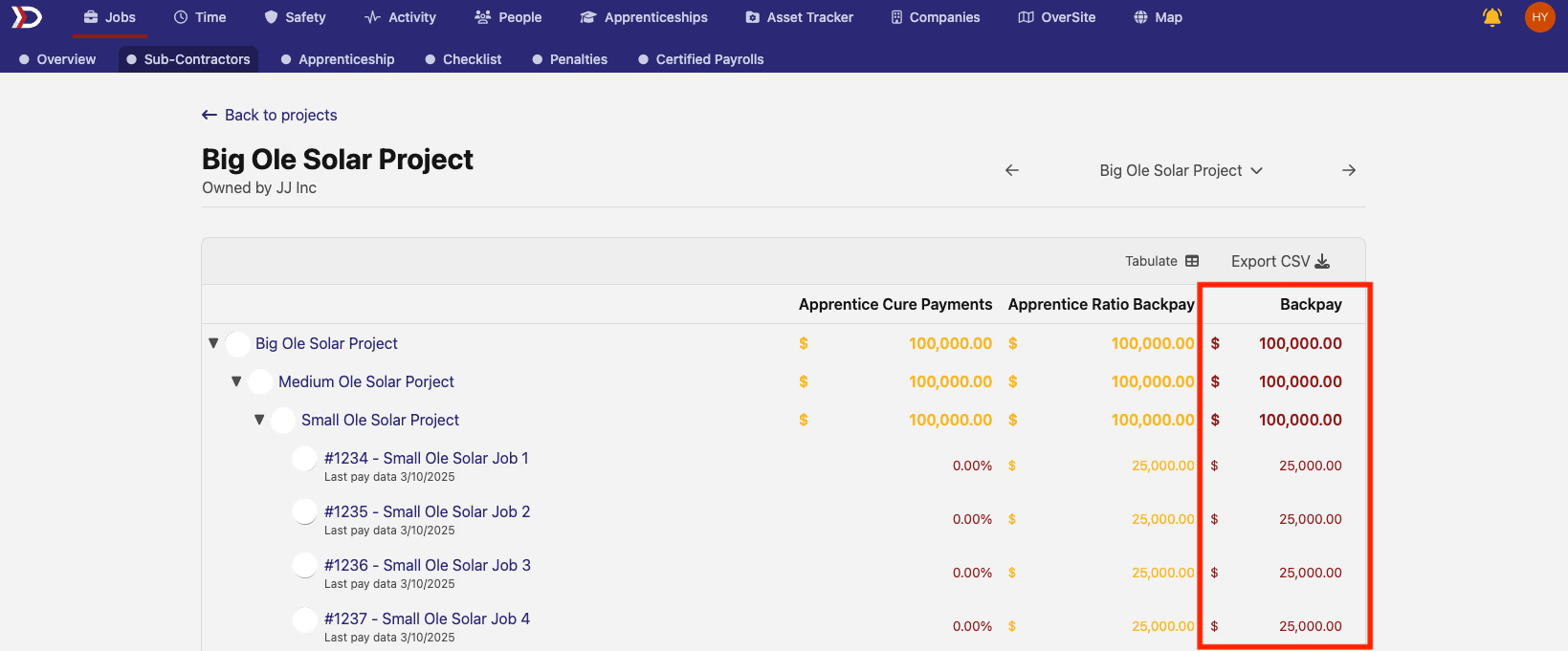
Backpay
The "Backpay" column (as indicated by the red box in the image below) summarizes the advisory amount of backpay that has accumulated for the project, subprojects, and jobs associated with the project.
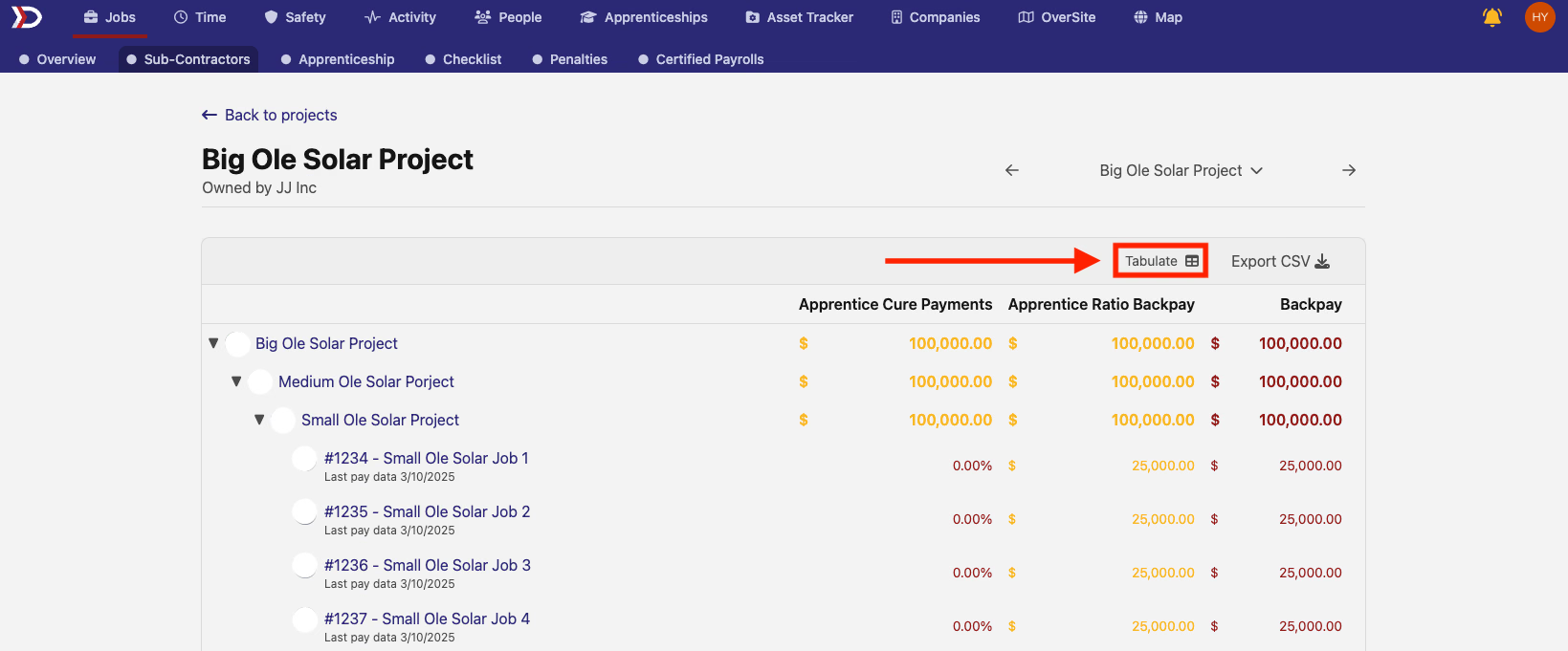
Tabular View
Clicking on the "Tabulate" button in the top right of the table (as indicated in the red box and arrow in the image below), will open a tabular view of the table.
This tabular view allows for a customizable table where the pay data for every job associated with a project can be viewed and organized.
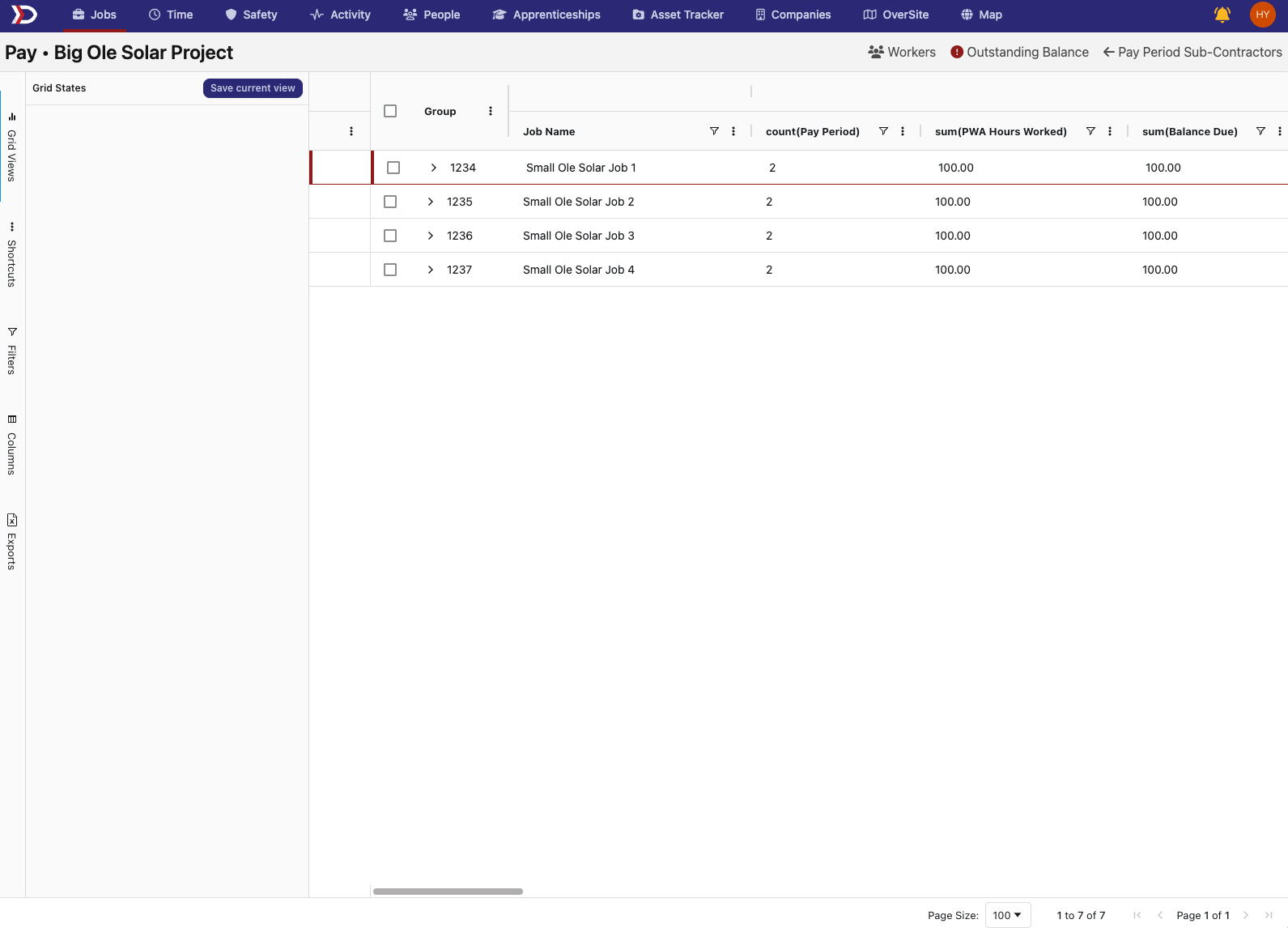
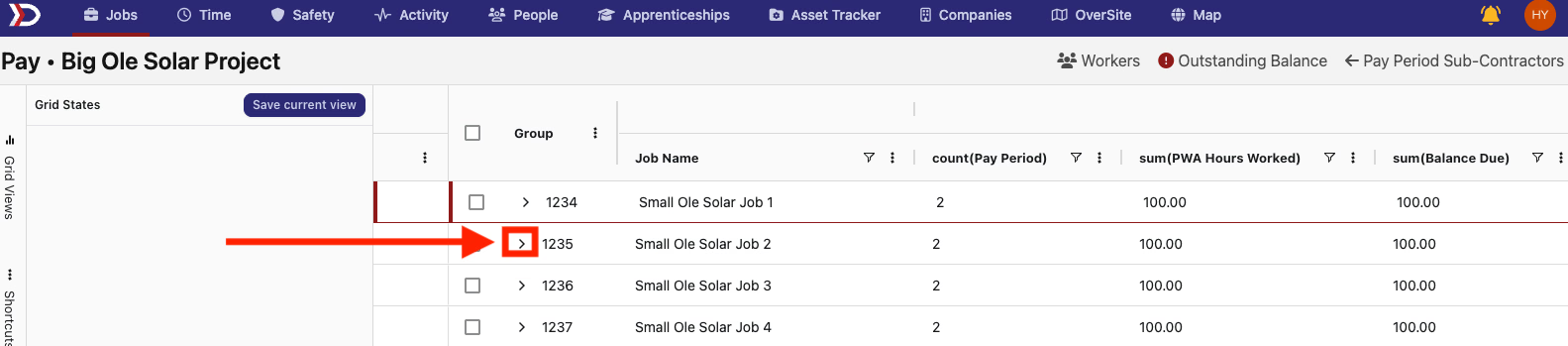
For a more detailed view of each job, click the rightward facing chevron next to the job number of a job (as indicated by the red box and arrow in the image below).
This will display each of the time cards that has been uploaded to the associated job. From here, the "Pay" tab of the associated Job Card can be navigated to by clicking on the icon to the left of the pay period row (as indicated by the red box and arrow in the image below. For more information on the "Pay" tab of Job Cards, please review our guide here.

Additional options for organizing and navigating the table can be accessed to the left of the page (as indicated within the red box in the image below).
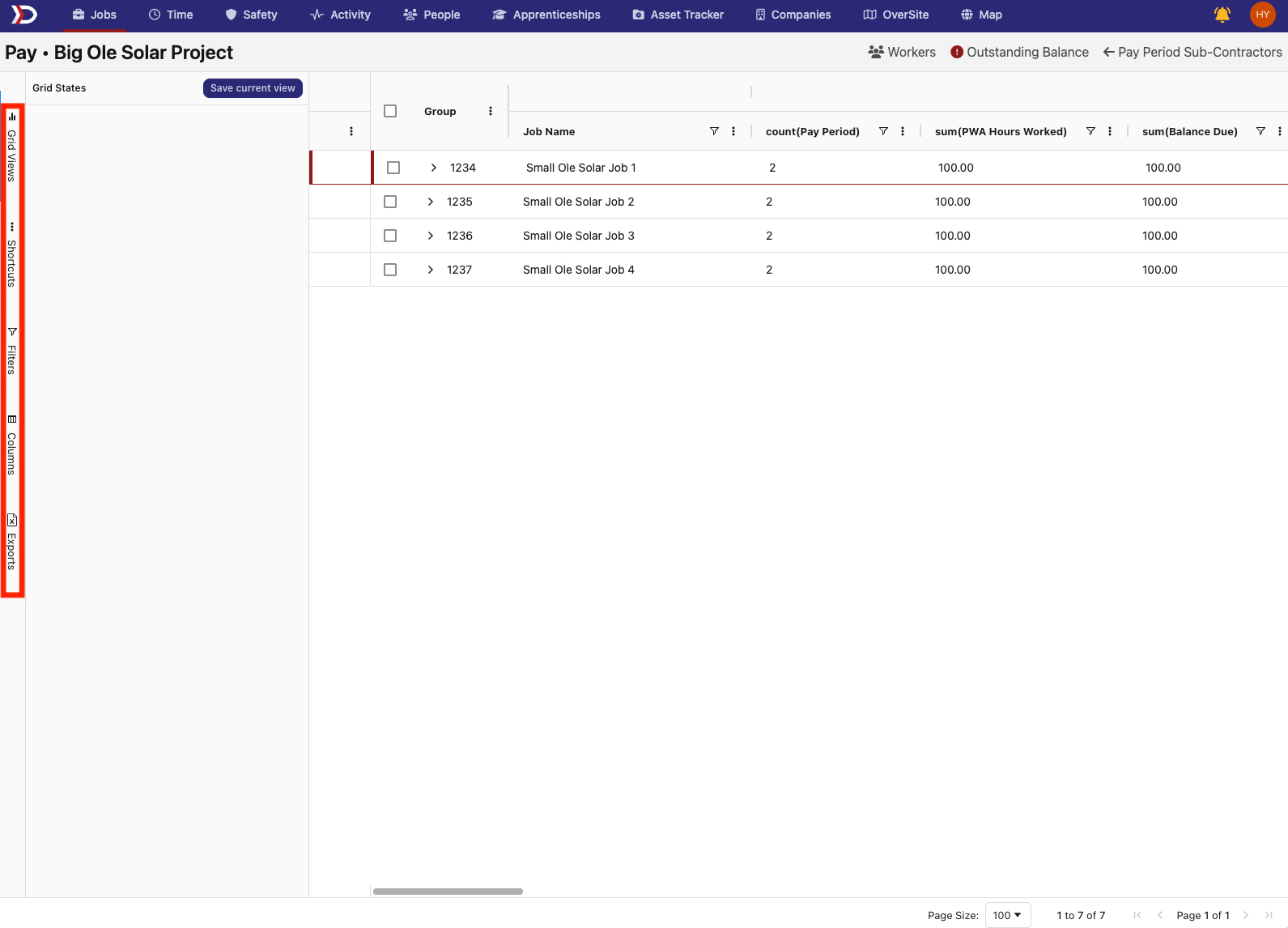
These options include:
- Grid Views:
- Allows the current view to be saved and previously saved view to be loaded
- Shortcuts:
- Contains helpful shortcuts for performing actions quickly. These actions include:
- "Expand top groups"
- "Expand all groups"
- "Collapse all groups"
- "Clear grid grouping"
- "Clear grid filters"
- "Refresh data"- Filters:
- Allows for the filtering of the rows that are displayed based on values in the columns
- Columns:
- Allows the display of columns to be toggled on and off
- Exports:
- Contains options for all rows or only selected rows to be exported to and Excel or CSV file
- Contains helpful shortcuts for performing actions quickly. These actions include:
Additional Options in the Sub-Contractors Tab
The "Sub-Contractors" tap also allows the navigation straight to the "Sub-Contractors" tab for other projects. To do this, click either the left or right arrows in the top right of the page (as indicated by the red boxes in the image below) or click the downward facing chevron next to the project name in the top right of the page (as indicated by the green box in the image below).
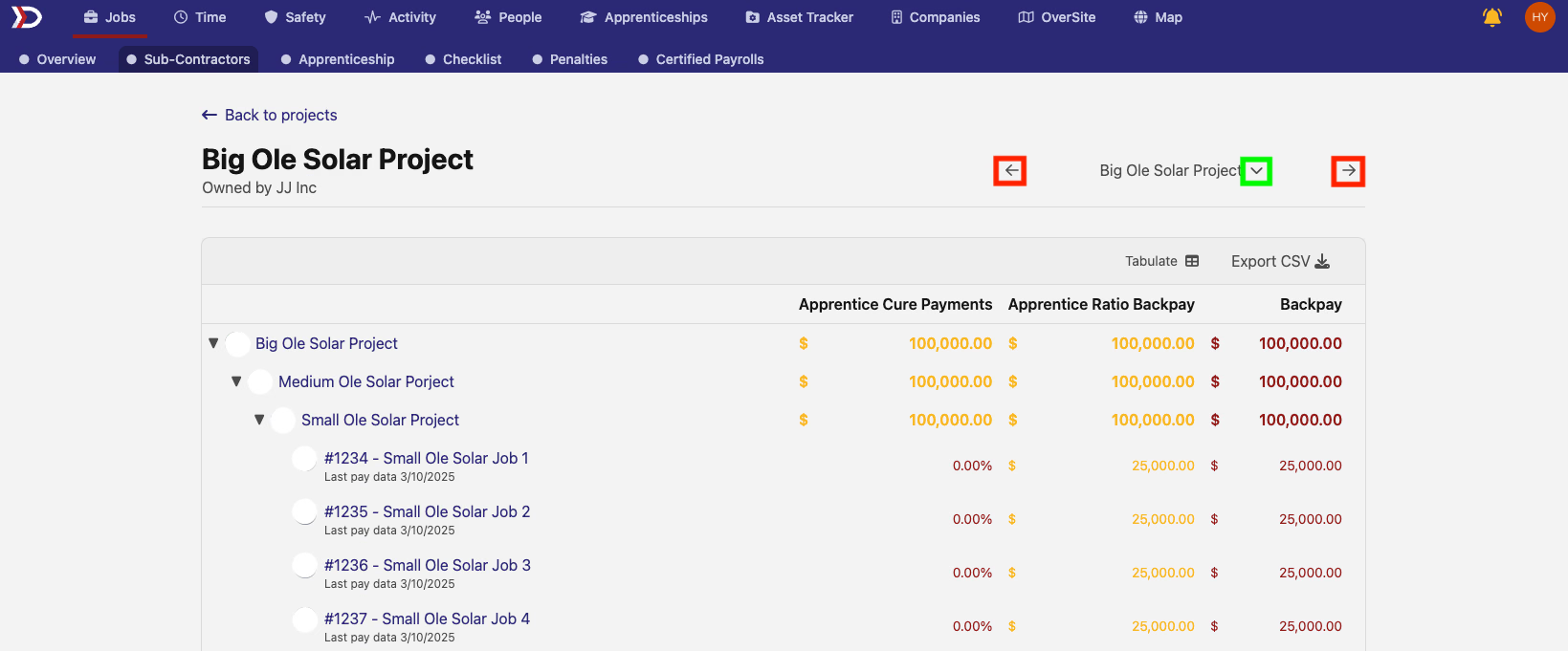
Clicking on the downward facing chevron next to the project name will bring up a menu that lists other projects.

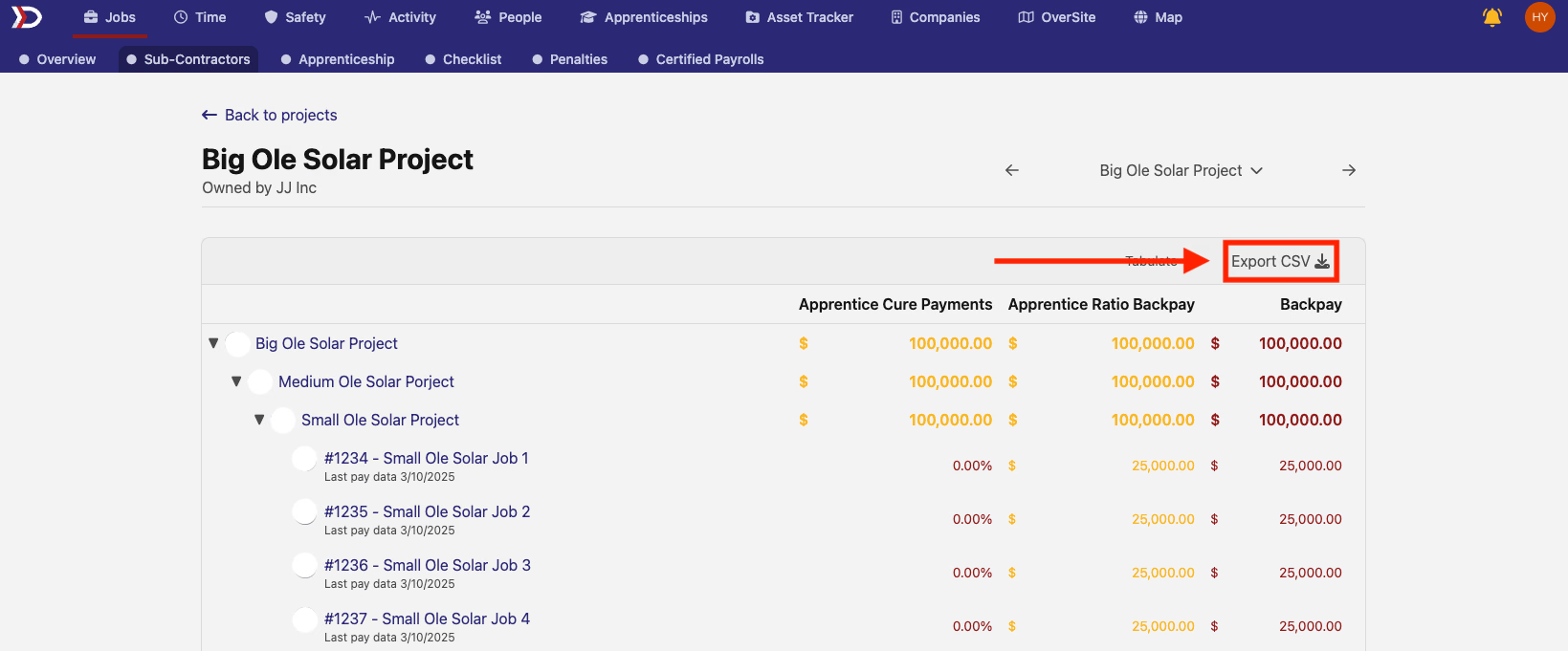
The table can also be exported into a CSV file by clicking on the "Export CSV" button in the top right of the table (as indicated by the red box and arrow in the image below.