Check-Ins
OverSite shows two views of technician Check-ins on web: a company-wide list across every claimed site, and a per-site list for one site at a time. You can also manually create a Check-in on behalf of a technician from the per-site view.
For the Activity-tab view, the individual Check-in detail page, and exporting via Tabulate, see Check-ins on Activity.
For the mobile workflow, see Check-ins on mobile.
All Check-Ins across your company
To view every Check-in across the sites your company has claimed, click the OverSite tab in the main navigation, then click the Check-Ins sub-tab.
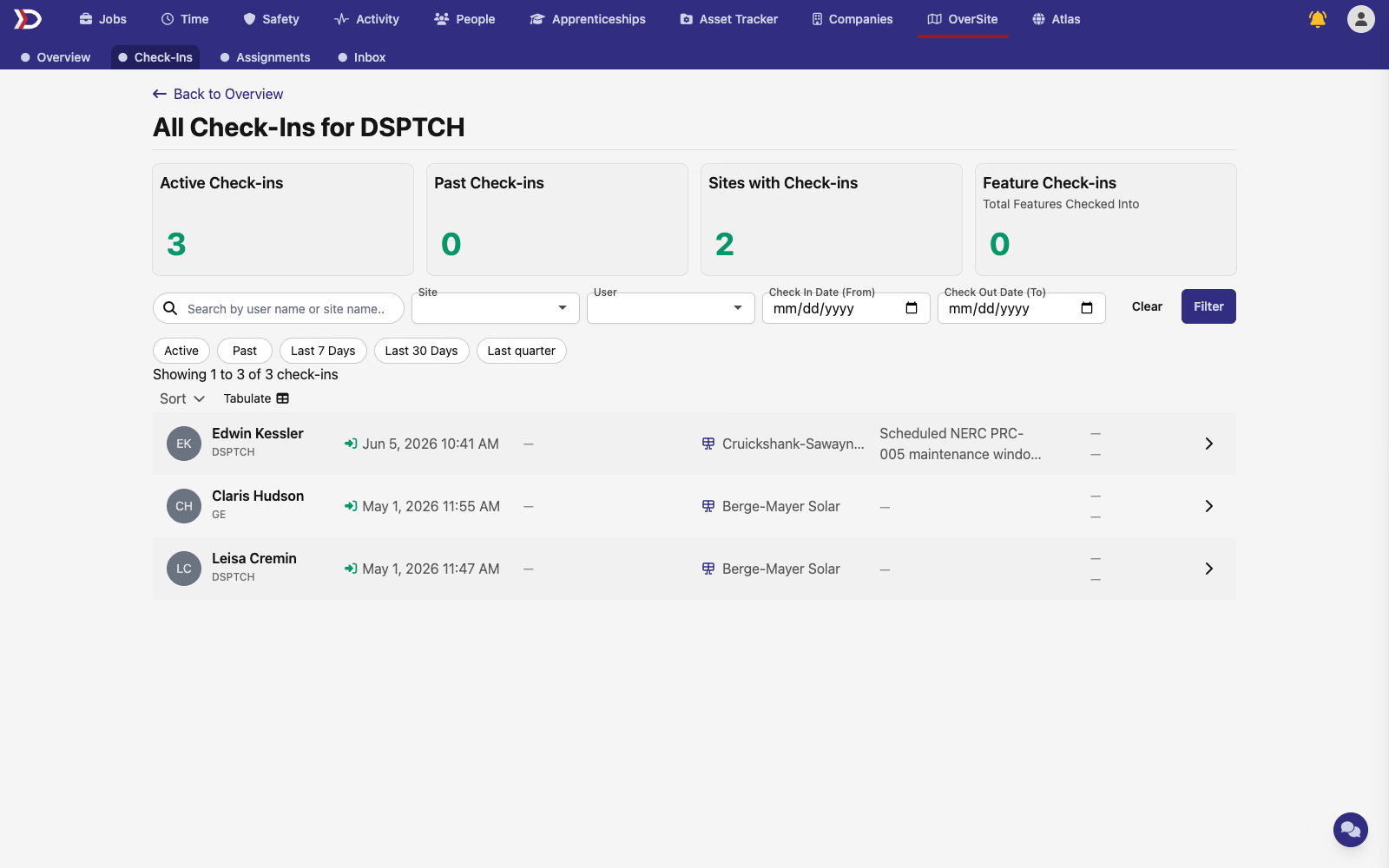
The page shows a list of every Check-in across your claimed sites, with summary cards at the top, a filter row and quick-filter pills, and a Tabulate link to switch into the table view for export (see Exporting Check-ins with Tabulate).
Check-Ins for a single site
To view Check-ins for one site, click the site row on the OverSite Overview tab to select it. An Edit in OverSite link appears next to the site name:
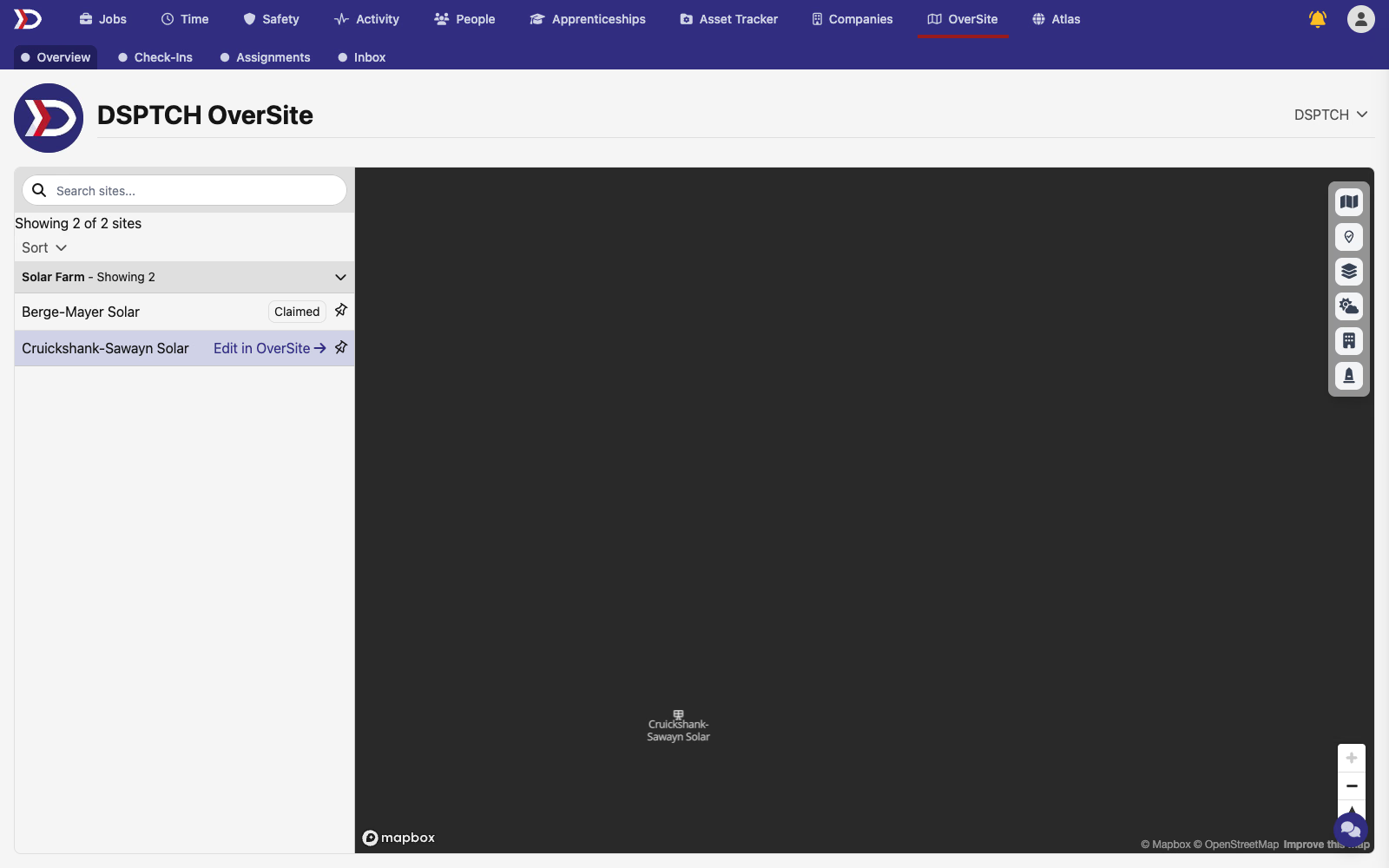
Click that link to open the per-site page, then click the Check-Ins sub-tab.
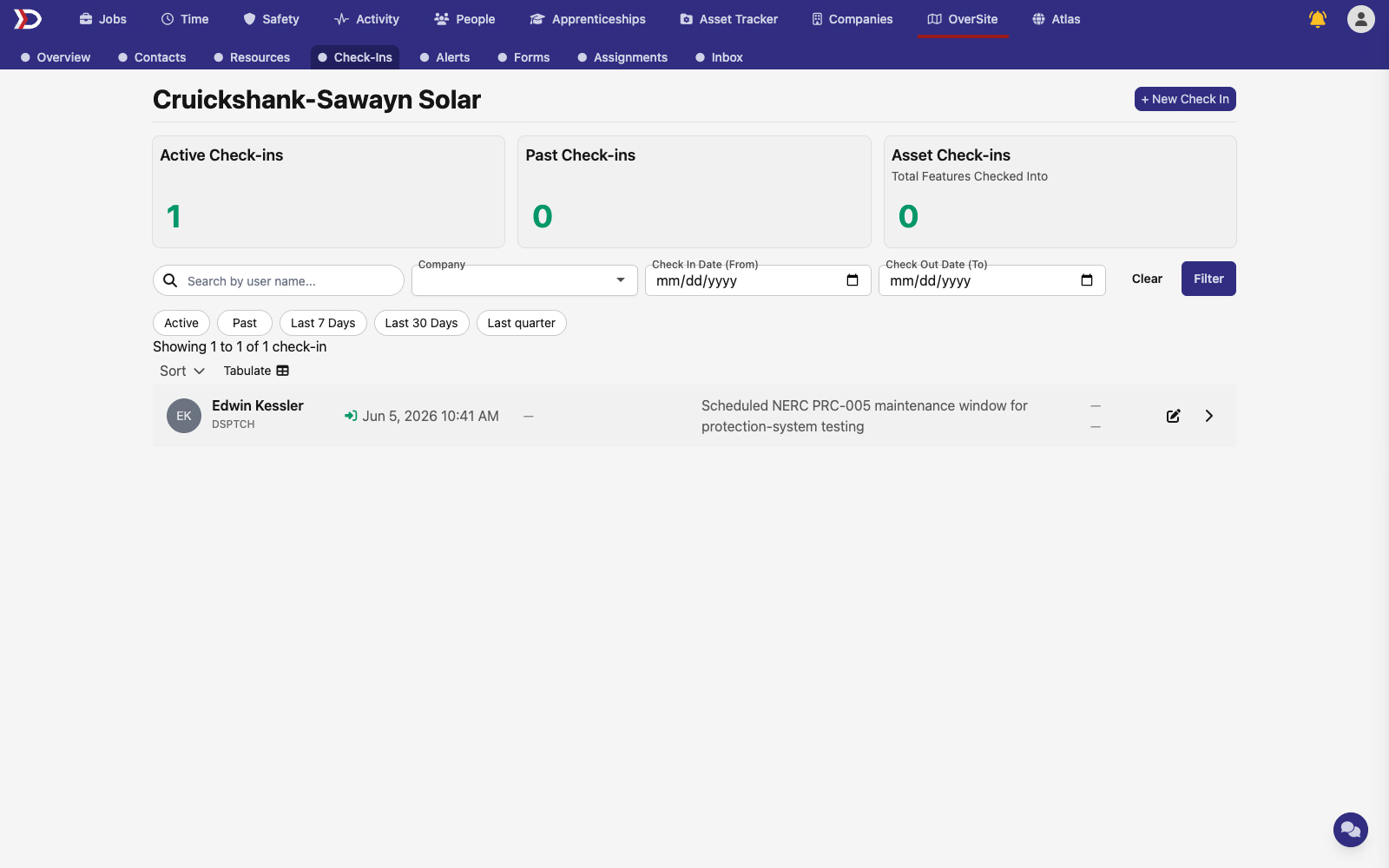
The list and filters work the same as the company-wide view but only show this site's Check-ins. Use + New Check In in the top-right to manually create a Check-in on this site — see Creating a Check-in below.
Creating a Check-in
Web-based Check-ins are created from the per-site Check-Ins page (see Check-Ins for a single site above), and let you create a Check-in on behalf of another user.
To open the form, click + New Check In in the top-right of the per-site Check-Ins page.
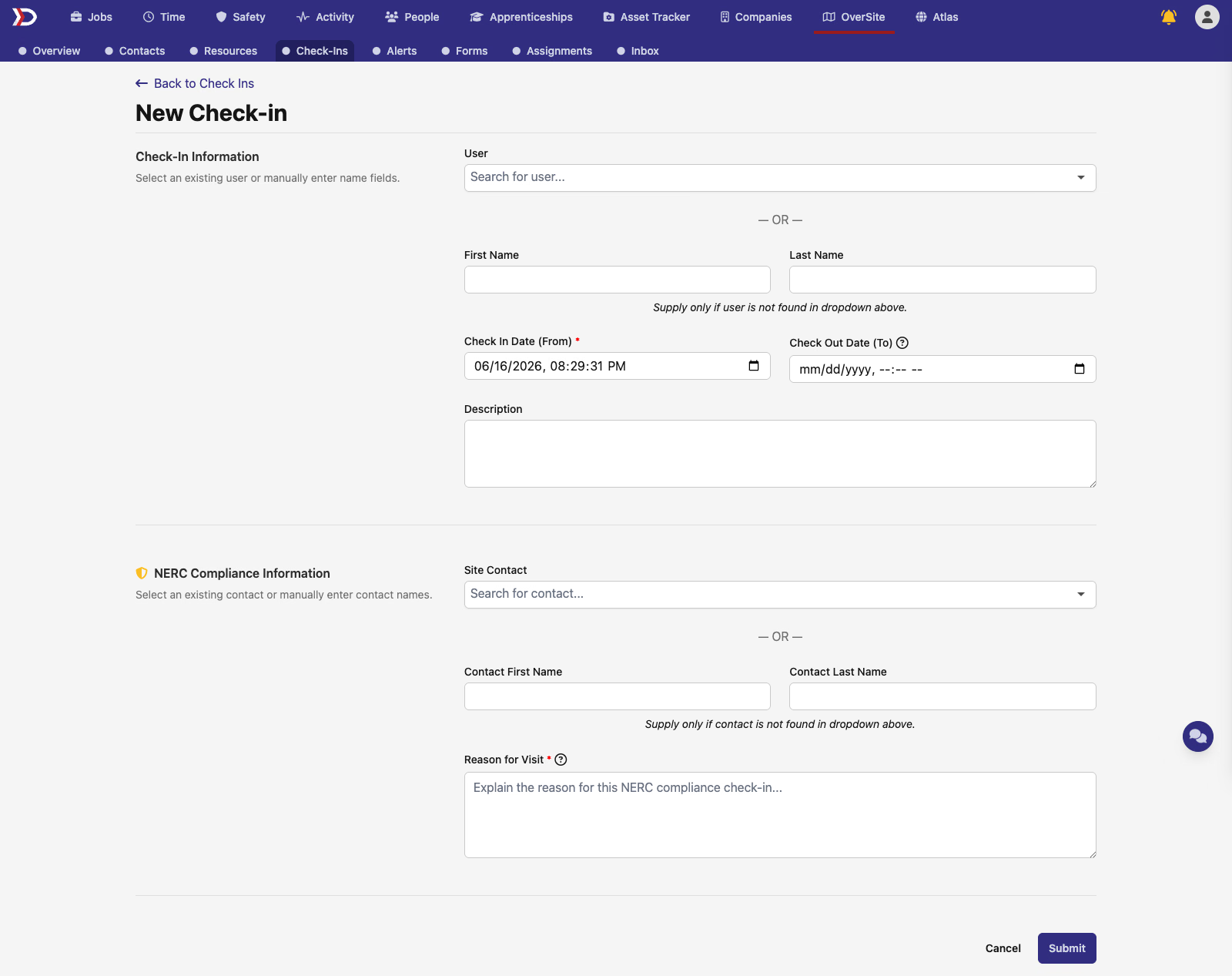
Fill in the Check-In Information section with the User, Check In date, optional Check Out date, and Description.
The NERC Compliance Information section only appears when the site is configured to require NERC check-ins. On a non-NERC site, the form ends after the Check-In Information section.
When NERC Compliance Information appears, it captures who the technician met with on-site and why, for NERC compliance:
- Site Contact — search for the on-site contact in the dropdown. If they aren't in the dropdown, leave it blank and fill in Contact First Name and Contact Last Name instead.
- Reason for Visit — required. Explain why this NERC compliance check-in is being recorded.
Click Submit to save the Check-in, or Cancel to return to the Check-Ins list without saving.