Login & Onboarding
This guide outlines the steps for downloading DSPTCH Mobile and the Account Creation & Verification Process.
Downloading DSPTCH Mobile
DSPTCH Mobile is available from the Google Play or Apple App Store here: https://dsptch.app.link
Searching for "DSPTCH" in either app store provides an alternative way to find the app.
Account Creation Process & Verification Process
Getting Started
After the download is complete, open DSPTCH Mobile. The app will open the default "Get Started" page pictured below:
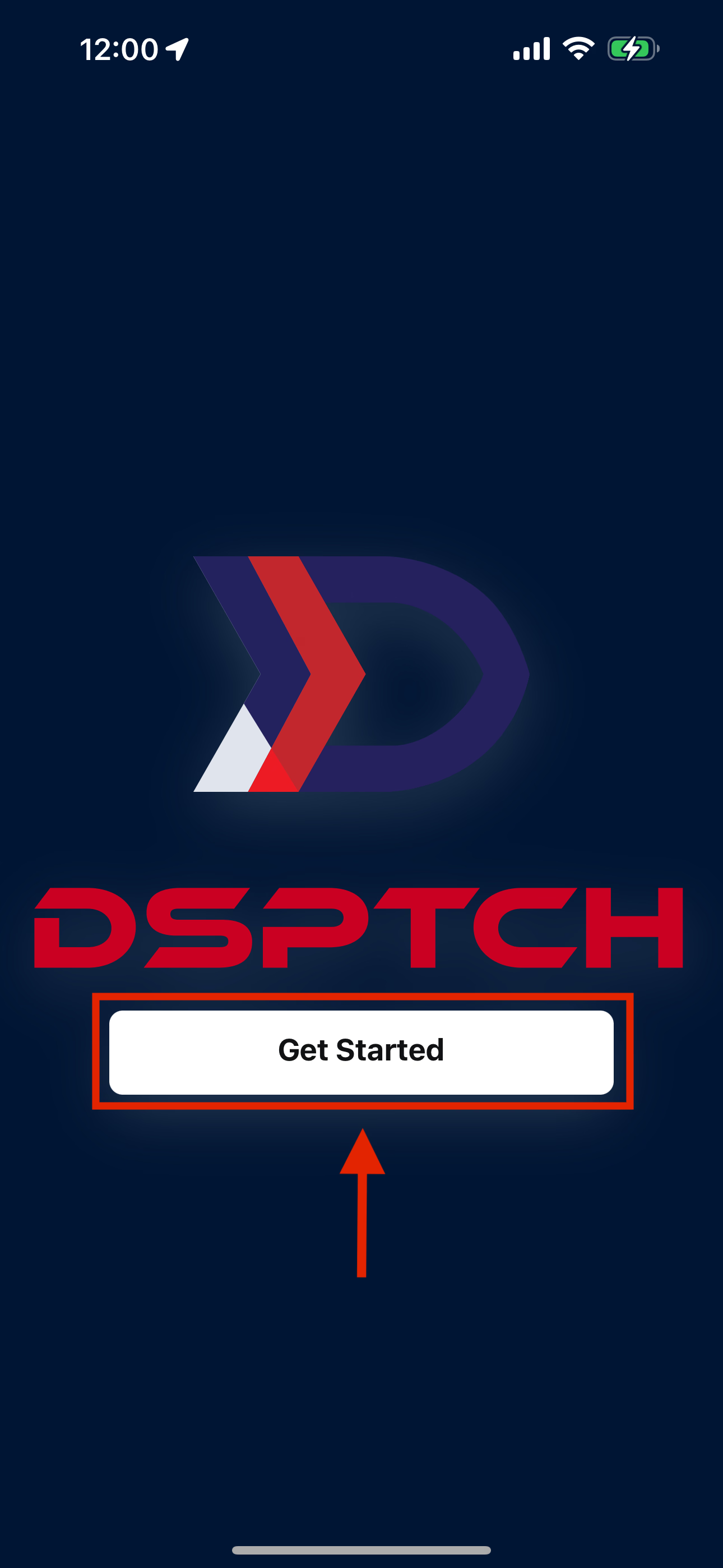
Click "Get Started" to begin the Account Creation Process.
Mobile Phone Number Entry
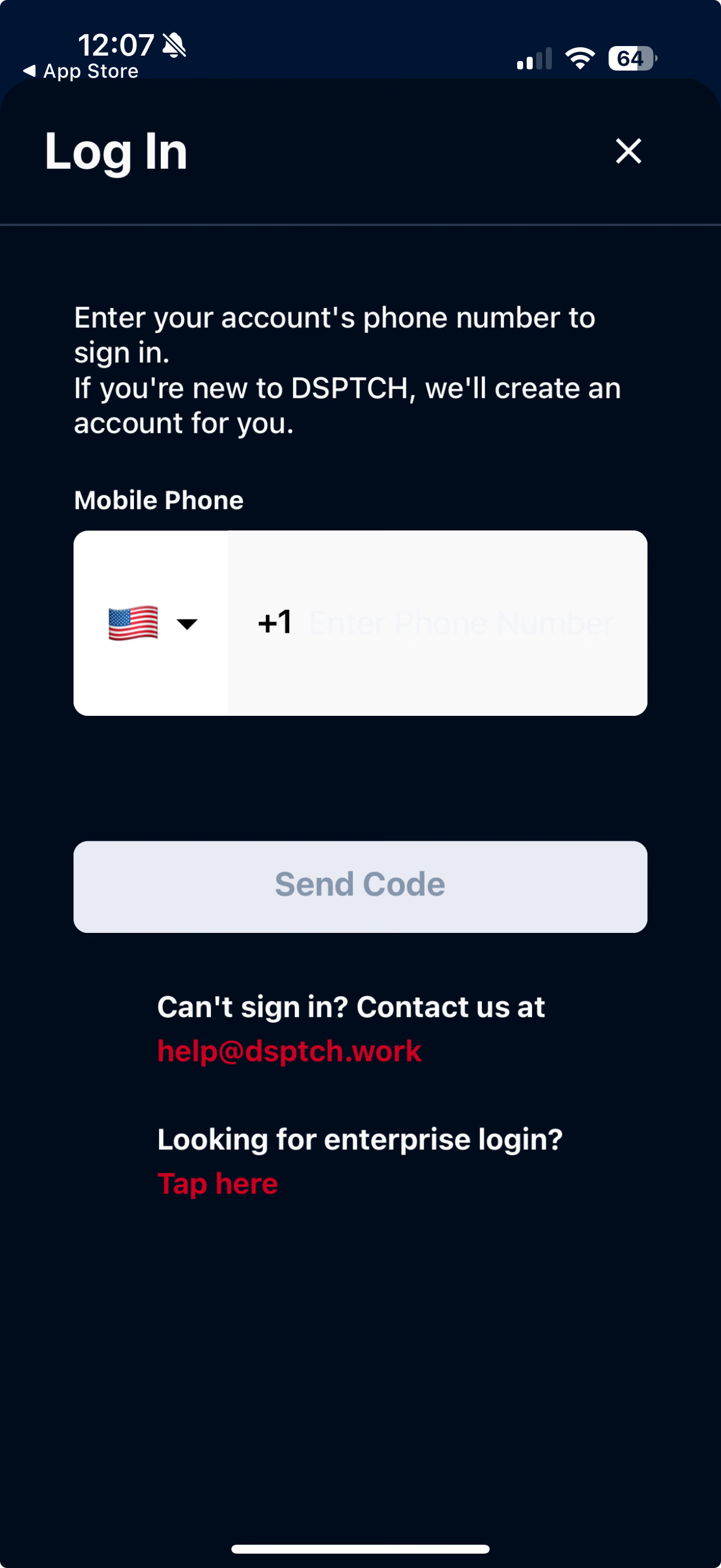
The "Log In" page will open.
Enter in your Phone Number in the "Mobile Phone" numerical entry field.
Once the Phone Number has been accurately entered, click the "Send Code" button.
Phone Number Verification
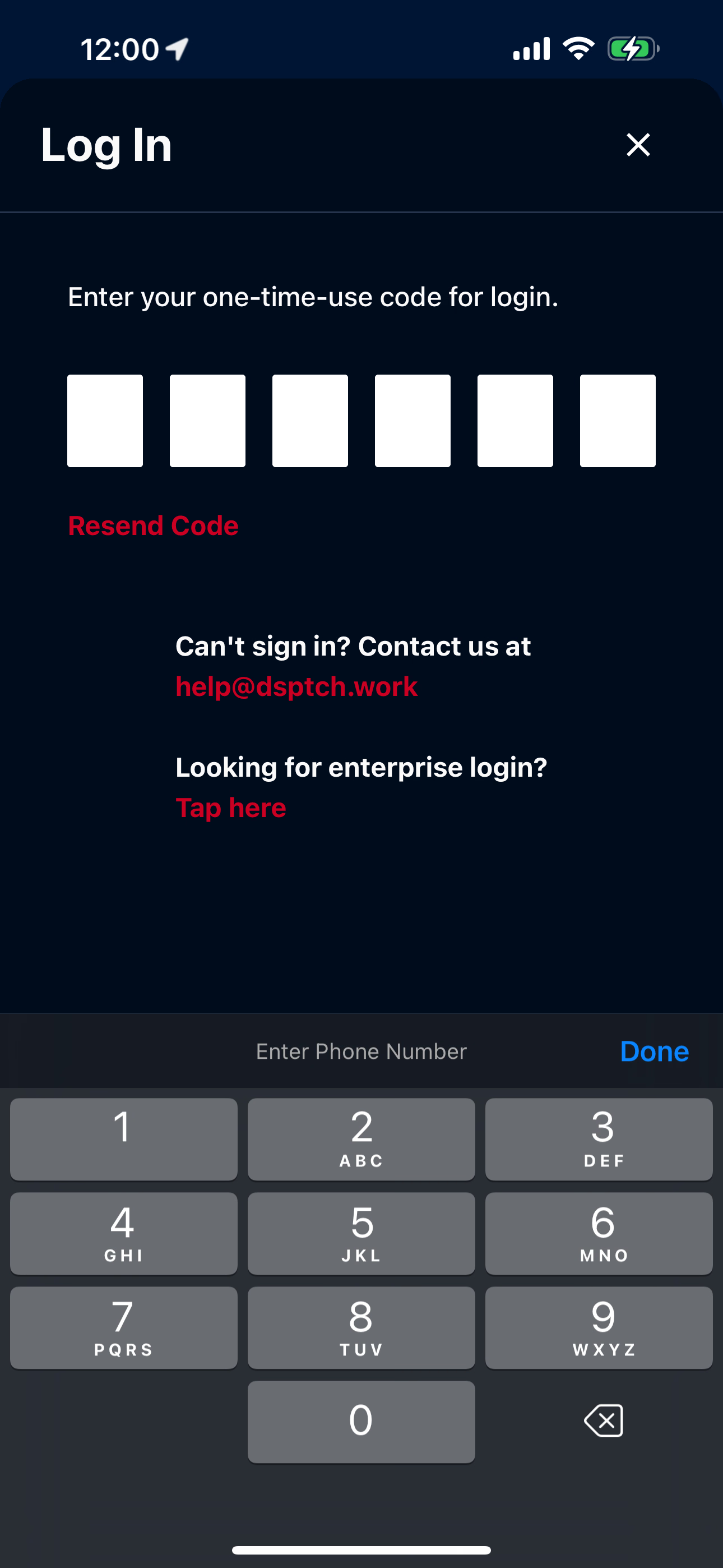
After a few moments, a 6-digit, One Time Verification Code will be sent via text to the Phone Number entered.
Enter the One Time Verification Code into the numerical entry field pictured below:
Using a phone number ensures certifications, digital resume, and access to DSPTCH navigation remain available, regardless of employer.
Profile Name & Picture Entry
After entering the correct One Time Verification Code, the "Who Are You?" page will enter.
On the "Who Are You?" page, type in your first and last name. Optionally, add a Profile Picture by clicking the "+" icon and selecting an image from your phone's library.
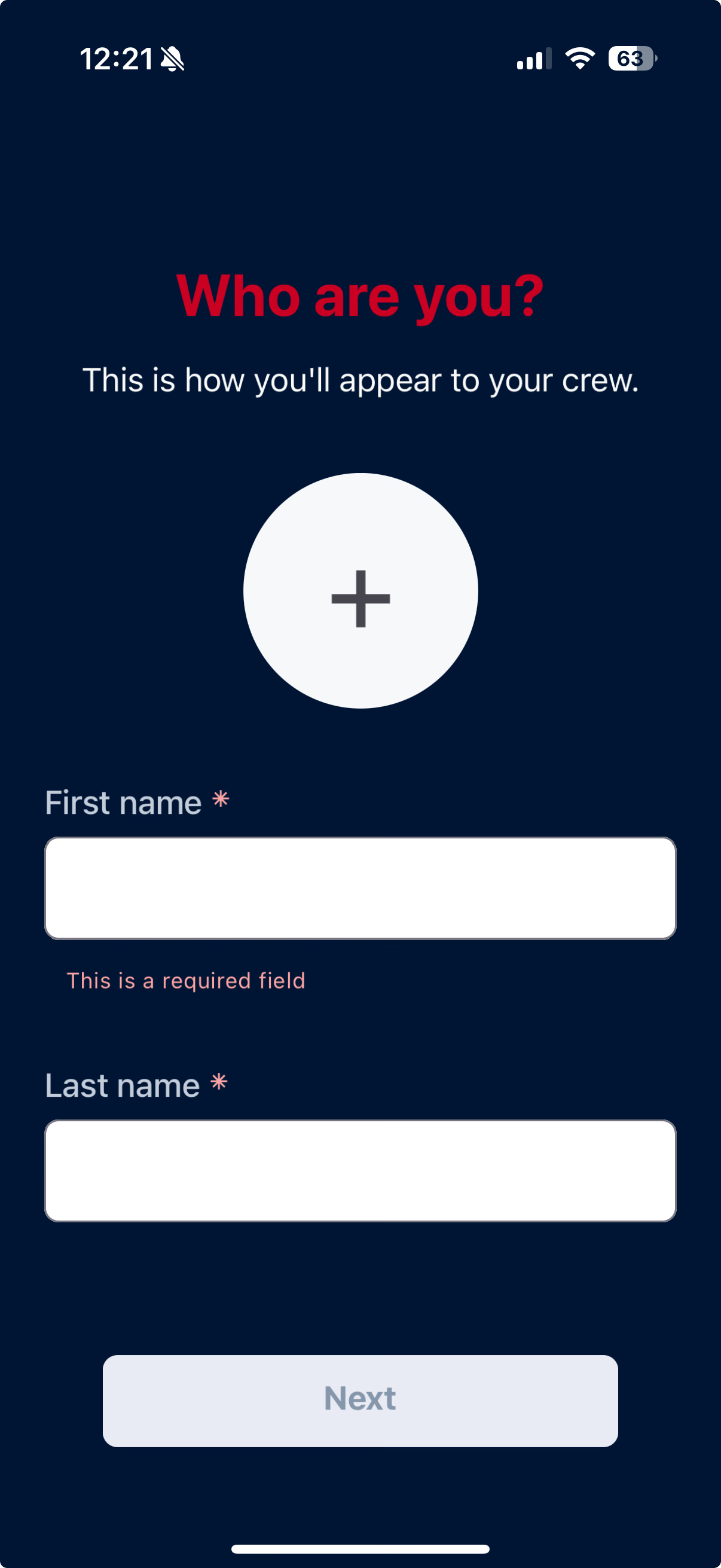
After entering your first and last name, click "Next".
Work & Recovery Email Entry
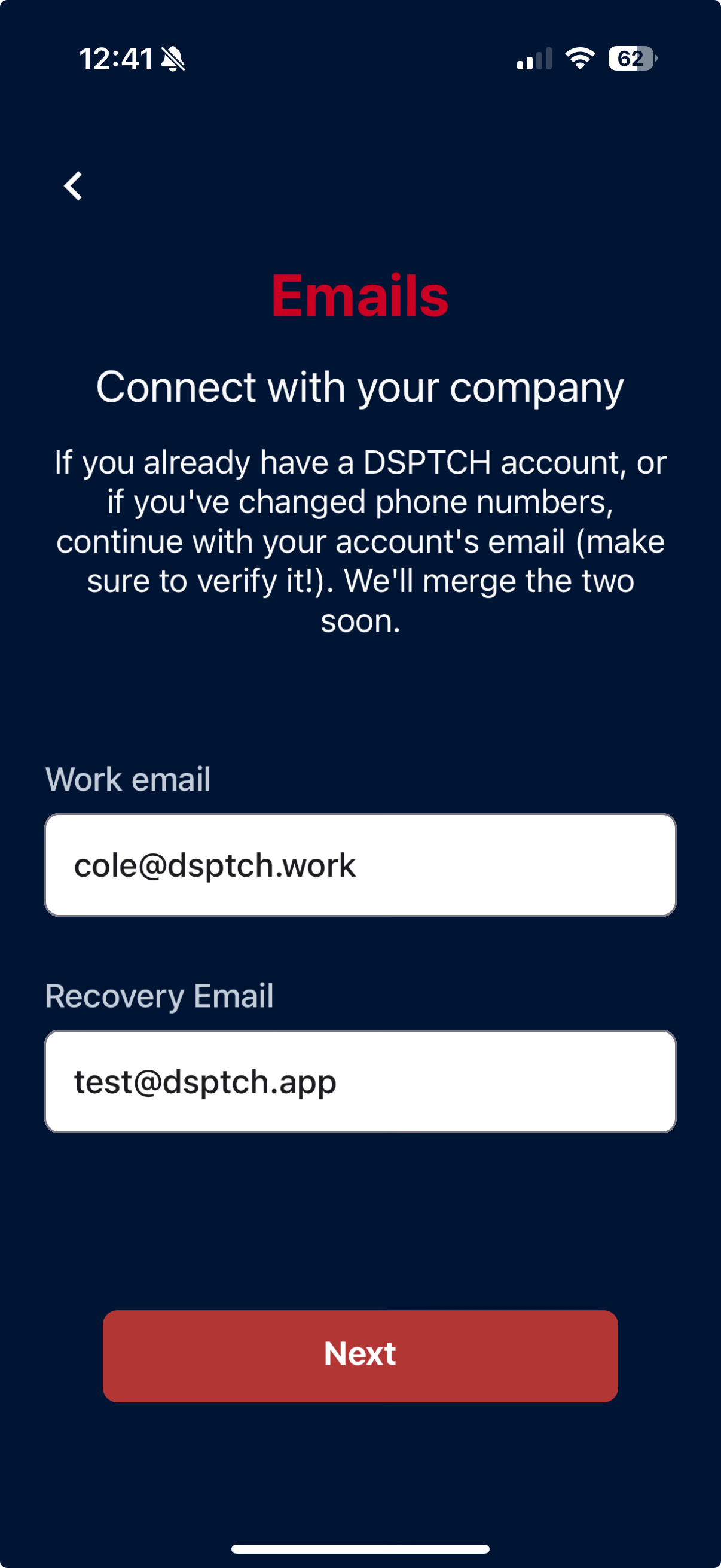
The "Emails" page will open next.
Enter your Work Email Address and a Personal Email Address (to be used as a Recovery Email) in the appropriate text entry boxes pictured below. Once both emails have been entered, click "Next".
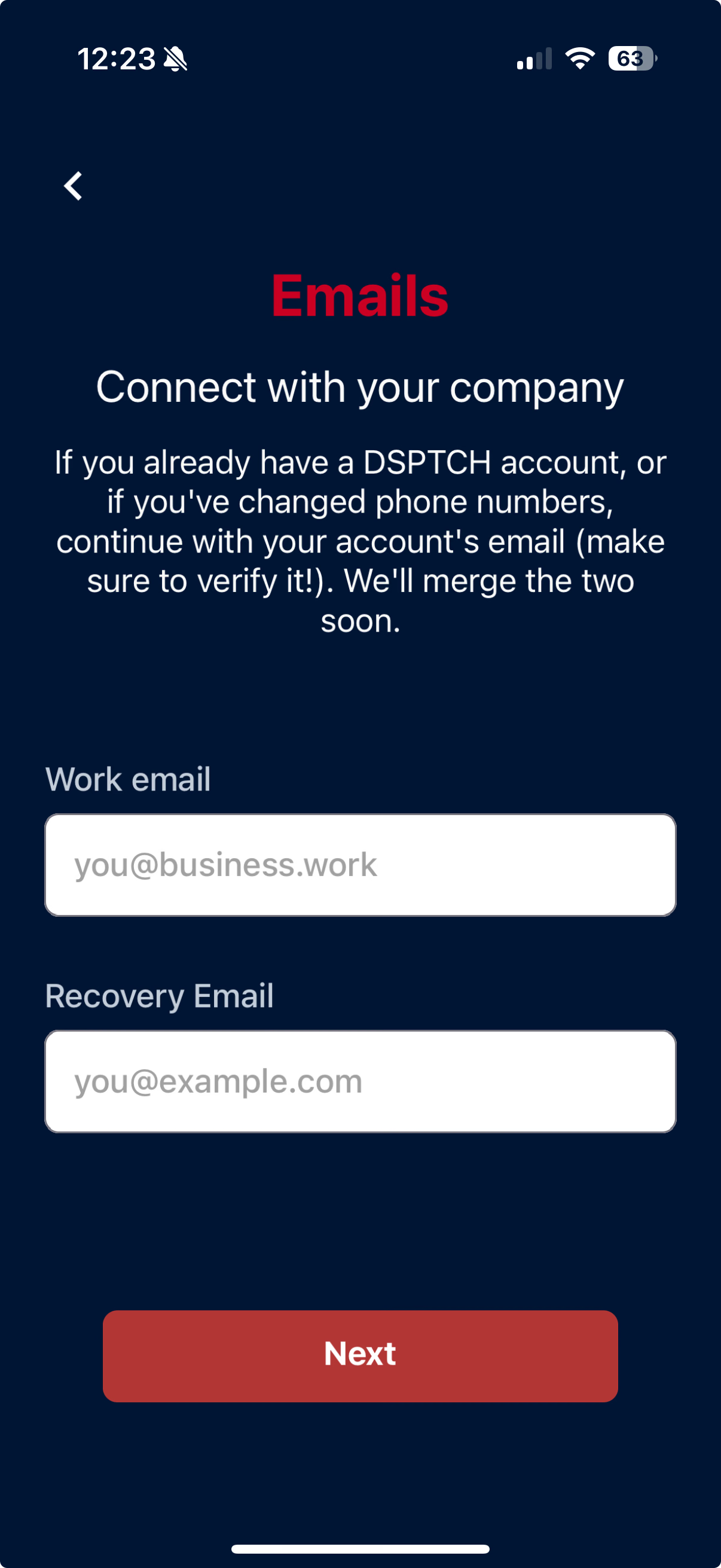
Note for existing DSPTCH Mobile users that have changed their phone number:
When creating a new account with a new phone number, use the same Work and Recovery Email Addresses linked to the original account. If the email addresses match, an option to merge the accounts will pop up once the account is created – ensuring all previous data is transferred to the account with new phone number.
For more information on this process, read our Merge Accounts – Mobile Help Doc
Work & Recovery Email Verification
After entering in the Work and Recovery Email Addresses, a red box labeled "Verify" will appear below the Work Email text entry box.
To verify the Work Email Address, click "Verify".
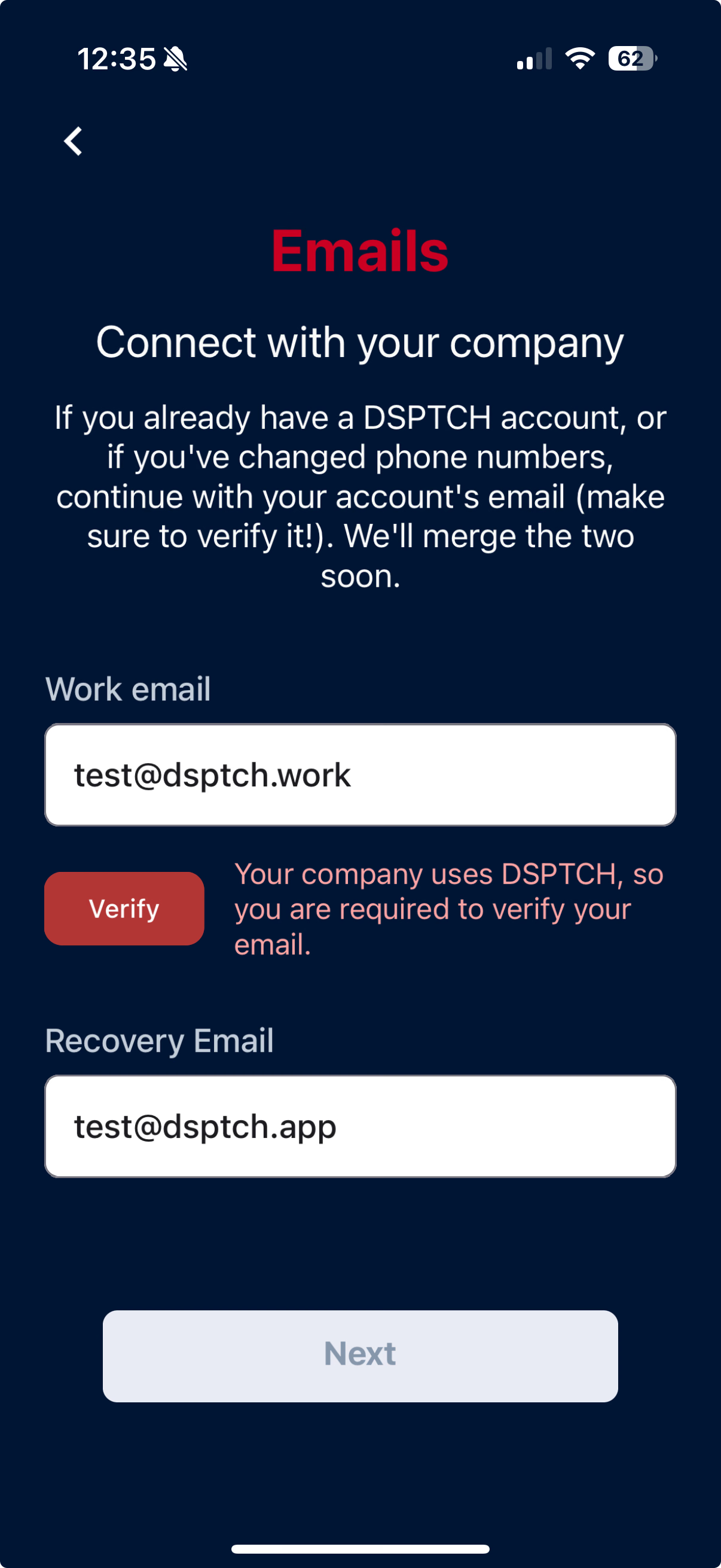
Clicking "Verify" will send an email to the Work Email Address with a 6-digit, One Time Verification Code.
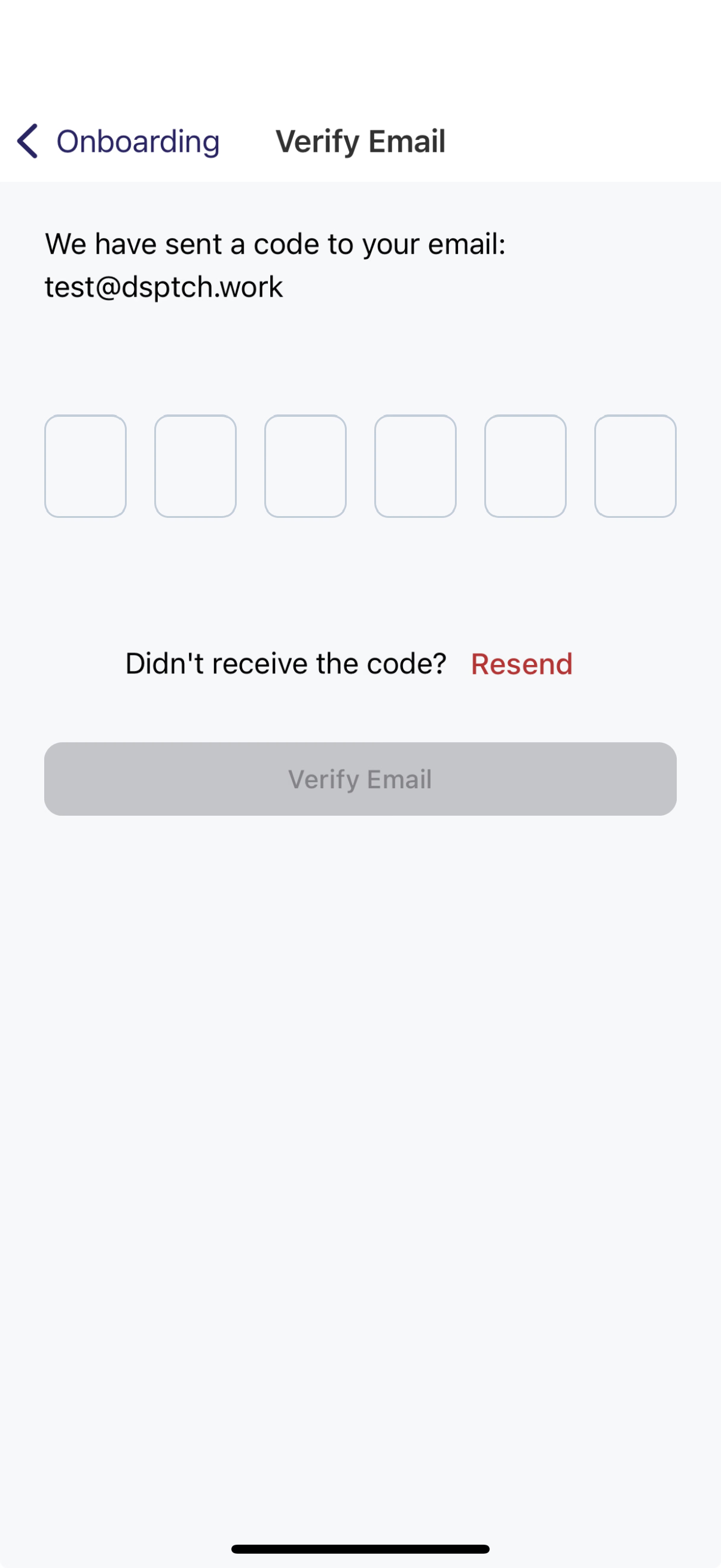
After entering the correct One Time Verification Code, the Work Email Address is successfully verified. This will open the "Emails" page again, though the red "Verify" box below the Work Email Address text entry box will no longer be present.
To continue, click "Next".
Global Wind Organization (GWO) Identification (optional)
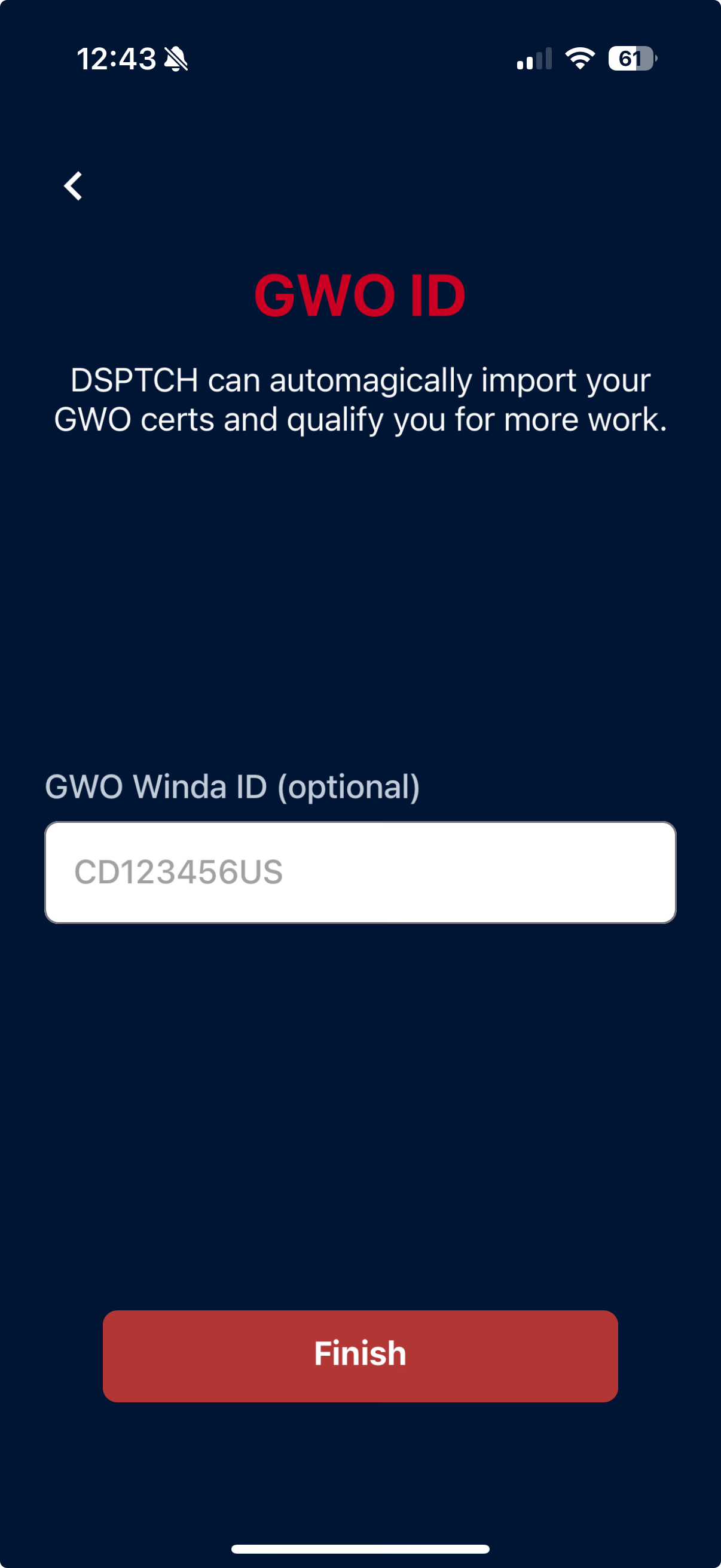
DSPTCH Mobile can import GWO certifications when a GWO Wind ID is entered on this page.
If you have a GWO Winda ID and would like to load relevant GWO certifications you possess automatically, please enter your ID in the "GWO Winda ID (optional)" entry box.
This step is completely optional.
After entering the ID, or if skipping this step, click "Finish" to proceed.
Accessing the Dashboard
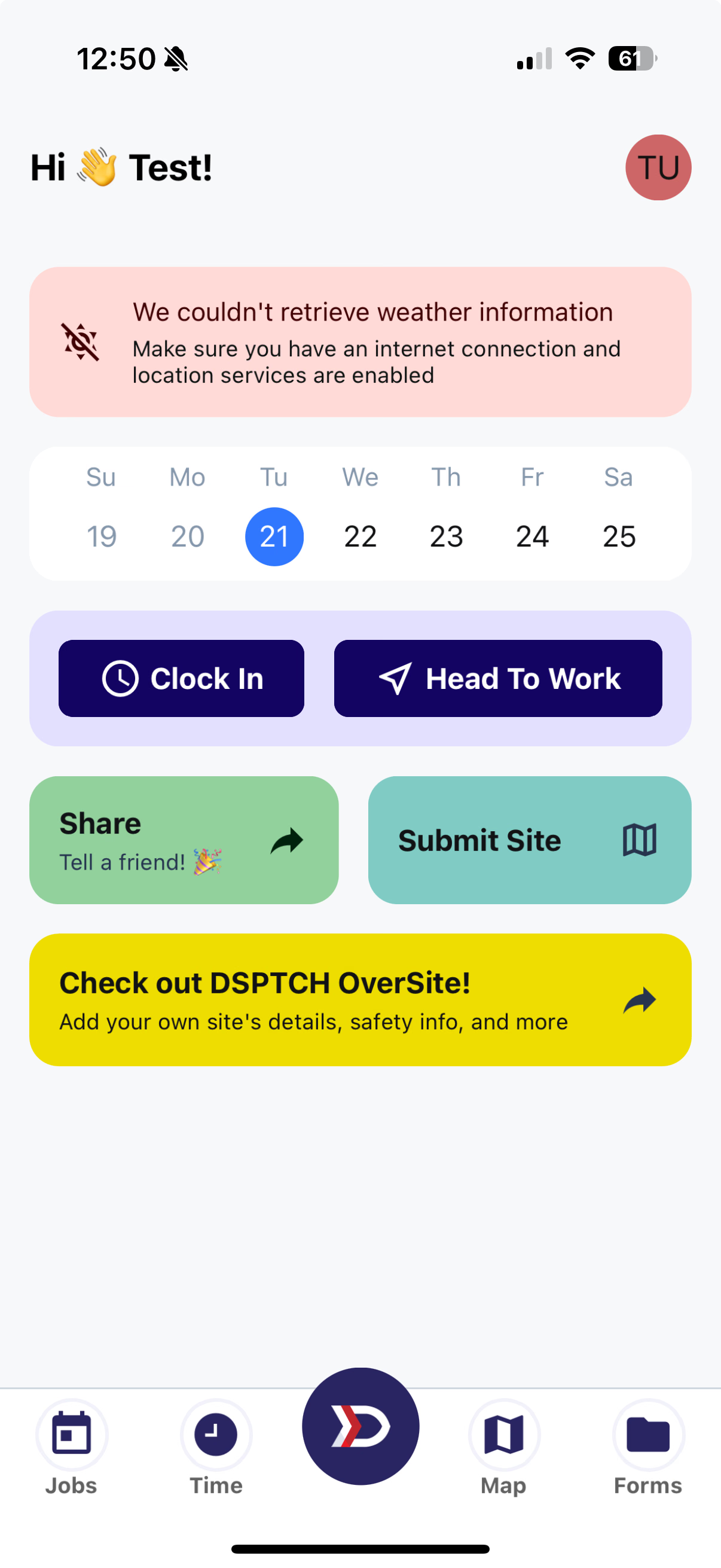
After completing/skipping the GWO ID step, the Account Creation & Verification Process is complete.
By default, DSPTCH Mobile will open to the Dashboard.
Verify Phone/Email After Account Creation
If any of the Verification Steps were skipped during the Account Creation & Verification Process, the Phone Number or Email Address associated with an account can be verified at any time.
To verify a phone number or email address, select the Profile Icon in the top-right corner of the screen. This icon will display as a profile picture if one has been uploaded or as initials if no profile picture is available.
From there, click on the red "Verify" box for the Phone Number or Email Address that still needs to be verified. DSPTCH will send a 6-digit, One Time Verification Code to the Phone Number or Email Address. Once the code is received, enter the One Time Verification Code into the numerical entry field on the Verification Page.
To see a demonstration, watch the video below: