Form Inbox
Forms Inbox Overview
The Forms Inbox displays submitted forms and their included information. See video below for a quick overview.
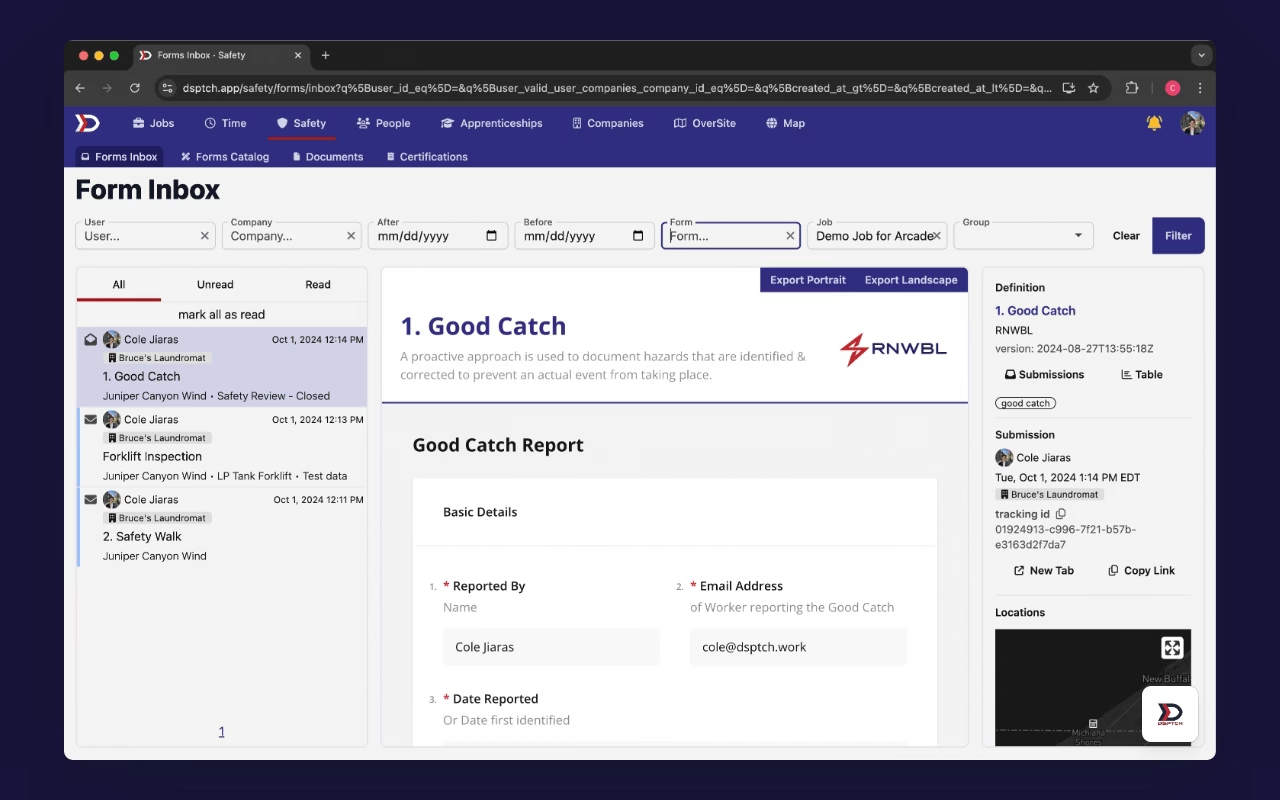
To view a completed form, select the form by either scrolling through the list or searching by name, company, date, or job.
In addition to the data included in the form, each submission has additional information associated with it. Clicking on a form reveals the exact date and time of submission, as well as the GPS location where it was submitted.
Navigating to the Forms Inbox
To access the Forms Inbox, click the "Safety" tab from the top navigation bar. See video below for illustration.
Forms Inbox Filters
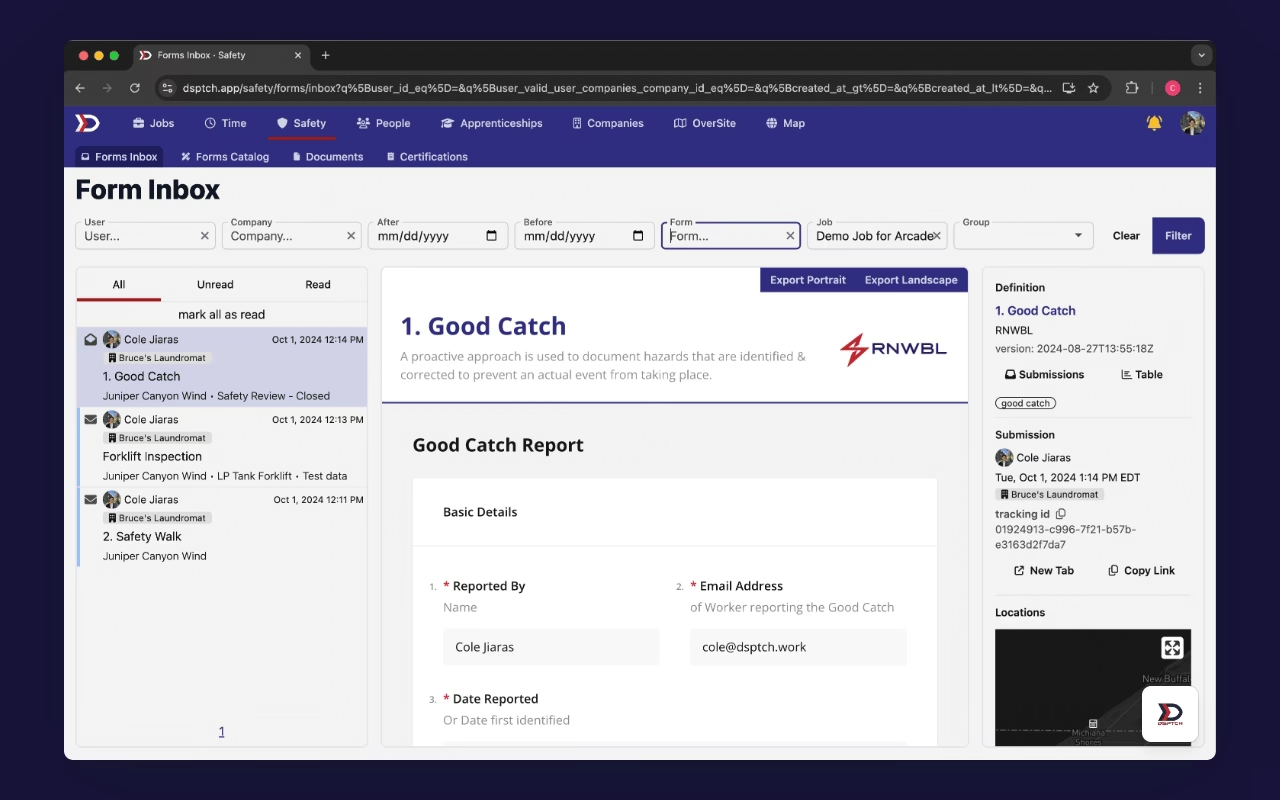
There are several global filters listed at the top of the forms submission inbox. Use these options to filter the visible forms in the inbox. See video below for illustration.
Filter Options:
- Form submissions from a specific user in the search bar
- Forms submissions from users at a specific company
- Form submissions after a certain date
- Form submissions before a certain date
- Form submissions from a specific form type
- Form submissions from a specific job
- Form submissions from a specific group of users
Export Forms to PDF
Export forms to PDF directly from the Forms Inbox with one click. Exports include a landscape (horizontal) or portrait (vertical) options. See video below for illustration.
Form Submission Data
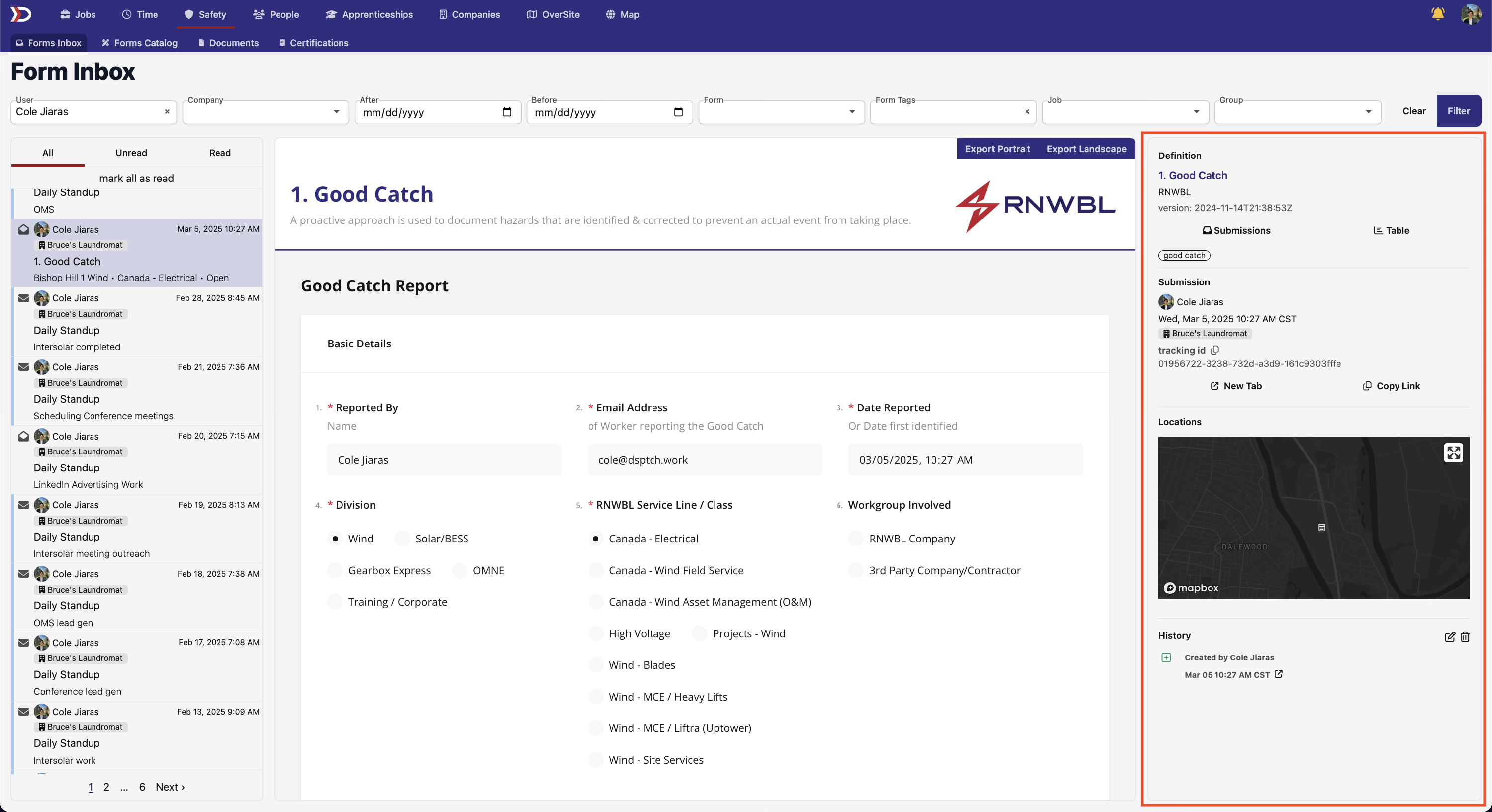
Each form submission has descriptive data associated with it. The dashboard on the right hand side of the screen (highlighted in the red box below) contains this information.
Definition
The Definition box provides information on the form template and version number that was submitted.
Submission
The Submission box provides information on the user who submitted the form and the date/time it was submitted. Additionally, a unique tracking ID for the individual form submission is included here.
Location
The Location box provides the exact geolocation from where the form was submitted. Open the map pop-up for a closer look.
History
The History box provides a log of all form status changes. This includes when the form was submitted as well as any edits.