Conditional Logic
In DSPTCH forms, you can use conditional logic to dynamically show or hide questions based on user responses. For example, you might hide follow-up questions or entire sections unless a user selects “Yes” to a specific prompt. You can also display different sections of a form based on a selected dropdown value, such as the user’s division. This guide provides examples and step-by-step instructions for setting up conditional logic in your forms.
To learn more about creating forms in general, check out our main guide on creating custom forms here
How to access the conditional logic menu on a question
To access the conditional logic panel for a form, you would click the "Conditions" menu on the sidebar.
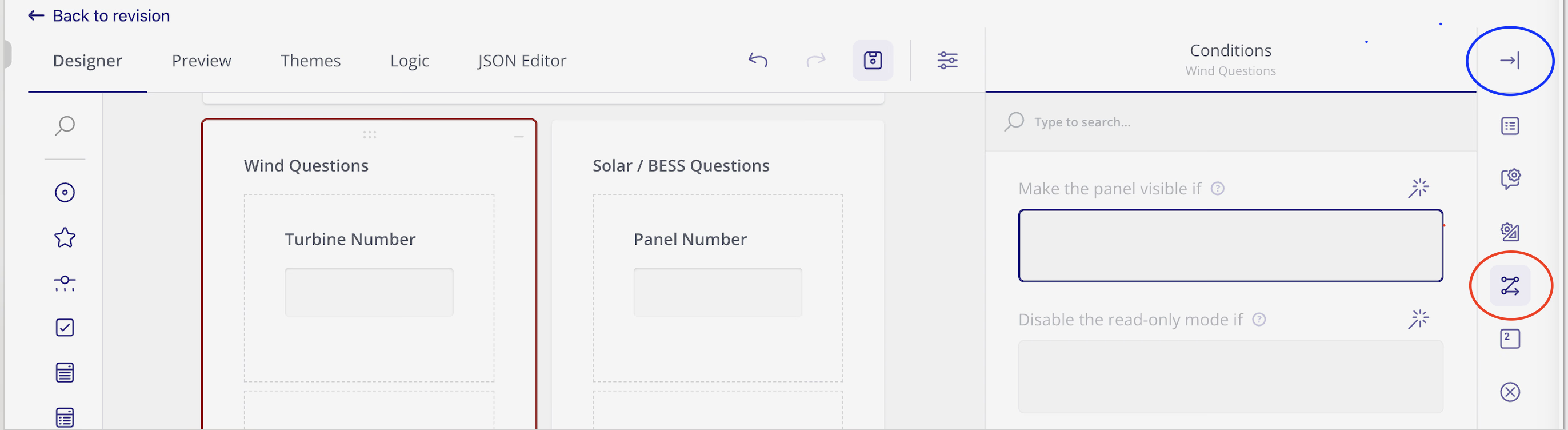
To open the sidebar menu, click the arrow at the top (circled in Blue). To open the Conditions menu, click the chained arrows icon (circled in red)
Once at the conditions menu, click on the wand above to open the menu.
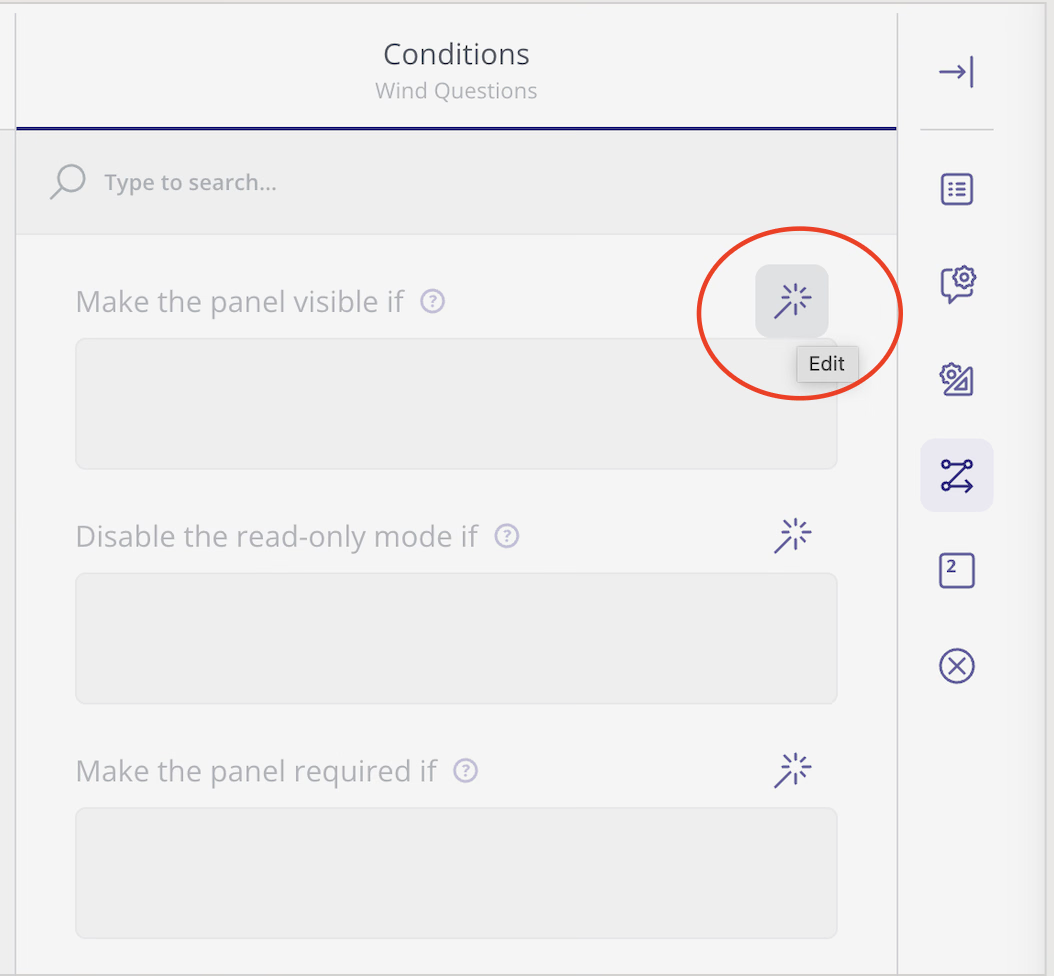
Clicking the wand will open the settings menu
From the conditions settings menu, you will select a question, condition, and response that you want to be met.
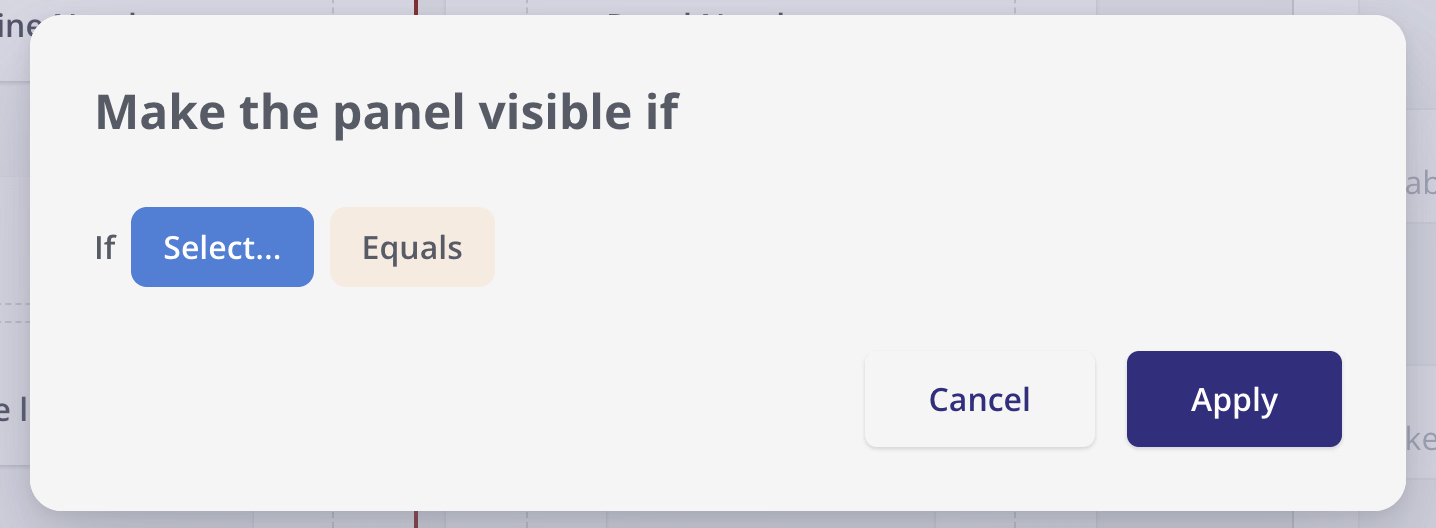
condition settings menu
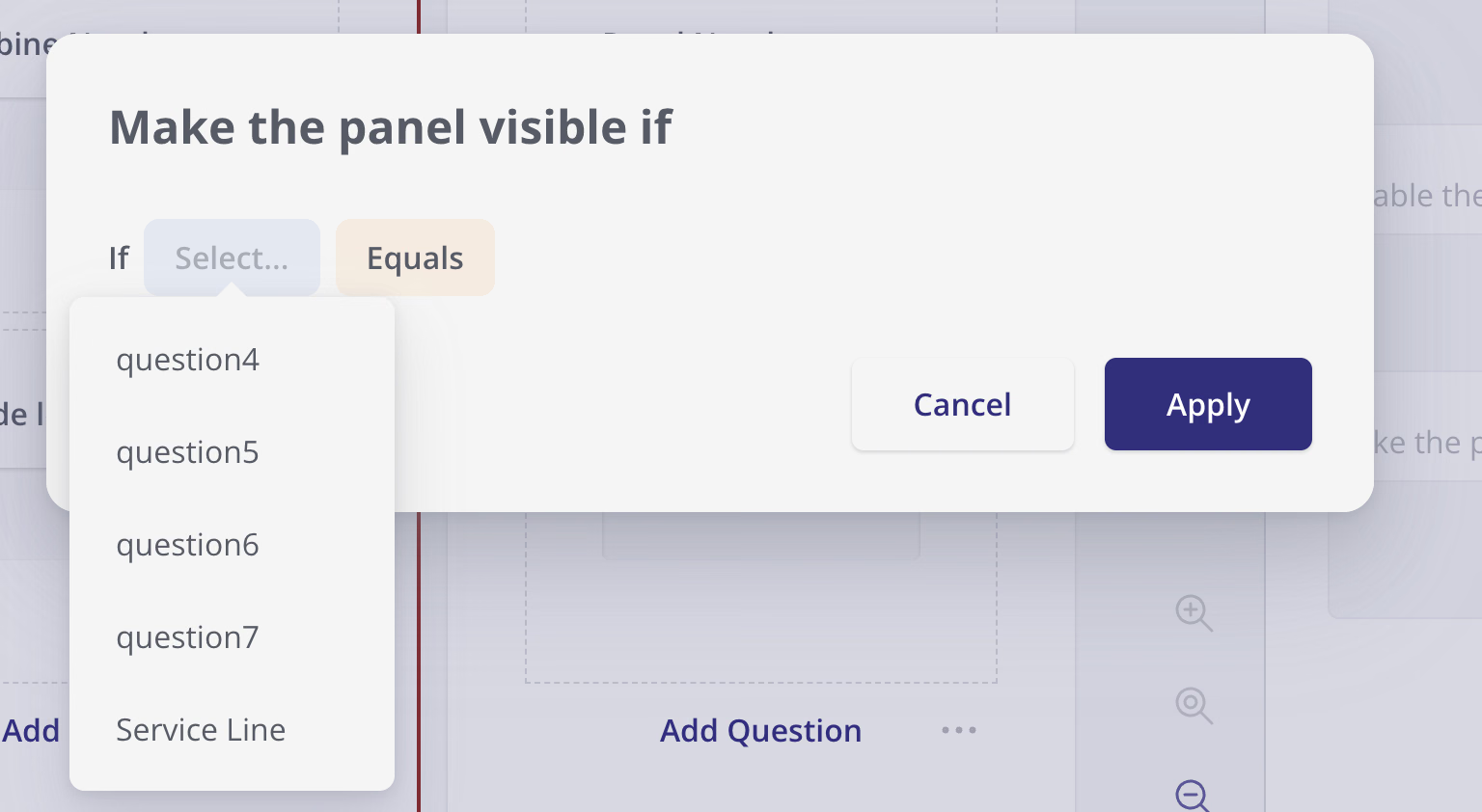
Selecting a question from the menu
If you do not rename your questions in the Question name field, they will show up as a name like "question1"
After selecting the question, you can choose the condition type.
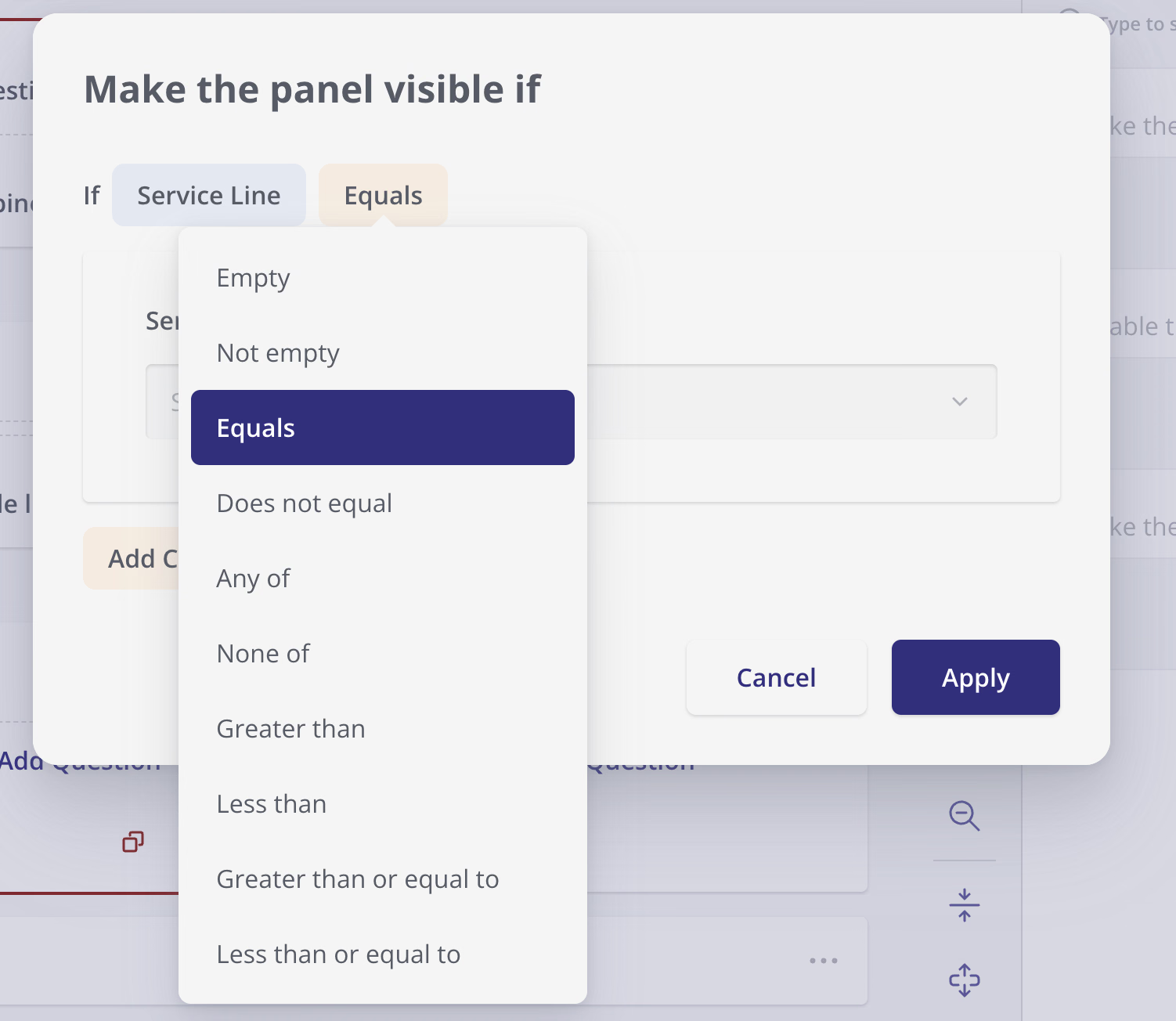
Selecting a condition type from the menu
After choosing the question and condition type, you can then choose the answers to the question that will meet the condition.
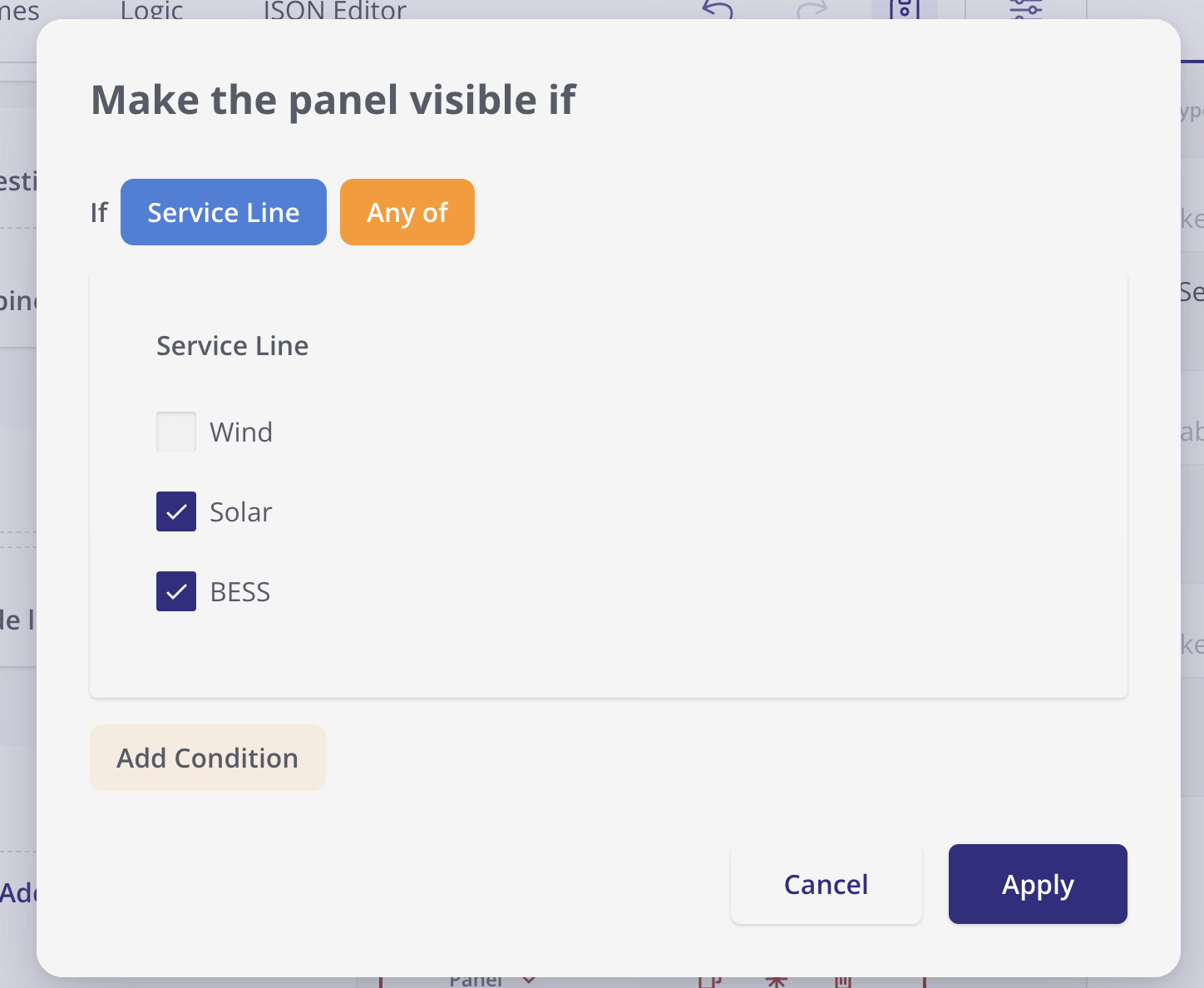
Selecting the answers that meet the condition
Examples
Example 1: Showing a question based on a Yes/No response
In this example, we configure a question to appear only when the preceding question is answered with “Yes.”
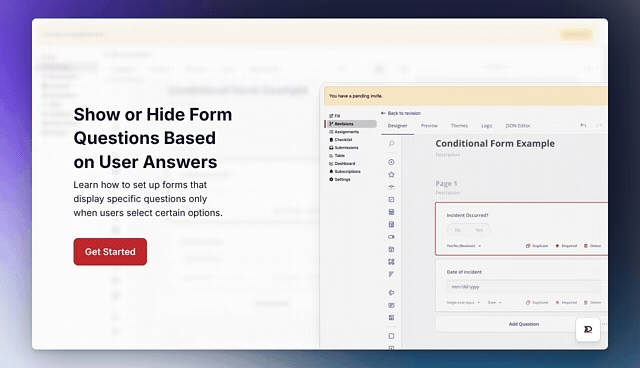
See the interactive version of the demo here.
Example 2: Using a dropdown to branch a form into multiple paths
In this example, the form is divided into two paths based on the user’s selection in a dropdown question. This is achieved by using a Panel component and applying conditional logic to the panel itself. All questions within the panel remain hidden until the specified condition is met.
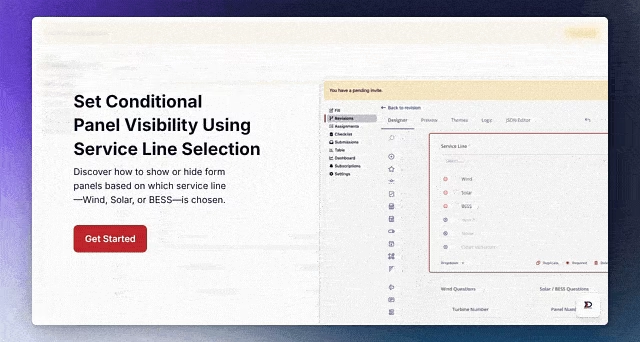
See the interactive version of the demo here.