May 20, 2026 Release Notes

This week brings a renamed project tab built around payroll currency, a new day-by-day apprenticeship-ratio breakdown, and a checklist summary right on the time card. Plus two new classifier columns on the Time Card Changes export for spotting late edits and pay-affecting changes at a glance.
🧾 Project Backpay tab
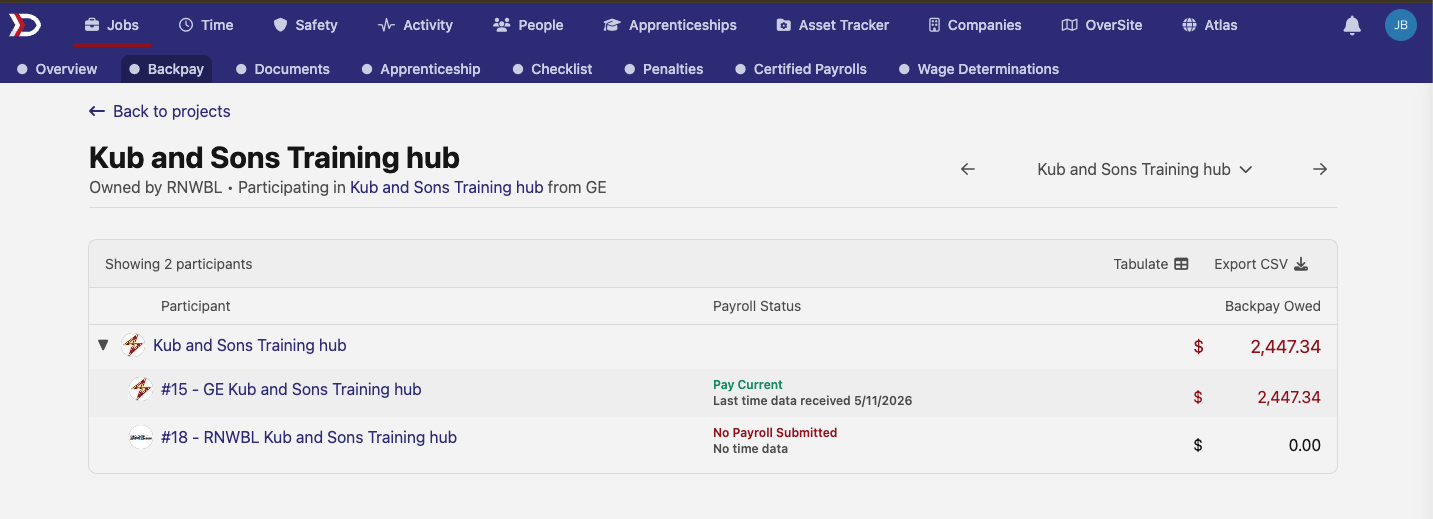
The Sub-Contractors tab on the project detail page is now called Backpay — a rename that reflects what the page is actually used for. The apprentice-labor-hours percentage column has been replaced with a clearer Payroll Status indicator showing whether each participating company is up to date on submitting payroll for the work their crews have logged.
The status column now reads at a glance: Pay Current with the last time data date when a participant is keeping pace, Pay: Xd behind when payroll has fallen behind the time data on record, and No Payroll Submitted when there are no actuals to compare against yet. Column headers are now Participant / Payroll Status / Backpay Owed.
📊 Pay by Day grid
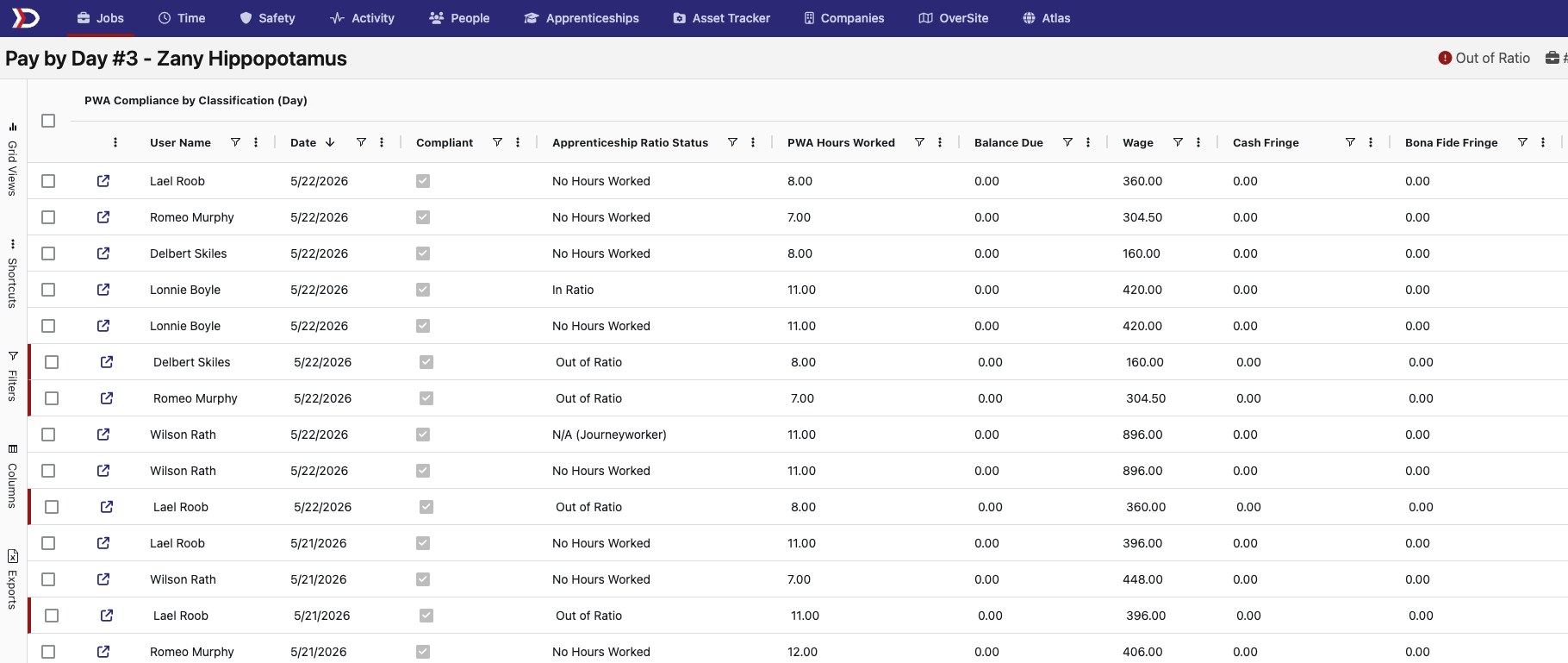
A new Pay by Day view on the job detail page surfaces compliance numbers broken out by user and day. It shows each day's apprenticeship-ratio status — In Ratio, Out of Ratio, Not Applicable, or No Hours Worked — alongside PWA hours worked, balance due, base wage, cash fringe, and bona fide fringe.
A built-in Out of Ratio filter at the top right narrows the grid to just the days that flagged, which is useful when a foreman or compliance lead needs to walk through exactly which days drove a ratio miss for a job.
✅ Time Card checklist summary
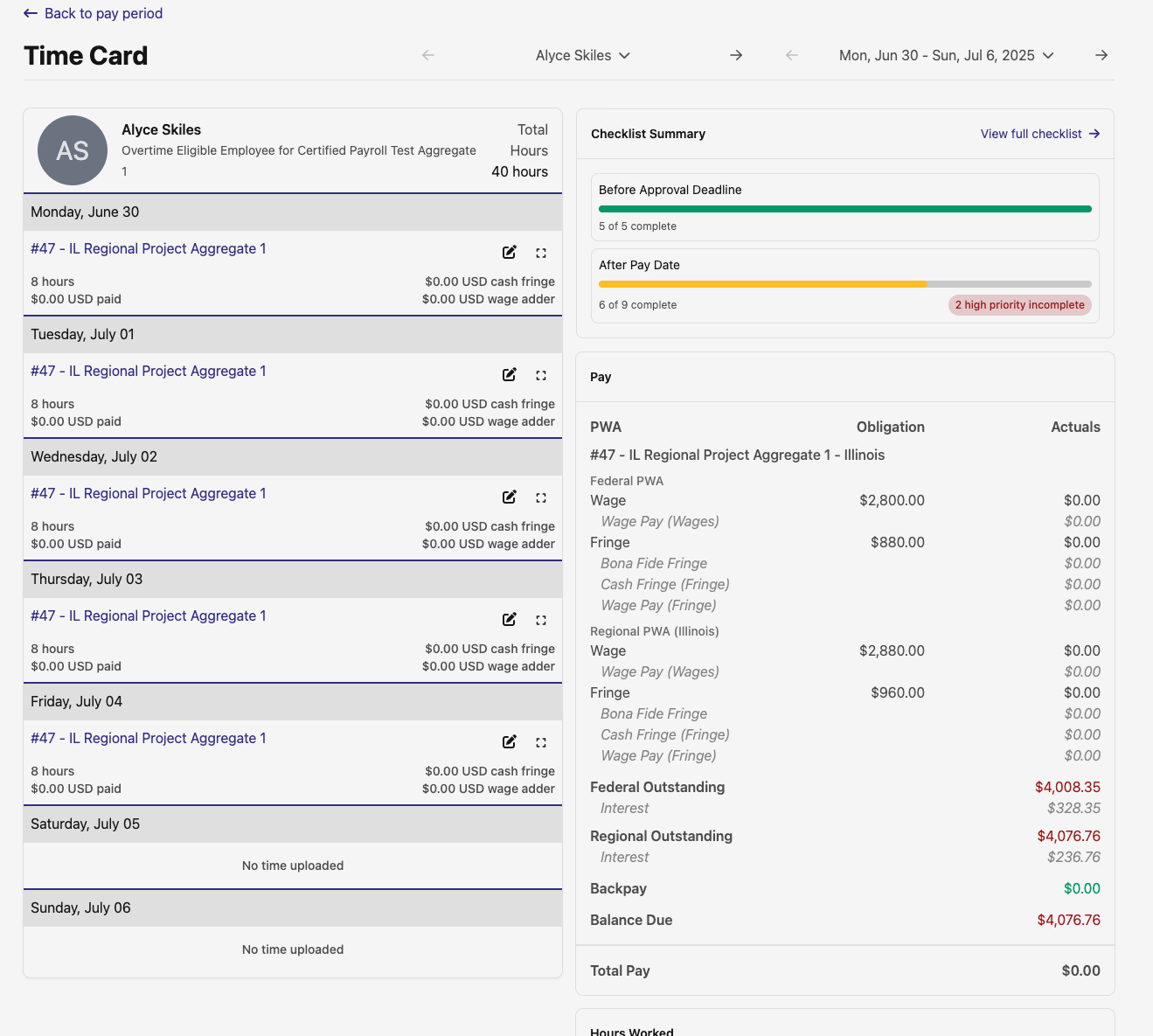
The Time Card view now includes a Checklist Summary panel in the right rail, alongside the pay obligation and actuals breakdown. It surfaces the same items as the full review checklist, split into Before Approval Deadline and After Pay Date with progress bars showing how much is completed, in progress, or untouched — plus a view full checklist link to jump to the full surface when something needs attention.
📤 Time Card Changes export columns
Two new columns appear by default on the Export Time Card Changes CSV:
change_made_after_approval_deadline—truewhen the edit happened after the pay period's approvals deadline.change_affects_pay—truewhen the edit actually moved dollars paid. That covers adding or removing a time entry or per diem, and updates to pay-bearing fields like start/end times, hourly rate, overtime/double-time adder rates, per diem rate, and per diem currency. Time-card-level edits (locks, approval status) and non-pay time entry fields (job, time code, description, internal state) reportfalse.
Both columns are selected by default; the column picker lets you deselect either one if you'd rather keep the export narrow.
Have feedback or a feature request? Reach out — we'd love to hear from you.
The DSPTCH Team