Approving Hours
How Users can Approve/Decline Time Entries on DSPTCH Mobile
Users must approve their Time Entries using DSPTCH Mobile before they can be approved or declined by the Manager.
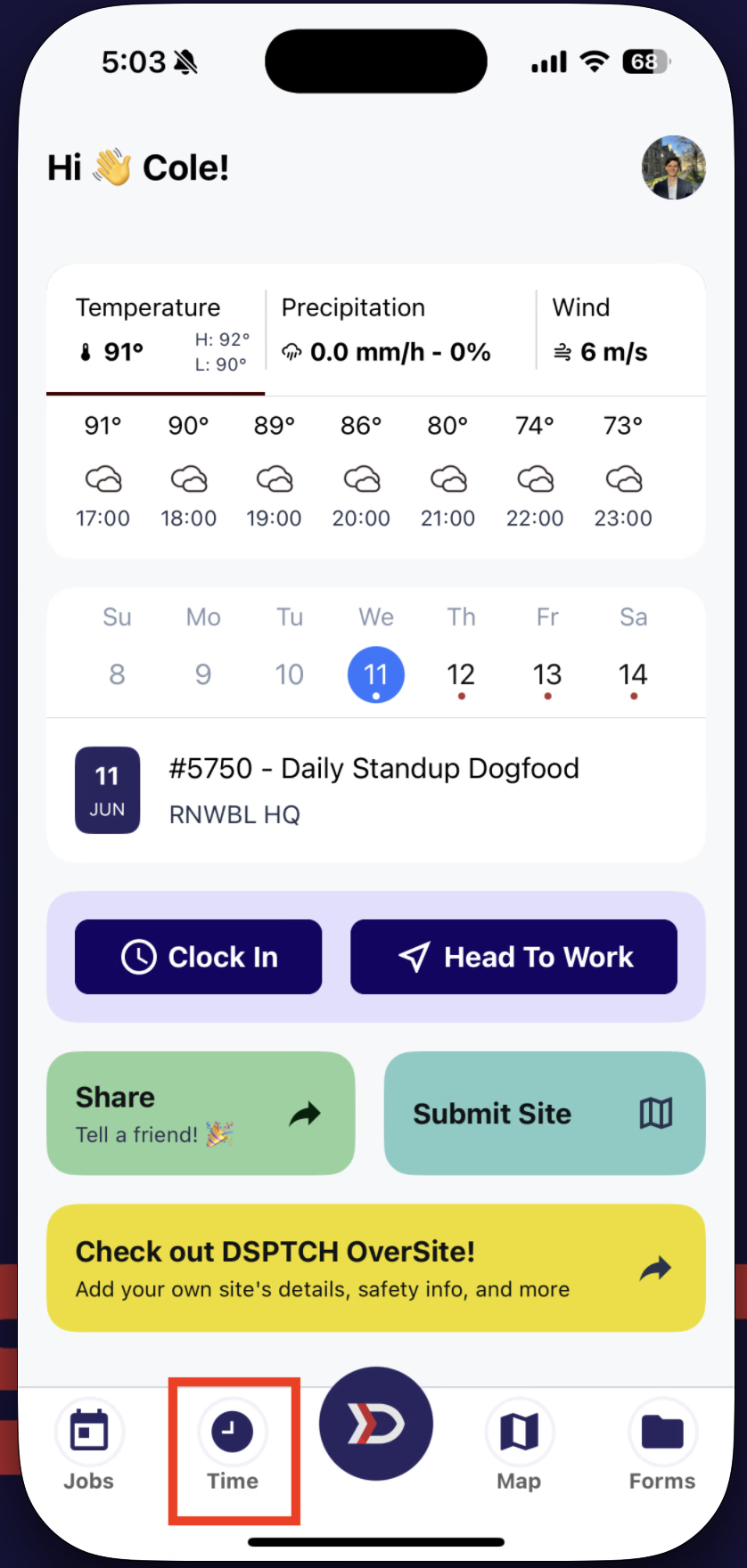
To approve a Time Entry, start by tapping on the Time Tab from the primary navigation bar at the bottom of the screen (highlighted in the red box in the image below):
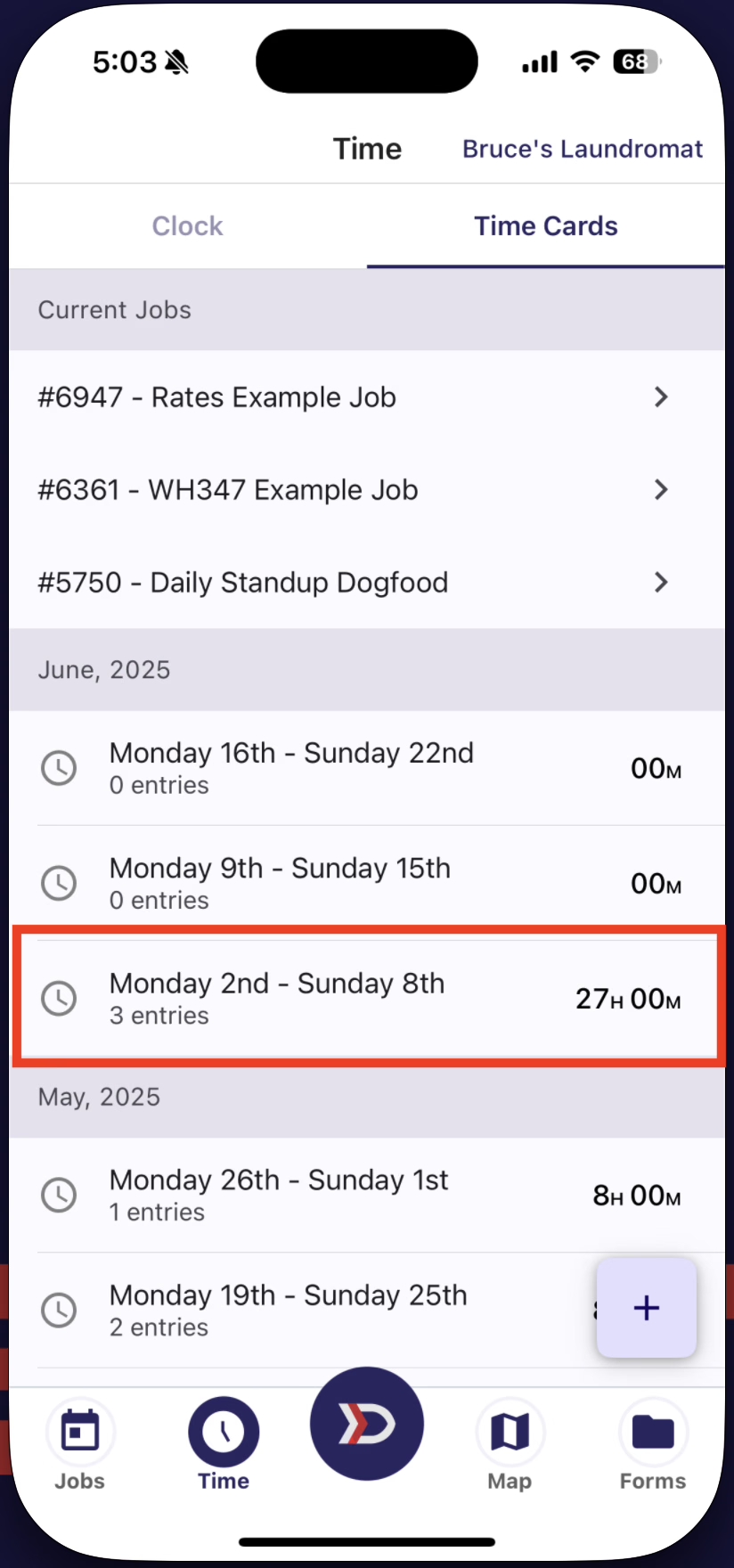
Then, click on a Pay Period (highlighted in the red box in the image below):
This will open a list of all Time Entries in a given Pay Period. If all Time Entries look correct, tap the "Approve" Button (highlighted in the red box in the image below):
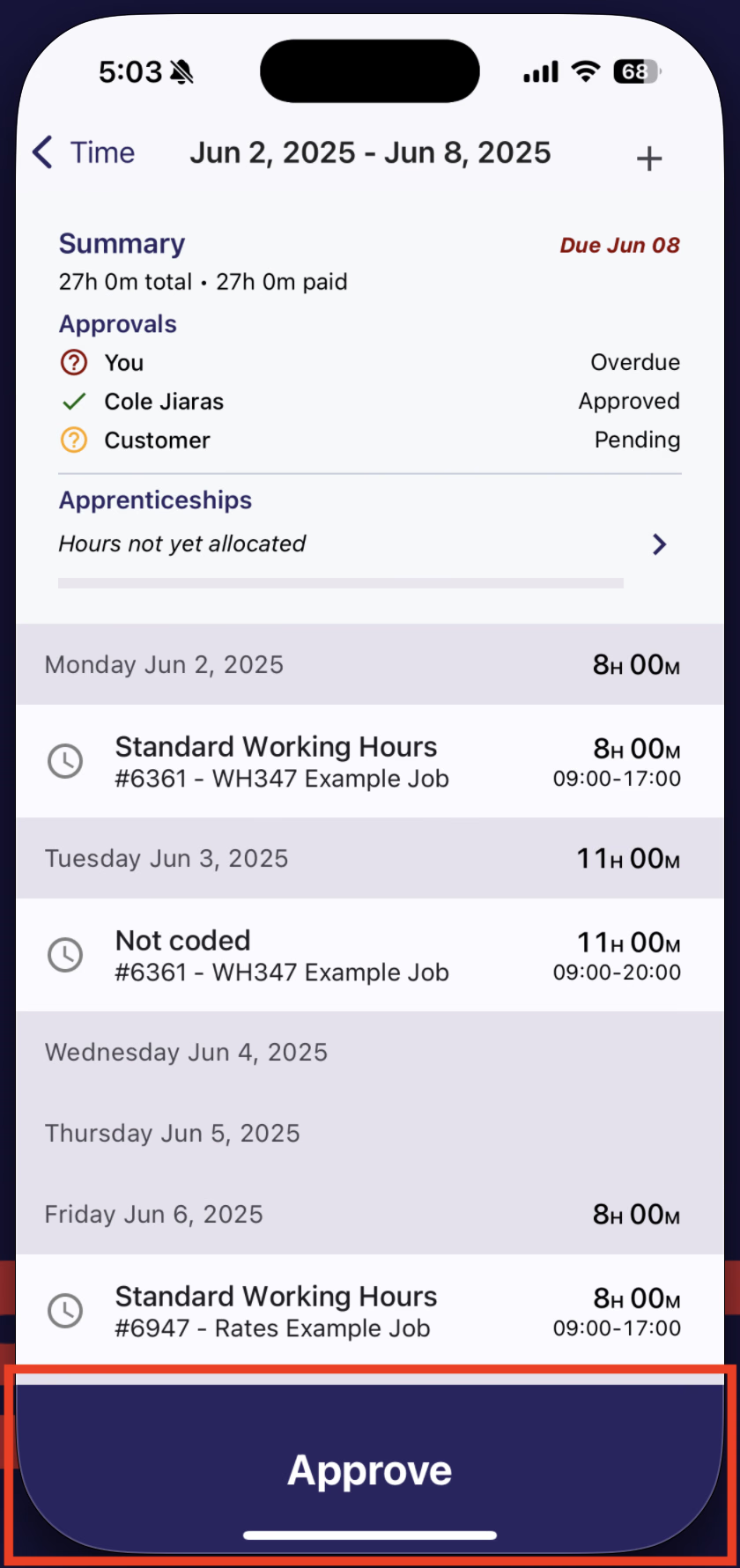
If any Time Entries need to be edited, click on the individual Time Entry to edit the fields (for instructions on editing a Time Entry read our help doc here).
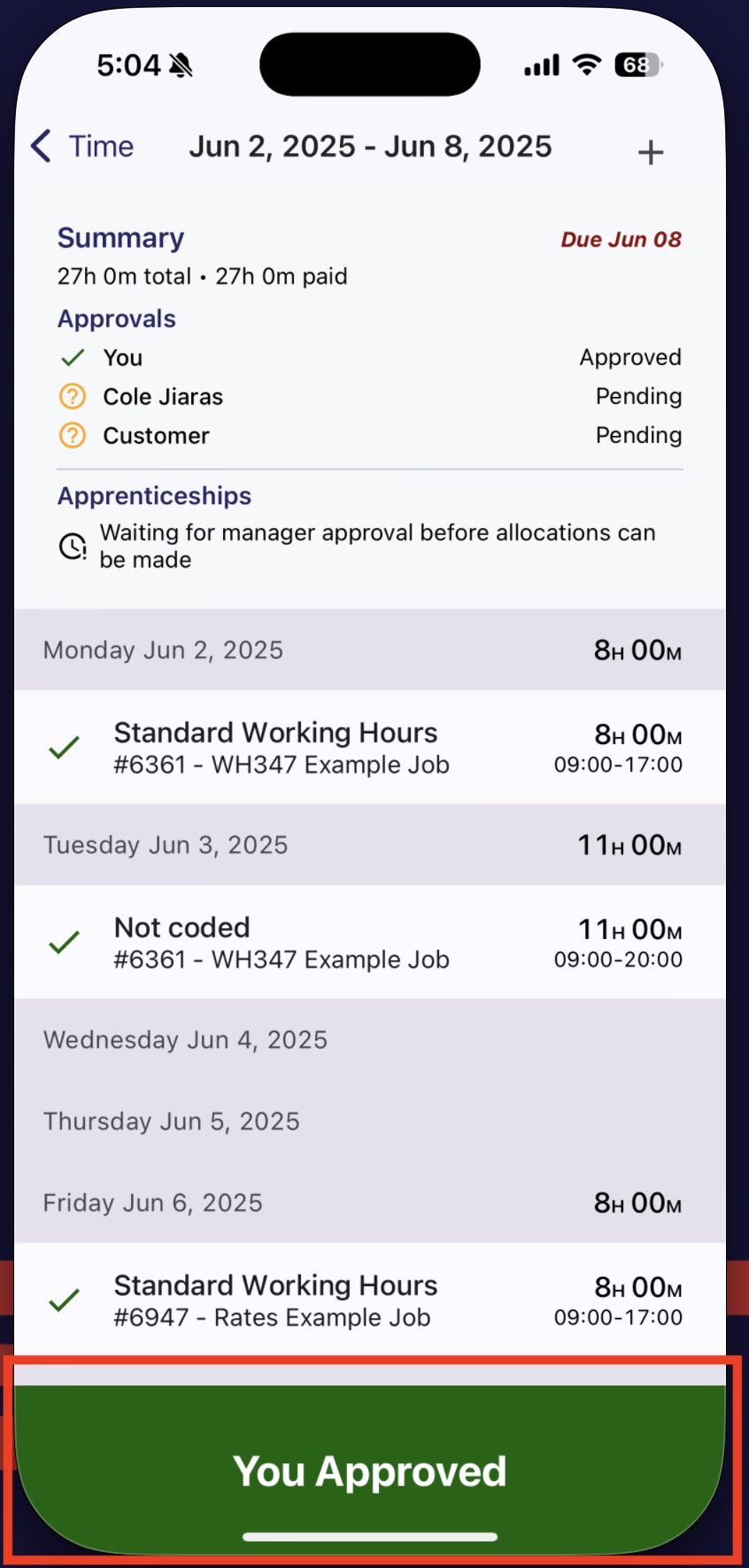
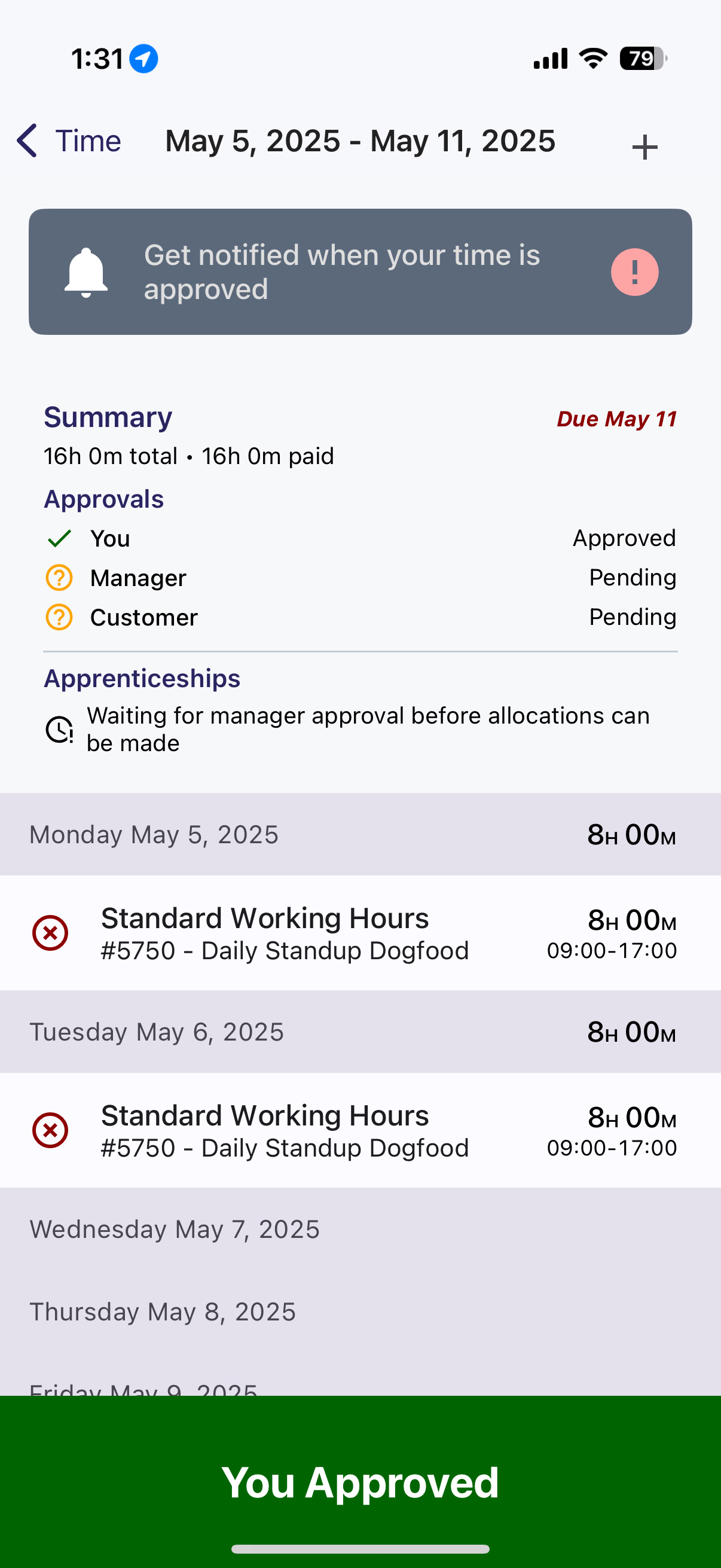
The Time Entries will be sent to the User's Manager for review (see the image below for an example):
Time Approval Statuses
Under timekeeping best practices, both you and your manager will need to approve your time before your hours can be paid out. Time Card approvals is a core feature of DSPTCH. From the Time Card Screen, you can see the status of your approvals, as well as your manager's approvals.
To approve time, simply navigate to the Time Cards screen and select an individual Time Card. At the bottom of screen, below the Time Entries, there should be a blue Approve Bar that displays the total number of hours worked in the Pay Period. Hit Approve, and the Approval Bar will turn green, confirming your approval.
A Time Card can have multiple Approval Statuses. The most common Approval Statuses are: Unapproved, Self-Approved, Manager-Approved, and Declined.
| Status | Time Cards Icon | Time Card Color | Meaning |
|---|---|---|---|
| Unapproved | 🕓 Gray Clock | Blue | No Approval |
| Self-Approved | ✅ Single Green Checkmark | Green | Approved by You |
| Manager-Approved | ✅✅ Double Green Checkmark | Green | Approved by Manager |
| Declined | ❌ Red X | Red | Declined by Manager |
If your Time Card is Declined, please contact your manager for details on how to correct your Time Card for approval.
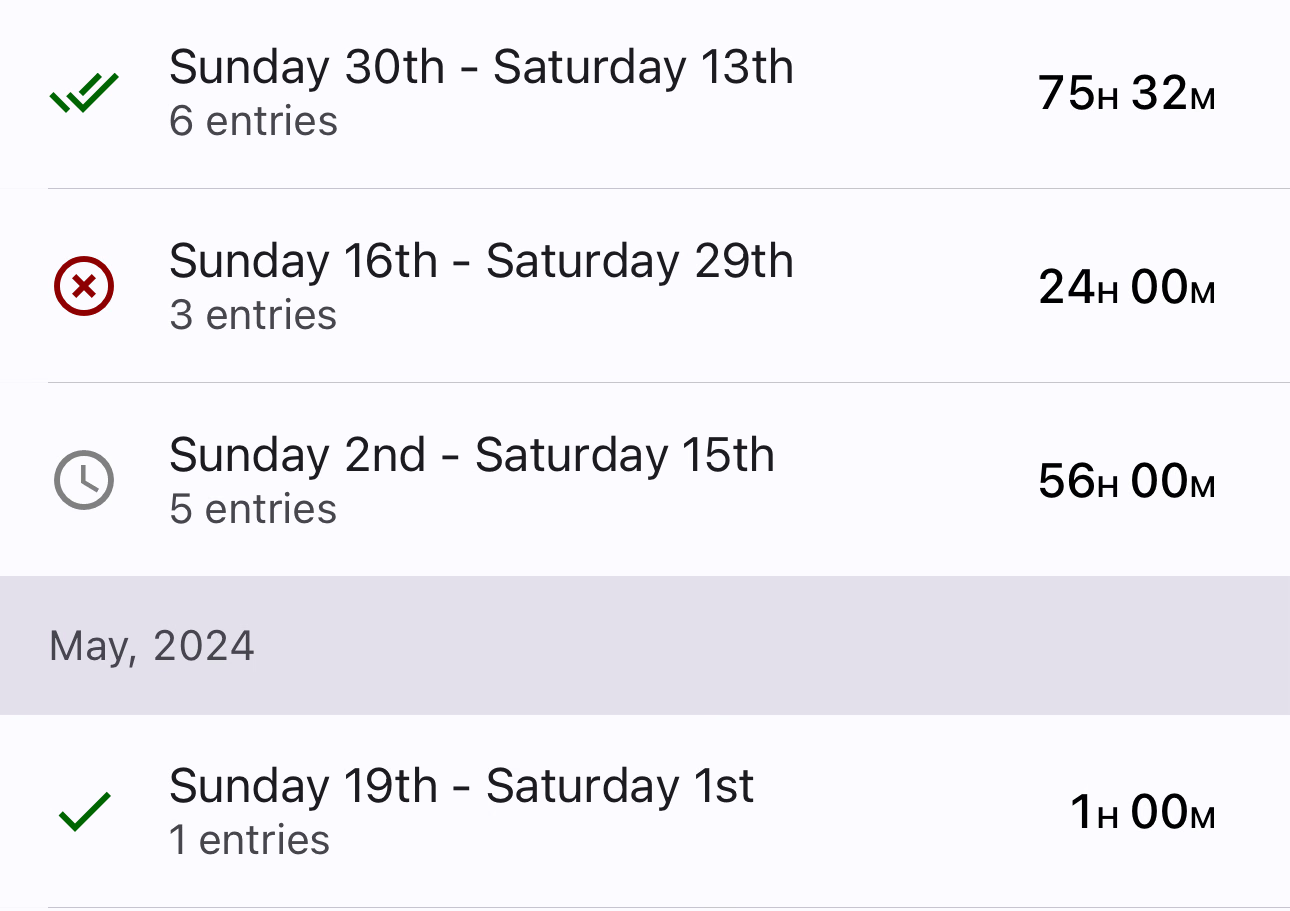
Common Approval Statuses on the TIme Card page
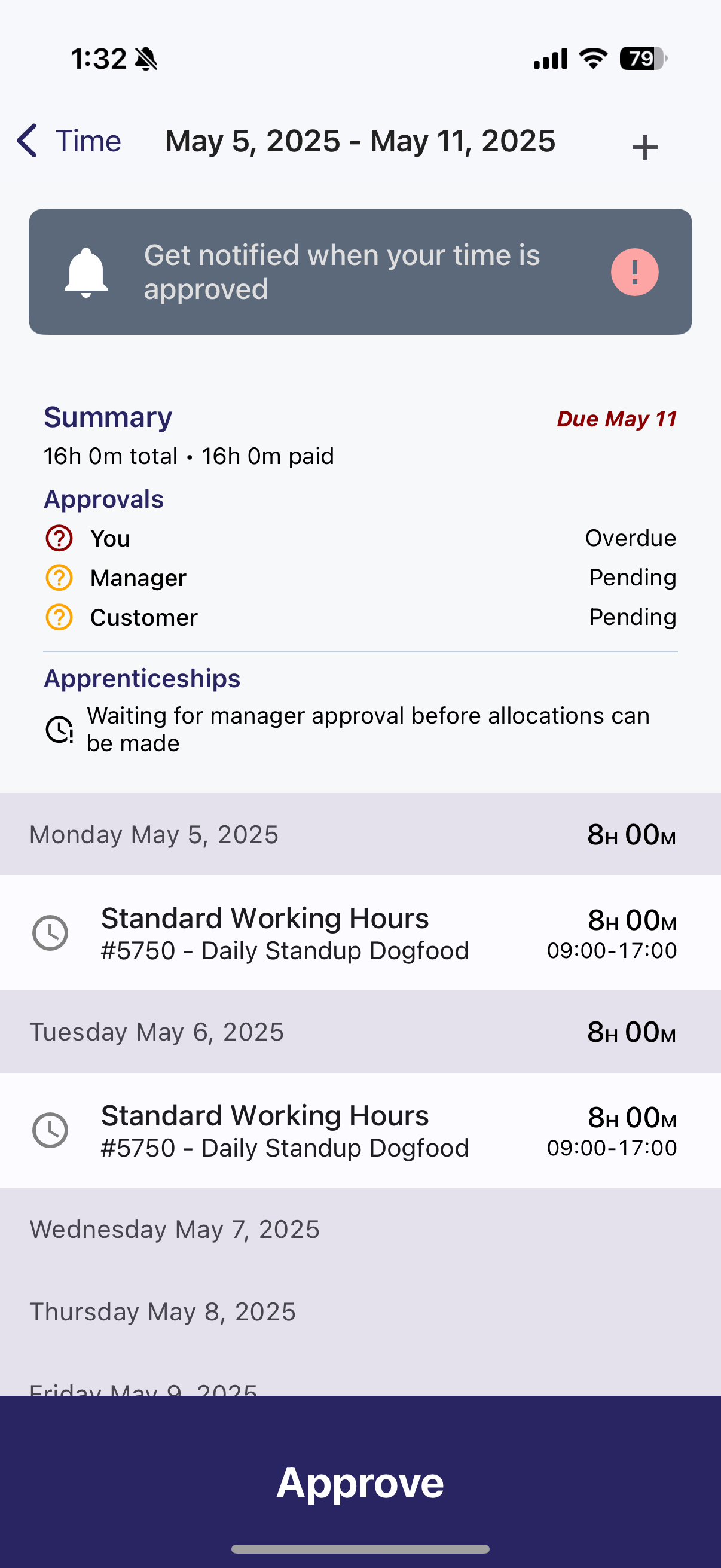
🕓 Unapproved - Blue
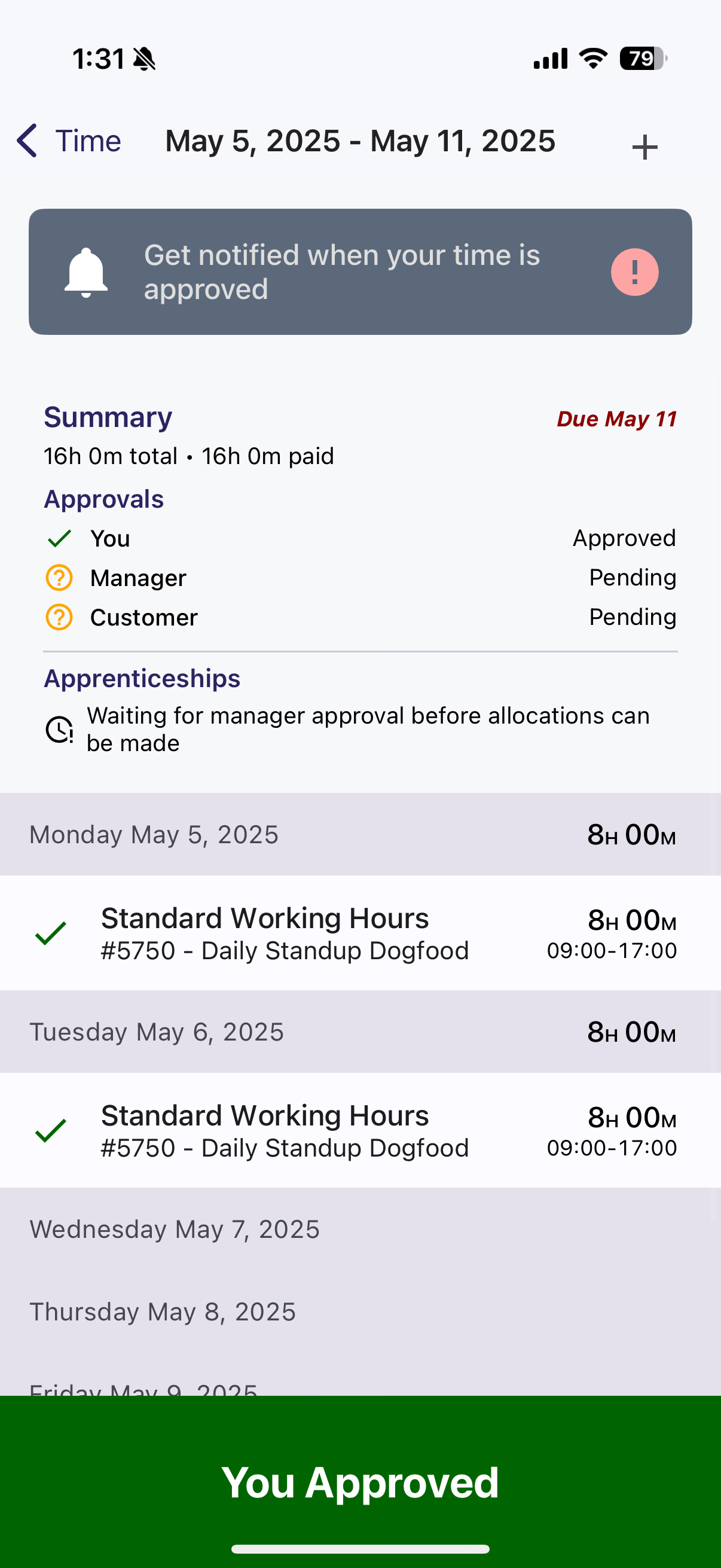
✅ Approved by You - Green
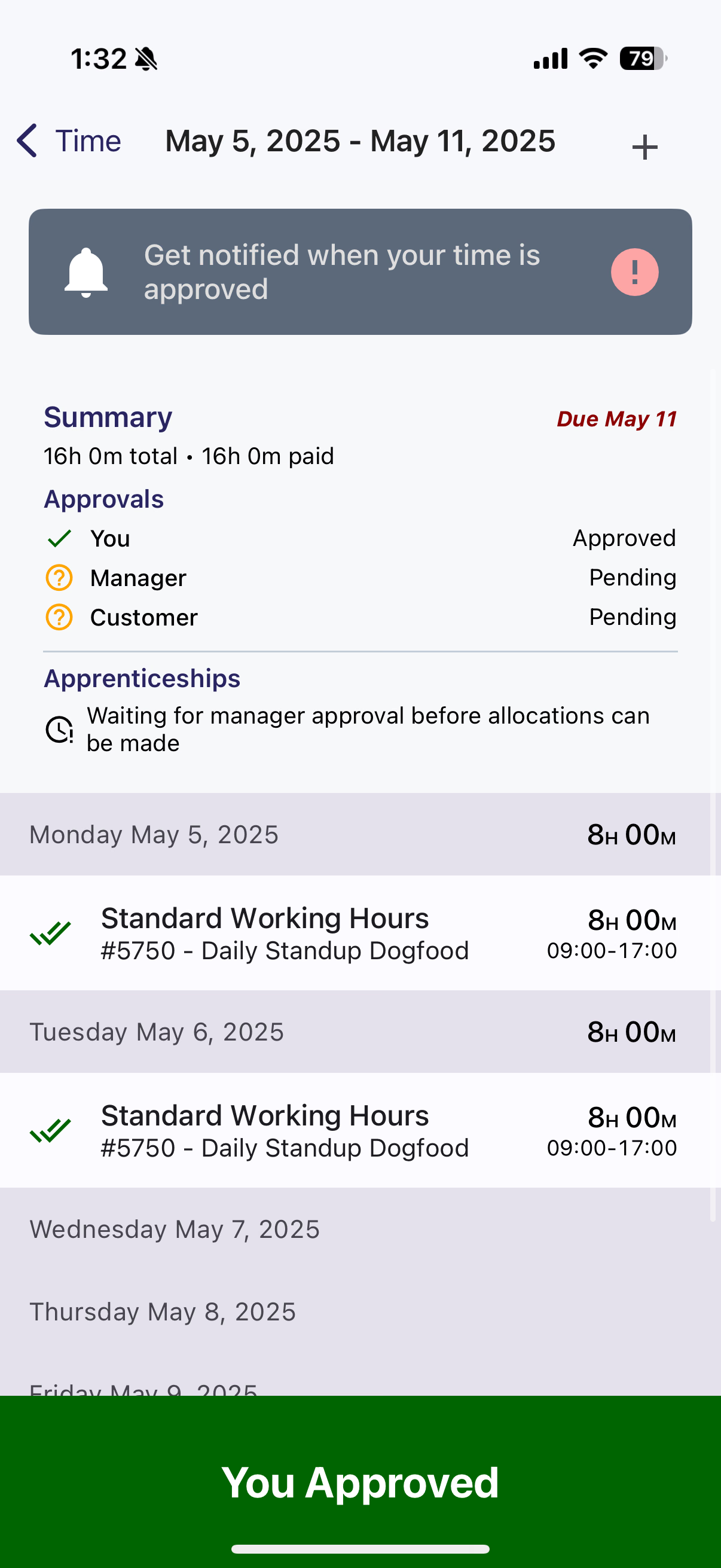
✅ ✅ Approved by you & your Manager - Green
❌ Declined - Red
When your manager has approved your hours, your manager's name will appear in the green Approval Bar. Time Cards with both manager and user approval will have a double green checkmark, while Time Cards with just one or the other will have a single green checkmark.
Time that has been approved by a manager will always be un-editable. If you need to make edits at this point, contact your manager.
When a manager approves your Time Card, you will receive a mobile notification about it. Now is a good time to go make sure you approved those hours!

Manager approved Time Card notification