Payroll Integration Mapping
Navigating to the Payroll Integrations Page
To navigate to the Payroll Integrations Page, start by clicking on the Time Tab from the main navigation bar at the top of the screen. Then click the "Settings" Button from the sub-navigation bar at the top of the screen. Under the Pay Schedules section of the dropdown menu on the lefthand side of the screen, click "Integrations". This will open the Payroll Integrations Page for your Company.
Please see the video below for a demonstration:
How to Map Fields From Your Payroll System to DSPTCH
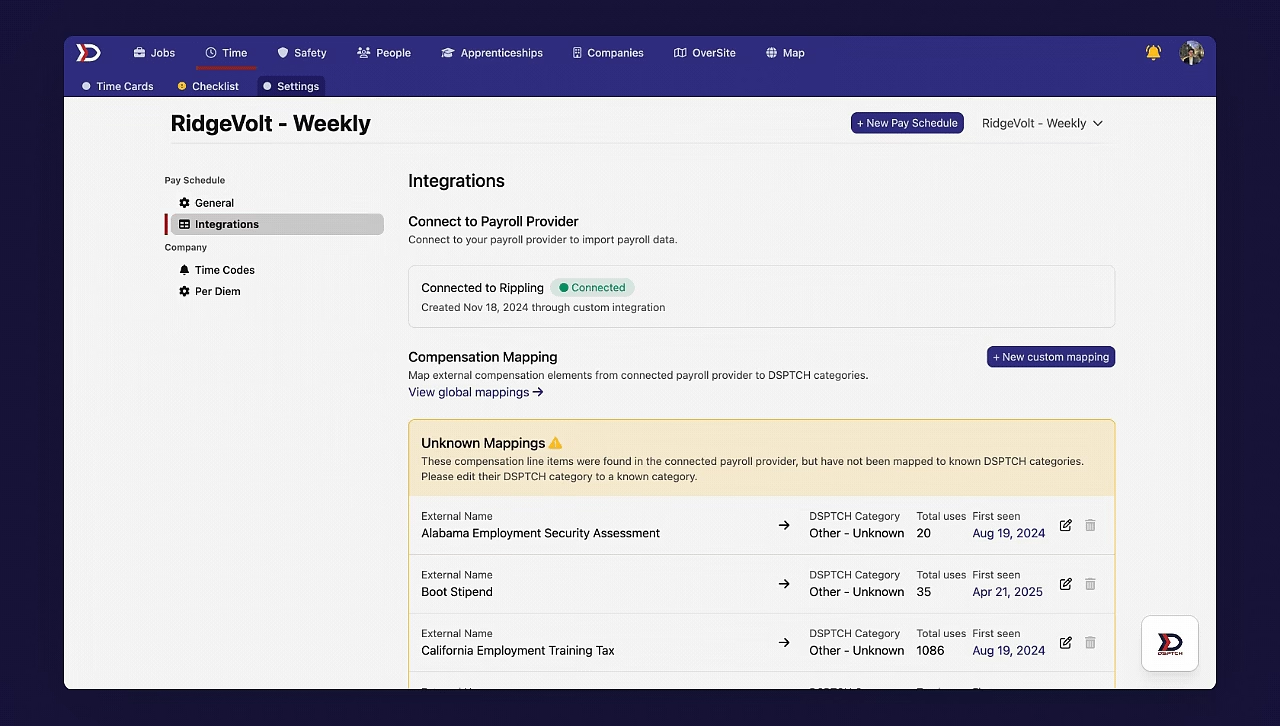
Once your payroll system integrated, DSPTCH attempts to automatically map all of the fields. That said, it is likely there will be a number of "Unknown Mappings" that will require manual intervention.
To map unknown fields, start by navigating to the Payroll Integrations Page (instructions above). Then, select the unknown field that will be mapped and click the Pencil Icon to on the right side of the field.
This will open the Edit Mapping Form:
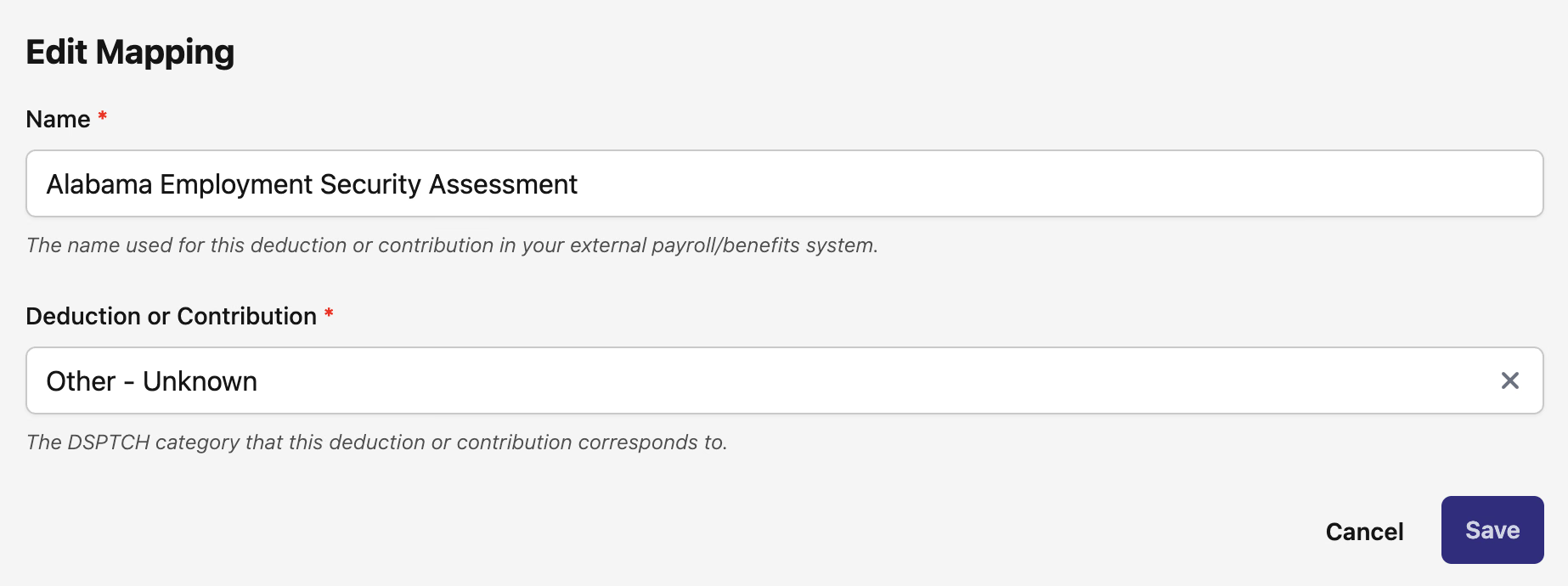
To complete the mapping, click on the "Deduction or Contribution" entry box and search for the field from DSPTCH that corresponds with the field from your payroll system.
See video below for a demonstration:
Once the field has been mapped, it will be added to the "Custom Mappings" list at the bottom of the Payroll Integrations Page.
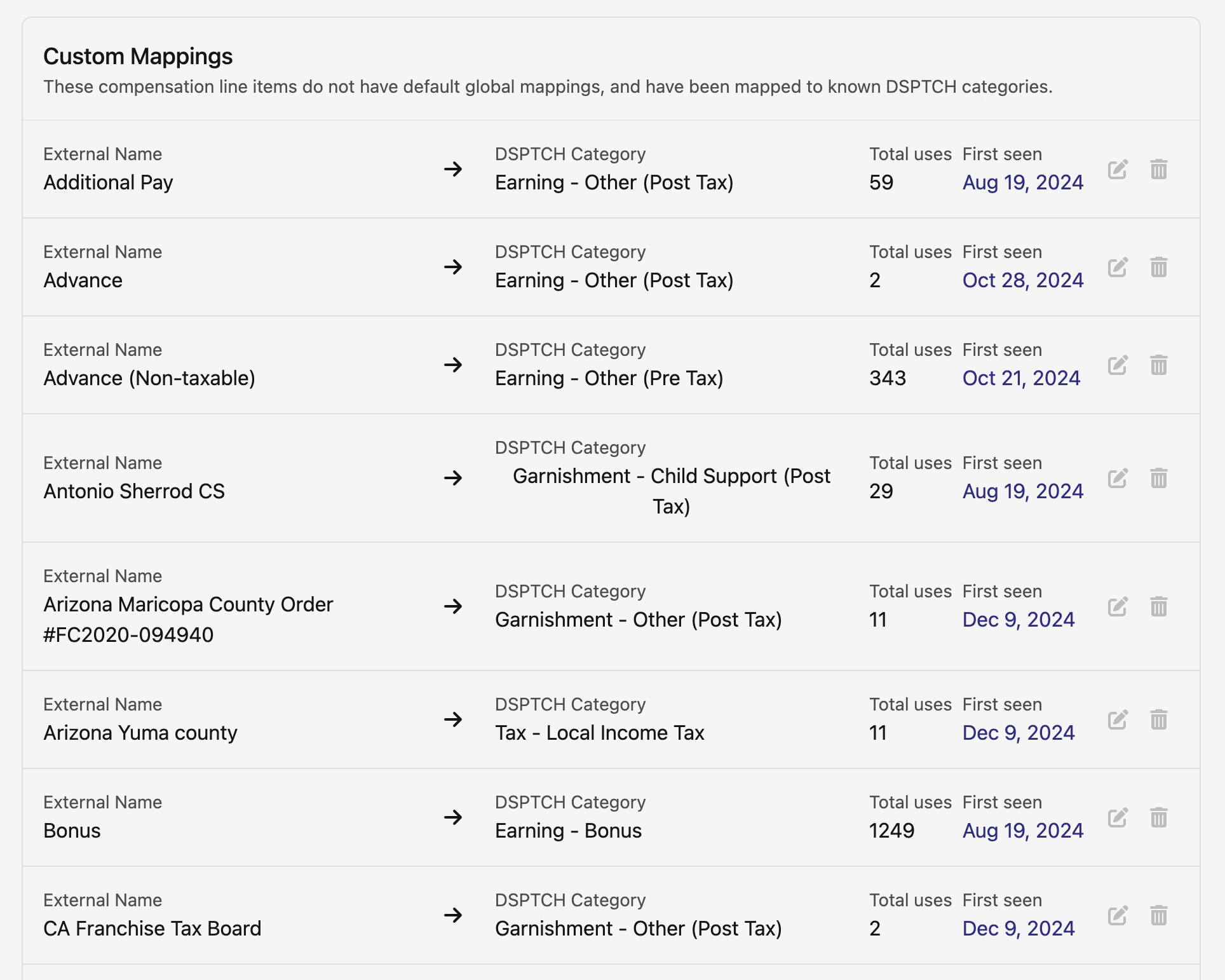
Once a field has been mapped and used in DSPTCH, it cannot be edited.