Accepting Company Invites
To gain permissions to your company, DSPTCH sends users invites. An invite will grant user permission roles to a company, such as Technician, Manager, Admin, etc.
Creating a DSPTCH Mobile Account
Before accepting an invite, it is necessary to create a DSPTCH Web account.
For detailed instructions on how to create a DSPTCH Web account, read our Create Account - Web Help Document.
Locating & Accepting the Invite (in App)
If the invite was sent to the email(s) associated with your DSPTCH Web account, a yellow banner near the top of the page that reads, "You have a pending invite" will appear.

To accept the invite, click "Respond". This will open the Respond to Invite page (pictured below):
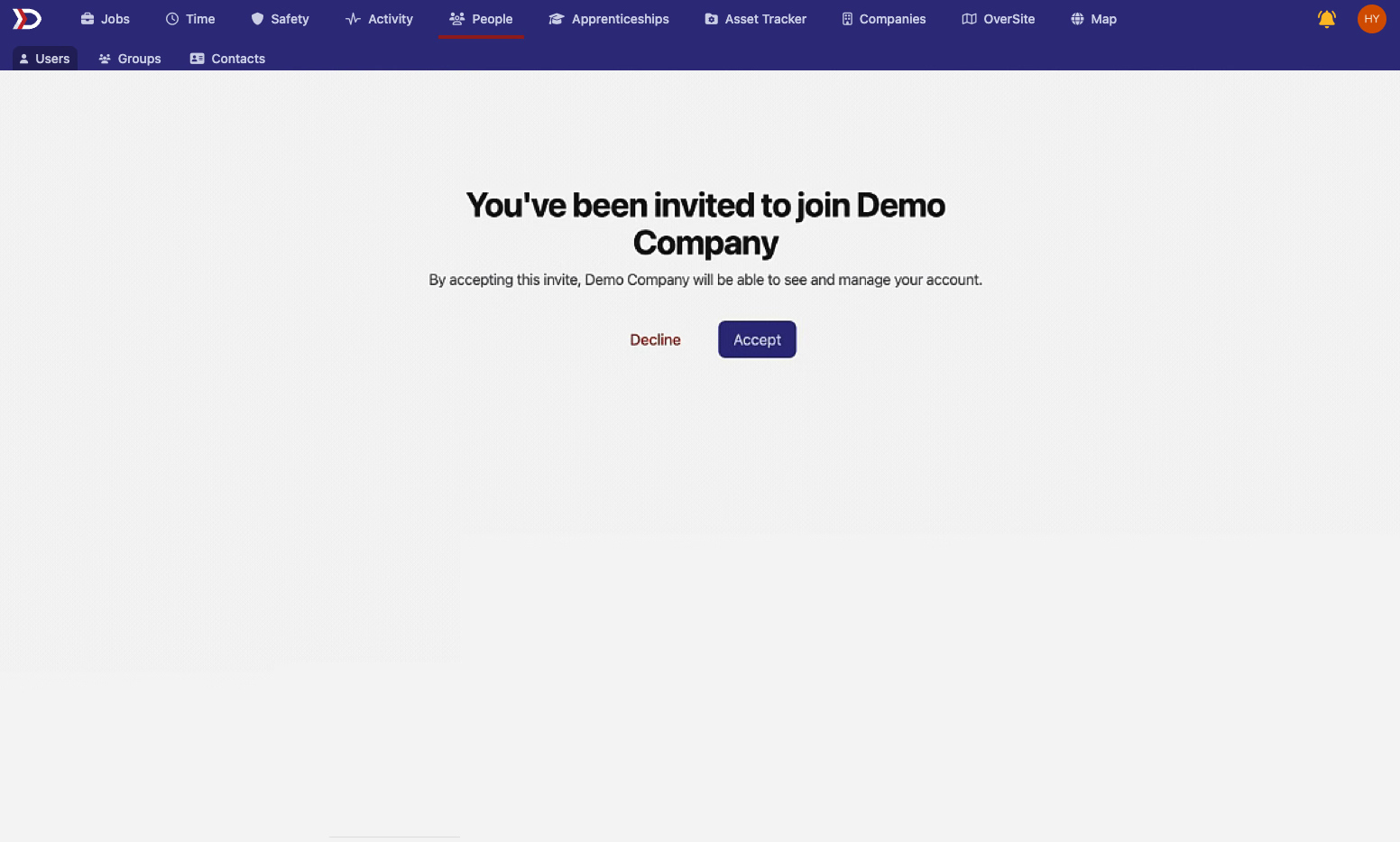
Click the "Accept" button to accept the invite.
A success message reading, "Invite was successfully accepted" will appear at the bottom right of the screen.
Locating & Accepting the Invite (via Email)
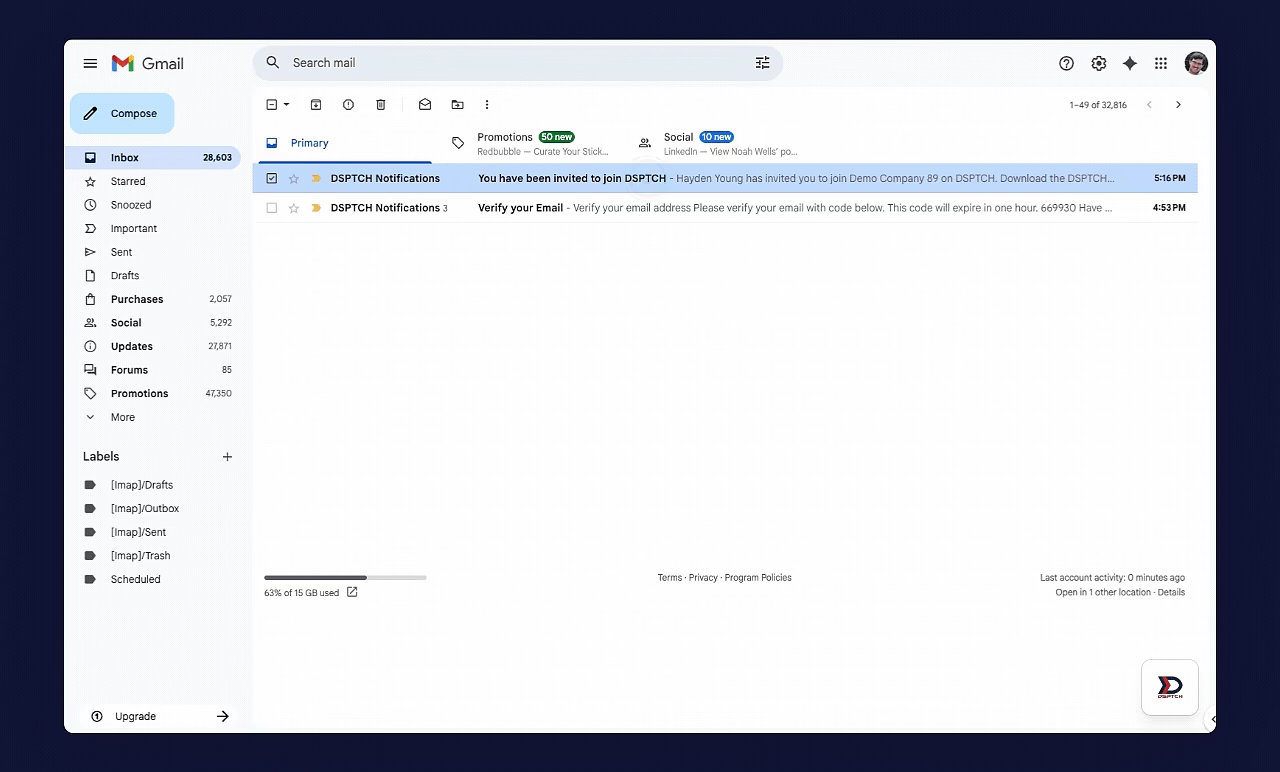
When an invite is sent, an email notification will be sent to the work email address included in the "New User" form.
To accept the Invite, open the email and click "Accept Invite". This will open the same Respond to Invite page. Click "Accept" to accept the Invite.
See the video below for a demonstration:
Confirming the Invite was Successfully Accepted
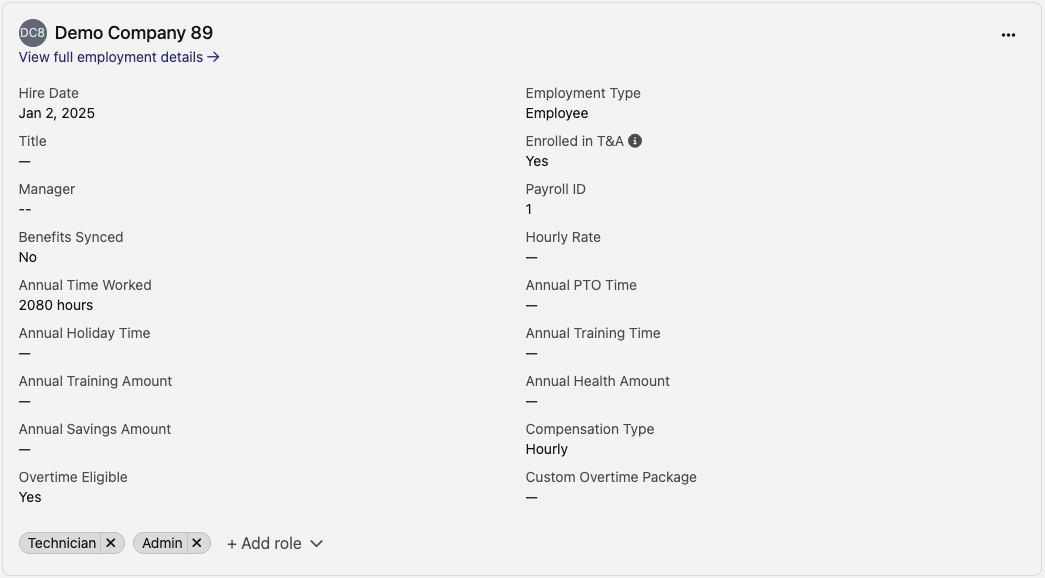
To confirm a successful invite acceptance, navigate to the profile settings page and scroll down to the "Employment Details" section. A profile entry will appear with the company matching the one associated with the accepted invite.