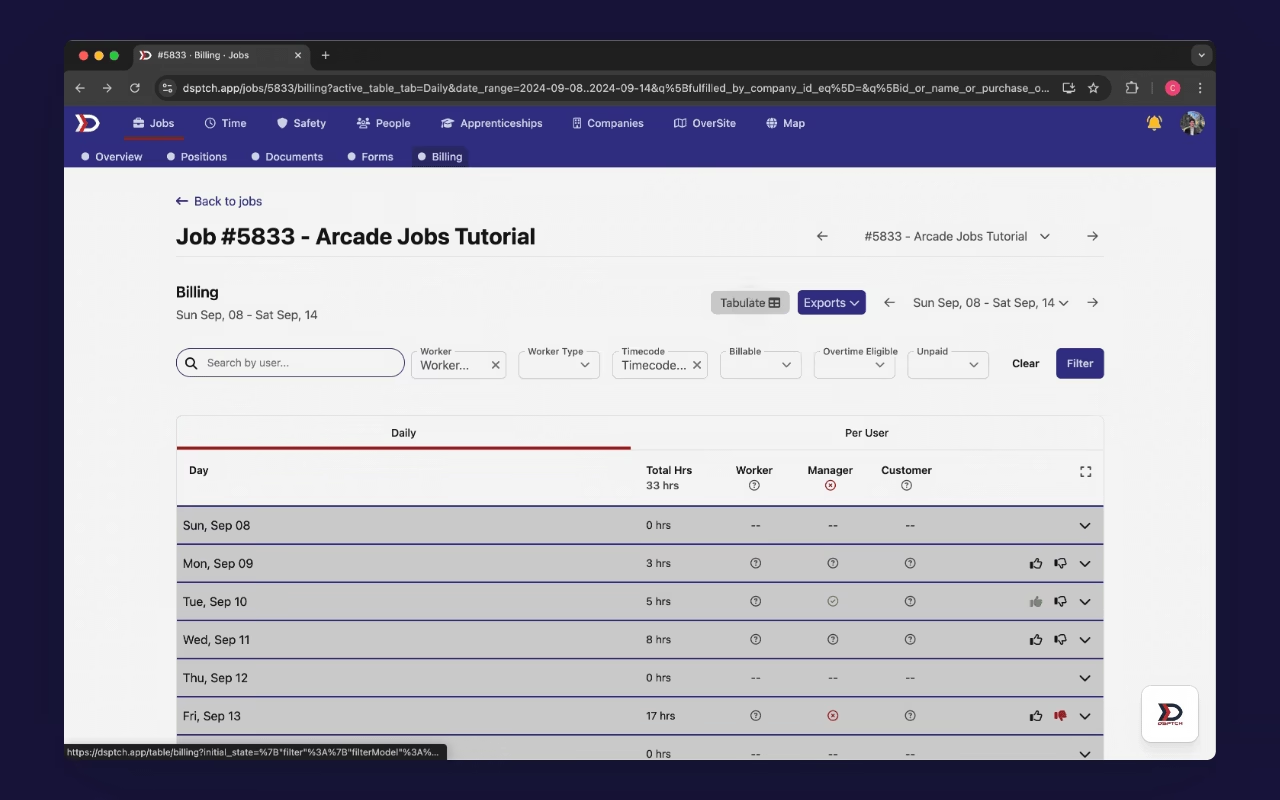
Billing
The Billing tab displays data on hours logged for a job. This data includes workers' logged time, start and end times for each entry, time codes, hourly rates, states for each entry, entry creation method (manual or clock-in), and geofence location data when available.
Viewing Billing Data
Navigating to the Billing Tab
To access the billing page, open the Jobs tab, then open the relevant job card, and finally click the "Billing" button. See video below for illustration.
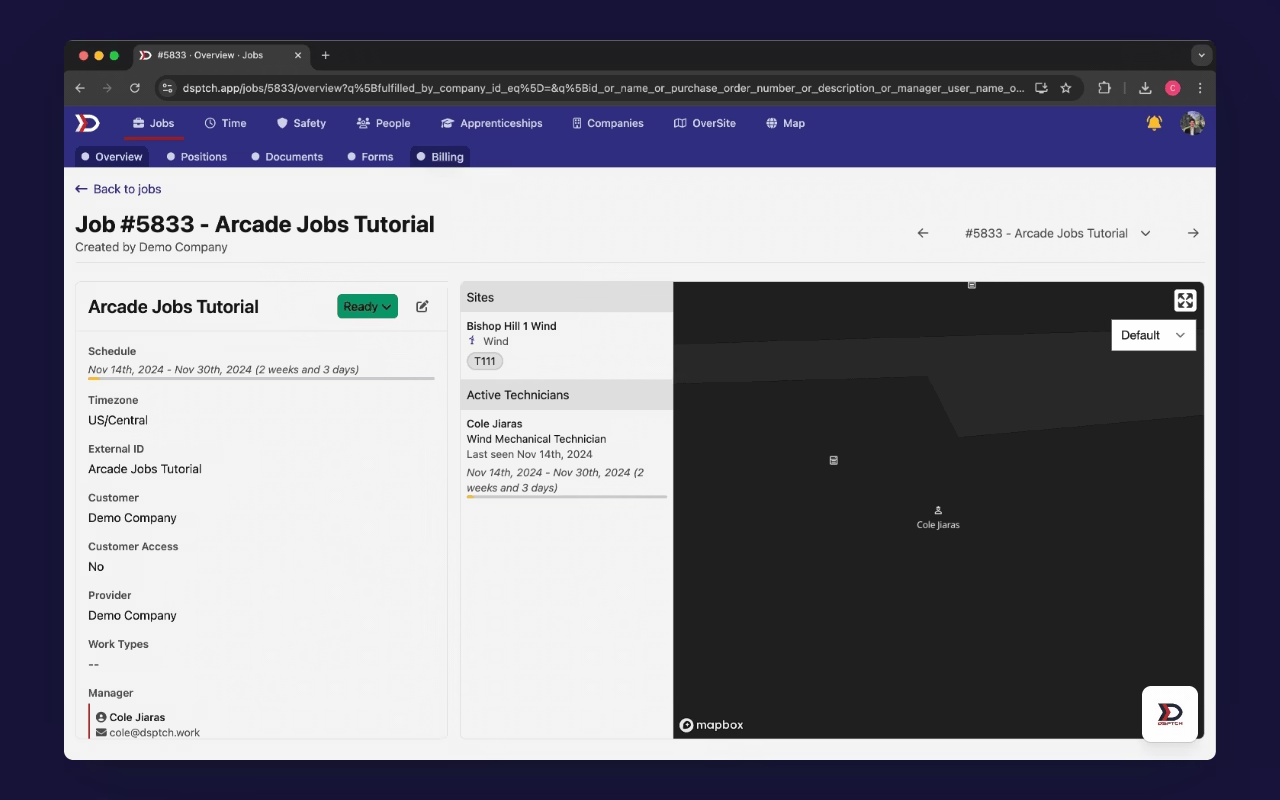
Viewing Billing Data:
To view more in-depth billing data for a given day or user, click the down arrow icon to expand the data. See the video below for illustration.
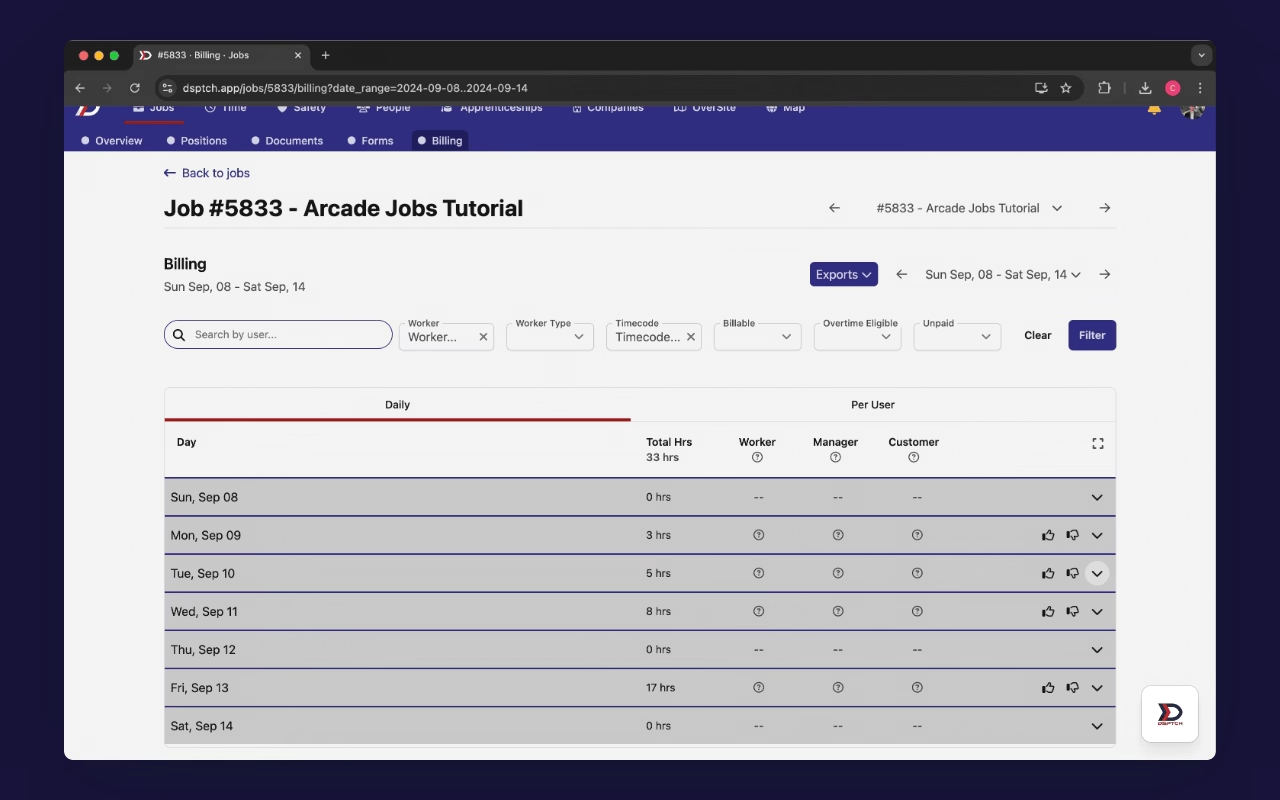
Daily View Table:
The daily view table allows for viewing the total amount of hours logged on each day for the job.
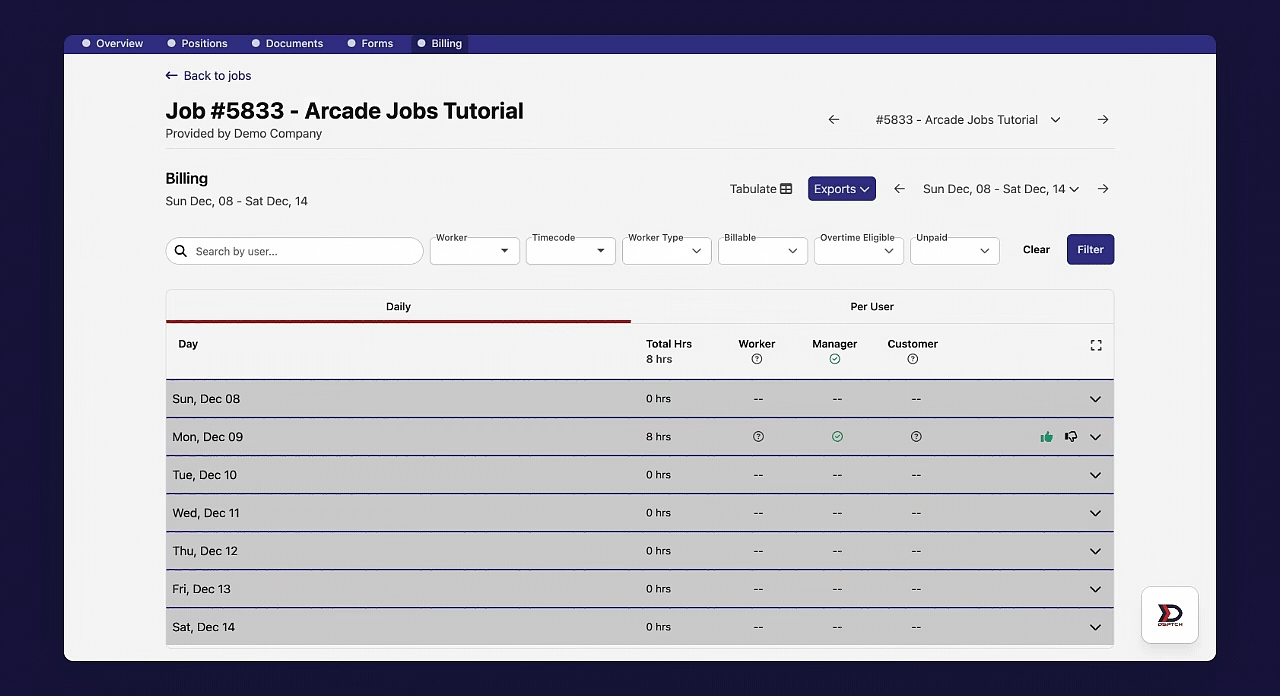
Clicking the down arrow expands the data associated with a given day. The data includes the workers who logged hours and the amount of hours they logged.
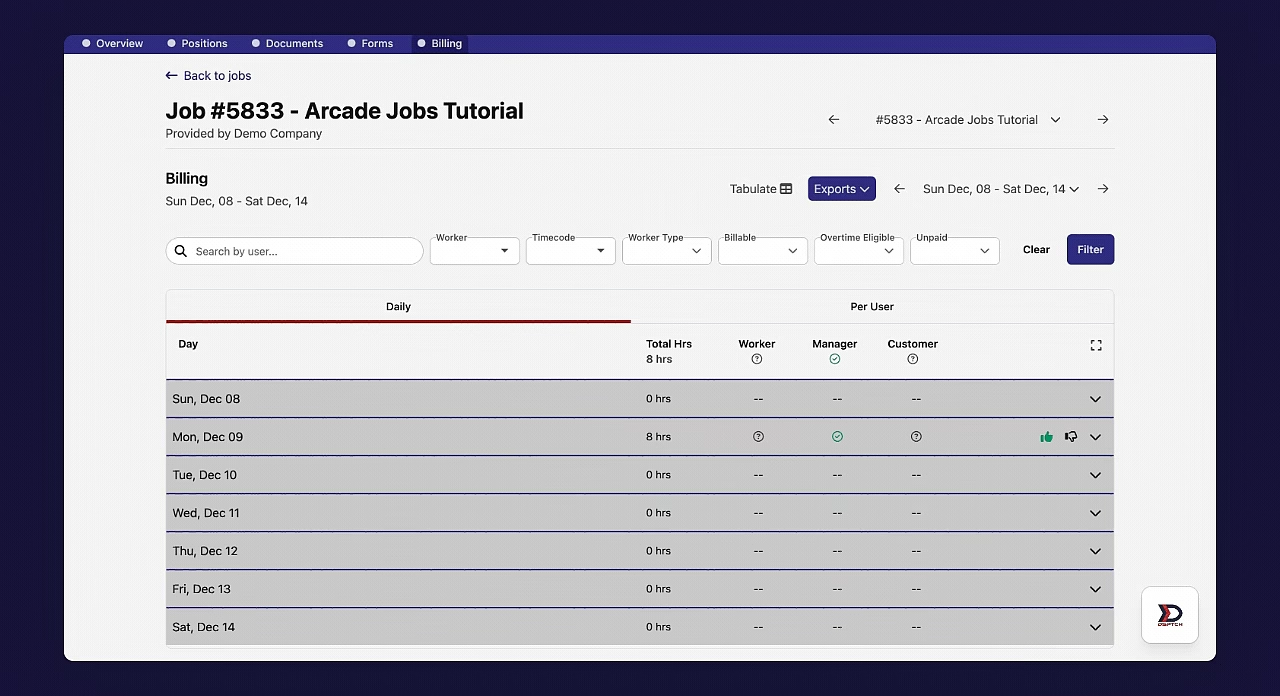
By clicking the down arrow in line a worker's name, you can expand the data to view the start/end time of their time entry and the time code associated with the hours.
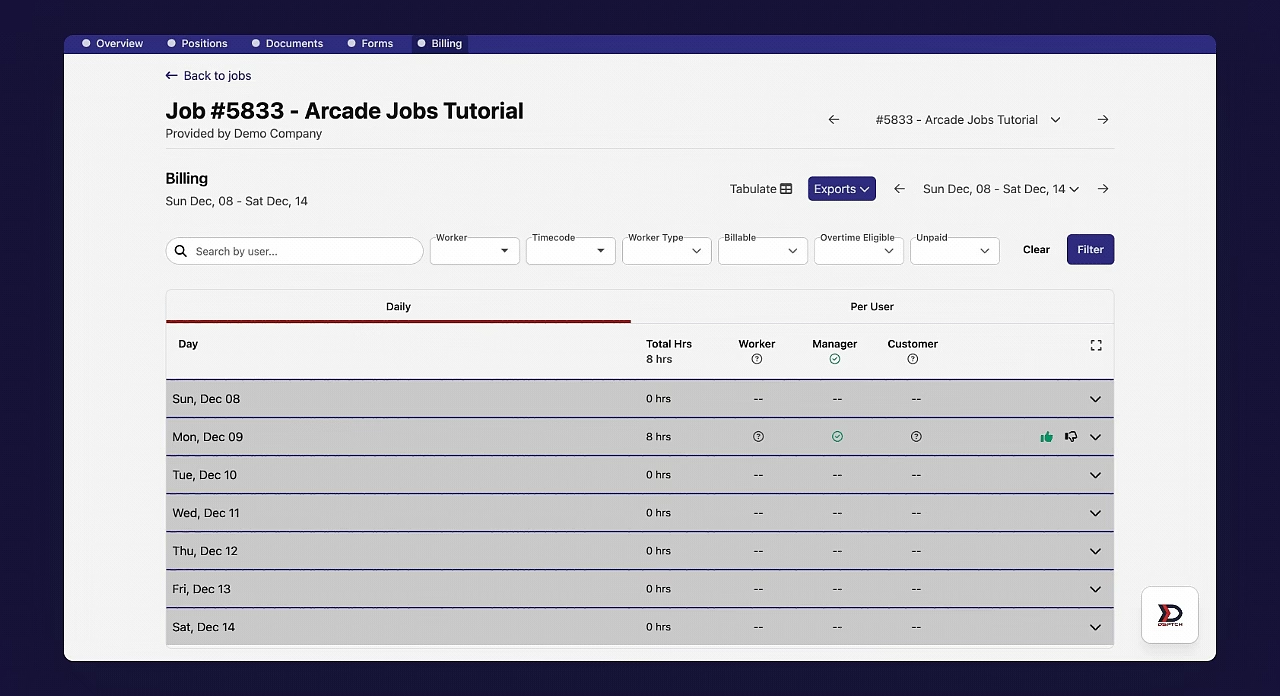
By clicking the expand icon, you can view all available data associated with a time entry.
Datapoints Available in the Billing Tab
-
-
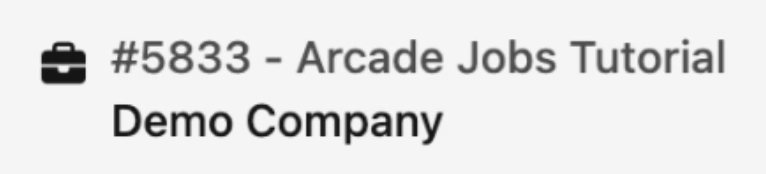
This datapoint shows the job and company associated with the time entry.
-

-
This datapoint shows the site and specific asset associated with the time entry.
-
-
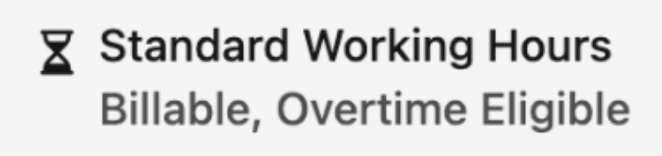
This datapoint shows the timecode associated with the time entry.
-
-
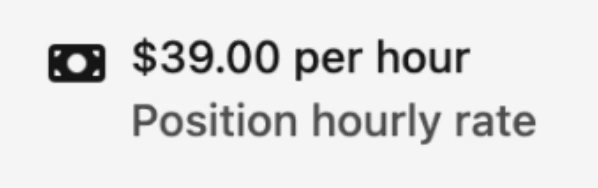
This datapoint shows the hourly rate for the worker during this time entry.
-

-
This datapoint shows the state where the worker was during the time entry.
-
This can be made a required data entry if desired.
-

-
This datapoint shows how the time entry was created. A time entry can either be created via a manual entry (choosing the start and end time by hand) or by using the "Clock-in/out" feature on DSPTCH mobile which will automatically track time.
-

-
When available, this datapoint shows a GPS log of the worker's movements while they were clocked in during the time entry.
Per User View Table:
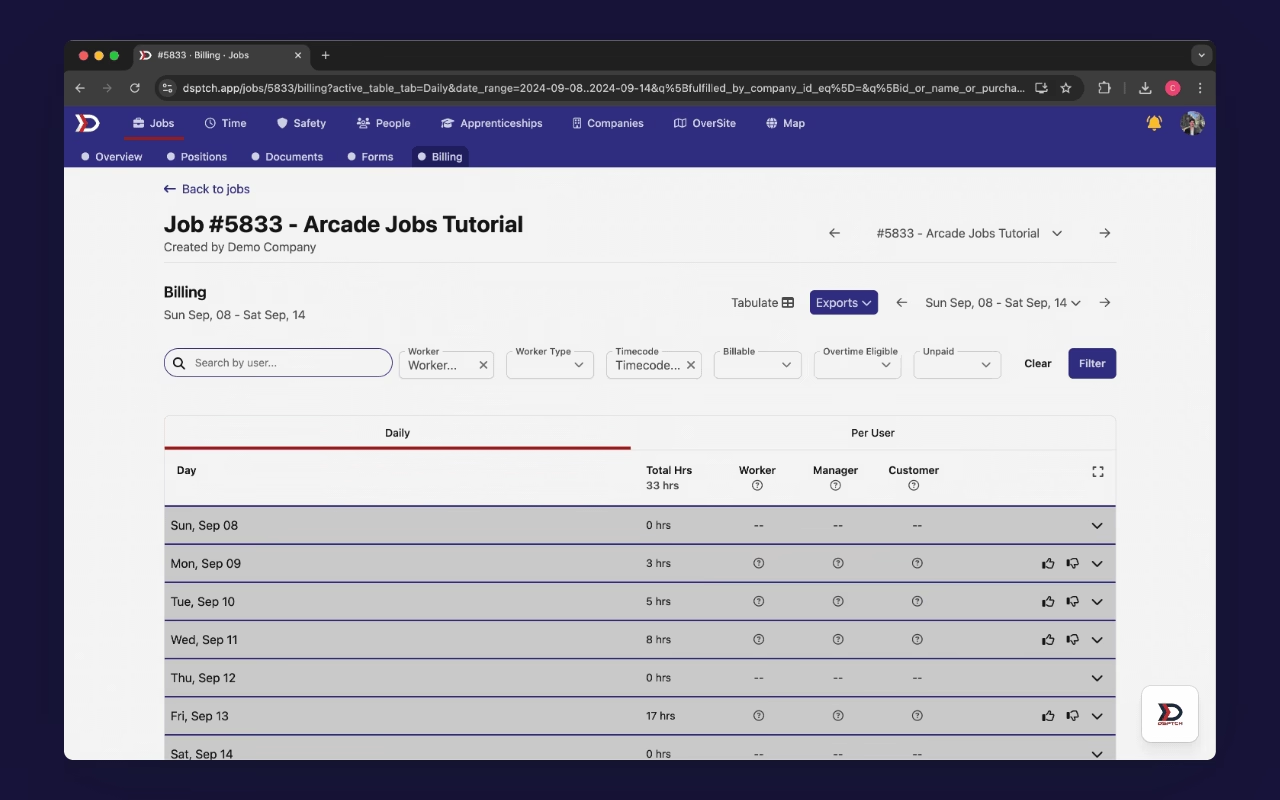
The "Per User View" Table is extremely similar to the "Daily View" Table. The only difference is that the "Per User View" Table displays time entries under each worker by default.
The same level of detail from the "Daily View" Table is available in the "Per User View" Table as well.
See videos above for more in-depth illustration.
Approve/Decline Time Entries in Billing
Time Entries can be approved/declined directly from the Billing tab.
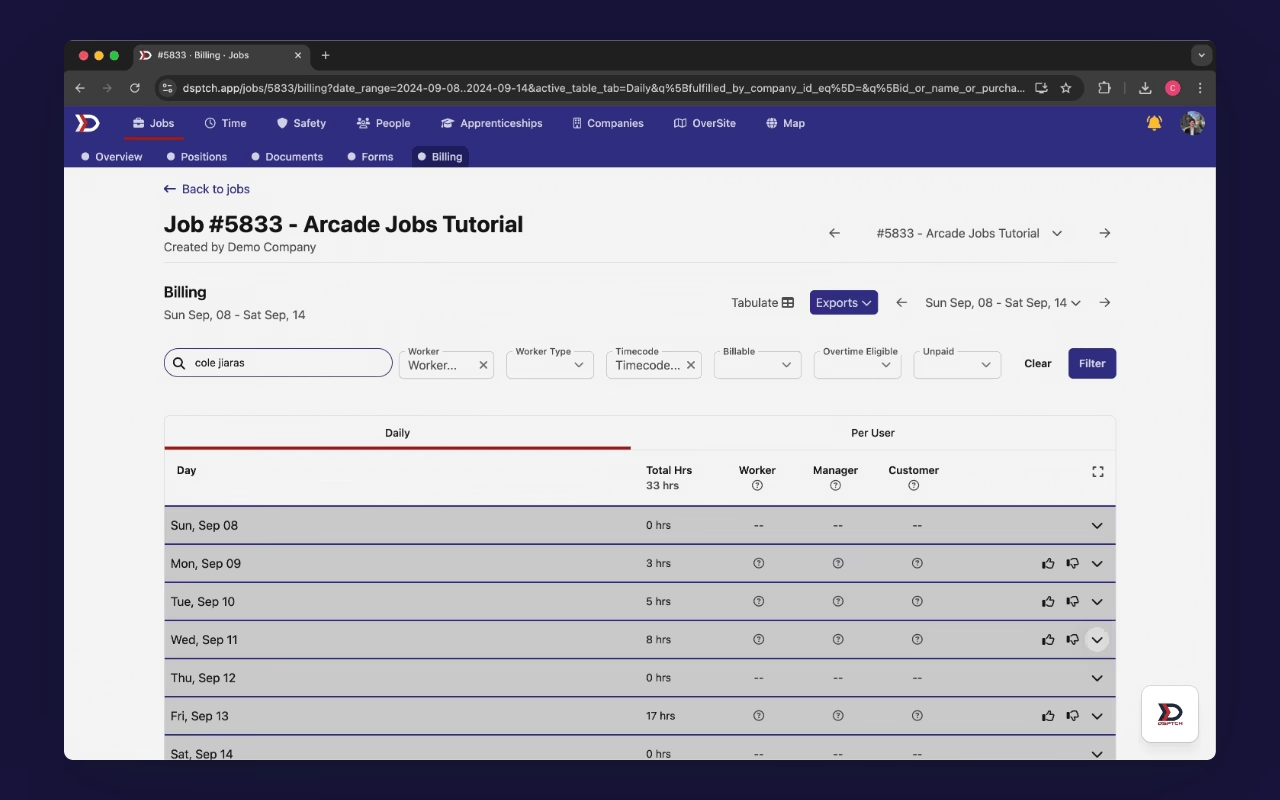
By using the thumbs up & thumbs down icons, you can approve/decline time entries for a given day or worker.
Billing Filters
To filter the view of hours that appear in the tables, you can use the filter options at the top.
Filter Options Include:
- Searching for a specific user in the search bar
- Selecting the worker from a dropdown
- Selecting the worker type (Employee, Contractor, or Either)
- Selecting the time code
- Selecting if the hours are billable or not
- Selecting if the hours are overtime eligible or not
- Selecting if the hours are paid or unpaid
Export Billing Data
The Billing page allows for exporting a pay period's data to PDF or CSV with just a few clicks. The desired data fields can be selected for inclusion prior to exporting.
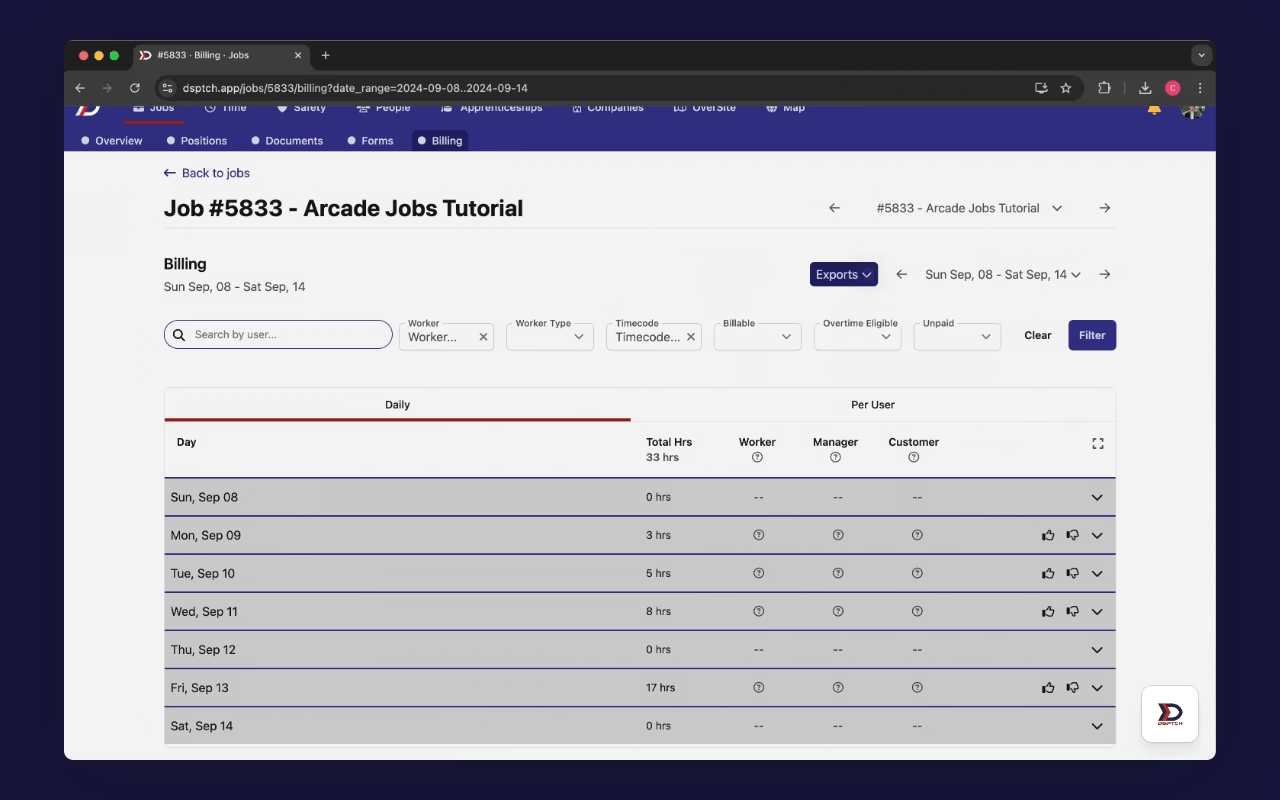
Note: Time Entry data can also be exported to CSV using the "Time" tab; however, the "Billing" tab is the only location where Time Entry data can be exported to PDF.
Tabulate Billing Data
Billing data can be tabulated into a format that can be easily integrated with your payroll system.