Job Invites & Assignments
In DSPTCH, there are two ways to join a Job: being Assigned or being Invited.
The Job's Manager is responsible for inviting/assigning technicians.
If a Job is expected to appear in your profile but is not present as an invite or assignment, contact the Job Manager.
Opening Jobs on Mobile
To open the Jobs tab from the Dashboard, click on the "Jobs" button from the bottom navigation bar.
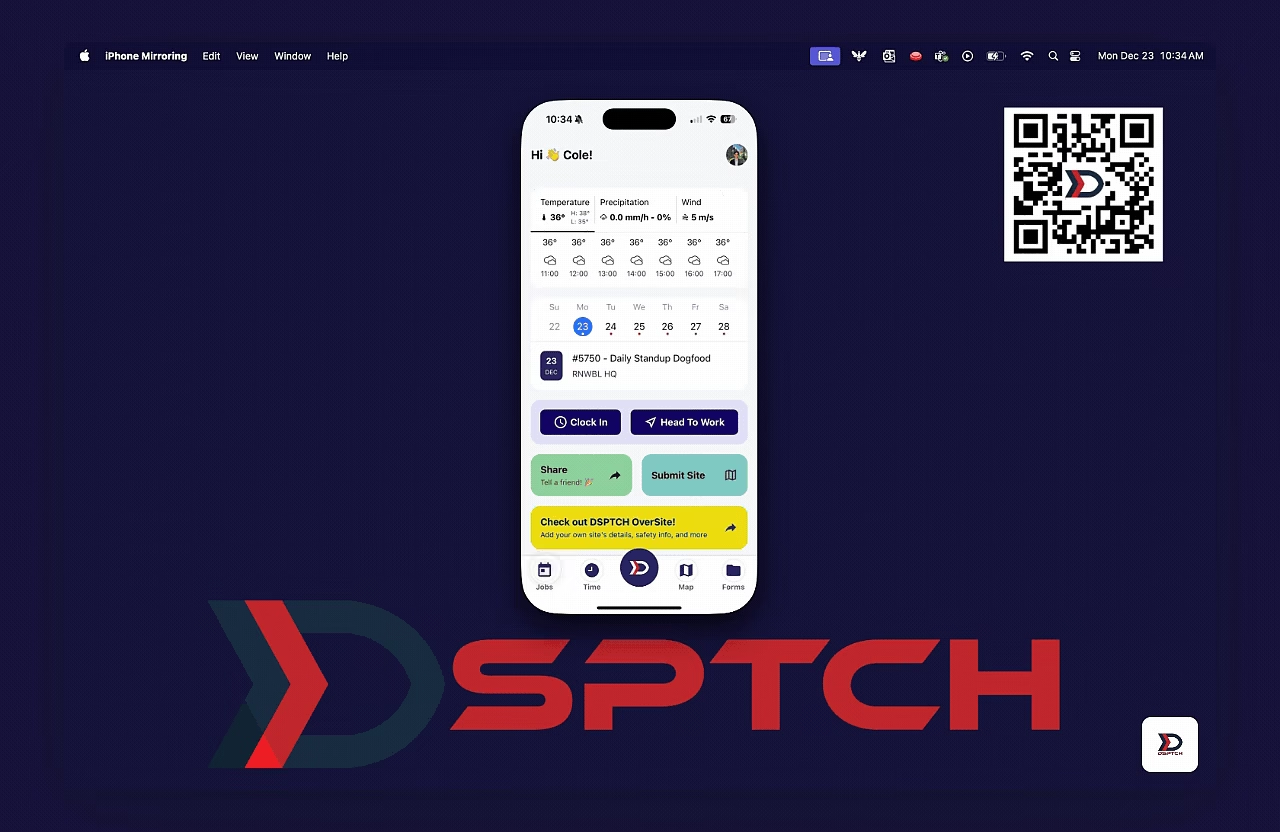
The Jobs tab includes an overview of how many Job Invites, In-Progress Jobs, and Upcoming Jobs are associated with your account. To view more information on any particular Job, click on the Job Card to open a more detailed view.
Assigned
When assigned to a job in DSPTCH, the job is automatically added to your schedule. No further action is required.
However, now under the "In Progress" or "Upcoming Jobs" sections, there are accessible details about the Assigned Job.
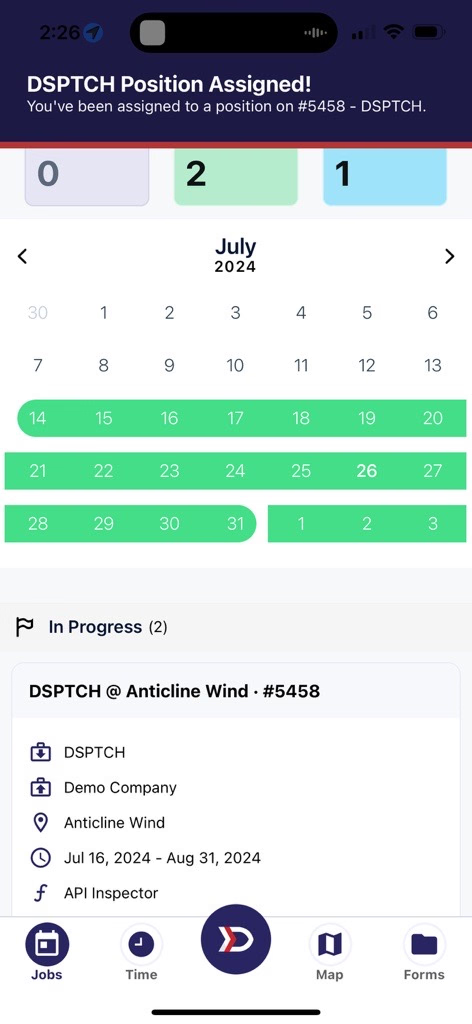
Example of an in app assigned position notification
Invited
When invited to a job, there is an option to accept or decline the Job Invite.
All pending invites can be found under the "Open Invites" section within the Jobs tab. If a Job Invite is accepted, the Job is then added to your schedule.
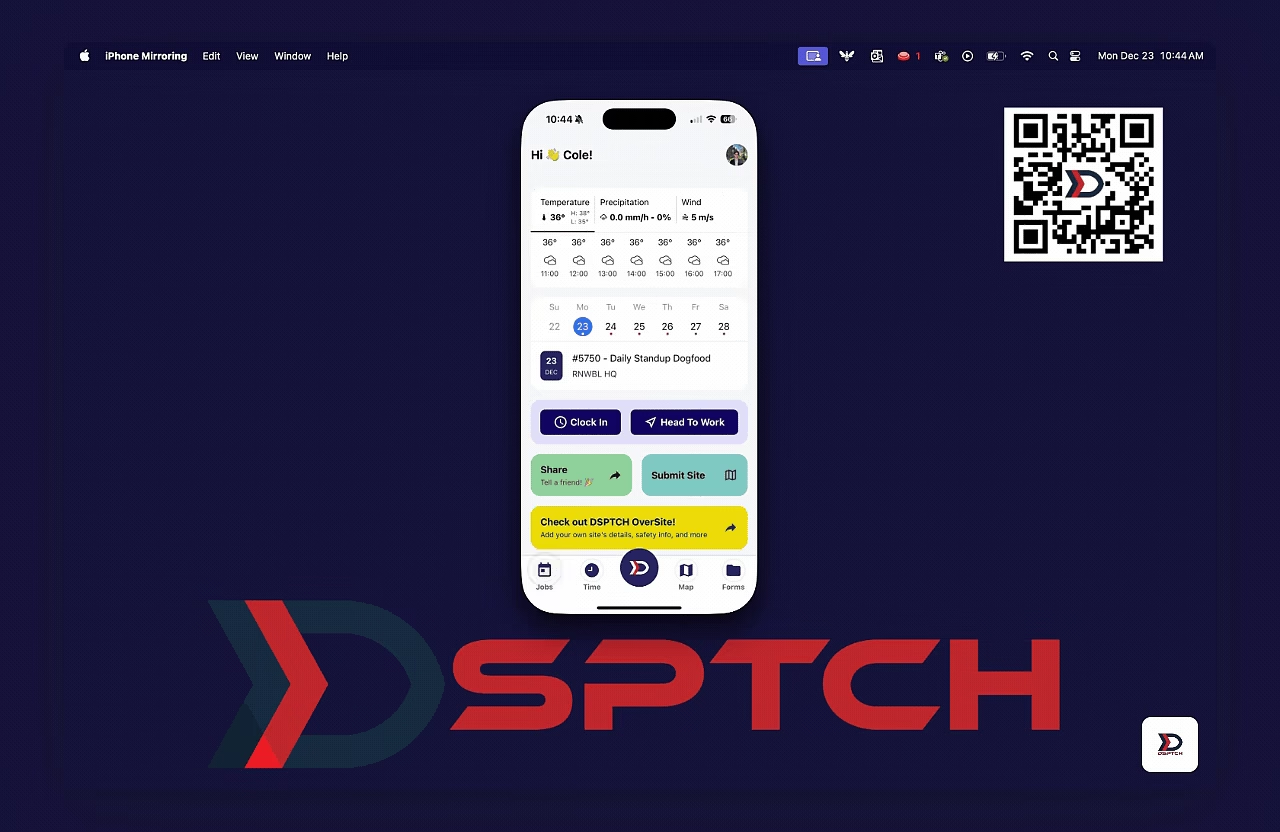
The Job will now be viewable under the "In Progress" or "Upcoming Jobs" sections depending on the Job start date.
The Job manager receives a notification whenever a Job invite is accepted or declined.
FAQ: What if I was incorrectly assigned to a Job?
If incorrectly assigned, contact your manager to be removed from the job.
If incorrectly invited, select Decline on the Job Invitation. All invites are accessible via the Profile Invite History.