Hours Allocation
How to Allocate Hours to Apprenticeship Program Work Process Categories
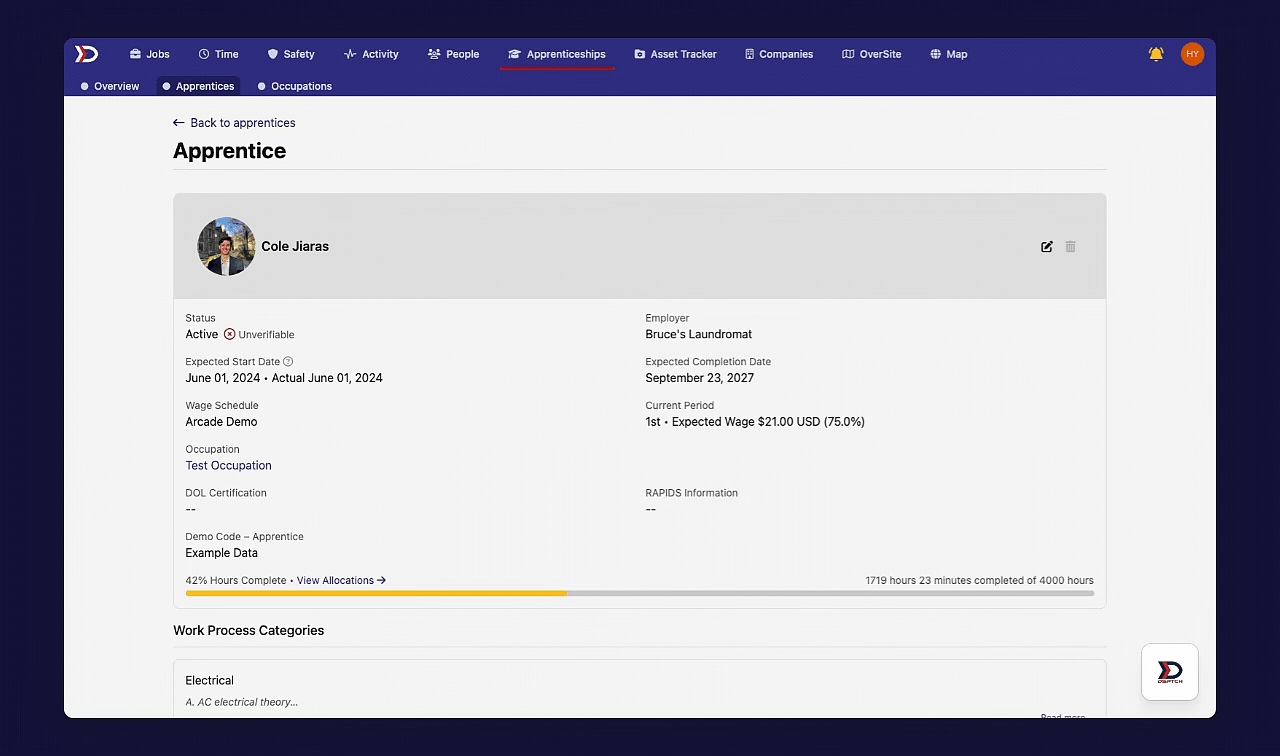
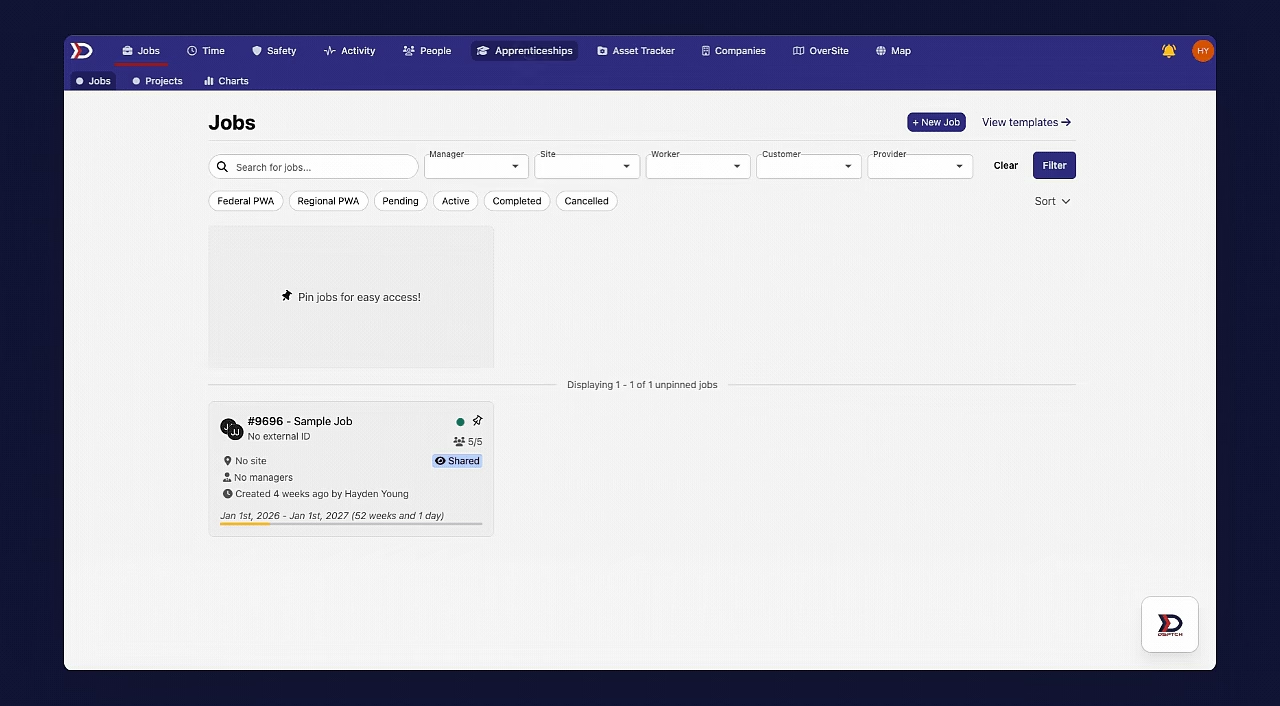
To allocate hours for an apprentice on DSPTCH Web, start by clicking on the "Apprenticeships" tab from the primary navigation bar at the top of the page. Then click the "Apprentices" tab from the sub-navigation bar.
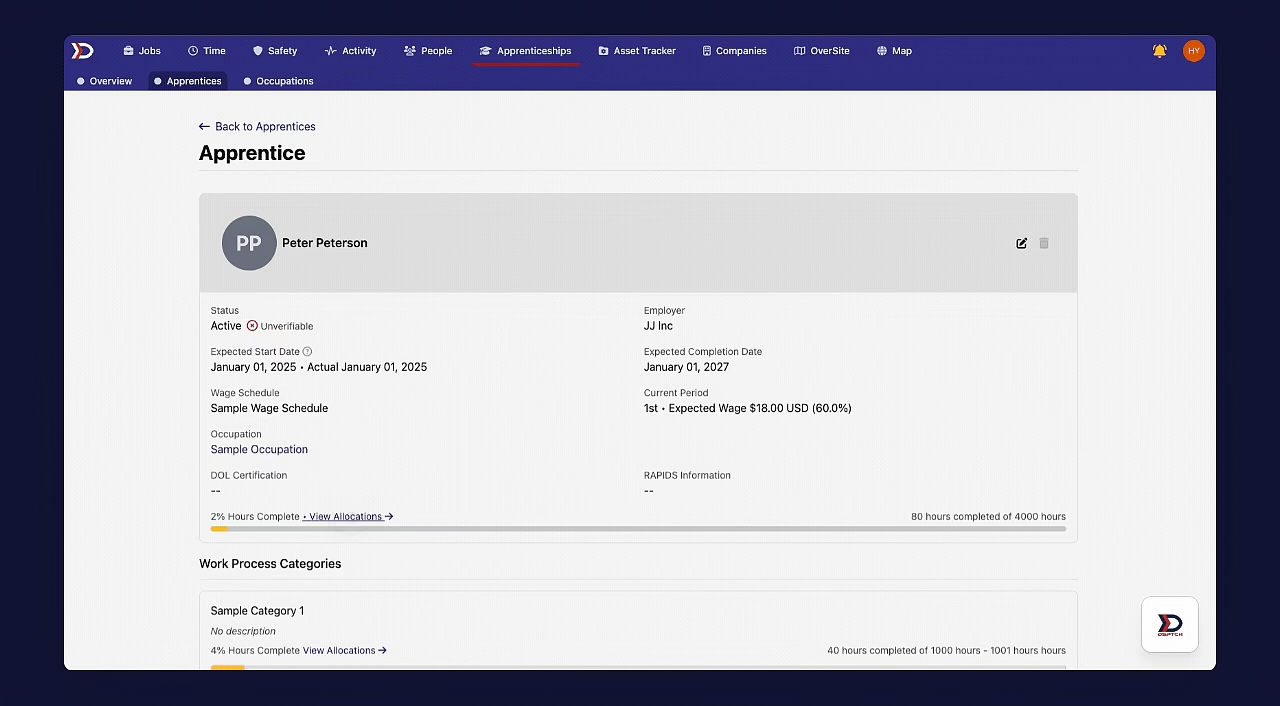
Next, scroll down and locate the apprentice for whom hours will be allocated and click on their profile. This will open the apprentice's profile page.
See the video below for a demonstration:
Next, click the "View Allocations" button. This will bring up a list of all time entries that the apprentice has logged. Locate a time entry with unallocated hours and click on it.
To categorize hours, click the "+ Categorize Allocations" button near the top right of the page. THis will open the allocation form. Select the number of hours/minutes to allocate and the work process category from the drop down menu. Finally, click the "Save" button.
See the video below for a demonstration:
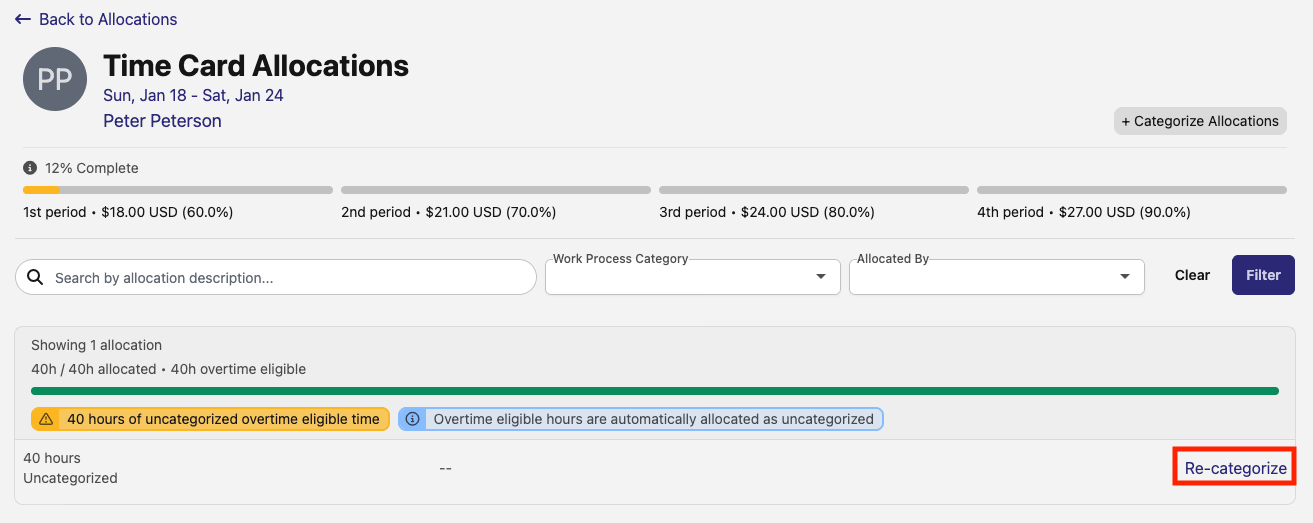
If there are uncategorized hours, click the "Re-categorize" button (indicated by the red box in the image below). As before, this will open the allocation form. Follow the previous instructions concerning the allocation form to allocate the hours towards a work process category.
See the video below for a demonstration:
Note that not all hours within the time entry need to be allocated towards the same work process category.
The total number of allocated hours cannot exceed the total number of hours logged in a given time entry.
How to View Apprenticeship Program Progress
To view an apprentice's progress within their apprenticeship program, start by clicking on the "Apprenticeships" tab from the primary navigation bar at the top of the screen. Then click the "Apprentices" tab from the sub-navigation bar.
Next, scroll down and locate the apprentice whose progress will be viewed and click on their profile. View the video below for a demonstration:
The apprentice's profile contains several progress trackers. The progress bar at the top of the profile shows the apprentice's total progress in their apprenticeship program (measured in percentage of required hours already allocated).
A progress bar for each individual work process category is also available.
Lastly, by clicking the "View Allocations" button on any of the progress bars, a detailed view of all time cards the apprentice has submitted will appear. Click on a time card to view the number of hours allocated towards each work process category.
See video below for a demonstration: