Drafts & Submissions
Drafts
Each time you start a form and exit without submitting the form, DSPTCH automatically saves a copy of the form in your Drafts section.
To save a form as a Draft, you must first start by filling out a form. Once in progress, to save the form as a Draft, press the "Save & Exit" button found in the top left corner of the screen.

The "Save & Exit" tab at the top of a form
Finding Form Drafts
Draft Forms can be found in two locations, either at the top of the Forms screen, or at the top of each Form Definition screen.
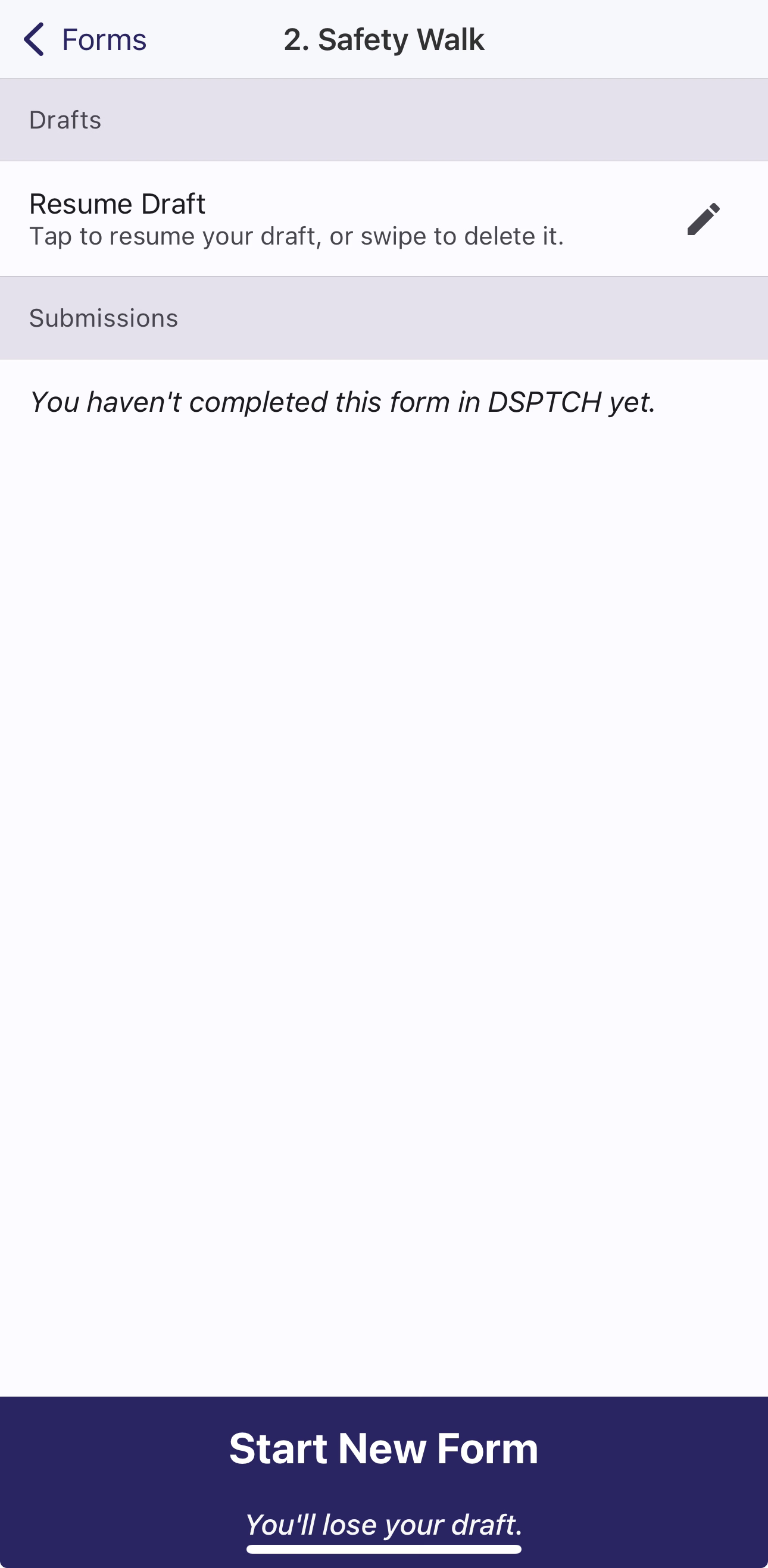
You'll see "Resume Draft" if a draft of a form is available.
If you have an unsubmitted Form Draft, pressing "Start New Form" will cause you to lose the previous Form Draft forever.
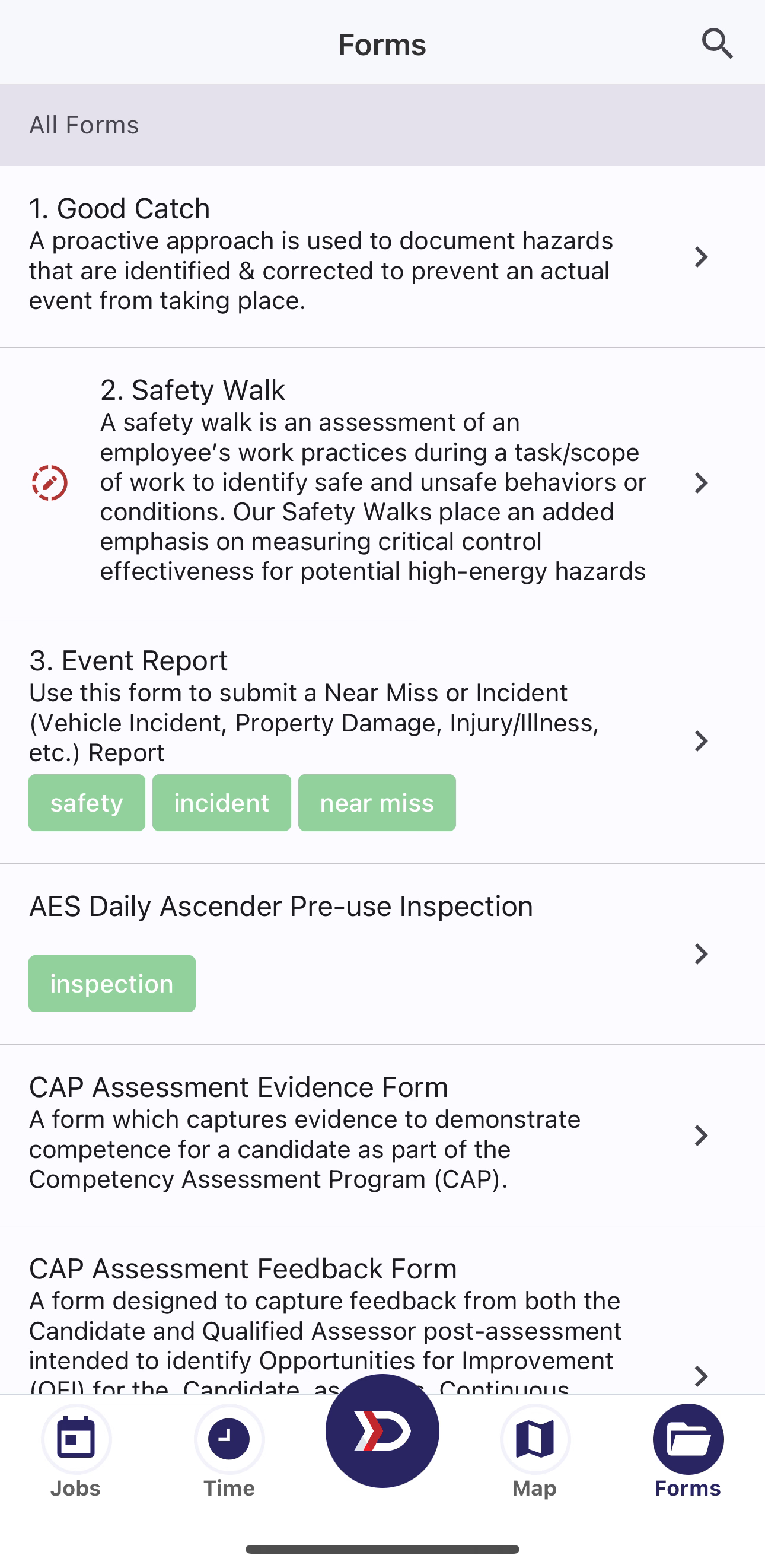
The dashed red circular indicator next to "2. Safety Walk" indicates there is a draft of that form.
You can only have one active Draft Form per Form Name. However, you can have Multiple Form Names that have an active Draft Form
Submissions
After you have submitted a form, you can view or edit a Form Submission by navigating back to the desired Form Name screen.
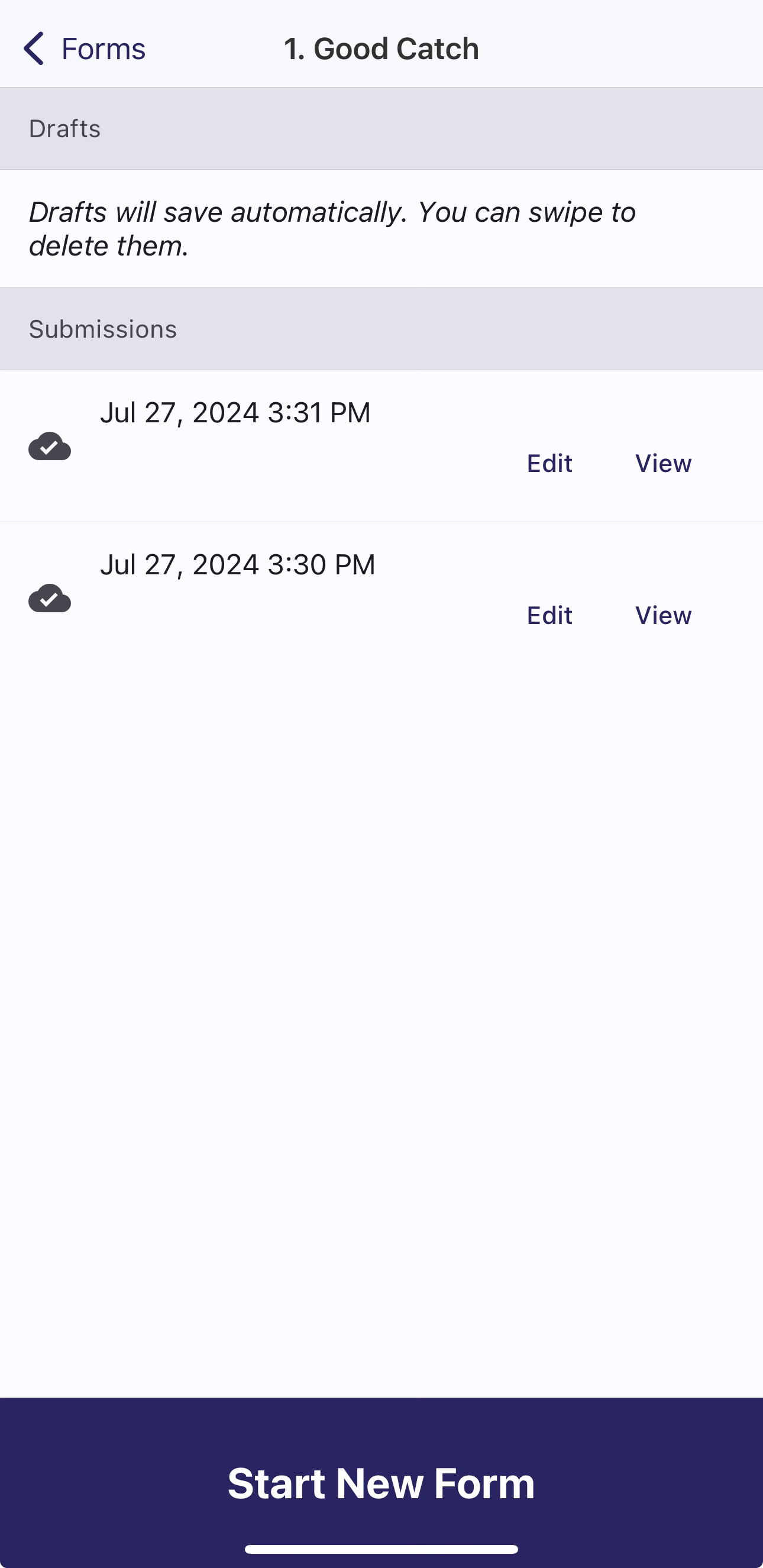
On the Form Name screen you can see all of your submissions under the "Submissions" banner. Press View to view your submission in a Read-Only format, or Edit to update your form submission.
If you edit a Form Submission, make changes to the previously submitted form, and select Save & Exit while editing the Form Submission, your edits will be save as a Form Draft. If you resume editing the saved Draft of the Form Submission, and submit the Draft, you will create a new Form Submission.
If you wish to edit a Form Submission without creating a new Form Submission, make sure to select the previously submitted Form Submission, make your edits to the Form, and then select the "Complete" button without pressing the "Save & Exit" button.